
Why Do Detectors Like IsItWP Still Show WordPress CMS?
This tutorial has moved to the new WP Ghost Knowledge Base where each feature is presented in detail.
If IsItWP, BuiltWith, or another CMS detector still shows your site as WordPress after you’ve configured WP Ghost, the most likely reason is cached results. Some detectors store CMS information for weeks or months after the initial scan and keep showing the old data regardless of what your site looks like now. This guide explains which detectors cache results, which ones give you real-time checks, and how to test your WP Ghost configuration correctly.
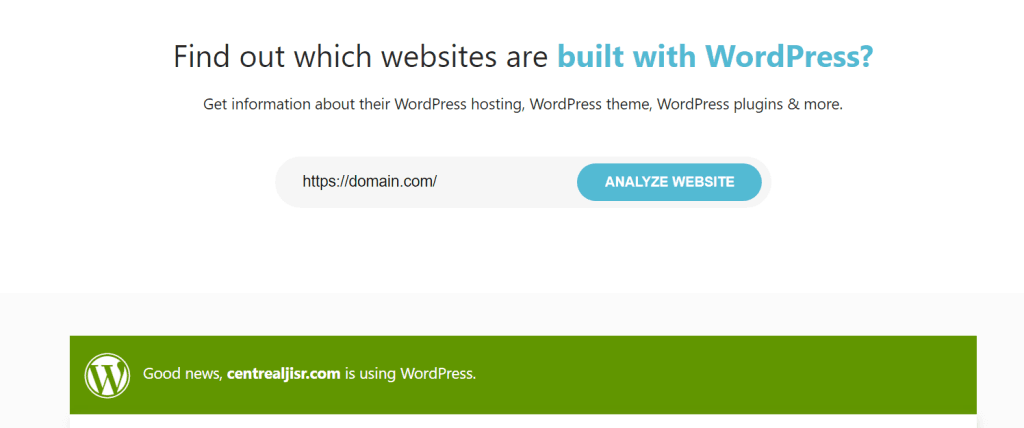
Why Does IsItWP Still Show WordPress After I Configured WP Ghost?
IsItWP.com caches its detection results for up to 30 days. Once it identifies your site as WordPress, it stores that information and serves the cached result for every subsequent check within that window. Even if you’ve completely hidden your WordPress fingerprint with WP Ghost, IsItWP keeps showing the old data until its cache expires.
You can prove this yourself: create a blank page with no WordPress content at all and run it through IsItWP. If the domain was previously identified as WordPress, IsItWP will still report WordPress from cache. The detector isn’t scanning your site in real time. It’s reading from its own stored records.
Which Theme Detectors Cache Results and Which Don’t?
This is the key distinction most people miss. Not all detectors work the same way. Some cache aggressively, some scan in real time. If you’re using a cached detector to verify your WP Ghost setup, you’ll get misleading results every time.
Detectors that cache results (avoid for testing): IsItWP and BuiltWith both store CMS detection data for extended periods, sometimes months. BuiltWith in particular maintains long-term historical records. These tools are useful for market research but unreliable for verifying your current security configuration. To remove your site from BuiltWith’s cache, visit their removals page at builtwith.com/removals.
Detectors that scan in real time (use these for testing): WPThemeDetector (wpthemedetector.com), WhatWPThemeIsThat (whatwpthemeisthat.com), WhatCMS (whatcms.org), and MyCodelessWebsite (mycodelesswebsite.com) all perform a fresh scan every time you check. These give you accurate, current results that reflect your actual configuration. If WP Ghost is set up correctly, these real-time detectors won’t identify WordPress, your theme, or your plugins.
How Should I Correctly Test If WP Ghost Is Working?
Testing with the wrong tools or in the wrong browser state gives false negatives. Follow these steps for accurate results:
First, run the internal Security Check. Go to WP Ghost > Security Check > Start Scan. The scanner verifies that your paths are changed, old paths are hidden, and your configuration passes all security tasks. If path-related checks show green, your setup is correct.
Second, manually inspect your page source. Open your site in a private/incognito browser window while logged out. View the page source and search for wp- using Ctrl+F. If no WordPress paths, class names, or version numbers appear, the hiding is working.
Third, test with real-time detectors. Use wpthemedetector.com, whatwpthemeisthat.com, or whatcms.org. If they can’t identify WordPress, your configuration is solid, regardless of what IsItWP or BuiltWith show from their cache.
Never test with browser extensions while logged in. Chrome extensions like Wappalyzer, WhatRuns, and BuiltWith detect WordPress through admin-only signals when you’re logged in. They may cache that result permanently and show WordPress every time, even when public visitors see a fully hidden site. Always use a separate browser profile or incognito window for testing.
For the complete hiding checklist and testing methodology, see the hide from theme detectors guide.
Can I Block Theme Detector Crawlers Entirely?
Yes. WP Ghost can block the crawlers used by CMS detection services before they even reach your site. Go to WP Ghost > Firewall > Header Security and switch on Block Theme Detectors Crawlers. This blocks crawlers from WPThemeDetector, BuiltWith, IsItWP, Wappalyzer, WhatCMS, WP Detector, Scan WP, and others.
Blocking the crawlers means they can’t gather new data about your site. Combined with path changes and fingerprint removal, this gives you the strongest possible protection against CMS identification. For full firewall configuration details, see the firewall tutorial.
Frequently Asked Questions
How long do I need to wait for cached detectors to update?
IsItWP caches results for up to 30 days. BuiltWith can retain records for months. There’s no reliable way to force their caches to clear. For BuiltWith specifically, you can submit a removal request at builtwith.com/removals. For IsItWP, you’ll need to wait for the cache to expire naturally. In the meantime, use real-time detectors to verify your setup is working.
A real-time detector still identifies WordPress on my site. What should I check?
Three things. First, make sure you’re testing while logged out in an incognito window. Logged-in sessions expose admin signals. Second, view your page source and search for wp-. If old paths, class names, or version tags still appear, identify the source (a cache plugin serving old pages, a hardcoded theme reference, or a Text Mapping rule you missed). Third, make sure you’ve cleared all caches after configuring WP Ghost, including your WordPress caching plugin, CDN, and server cache.
Does it matter if cached detectors still show WordPress?
From a security perspective, not much. Cached detector results are just historical records in a third-party database. What matters is whether bots can actually identify WordPress when they scan your site in real time. If your paths are changed, old paths return 404s, and real-time detectors come up empty, your site is protected. Cached results will eventually expire or become irrelevant.
Should I also block browser extension detectors?
Browser extensions like Wappalyzer and WhatRuns run in the visitor’s browser and detect CMS signals from the page content. WP Ghost’s path changes and fingerprint removal are effective against these extensions for public visitors. The issue only arises when you (as the admin) have these extensions installed in the same browser you use for WordPress admin work. Use a separate browser profile for admin tasks to avoid polluting detector caches.
Does WP Ghost modify WordPress core files?
No. WP Ghost uses server rewrite rules and WordPress filters to change paths and remove fingerprints at runtime. No core files, theme files, or plugin files are modified, moved, or renamed. Deactivating WP Ghost restores all default WordPress paths instantly.