
How Do I Change WordPress Paths in the Admin Dashboard?
This tutorial has moved to the new WP Ghost Knowledge Base where each feature is presented in detail.
By default, WP Ghost only changes WordPress paths on the frontend (what visitors and bots see). The admin dashboard keeps the original paths. If you need path changes to apply inside the admin area too, you can enable it with a single line in wp-config.php. This guide shows you how, when you’d want to do it, and what to watch out for.
Why Does WP Ghost Only Change Frontend Paths by Default?
WP Ghost’s primary goal is hack prevention. Bots and scanners only see the frontend of your site, so changing paths on the frontend is what stops them from identifying WordPress. The admin dashboard is already behind authentication, meaning only logged-in users can see it. Changing paths there adds minimal security value but can introduce compatibility issues with plugins and themes that depend on default WordPress paths internally.
That said, there are valid reasons to enable admin-side path changes: white-labeling a client site where you don’t want “WordPress” visible even in the dashboard, applying Text Mapping rules to META tags in the admin area, or achieving complete path consistency across frontend and backend for privacy requirements.
How Do I Enable Path Changes in the Admin Dashboard?
You need to add a constant to your wp-config.php file. Use an FTP client (like FileZilla) or your hosting file manager to access your site’s files. Open the wp-config.php file in the root directory of your WordPress installation. Insert the following line anywhere before the comment that says /* That's all, stop editing! Happy publishing. */:
define('HMW_ALWAYS_CHANGE_PATHS', true);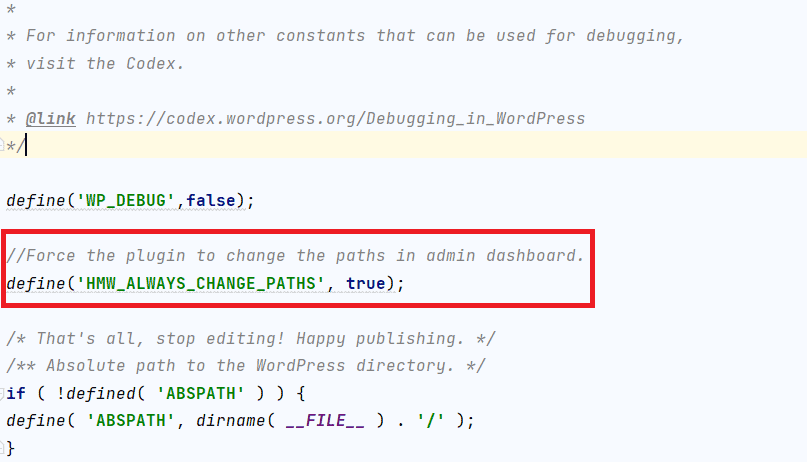
Save the file and upload it back to the server if you’re using FTP. Then go to WP Ghost > Change Paths in your WordPress dashboard and click Save to apply the changes. WP Ghost will now process path changes, text mapping, and URL mapping in the admin backend too.
What Should I Do Before Enabling This?
This is an advanced feature, so take precautions before enabling it. Always create a full backup of your site first. Changing paths in the admin backend can affect compatibility with plugins or themes that depend on default WordPress paths. Some page builders, form plugins, or dashboard tools may reference /wp-admin/ or /wp-content/ internally, and those references will be rewritten.
After enabling, test your admin dashboard thoroughly. Check that your page builder editor still works, forms submit correctly, and any admin-only plugins function as expected. If something breaks, remove the line from wp-config.php and save WP Ghost settings again to revert.
How Do I Disable It Again?
Open wp-config.php via FTP or your file manager and either delete the define('HMW_ALWAYS_CHANGE_PATHS', true); line or change true to false. Save the file, then go to WP Ghost > Change Paths and click Save again. The admin dashboard will return to using default WordPress paths while the frontend stays protected.
If you can’t access the admin dashboard after enabling this constant, use the emergency disable method to regain access.
Frequently Asked Questions
Is enabling admin path changes recommended?
For most users, no. Frontend-only path changes provide the security benefit you need, since bots and scanners only see the frontend. Admin path changes are useful for white-labeling, privacy compliance, or extending Text Mapping to admin META content. If you don’t have a specific reason to enable it, leave the default behavior.
Will this break my page builder or other admin plugins?
It might. Some plugins reference default WordPress paths internally. If Elementor, Divi, WooCommerce admin pages, or other tools stop working correctly after enabling, the constant is the likely cause. Remove it from wp-config.php to revert. Always test thoroughly after enabling.
Does this affect Text Mapping and URL Mapping in the admin area?
Yes. When HMW_ALWAYS_CHANGE_PATHS is set to true, all WP Ghost features apply to the admin backend too: path changes, Text Mapping replacements, URL Mapping, and META tag changes (if the Meta Mapping extension is installed). This is useful if you need class name replacements or branding changes to appear in the admin dashboard.
Can I edit wp-config.php from the WordPress dashboard?
No. For security reasons, wp-config.php can only be edited through FTP, your hosting file manager, or SSH. This is by design, as it prevents unauthorized modifications through the WordPress admin interface.
Does WP Ghost modify WordPress core files?
No. WP Ghost uses server rewrite rules and WordPress filters to change paths at runtime. The HMW_ALWAYS_CHANGE_PATHS constant tells WP Ghost to extend its runtime processing to admin pages, but no core files, theme files, or plugin files are ever modified. Removing the constant and saving settings restores default admin behavior instantly.