
What Can I Do If I Can’t Login After Using WP Ghost?
This tutorial has moved to the new WP Ghost Knowledge Base where each feature is presented in detail.
WP Ghost has multiple built-in recovery methods so you are never permanently locked out. If a compatibility issue prevents you from logging in, you can use the Safe URL to bypass all path changes, pause the plugin for 5 minutes from the Plugins page, rollback all settings to defaults, or disable WP Ghost entirely via FTP or wp-config.php. Here is each method in order from quickest to most thorough.
Prevention: Test Before You Save
When you activate Safe Mode or Ghost Mode, WP Ghost asks you to run a Frontend Test and a Login Test through a preview popup before applying the changes. If anything looks wrong in the preview, like a broken layout, missing styles, or a non-functional login page, you can abort without saving. Always complete both tests before confirming. If you notice issues during the test, try a different browser or a private window to rule out caching. If the issue persists in the preview, do not save the changes.
WP Ghost also provides a Safe URL after saving, which is a unique URL parameter that bypasses all WP Ghost protections for a single request. Save this URL immediately. Bookmark it, store it in a password manager, or write it down. This is your emergency key if you ever get locked out.
Recovery Method 1: Use the Safe URL
Append your Safe URL parameter to any page on your site. For example: https://yourdomain.com/?disable=YOUR_SAFE_PARAM. This temporarily deactivates all WP Ghost security features for that single request, letting you access the default /wp-login.php page and log into the dashboard normally. WP Ghost reactivates automatically on the next request without the parameter. No settings are changed.
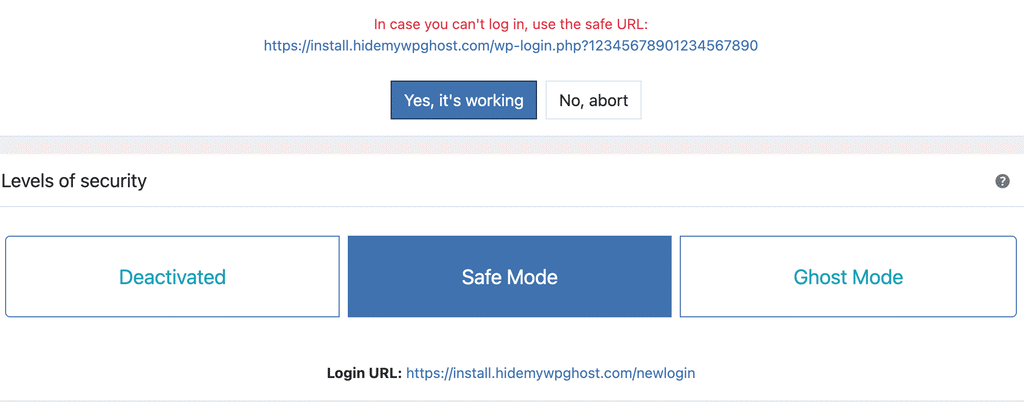
Once logged in, you can adjust WP Ghost settings, change paths, or disable features that caused the conflict.
Recovery Method 2: Pause for 5 Minutes
If you can still access the WordPress dashboard (just not the custom login page), go to Plugins > Installed Plugins, find WP Ghost, and click Pause 5 Minutes. This disables all WP Ghost features for 5 minutes, giving you time to test compatibility, adjust settings, or deactivate a conflicting plugin. WP Ghost reactivates automatically after 5 minutes.
Recovery Method 3: Rollback to Defaults
Use the Safe URL to access the admin panel, then go to WP Ghost > Change Paths and set the Level of Security to Default. Click Save. This removes all custom paths, disables all protection features, and returns WP Ghost to its initial state. From there you can start configuring again from scratch.
Recovery Method 4: Emergency Disable via FTP
If none of the above methods work (for example, you lost your Safe URL and cannot access the dashboard at all), you can disable WP Ghost through FTP or your hosting’s File Manager. You have two options: rename the plugin folder from /wp-content/plugins/hide-my-wp/ to something else (like hide-my-wp-disabled), which deactivates the plugin and restores all defaults. Or add define('HMWP_DISABLE', true); to your wp-config.php file, which disables WP Ghost at runtime without deactivating it, making it easier to re-enable once the issue is resolved. For the full step-by-step guide, see the Emergency Disable tutorial.
Frequently Asked Questions
What if I forgot my Safe URL?
If you didn’t save your Safe URL, use the FTP method instead. Rename the WP Ghost plugin folder or add the HMWP_DISABLE constant to wp-config.php. After regaining access, go to WP Ghost > Advanced > Rollback Settings to find and save your Safe URL for next time. You can also customize it to something memorable.
Does the Safe URL permanently disable WP Ghost?
No. The Safe URL only deactivates WP Ghost for the specific request that includes the parameter. The very next request without it loads WP Ghost normally. No settings are changed.
Is the Safe URL a security risk?
Only if someone else knows the parameter value. WP Ghost generates a random, unique value on installation. Customize it to something long and unpredictable in WP Ghost > Advanced > Rollback Settings, and treat it like a password. Do not share it publicly.
Does WP Ghost modify WordPress core files?
No. All recovery methods work because WP Ghost applies changes at runtime through rewrite rules and WordPress hooks, not by modifying files. Disabling or deactivating the plugin instantly reverts everything to WordPress defaults.