Open a random site in your browser, click a detector extension, and it names the CMS, the theme, and half the plugin stack before the page finishes loading. Any visitor, or any attacker, can do the same to your site right now. Removing your footprint tag by tag helps, but detectors are built to beat exactly that. They read dozens of signals at once and need only one to confirm you.
This guide is about defeating the detectors specifically: the browser extensions, the online CMS scanners, and the technology-profiling databases that fingerprint WordPress. If you have already worked through general WordPress footprint removal, this is the next layer, which is making the tools that look for WordPress come back empty.
How WordPress Detectors Actually Fingerprint You
Detectors do not see WordPress. They match patterns. Knowing which patterns they check is most of the work, because you cannot hide from a signal you do not know you are sending. Technology profilers like Wappalyzer and BuiltWith, plus CMS scanners like WhatCMS and the security-focused WPScan, look at:
- HTML fingerprints. The generator meta tag,
//s.w.org and //api.w.org references, emoji and oEmbed scripts, and body classes such as page-id-*. - Asset paths. Any
/wp-content/, /wp-includes/, or theme and plugin directory in your source is a near-certain WordPress tell. - HTTP headers. The
Link header advertising the REST API (rel="https://api.w.org/"), the X-Pingback header, and default cache headers. - Predictable URLs.
/wp-json/, /wp-login.php, /readme.html, /xmlrpc.php, and /wp-admin/. A single 200 response confirms the platform. - Cached and historical records. This is the one people miss. Profiling databases store what your site looked like the last time they crawled it, so they keep reporting WordPress long after you clean the live page.
You remove signals 1 to 4. Signal 5 you have to flush actively, which the last step covers. For a fuller catalogue of which tools check what, see the most popular WordPress theme detectors and how to hide from WordPress theme detectors.
Make Detectors Come Back Empty: The Anti-Fingerprinting Steps
Work through these in order and re-test with a detector after each one. The goal is not fewer signals. It is zero confirming signals, because one is enough.
- Kill the version and generator tags. Remove the generator meta tag and strip
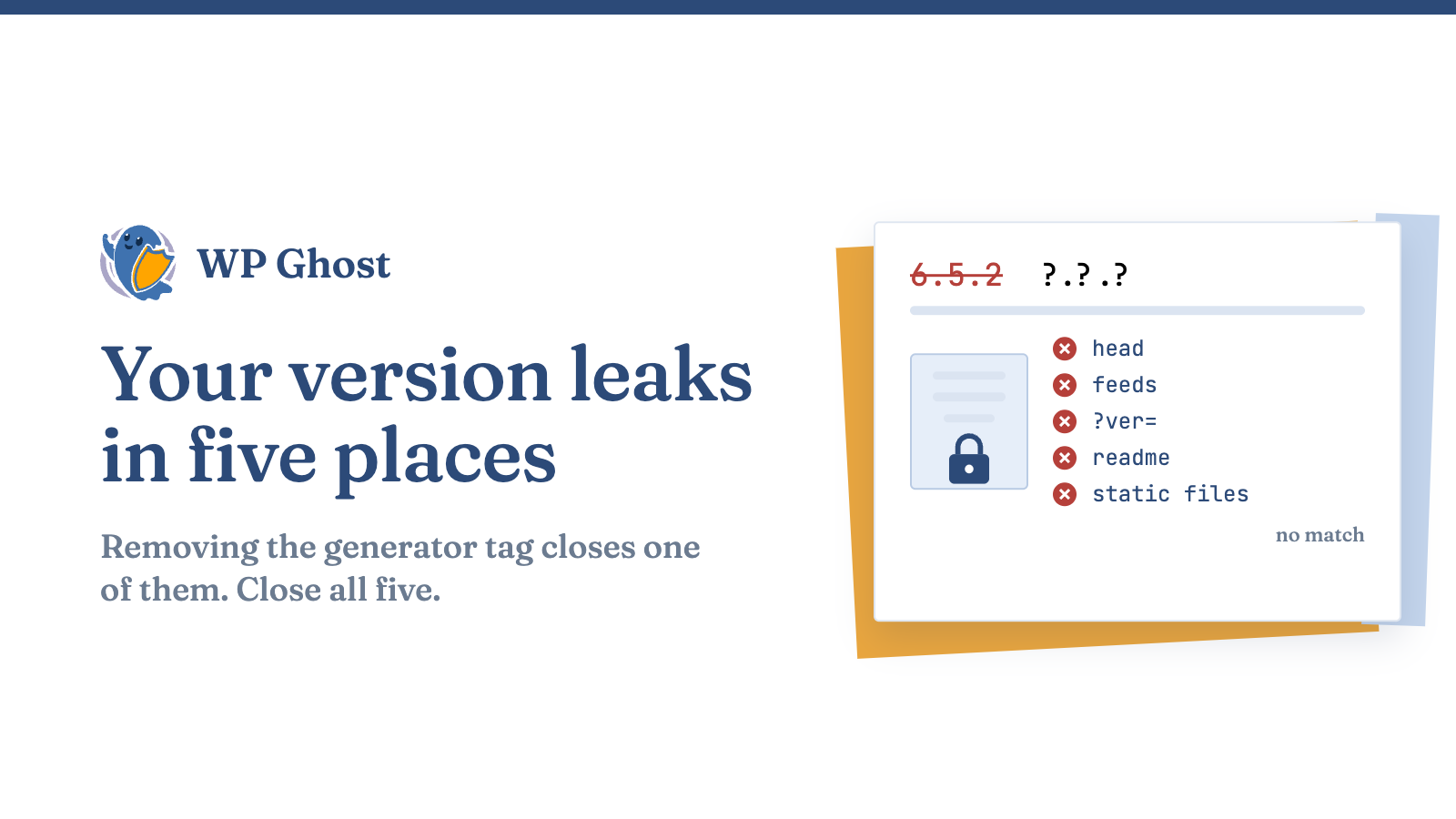
?ver= strings from CSS and JS so scanners cannot read your version. Details in how to hide the WordPress version and remove the generator meta tag. - Rewrite
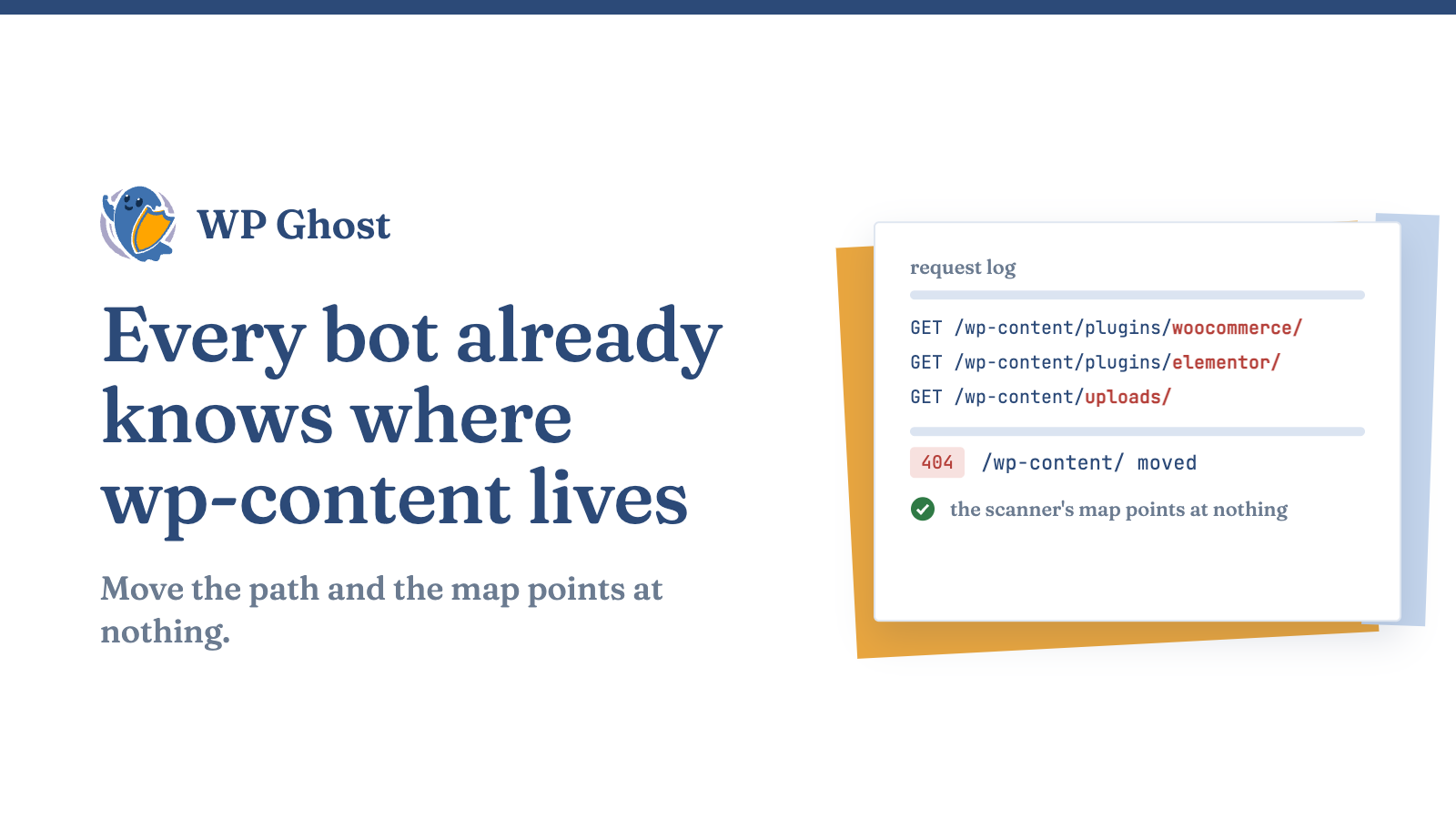
/wp-content/ and /wp-includes/. These paths are the loudest structural fingerprint a profiler reads. Map them to neutral paths carefully, so references do not break, using custom WordPress paths. - Remove the REST API discovery signal. Drop the
Link header advertising api.w.org and restrict unauthenticated /wp-json/ responses that leak users and active plugins. - Block the giveaway files and endpoints. Return 404s on
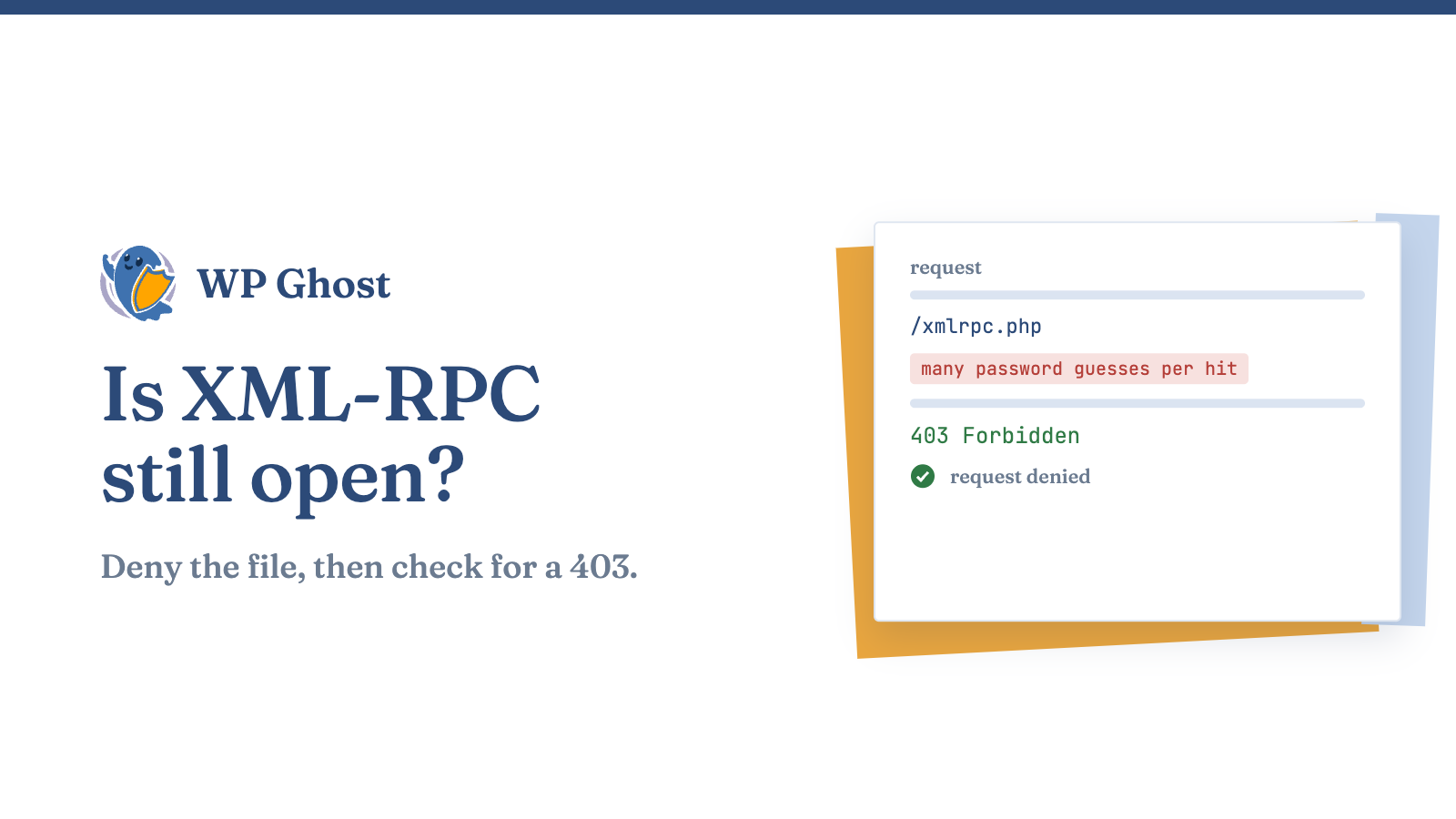
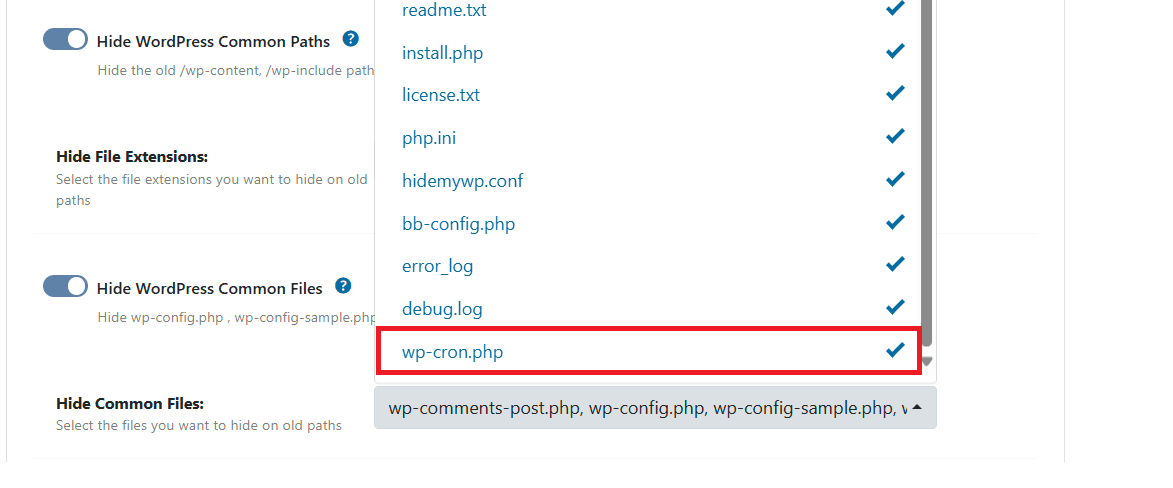
readme.html, license.txt, wlwmanifest.xml, and the RSD endpoint, and remove the X-Pingback header. - Change the login and admin paths. A custom login slug plus redirects on
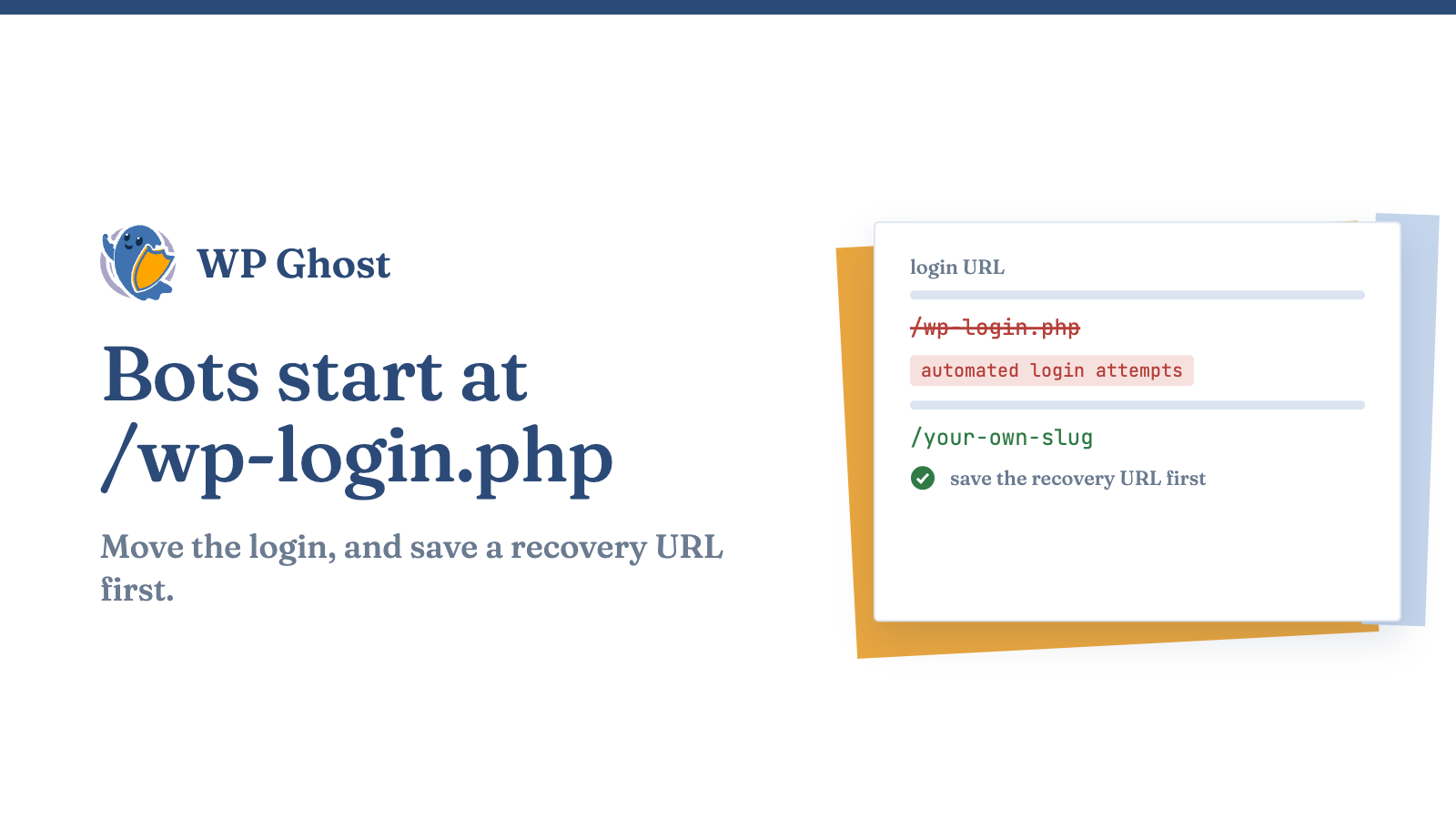
/wp-login.php and /wp-admin/ removes both a confirmation signal and the target of automated login attacks. - Strip the small tells. Remove theme and plugin HTML comments, the emoji script, and
s.w.org DNS-prefetch tags. These are the leftovers most people forget after doing the big items. - Flush cached detection results. After the live page is clean, re-scan and, where the profiler allows, request a re-crawl so its stored record updates. This is the step that makes the database-backed detectors finally agree you are hidden.
“I Hid Everything, but BuiltWith Still Says WordPress”
This is the most common complaint, and it is almost always signal 5, the cached history. BuiltWith and similar profilers are databases, not live scanners. They report the last snapshot they took, so a site you cleaned yesterday can show WordPress for weeks until the record refreshes. The fix is not more hardening. It is forcing or waiting out the re-crawl. The detector-specific playbooks cover the exact process. Hide WordPress from BuiltWith walks through the cache-removal steps, and hide WordPress from Wappalyzer covers the extension that reads your live page in real time.
The Detectors You Won’t Fully Beat
Know the ceiling here. Some detection is behavioural rather than signature-based: response timing, the shape of a 404 page, how the site handles a malformed request, or JavaScript globals a script reads after the DOM loads. A determined analyst running a custom check can often still infer WordPress even when every standard signal is gone. Anti-fingerprinting defeats the automated, at-scale detection that feeds opportunistic attacks. It does not guarantee invisibility to a human who is specifically investigating you. Aim for scanners that give up, and accept that a focused person may still work it out.
Manual Hardening vs. a Managed Approach
You can do every step above by hand. The problem is durability. A core update restores readme.html, a new plugin enqueues fresh versioned assets, and your cleaned headers reset. Miss one signal after any update and the detectors light up again. Anti-fingerprinting is only as good as its weakest un-refreshed moment.
A dedicated solution keeps the whole signal set suppressed and re-applies it after updates. Hide My WP Ghost bundles the anti-fingerprinting work. It hides the generator and DNS-prefetch tags, strips versions from image, CSS, and JS files, removes detector-readable HTML comments, rewrites wp-content and wp-includes, redirects the default login and admin paths, and handles the cached-detection cleanup for the profiling databases. Review the full list of security features to see each toggle, and confirm your result with how to know if your site is hidden from detectors.
The Payoff: An Empty Scan
A clean detector result changes the economics of attacking you. Opportunistic bots pick targets by scanning for a known CMS and version, then firing the matching exploit. When Wappalyzer, BuiltWith, and the CMS scanners return nothing, or return a false or blank result, your site drops off those automated target lists. You are not invisible to a skilled human, but you have removed yourself from the volume game where most attacks actually happen. Start with the version and generator tags today, work down the seven steps, and then flush the caches so the databases agree.
Frequently Asked Questions
If I already removed my footprint, why do I still need detector evasion? Footprint removal and detector evasion overlap, but they are not identical. Footprint removal cleans your live source. Detector evasion also handles the cached databases and the real-time extensions that re-check you. A site can have a clean footprint and still show WordPress in a profiler that has not re-crawled.
Will hiding from detectors break my site or hurt SEO? No, when done correctly. Search engines index your content, not your CMS signature, so a blank detector result has no effect on rankings. The only real risk is careless path rewriting, so check that old URLs redirect and that you don’t create 404s.
Can Wappalyzer or BuiltWith still detect me after all this? The live-page extension (Wappalyzer) should come back empty once every signal is gone. The database-backed profiler (BuiltWith) may lag until its cached record refreshes, which is expected and clears with a re-crawl rather than more hardening.
Is detector evasion the same as being secure? No. It reduces your automated attack surface, which is real and valuable, but it never replaces updating plugins, running a firewall, and enforcing strong logins. Treat it as one layer, not the whole defense.
How do I verify I’m actually hidden? Run the site through several detectors, a live extension, an online CMS scanner, and a profiling database, and confirm each returns no WordPress signature. Re-check after every major update, since a WordPress, theme or plugin update can bring the signals back.