Set Up WP Ghost on Local by Flywheel – Nginx Configuration Guide
April 15, 2024
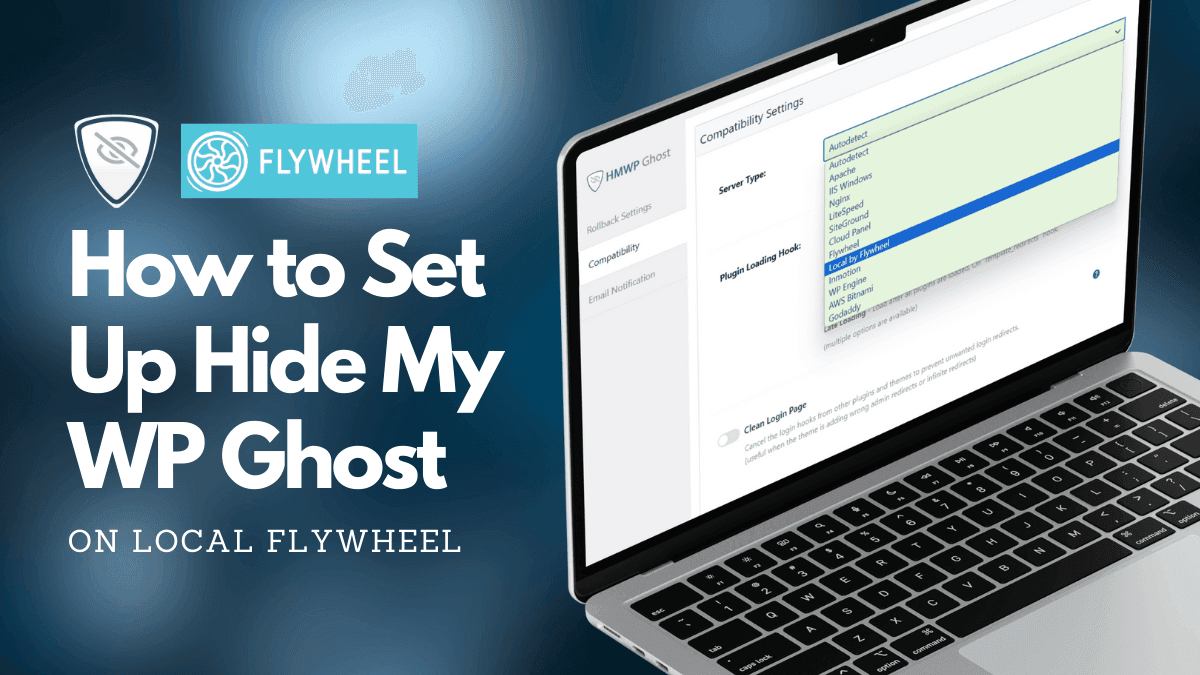
This tutorial has moved to the new WP Ghost Knowledge Base where each feature is presented in detail.
WP Ghost (formerly Hide My WP Ghost) works on Local by Flywheel with Nginx configuration. When using the Nginx server option in Local, you need to select “Local by Flywheel” as the server type in WP Ghost and add one include line to the Local site config file. With Apache in Local, WP Ghost works automatically through .htaccess.
How to Set Up WP Ghost on Local by Flywheel (Nginx)
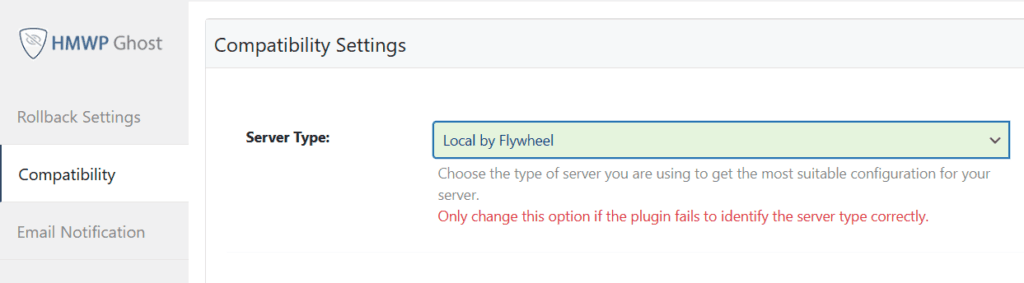
Step 1: Select the Local by Flywheel Server Type
Go to WP Ghost > Advanced > Compatibility. Select the server type as “Local by Flywheel”. This tells WP Ghost where to generate the config file and how to format the include path.
Step 2: Activate Safe Mode or Ghost Mode
Go to WP Ghost > Change Paths > Level of Security. Select Safe Mode or Ghost Mode. Customize paths or keep the defaults. Click Save.

Step 3: Copy the Include Line
After saving, WP Ghost displays a message with the include line you need to add. Copy the line include includes/hidemywp.conf.
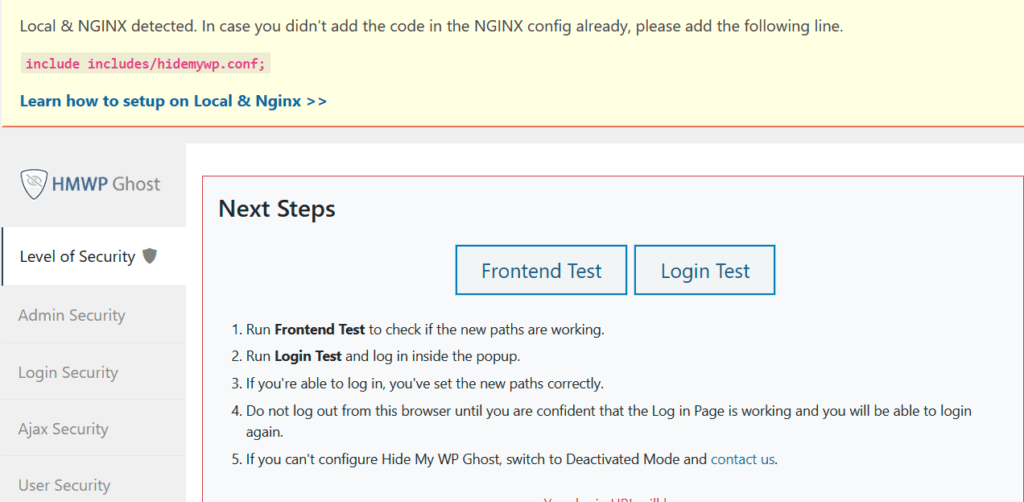
Step 4: Add the Include Line to the Local Config
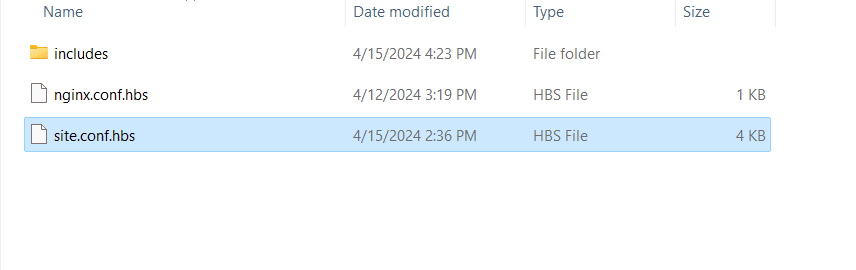
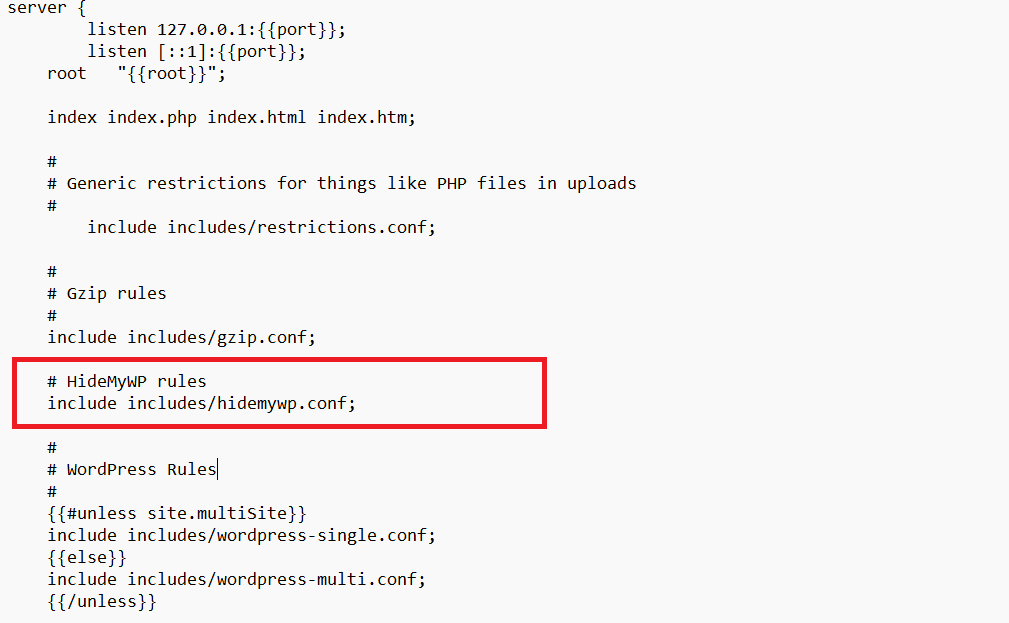
Open the Local site folder. Edit the file conf/nginx/site.conf.hbs. Add the include line before the WordPress rewrite rules.
Step 5: Restart the Local Server
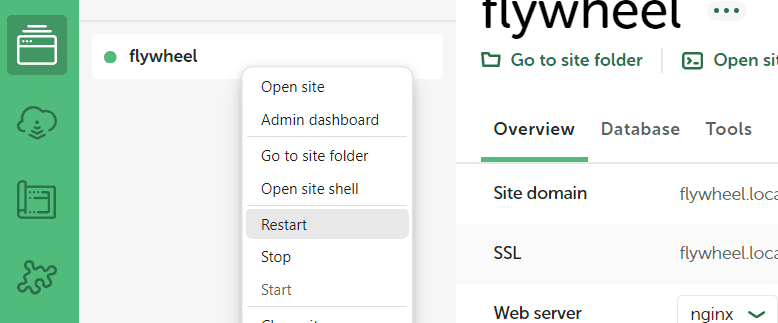
In the Local by Flywheel panel, restart the site to reload the Nginx configuration with the new include.
Step 6: Run the Frontend Test
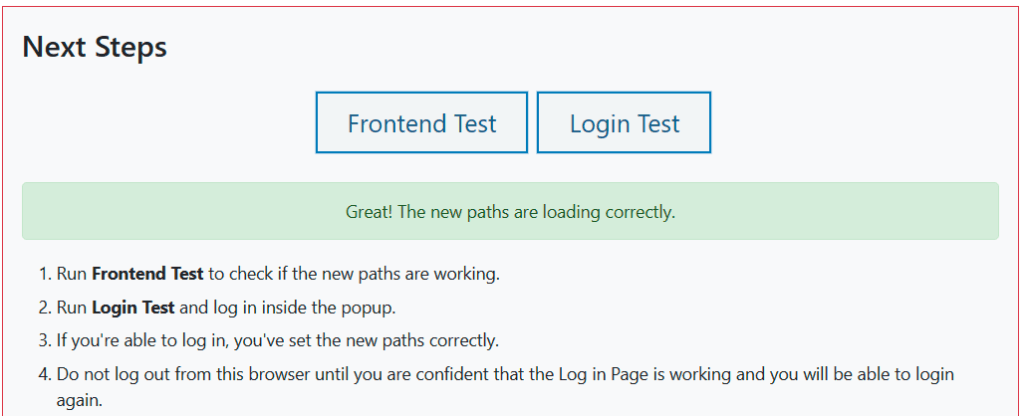
After the server restarts, click the Frontend Test button in WP Ghost. Check that the frontend loads correctly. Test in an incognito window or a different browser. If everything works, click “Yes, it’s working”. If not, click “No, abort” to roll back to previous settings.
Troubleshooting
Paths return 404 after configuration. The include line was not added correctly or the server was not restarted. Verify the line is in conf/nginx/site.conf.hbs before the WordPress rules. Restart the site from the Local panel.
Using Apache in Local instead of Nginx. If your Local site uses Apache as the web server, WP Ghost works automatically through .htaccess. No config file editing needed. Just activate Safe Mode or Ghost Mode and save.
Frontend Test fails. Click “No, abort” to roll back immediately. Check that you selected “Local by Flywheel” as the server type in WP Ghost > Advanced > Compatibility.
Frequently Asked Questions
Is this setup needed when using Apache in Local?
No. This guide is only for the Nginx server option in Local. With Apache, WP Ghost works automatically through .htaccess.
Do I need to repeat this after changing paths?
WP Ghost updates the hidemywp.conf file automatically. You may need to restart the Local server for Nginx to pick up changes. The include line itself is a one-time addition.
Does this apply to Flywheel hosting (not Local)?
Flywheel hosting (the cloud service) has a different setup. Flywheel hosting does not provide direct Nginx config access. Contact Flywheel support with the include line WP Ghost generates. This guide is specifically for the Local by Flywheel desktop app.
Does WP Ghost modify WordPress core files?
No. WP Ghost generates a hidemywp.conf file and uses WordPress hooks. No core files modified. Deactivating restores all defaults.
Related Tutorials
Nginx Server Setup – general Nginx configuration for WP Ghost.
Customize All WordPress Paths – configure paths after server setup.
Theme Not Loading Correctly – troubleshoot path issues.
Emergency Disable Guide – recovery if configuration causes issues.
Compatibility Plugins List – hosting and server compatibility notes.