
Hide WordPress from BuiltWith with WP Ghost – Cache Removal and Configuration
April 19, 2018
This tutorial has moved to the new WP Ghost Knowledge Base where each feature is presented in detail.
Hide your WordPress site from BuiltWith using WP Ghost (formerly Hide My WP Ghost). BuiltWith caches CMS detection results for weeks or months. If it detected your site before you configured WP Ghost, the cached result persists even after your site is fully hidden. This guide covers configuration, cache removal, and correct testing.
The BuiltWith Cache Problem
BuiltWith is different from real-time detectors. When BuiltWith scans a site, it caches the result and serves that cached data for 10–30 days (sometimes longer). If BuiltWith detected WordPress on your site before you installed WP Ghost, that cached result stays even after you have removed all WordPress fingerprints. This is not a WP Ghost issue – it is BuiltWith’s caching behavior.
To remove your site from BuiltWith’s cache, submit a removal request at builtwith.com/removals. After removal, BuiltWith rescans your site fresh on its next crawl.
How to Hide WordPress from BuiltWith
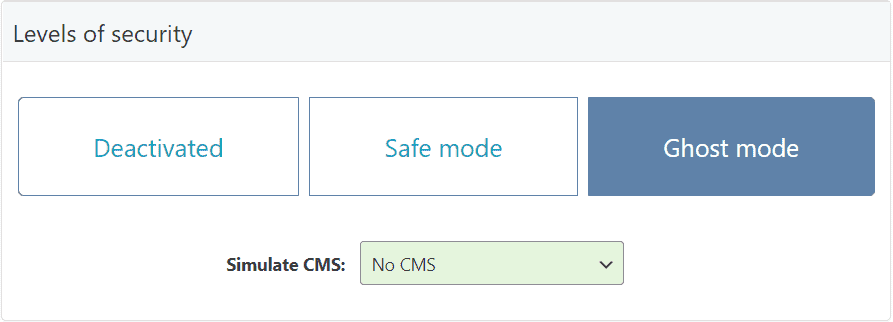
1. Activate Safe Mode or Ghost Mode
Go to WP Ghost > Change Paths > Level of Security. Select Safe Mode or Ghost Mode. Click Save. This changes all major WordPress paths automatically.
2. Enable Hide Options
Go to WP Ghost > Tweaks > Hide Options. Enable Hide WordPress Version and Hide IDs from META Tags. Click Save. For the full CMS hiding checklist, follow the Hide from Theme Detectors tutorial.
3. Remove Demo Content
If your site still uses demo data from your WordPress theme (sample posts, placeholder images, default widgets), BuiltWith and other detectors can identify the theme from that content. Replace demo content with your own before testing.
4. Test with Real-Time Detectors First
Do not test with BuiltWith immediately after configuring WP Ghost – it will show cached results. Instead, test with real-time detectors that scan fresh every time: WhatCMS.org, wpthemedetector.com, whatwpthemeisthat.com.
If these real-time detectors do not identify WordPress, your configuration is working. Submit a removal request at builtwith.com/removals and BuiltWith will update on its next crawl.
Frequently Asked Questions
BuiltWith still shows WordPress after I configured WP Ghost. Is it working?
Most likely yes. BuiltWith caches results for 10–30 days. Test with a real-time detector like WhatCMS.org instead. If real-time detectors do not identify WordPress, your configuration is correct. Submit a removal at builtwith.com/removals to force a fresh scan.
How is BuiltWith different from Wappalyzer?
BuiltWith is an online service that scans sites remotely and caches results for extended periods. Wappalyzer is both an online service and a browser extension. The browser extension runs locally in your browser and can detect WordPress through admin session signals when you are logged in. Both cache results, but BuiltWith’s cache lasts longer. See the Wappalyzer tutorial for extension-specific guidance.
Even if BuiltWith detects plugins, are the paths still protected?
Yes. Some plugins add CSS class names that reveal their identity. Even if a detector identifies a plugin name from a class, the actual file paths to that plugin are changed and hidden. Bots cannot inject scripts into paths they cannot find. Path security protects even when class names are visible.
Do I need Ghost Mode to hide from BuiltWith?
Safe Mode is usually sufficient for BuiltWith since it is an online scanner that only sees public page source. Ghost Mode adds wp-admin and admin-ajax.php path changes for maximum hiding. For the most thorough approach, combine Ghost Mode with Text Mapping for plugin class names.
Does WP Ghost modify WordPress core files?
No. All path changes and fingerprint removal happen through URL rewrite rules, WordPress filters, and HTML output processing. Deactivating restores all defaults instantly.
Related Tutorials
Hide from WordPress Theme Detectors – the complete 9-step CMS hiding guide.
Hide WordPress from Wappalyzer – Wappalyzer-specific guide including browser extension handling.
Text Mapping and URL Mapping – rename plugin class names for maximum detection hiding.
Activate Security Tweaks – hide version tags, META IDs, and HTML comments.
Website Security Check – verify your configuration before testing with detectors.