How to Verify Your WordPress Site Is Protected from Hackers and Theme Detectors
May 3, 2017
This tutorial has moved to the new WP Ghost Knowledge Base where each feature is presented in detail.
- Why Verifying Your Security Configuration Matters
- Before You Verify – Complete the Setup
- Step 1 – Run the Built-in Security Check
- Step 2 – Test with Third-Party Security Scanners
- Step 3 – Verify with WordPress Theme Detectors
- How to Test Correctly Every Time
- What to Do If a Detector Still Identifies WordPress
- Verification Checklist
- Frequently Asked Questions
After configuring WP Ghost, verify your site is protected by running the built-in Security Check, testing with third-party scanners, and confirming invisibility with real-time WordPress theme detectors.
Why Verifying Your Security Configuration Matters
Configuring WP Ghost is step one. Verifying that everything works correctly is step two, and it is just as important. A misconfigured path, a caching conflict, or a missed mapping can leave a fingerprint that bots and detectors still pick up. Running a proper security check after every configuration change ensures your attack surface is actually reduced, not just partially covered.
There are three levels of verification you should complete: the built-in WP Ghost Security Check, third-party security scanners, and real-time WordPress theme detectors. Each one tests a different layer of your protection.
Before You Verify – Complete the Setup
Before running any checks, make sure you have already configured WP Ghost properly. If you have not done this yet, start with these tutorials first:
1. Set Up WP Ghost in Safe Mode in 3 Minutes – the quickest way to get started with path security.
2. Hide Your Site From Theme Detectors and Hackers Bots – the complete step-by-step guide to fully secure all WordPress paths, hide common files, and remove every CMS fingerprint.
3. WP Ghost Settings Best Practice – the recommended configuration for all features.
Once your setup is complete, follow the verification steps below.
Step 1 – Run the Built-in Security Check
WP Ghost includes a comprehensive security scanner right inside your WordPress dashboard. This is the fastest way to confirm your configuration is working.
Go to WP Ghost > Security Check and click Start Scan. The scanner runs 39 security tasks and reports which checks pass and which need attention. It covers path security, firewall configuration, file permissions, database prefix, weak usernames, SALT keys, and more.
If all path-related checks show green and no /wp-content/ references remain exposed, your path security configuration is correct. Any tasks marked as incomplete will tell you exactly what to fix and where to find the setting.
For the full guide on every task the scanner checks, see the Website Security Check tutorial.
Step 2 – Test with Third-Party Security Scanners
After passing the internal check, test your site with external security scanners. These services scan your website from the outside, exactly the way a hacker bot would, and report any vulnerabilities they find.
Here are reliable third-party scanners you can use for free:
Sucuri SiteCheck – scans for malware, blacklist status, and known vulnerabilities.
ImmuniWeb WebSec – checks security headers, SSL configuration, and compliance with security best practices.
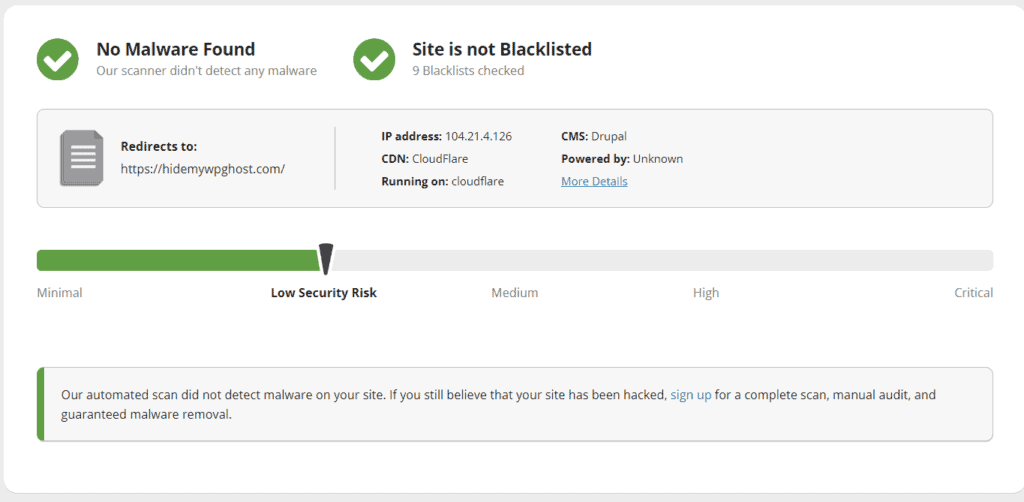
These scanners test different aspects of your security than the built-in check. The WP Ghost scanner focuses on your WordPress-specific configuration. External scanners verify how your site looks to the outside world, including HTTP headers, SSL setup, and whether any known malware signatures are present.
Step 3 – Verify with WordPress Theme Detectors
The final verification step is to confirm that your WordPress installation is invisible to CMS and theme detection tools. These are the same tools that hacker bots and competitors use to identify what software your site runs.
Use these real-time detectors that check your site fresh every time (no cached results):
WP Theme Detector – detects WordPress themes and plugins in real time.
What WordPress Theme Is That – identifies themes, plugins, and WordPress version.
WhatCMS – detects the CMS platform, not just WordPress-specific details.
If WP Ghost is configured correctly, all of these tools should fail to identify your site as WordPress. They should return “no WordPress detected” or similar messages.

Detectors to Avoid for Testing
Not all detection tools give you accurate results. Avoid using BuiltWith and IsItWP for testing. Both services cache CMS detection results for weeks or even months after their initial scan. Even if your site is fully protected, they will continue showing WordPress from old cached data. If you need to clear your site from BuiltWith’s database, visit their removals page at builtwith.com/removals.
Also avoid testing with browser extensions like the Wappalyzer Chrome extension or WhatRuns while logged into your WordPress admin. These extensions detect admin-only signals that WP Ghost intentionally leaves visible for authenticated users. They may cache that detection permanently. For a deeper look at how theme detectors work and their limitations, see the Most Popular WordPress Theme Detectors guide.
How to Test Correctly Every Time
WP Ghost secures your paths for public visitors and bots. When you are logged in as an administrator, WordPress exposes admin assets and signals that detectors can pick up. This is by design. To get accurate test results, follow these rules:
Always test in an incognito or private browser window while logged out of your WordPress site. This gives you the same view that a public visitor or bot would see.
Use a separate browser profile for admin work. Keep one profile for managing your site and another clean profile (with no extensions) for testing detection.
Manually check your source code. Open your site in an incognito window and view the source (right-click > View Page Source, or type view-source: before your URL). Press Ctrl+F and search for wp-. If no WordPress paths, class names, or meta tags appear, your configuration is working.
Use a different device for the most accurate test. A phone or tablet that is not logged into your WordPress site gives you the cleanest public view.
What to Do If a Detector Still Identifies WordPress
If a theme detector still identifies your site as WordPress after configuring WP Ghost, check these three things:
Are you testing while logged out? Open an incognito window with no admin session active. Testing while logged in gives false results.
Are there remaining wp- references in the source code? View your page source and search for wp-. If old paths or WordPress class names still appear, identify the source. Common causes include a cache plugin serving old cached pages, a hardcoded reference in your theme, or a text mapping rule you missed. Clear all caches and check your Text Mapping and URL Mapping settings.
Is the detector using cached results? Services like BuiltWith and IsItWP cache results for weeks. Switch to a real-time detector like WP Theme Detector or WhatCMS instead.
Verification Checklist
| Verification Step | What It Checks | Tool |
|---|---|---|
| Built-in Security Check | Path configuration, file permissions, database prefix, weak usernames, SALT keys | WP Ghost > Security Check |
| Third-party security scan | Malware, blacklist status, SSL, HTTP headers | Sucuri SiteCheck, ImmuniWeb |
| Theme detector test | CMS fingerprint, theme name, plugin names | WP Theme Detector, WhatCMS |
| Manual source code check | Remaining wp- references in HTML | Incognito browser, View Source |
Frequently Asked Questions
How often should I run a security check?
Run the built-in Security Check every time you change a WP Ghost setting, install or update a plugin or theme, or switch hosting environments. For ongoing monitoring, WP Ghost Premium includes the Security Threats Log which tracks blocked attacks in real time without requiring manual checks.
A detector shows WordPress but the Security Check passes. What is happening?
The most common cause is a caching detector using old results. Switch to a real-time detector. If a real-time detector still identifies WordPress, check your page source for remaining fingerprints. Look for wp- references in CSS class names, JavaScript handles, or inline styles that Text Mapping has not yet covered.
Do I need to hide from theme detectors to be secure?
No. Hiding from theme detectors is a nice side effect of proper path security, but it is not the security goal. What protects your site is changing default WordPress paths, enabling the 8G Firewall, and activating Brute Force Protection. If bots can not find /wp-login.php or /wp-content/plugins/, your site is protected regardless of what a theme detector shows.
Can I automate security monitoring instead of checking manually?
Yes. WP Ghost Premium includes the Security Threats Log and email alerts that track every blocked attack automatically. You also get the User Events Log for monitoring admin actions. For external monitoring, Sucuri and ImmuniWeb offer scheduled scans on their paid plans.
Does WP Ghost modify WordPress core files?
No. WP Ghost uses server rewrite rules and WordPress hooks to change paths virtually. No core files are moved, renamed, or modified. Deactivating the plugin restores all default paths instantly.