
Login Page Design Customization with WP Ghost
This tutorial has moved to the new WP Ghost Knowledge Base where each feature is presented in detail.
WP Ghost ( formerly Hide My WP Ghost ) includes a built-in Login Page Design feature that replaces the default WordPress login screen with a branded, professional page. Swap the WordPress “W” logo for your own brand, pick a layout preset, adjust colors, and add a background image. The result is a login page that matches your site’s identity while removing the most recognizable WordPress fingerprint on the web. No extra plugin required.
Why Your Login Page Design Matters for Security
The standard WordPress login page is instantly identifiable. The logo, the form layout, the “Powered by WordPress” link at the bottom. Anyone who reaches this page, whether a client, a team member, or an attacker, immediately knows which CMS you run. WP Ghost’s path security hides the login URL from bots. The Login Page Design feature takes the next step: even if someone reaches the page, it no longer looks like WordPress.
Beyond the security benefit, a branded login page signals professionalism. Agencies delivering client sites, membership platforms onboarding new users, and WooCommerce stores with customer accounts all benefit from a login experience that matches their brand instead of showing the generic WordPress screen.
There is also a technical advantage. When Login Page Design is active, WP Ghost loads only essential scripts on the login page, stripping out unnecessary admin-path JavaScript and CSS files that WordPress normally includes. Fewer scripts means fewer WordPress fingerprints in the page source and faster load times for the login screen.
Getting Started
Navigate to WP Ghost > Tweaks > Login Page Design and switch the feature on. The customization panel opens with options for your logo, background, colors, and layout. Make your selections and click Save. Open the login page in a private browser to see the result without cached styles.
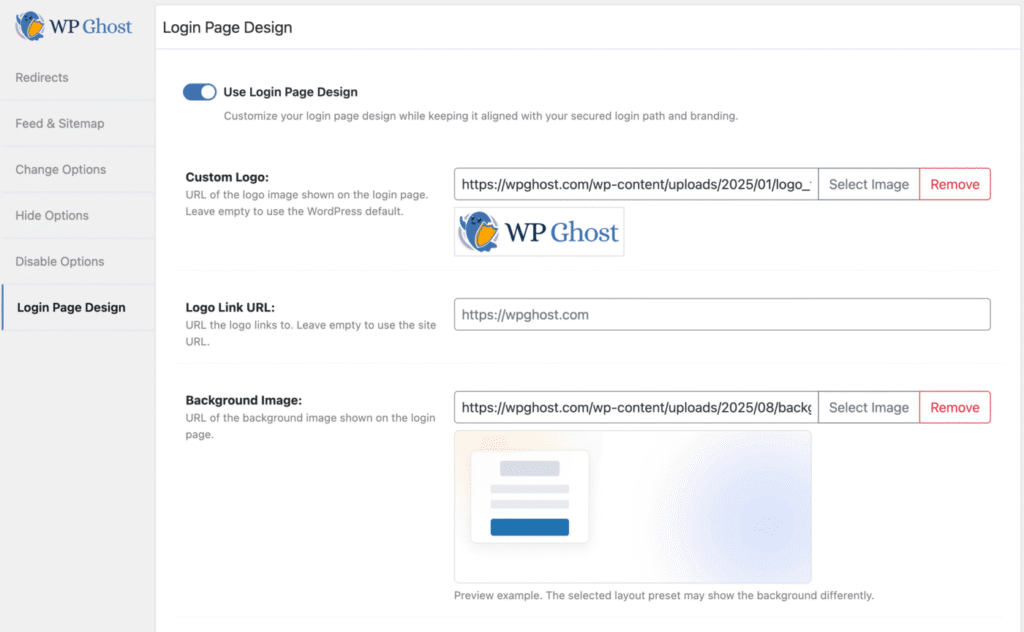
Customization Options at a Glance
Logo and Branding
Upload your own logo to replace the WordPress “W.” Choose where the logo links: your homepage, the dashboard, or a custom URL. This single change eliminates the clearest CMS identifier visible to anyone who sees the page.
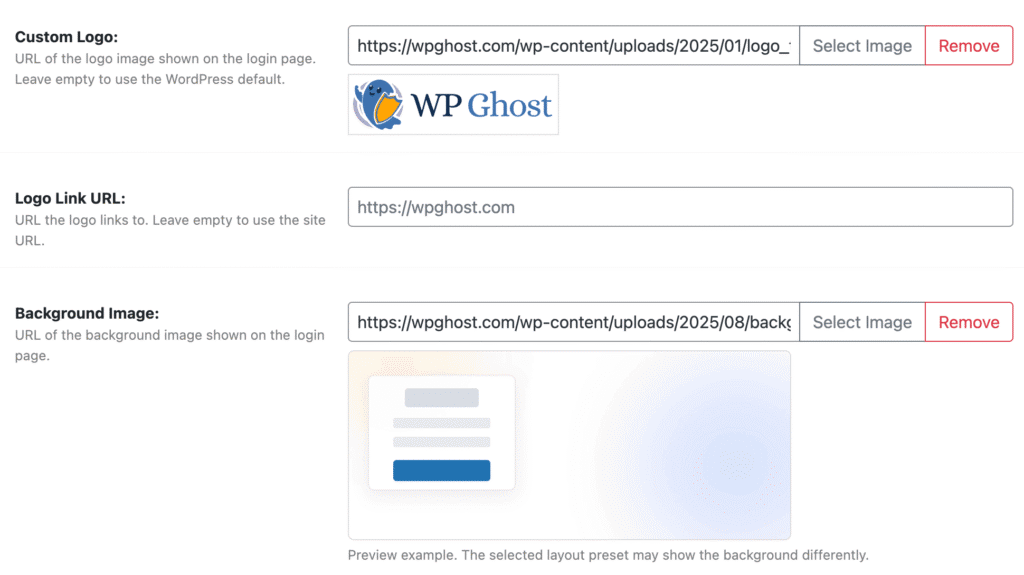
Background and Visual Style
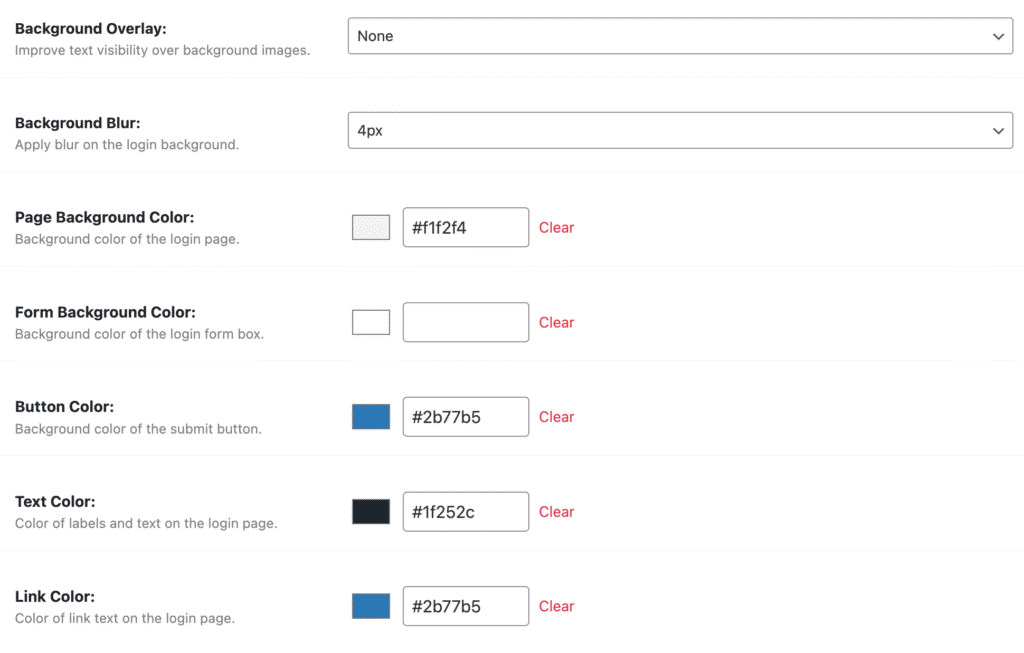
Set a full-screen background image for a modern look, add an overlay for readability, apply background blur to keep focus on the form, or use a solid background color for clean minimalism. These options transform the page from a generic WordPress screen into something that feels custom-built.
Form and UI Colors
Control every color in the login form: the form background, button color, text color, and link color for “Lost your password?” and “Back to site.” Match these to your brand palette for a cohesive experience.
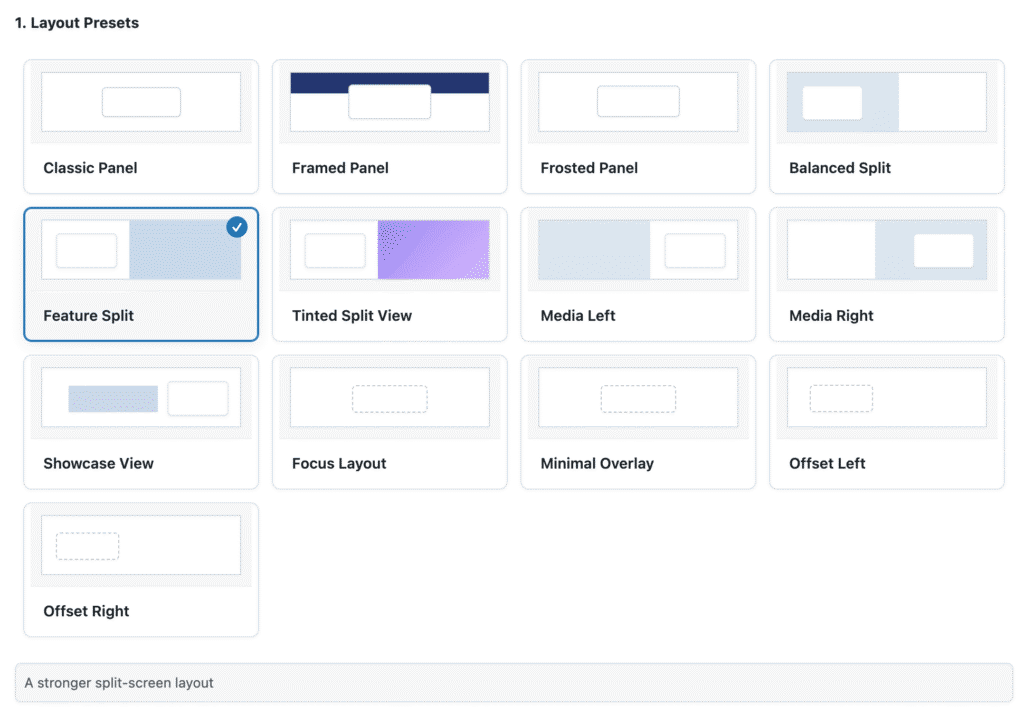
Layout Presets
Pick from pre-built layouts that define the page structure: Classic, Framed, and Frosted Panel for centered designs, Split layouts (Balanced, Feature, Media Left/Right) for two-column SaaS-style designs, and Minimal, Focus, and Overlay for distraction-free experiences. Select one and save. The login page transforms in seconds.
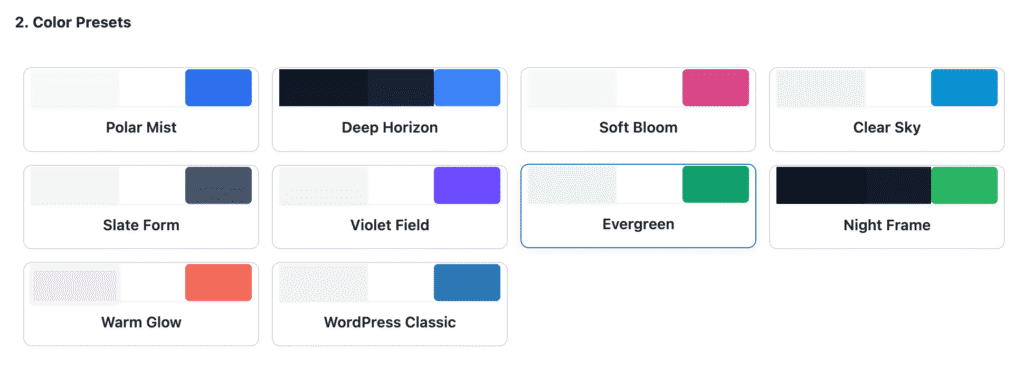
Color Presets
For quick setup, apply a predefined color theme: Polar Mist, Deep Horizon, Soft Bloom, Night Frame, or Evergreen. Each preset sets a coordinated palette across the background, form, buttons, and text with one click. Fine-tune individual colors afterward if needed.
Design Tips for the Best Results
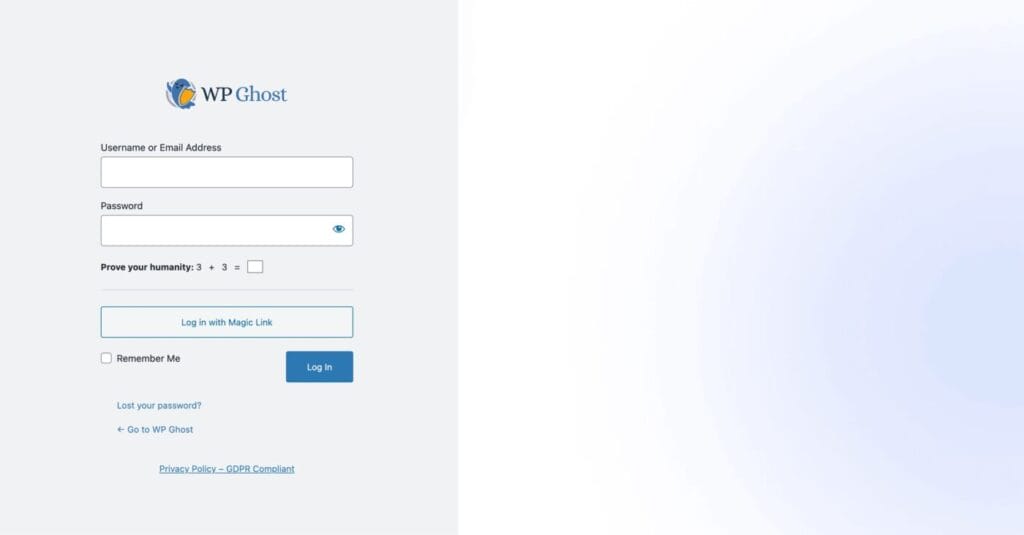
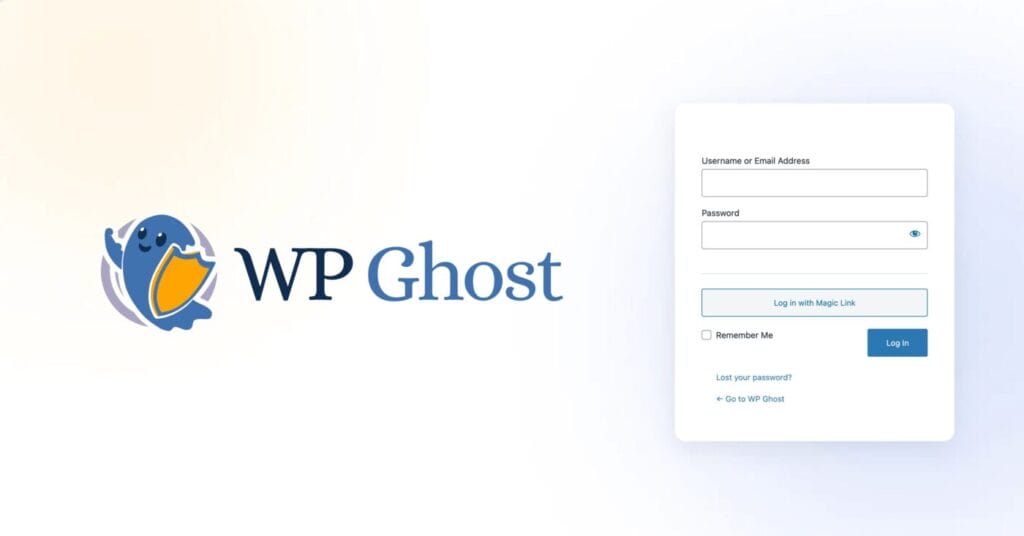
Keep the design minimal. A clean login page loads faster, looks more professional, and avoids distracting users from the task at hand. Dark overlays or soft gradients behind the form work better for readability than bright, busy backgrounds. Always replace the default WordPress logo, even a simple text logo is better than the “W” from a security and branding perspective.
For maximum impact, pair the Login Page Design with a custom login URL, brute force protection, and 2FA or passkeys. The custom design removes the visual WordPress fingerprint. The hidden path removes the URL fingerprint. Together, your login page is both unrecognizable and unfindable.
Troubleshooting
If the login page is not updating after saving your design changes, clear all cache layers: your caching plugin, CDN, server cache, and browser cache. Do a hard refresh (Ctrl+Shift+R on Windows, Cmd+Shift+R on Mac). If it still shows the old design, temporarily disable your caching plugin to confirm the cache was the issue.
If a layout preset looks incorrect or broken, check for CSS conflicts from other plugins or your theme. Some themes include their own login customization that can override WP Ghost’s styles. Disable any other login design features and keep only WP Ghost active for login styling. For best results, apply a layout preset first, then customize individual colors afterward.
If you have lost access or something broke, use the emergency disable guide, the rollback settings, or add define('HMWP_DISABLE', true); to wp-config.php to disable WP Ghost temporarily.
Frequently Asked Questions
Does the login page design improve security?
It removes the WordPress visual fingerprint from the login page, and WP Ghost loads only essential scripts, stripping files that leak WordPress information. The design is the finishing touch on top of WP Ghost’s core login protections: a hidden login URL, brute force protection, and 2FA.
Can I stop using LoginPress or other login customization plugins?
Yes. WP Ghost’s Login Page Design replaces standalone login plugins. Having fewer plugins reduces your attack surface and avoids CSS conflicts. If you are already using WP Ghost for security, the built-in design feature is the simpler choice.
Does this work with WooCommerce customer login?
The Login Page Design customizes the standard WordPress login page (wp-login.php or your custom login URL). WooCommerce’s My Account page uses a separate login form embedded in a regular page template. If you redirect WooCommerce login to your custom login page, the design applies there. WP Ghost is fully compatible with WooCommerce.
Does the design work alongside 2FA and brute force protection?
Yes. The design is a visual layer on top of the standard login functionality. Two-factor authentication prompts, reCAPTCHA challenges, and all other WP Ghost security features render correctly within every layout preset.
Is this a free feature?
Yes. Login Page Design is included in the free version of WP Ghost 9.0 and later.
Does WP Ghost modify WordPress core files?
No. The design is applied through CSS overrides and WordPress filters at runtime. No files are created, modified, or deleted. Switching the Login Page Design toggle off instantly restores the default WordPress login appearance.