
Lesson 1 – Hide WordPress Paths with WP Ghost in 4 Steps
November 17, 2018
This tutorial has moved to the new WP Ghost Knowledge Base where each feature is presented in detail.
WP Ghost (formerly Hide My WP Ghost) protects your WordPress site by changing and hiding default paths that bots scan for. Select a security level, customize paths if desired, save, verify the Frontend Test, then run a Security Check. WP Ghost does not modify core files – all changes use rewrite rules and can be reversed by deactivating the plugin.
Step 1: Select a Security Level
Go to WP Ghost > Change Paths > Level of Security. Choose Safe Mode (recommended for first-time setup) or Ghost Mode (maximum protection, available in all versions).


Step 2: Customize Paths
After selecting a security level, path fields appear below. You can customize each WordPress path (wp-admin, wp-login, wp-content, wp-includes, uploads, plugins, themes, author, REST API, and more) or keep the defaults WP Ghost suggests.
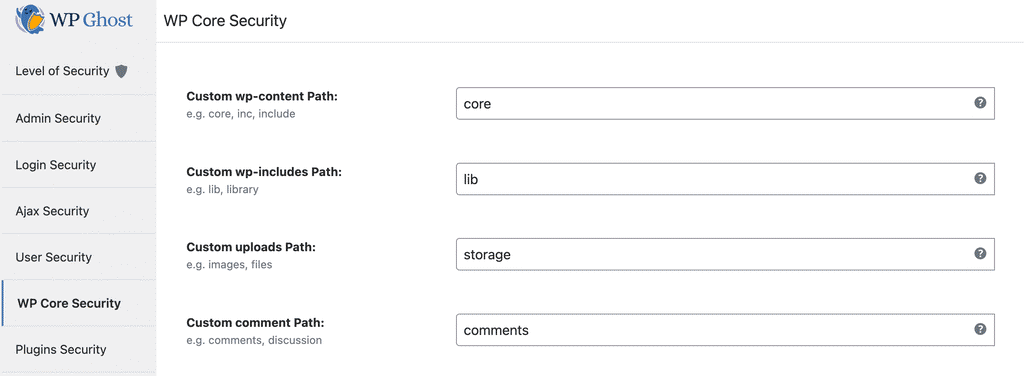
Every path must have a unique name. Do not give two paths the same name – this will break site functionality. WP Ghost does not physically rename folders on the server. All changes use rewrite rules. Deactivating the plugin restores original paths immediately.
If another plugin has compatibility issues with a custom wp-admin or admin-ajax.php path, leave those two paths at their defaults and customize the other paths.
Step 3: Save and Verify
Click Save. WP Ghost writes the rewrite rules automatically on Apache and LiteSpeed servers. On Nginx and IIS, a message appears with rules to add manually.
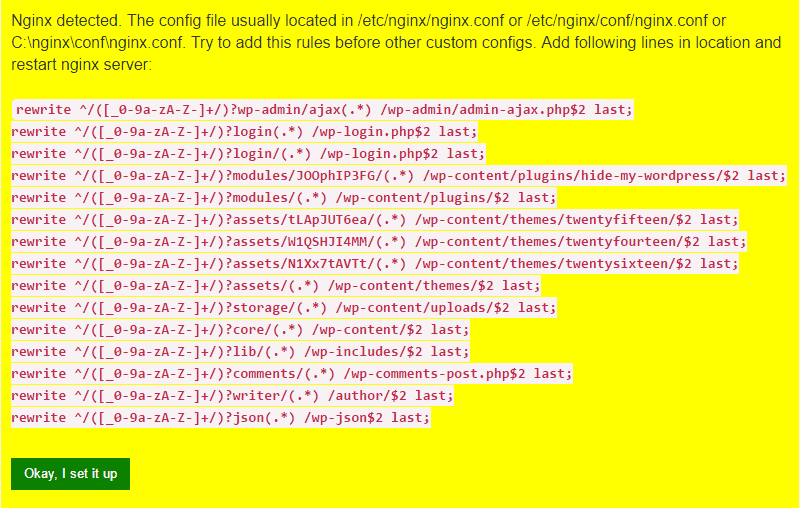
Apache servers: Make sure AllowOverride All is set for your directory. See the AllowOverride All tutorial.
Nginx servers: Add the rules to your Nginx config and restart with sudo nginx -s reload.
After saving, WP Ghost shows the Frontend Test. Check that your site loads correctly with the new paths. Test in an incognito browser window.
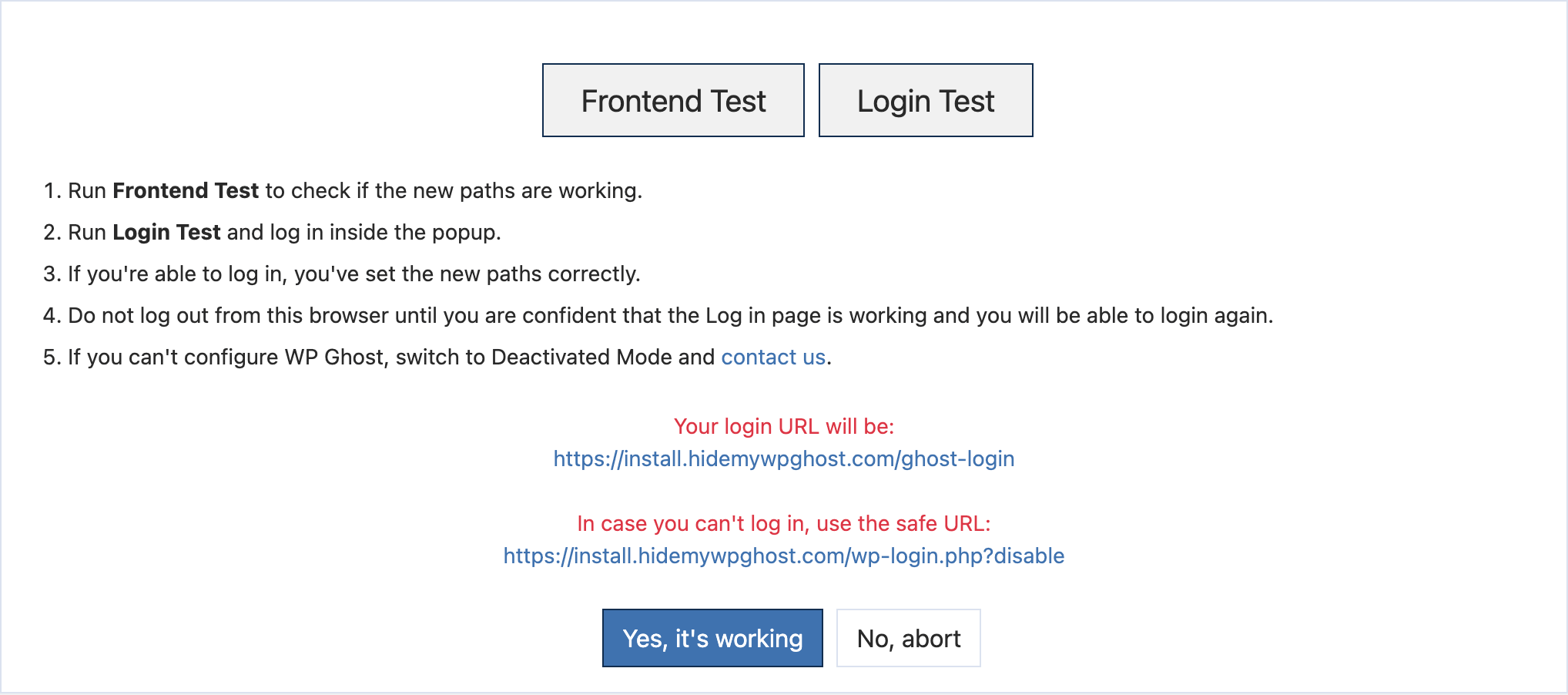
If everything works, click “Yes, it’s working”. If you cannot log in or the site breaks, click “No, abort” to roll back immediately. You can also use the Safe URL to access wp-login.php directly in an emergency.
Step 4: Run a Security Check
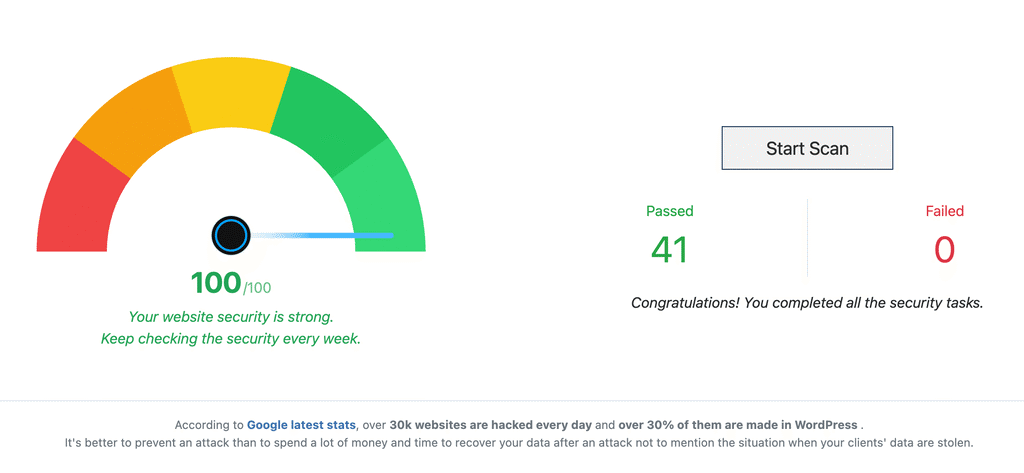
Go to WP Ghost > Security Check > Start Scan. WP Ghost runs 38+ security tasks and reports what needs attention. Some tasks are fixed automatically. Others require manual action (file permissions, database prefix, etc.).
Troubleshooting
Cannot log in after changing paths. Use the Safe URL parameter to access wp-login.php directly. Alternatively, rename the plugin folder via FTP to deactivate WP Ghost. See the Emergency Disable guide.
Another plugin breaks when wp-admin is changed. Not all plugins support custom admin paths. Leave wp-admin and admin-ajax.php at their defaults. Customize all other paths (wp-content, wp-includes, plugins, themes, uploads, login, REST API).
Theme blocks the custom login path. Deactivate other plugins and test WP Ghost with the theme alone. If the theme itself causes issues, check that the theme supports custom login paths. Contact the theme developer if needed.
Nginx returns 404 on custom paths. The rewrite rules were not added to the Nginx config, or Nginx was not restarted. See the Nginx Server Setup tutorial.
Frequently Asked Questions
What is the difference between Safe Mode and Ghost Mode?
Safe Mode changes core paths (wp-admin, login, wp-content, wp-includes, plugins, themes). Ghost Mode adds additional protections: hides old paths, hides common WordPress files, adds firewall rules, and applies deeper obfuscation. Both are available in the free version.
Do I need to customize every path?
No. The defaults WP Ghost suggests work well. Customize only if you have specific naming preferences. The important thing is activating Safe Mode or Ghost Mode – the specific path names matter less than having them changed from the defaults.
Does WP Ghost physically rename files on the server?
No. WP Ghost uses rewrite rules and WordPress hooks. The actual files stay in their original locations. Deactivating the plugin or clicking “No, abort” restores everything immediately.
What should I do after the initial setup?
Enable Brute Force Protection, configure Security Headers, and set up Two-Factor Authentication. These features work alongside path changes for layered protection.
Related Tutorials
Customize All WordPress Paths – detailed reference for every changeable path.
Brute Force Protection – protect login and registration forms.
Security Check Report – understand and fix each security task.
Emergency Disable Guide – recovery if configuration causes issues.
AllowOverride All on Apache – required Apache configuration.