
WP Ghost Admin Mapping – Customize WordPress Admin URL Parameters and Text
December 30, 2024
This tutorial has moved to the new WP Ghost Knowledge Base where each feature is presented in detail.
- What Is Admin Mapping
- Installation and Activation
- Parameter Name Mapping
- Parameter Value Mapping
- Text Mapping (Admin Dashboard)
- Important Notes
- Frequently Asked Questions
- Is Admin Mapping included with WP Ghost or is it separate?
- What is the difference between frontend Text Mapping and Admin Mapping?
- Why do parameter name and value mapping need to work together?
- Can Admin Mapping break my admin dashboard?
- Does this work with WooCommerce admin pages?
- Does WP Ghost modify WordPress core files?
- Related Tutorials
Quick summary: WP Ghost Admin Mapping is a free add-on that lets you customize URL parameters, parameter values, and text within the WordPress admin dashboard. It removes WordPress fingerprints from the backend, making it ideal for white-label setups and custom dashboards.
What Is Admin Mapping
WP Ghost changes paths and text on the frontend. The Admin Mapping add-on extends that capability to the WordPress admin dashboard. It lets you customize URL parameter names, parameter values, and text within the backend, so the admin area no longer reveals standard WordPress references.
This is useful for agencies building custom client dashboards, white-label setups where WordPress branding needs to be completely hidden, and security-conscious sites that want to eliminate WordPress fingerprints from every layer, not just the public-facing side.
Admin Mapping is a free add-on that requires WP Ghost to be installed and active first. It is separate from WP Ghost’s frontend Text Mapping and URL Mapping features.
| Feature | What It Changes | Where It Applies |
|---|---|---|
| Parameter Name Mapping | URL parameter names (e.g. ?page= to ?section=) | Admin URLs and links |
| Parameter Value Mapping | URL parameter values (e.g. edit-tags.php to categories) | Admin URLs and links |
| Text Mapping | Text strings in the admin HTML output | Admin dashboard content |
Installation and Activation
You need WP Ghost installed and configured on your site before adding this extension.
1. Download the hide-my-wp-admin.zip file from your WP Ghost account.
2. In your WordPress dashboard, go to Plugins > Add New > Upload Plugin.
3. Browse for the hide-my-wp-admin.zip file and upload it.
4. Click Install Now, then Activate.
Once activated, a new Admin Mapping section appears under the WP Ghost menu at WP Ghost > Admin Mapping.
Parameter Name Mapping
This feature changes the URL parameter names in admin links and the address bar. For example, you can change the default ?page= parameter to something custom like ?section=.
1. Go to WP Ghost > Admin Mapping.
2. In the Parameter Name Mapping section, enter the WordPress parameters you want to customize.
3. Click Add New Map to add more parameter names from active plugins.
4. Click Save to apply.
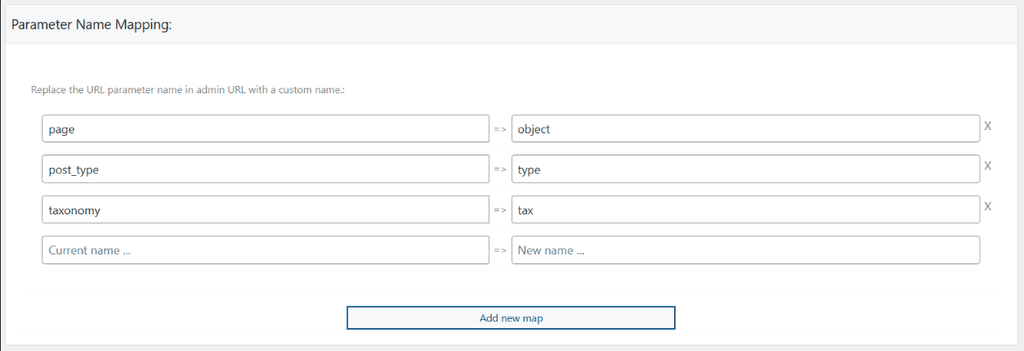
Important: A parameter name will only be changed if its corresponding parameter value is also mapped with a custom name. Both the name and value must be customized for the mapping to take effect.
Parameter Value Mapping
This feature changes the values of the parameters you mapped in the previous step. For example, if WordPress uses ?page=edit-tags.php, you can change the value edit-tags.php to categories.
1. Go to WP Ghost > Admin Mapping.
2. In the Parameter Value Mapping section, enter the parameter values you want to customize.
3. Click Add New Map to add more value mappings.
4. Click Save to apply.
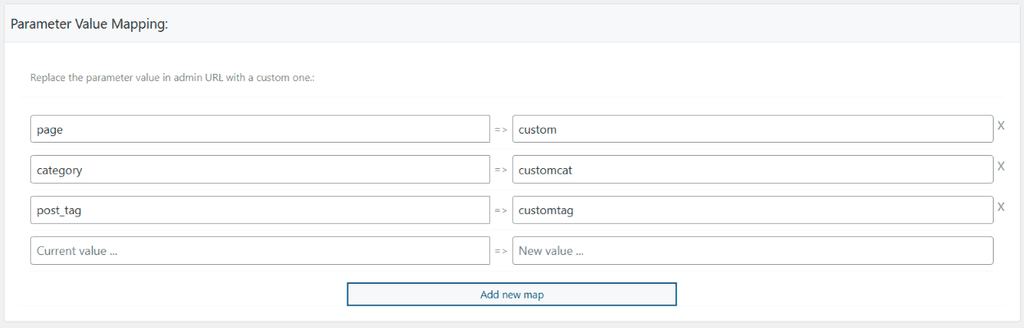
Important: A parameter value will only be changed if the parameter name is also mapped with a custom name. The name mapping and value mapping work together as a pair.
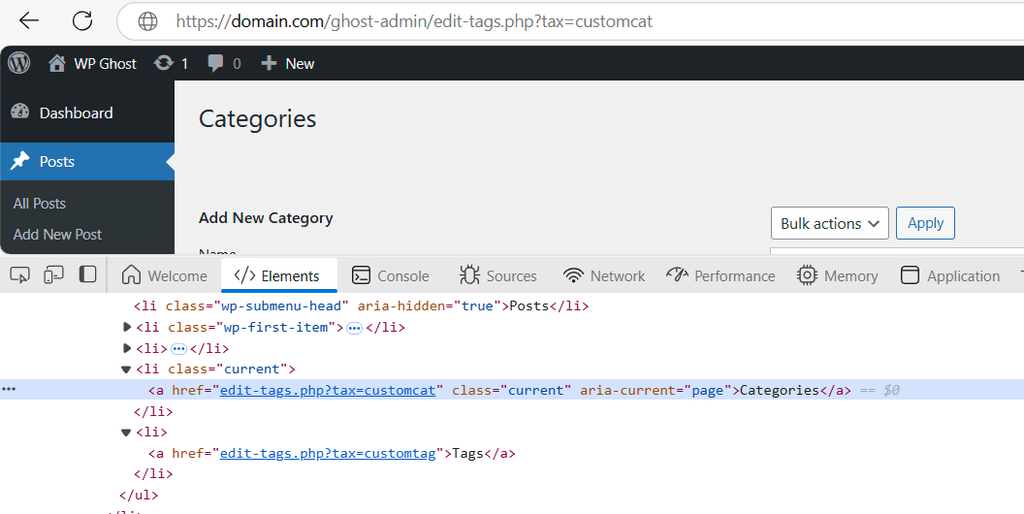
Once both the parameter name and value are customized, the admin menu links and the browser address bar reflect the new custom URLs.
Text Mapping (Admin Dashboard)
This feature replaces text strings within the admin dashboard HTML output. You can change any text that appears in the backend, like WordPress version references, plugin names, or CMS-specific terminology.
1. Go to WP Ghost > Admin Mapping.
2. In the Text Mapping section, enter the text you want to change in the admin dashboard.
3. Click Add New Map to add more text replacements.
4. Click Save to apply.
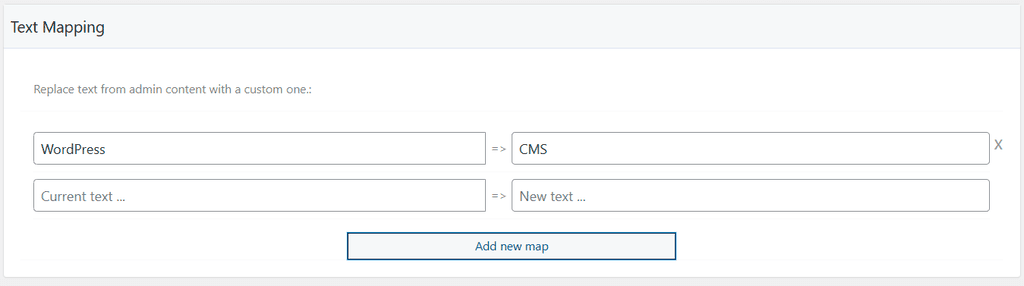
Warning: Be careful with text replacements. Changing generic words like “action” or “post” will break admin functionality because WordPress uses these terms in form processing and database queries. Stick to specific phrases like “WordPress version” or plugin brand names. Always test the admin dashboard thoroughly after adding text mappings.
Important Notes
Admin Mapping is a free add-on that gives you significant flexibility to customize the WordPress admin dashboard. However, because it modifies URL parameters and text across the entire backend, it cannot be tested with every plugin combination. For this reason, technical support is not available for this add-on.
Always test your admin dashboard after making changes. If something breaks, remove the most recent mapping entry and save again. If you lose access to the settings page, deactivate the Admin Mapping plugin via FTP by renaming the hide-my-wp-admin folder in wp-content/plugins/.
Frequently Asked Questions
Is Admin Mapping included with WP Ghost or is it separate?
It is a separate free add-on. You need to download and install it in addition to WP Ghost. It requires WP Ghost to be installed and active on the same site.
What is the difference between frontend Text Mapping and Admin Mapping?
WP Ghost’s built-in Text Mapping (in WP Ghost > Mapping) changes text in the frontend HTML output that visitors see. Admin Mapping changes text and URL parameters in the admin dashboard that logged-in users see. They work independently and complement each other.
Why do parameter name and value mapping need to work together?
WordPress uses parameter name-value pairs in admin URLs (like ?page=edit-tags.php). If you only change the name without the value (or the other way around), the URL would become invalid and the admin page would not load. Both must be mapped for the custom URL to resolve correctly.
Can Admin Mapping break my admin dashboard?
Yes, if you map generic words that WordPress uses internally. Avoid changing common terms like “action”, “post”, “page”, “edit”, or “update” because WordPress uses these in form processing. Stick to specific phrases. If something breaks, deactivate the Admin Mapping plugin via FTP to restore the default dashboard.
Does this work with WooCommerce admin pages?
It can, but be especially careful. WooCommerce adds many custom admin pages with their own parameters and values. Test thoroughly after each mapping change. WooCommerce order processing, product editing, and settings pages all rely on specific URL parameters.
Does WP Ghost modify WordPress core files?
No. Admin Mapping works through output buffering and URL rewriting at runtime. No core files are modified. Deactivating the add-on restores all default admin URLs and text instantly.
Related Tutorials
For more mapping and customization features:
Text Mapping and URL Mapping – Frontend text and URL replacement in WP Ghost.
WP Ghost White Label – Fully rebrand the plugin with your own name, logo, and menu icon.
Change and Hide the wp-admin Path – Secure the admin dashboard URL itself.
Customize Paths in WP Ghost – Full guide to all path security options.
WP Ghost Advanced Pack – All advanced add-ons and extensions available for WP Ghost.