
How to Set Up WP Ghost on Nginx Server – Step-by-Step Guide
March 24, 2017
This tutorial has moved to the new WP Ghost Knowledge Base where each feature is presented in detail.
To set up WP Ghost on an Nginx server, configure your paths in WP Ghost, include the generated hidemywp.conf file in your Nginx server block, reload Nginx, and verify the frontend loads correctly.
No access to nginx.conf? If you are on shared hosting without access to the Nginx configuration file, follow the Nginx Hosting Without Editing Config Files tutorial instead. You can still use WP Ghost features that do not require Nginx rewrite rules, including the custom login path, brute force protection, 2FA, security headers, and the 8G Firewall.
Why Nginx Requires Manual Configuration
On Apache servers, WP Ghost writes its rewrite rules directly to the .htaccess file. Apache reads this file automatically on every request, so no manual server configuration is needed.
Nginx does not support .htaccess. Instead, Nginx uses a centralized configuration file (nginx.conf or a virtual host file) that is only read when the server starts or reloads. WP Ghost generates a file called hidemywp.conf containing all the rewrite rules. You need to include this file in your Nginx server block and reload Nginx for the rules to take effect.
This requires SSH access to your server. If you have a VPS, dedicated server, or managed hosting with shell access, you are ready to proceed.
Step-by-Step Setup on Nginx
Step 1 – Configure WP Ghost Paths
1. Go to WP Ghost > Change Paths in your WordPress dashboard.
2. Select Safe Mode (recommended for first-time setup) or Ghost Mode (Premium).
3. Scroll down and customize the paths to your preferences.

4. Click Save.
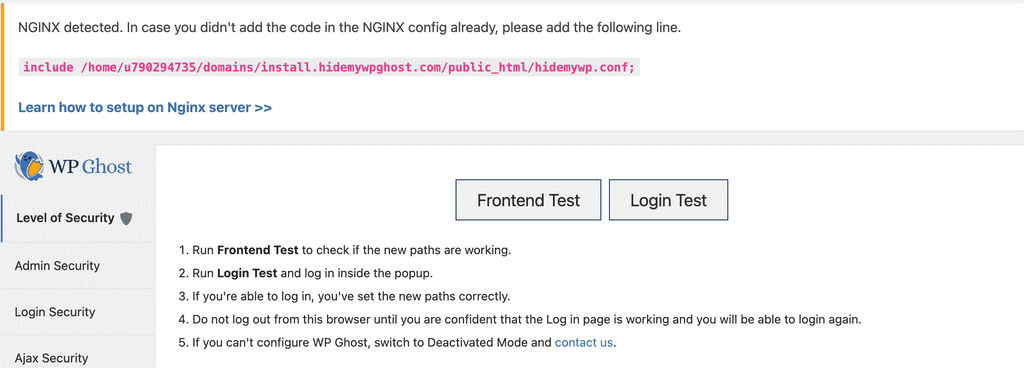
5. WP Ghost generates the hidemywp.conf file in your WordPress root directory and displays a message with instructions to include it in your Nginx configuration.
Step 2 – Add the Include Directive to Nginx
6. Connect to your server via SSH.
7. Open your Nginx configuration file. The location depends on your server setup:
On most Linux servers: /etc/nginx/nginx.conf (or /etc/nginx/conf/nginx.conf on Arch Linux). On Windows: C:/nginx/conf/nginx.conf. If your Nginx uses the sites-enabled directory (check for a sites-enabled subdirectory next to nginx.conf), open the file for your domain inside that directory instead.
8. Find the server block for your domain. It looks something like this:
server {
    server_name yourdomain.com;
    root /path/to/wordpress;
    index index.php;

    location / {
        try_files $uri $uri/ /index.php?$args;
    }
}
9. Add the include directive before the location / block:
server {
    server_name yourdomain.com;
    root /path/to/wordpress;
    index index.php;

    include /path/to/wordpress/hidemywp.conf;

    location / {
        try_files $uri $uri/ /index.php?$args;
    }
}
Replace /path/to/wordpress/ with the actual absolute path to your WordPress installation directory.
10. Save the configuration file.
Important: Do not delete or modify any existing lines in your Nginx configuration unless you know what they do. Only add the include directive.
Step 3 – Reload Nginx
11. Reload Nginx to apply the new configuration. On Linux:
sudo nginx -s reload
On Windows:
cd C:\nginx
nginx -s reload
If you prefer, you can also restart Nginx entirely:
sudo systemctl restart nginx
Step 4 – Confirm in WP Ghost and Verify
12. Go back to your WP Ghost settings and click the “Okay, I set it up” button.
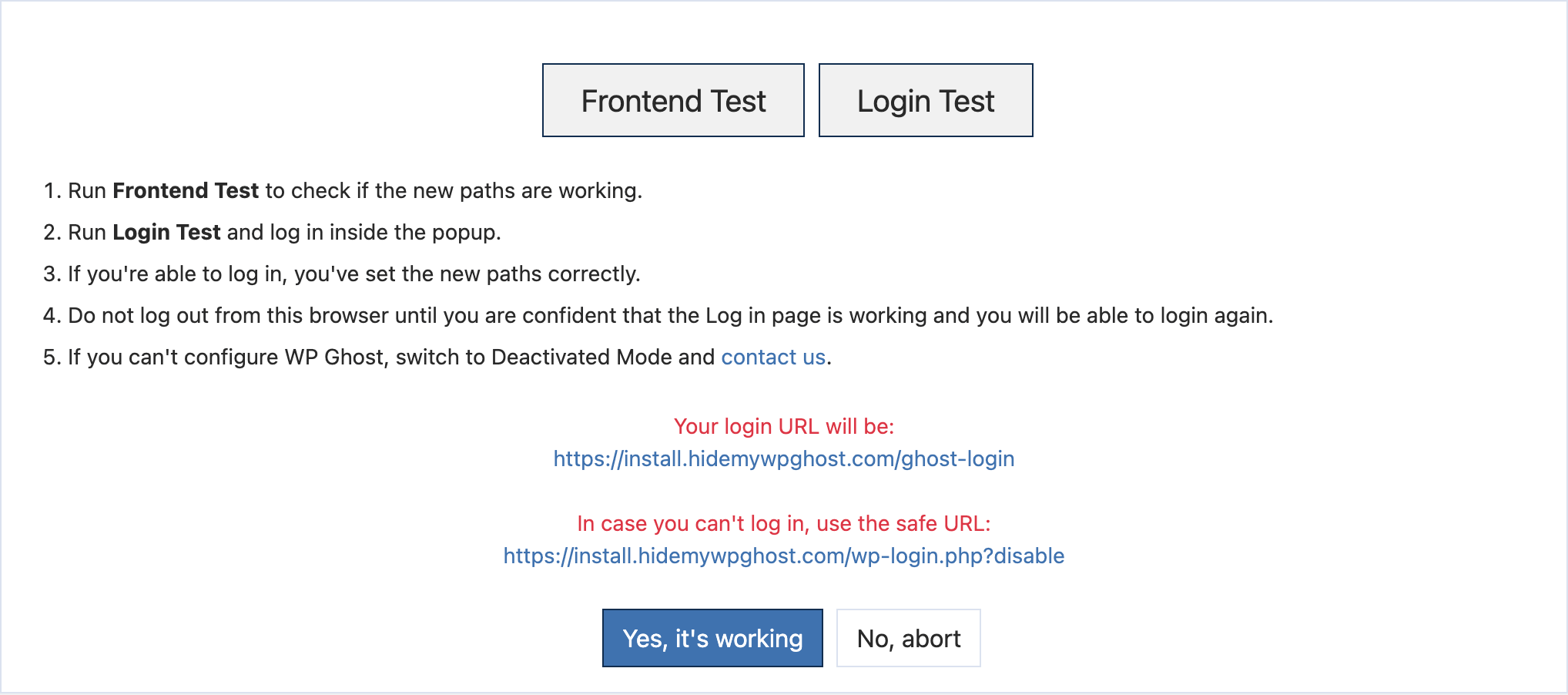
13. Click the Frontend Login Test to verify your new login path loads correctly.
14. Open your site in an incognito browser and confirm the old paths (like /wp-login.php and /wp-admin/) return 404 errors.
15. If everything works, click “Yes, it’s working”. If something is wrong, click “No, abort” to roll back instantly.
Important – Reload After Every Path Change
Unlike Apache (which reads .htaccess on every request), Nginx only reads its configuration when it starts or reloads. Every time you change paths in WP Ghost, the hidemywp.conf file is updated, but Nginx will not see the changes until you reload it.
After saving new path settings, always run sudo nginx -s reload on the server. Changes to settings that do not involve path rewrite rules (like brute force protection, 2FA, security headers, or firewall level) do not require an Nginx reload because those features operate at the WordPress application level.
Troubleshooting
Nginx shows a configuration error after adding the include. Check that the path to hidemywp.conf is correct and the file exists. Run sudo nginx -t to test the configuration before reloading. This command reports any syntax errors without affecting your running server.
Paths are not changing after reload. Make sure the include directive is inside the correct server block (the one matching your domain). If you have multiple server blocks, add the include to the one that handles your WordPress site.
Root directory is not writable. If WP Ghost can not create the hidemywp.conf file in the WordPress root directory, use a custom config file location instead.
Locked out completely. Add define('HMWP_DISABLE', true); to wp-config.php via sFTP to disable WP Ghost temporarily. See the full emergency disable guide.
For VPS-specific Nginx configurations, see the Nginx Web Server with VPS tutorial.
Frequently Asked Questions
Can I use WP Ghost on Nginx without SSH access?
Partially. Without access to the Nginx configuration, you can not use path security features that require rewrite rules. But you can still use the custom login path, brute force protection, 2FA, security headers, and the 8G Firewall. See the Nginx Without Config Files guide.
Do I need to reload Nginx every time I change WP Ghost settings?
Only when you change paths that affect the rewrite rules (login path, admin path, plugins path, themes path, etc.). Changes to firewall level, brute force, 2FA, or security headers do not require a reload.
Can I use both Safe Mode and Ghost Mode on Nginx?
Yes. Both work on Nginx. Ghost Mode generates more rewrite rules than Safe Mode, but the setup process is identical. Safe Mode is recommended for first-time Nginx setups because it is easier to troubleshoot if something goes wrong.
Where should I place the include directive in the server block?
Place it before the location / block. This ensures WP Ghost’s rewrite rules are processed before Nginx’s default file handling. Placing it after the location block may cause rules to be ignored.
Does WP Ghost modify WordPress core files?
No. WP Ghost generates a separate hidemywp.conf file for Nginx and uses WordPress hooks for application-level features. No core files are moved, renamed, or modified. Deactivating the plugin restores all default paths instantly.