Configure WP Ghost with Hummingbird cache and performance plugin. Enable Change Paths in Cached Files for minified CSS/JS. Custom cache directory auto-detected. Includes CDN integration and troubleshooting.

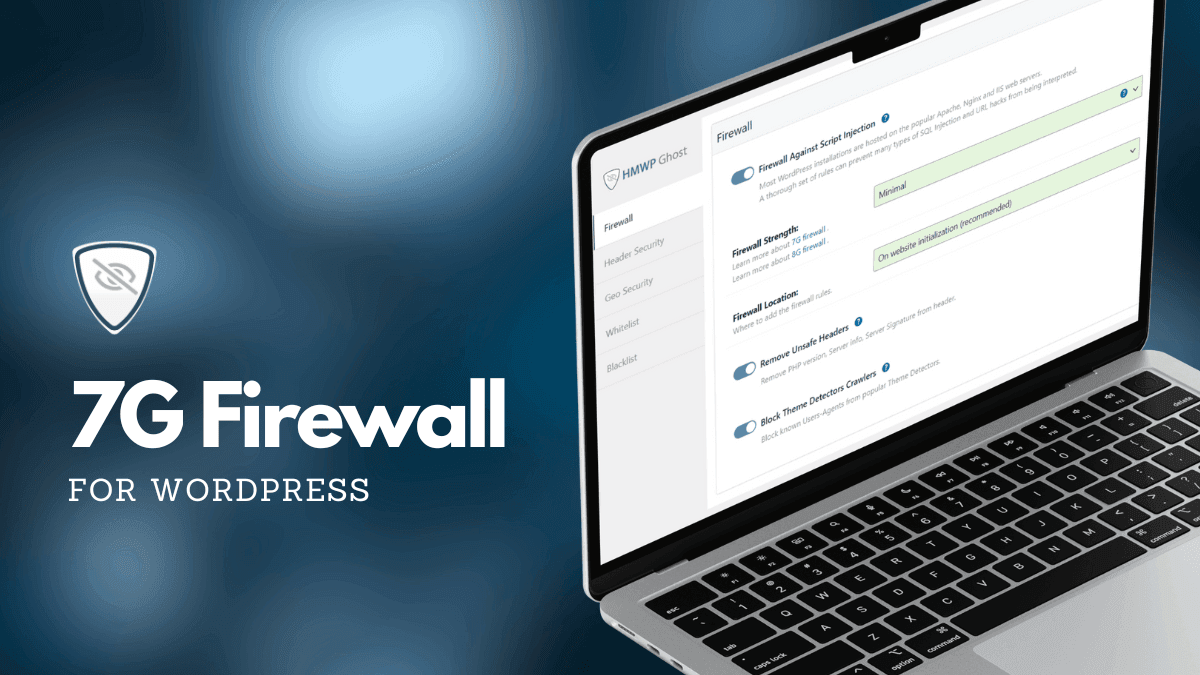
Activate the 7G Firewall in WP Ghost to block SQL injection, script injection, XSS, and malicious bots at the server level before WordPress loads. Free feature, zero performance impact.
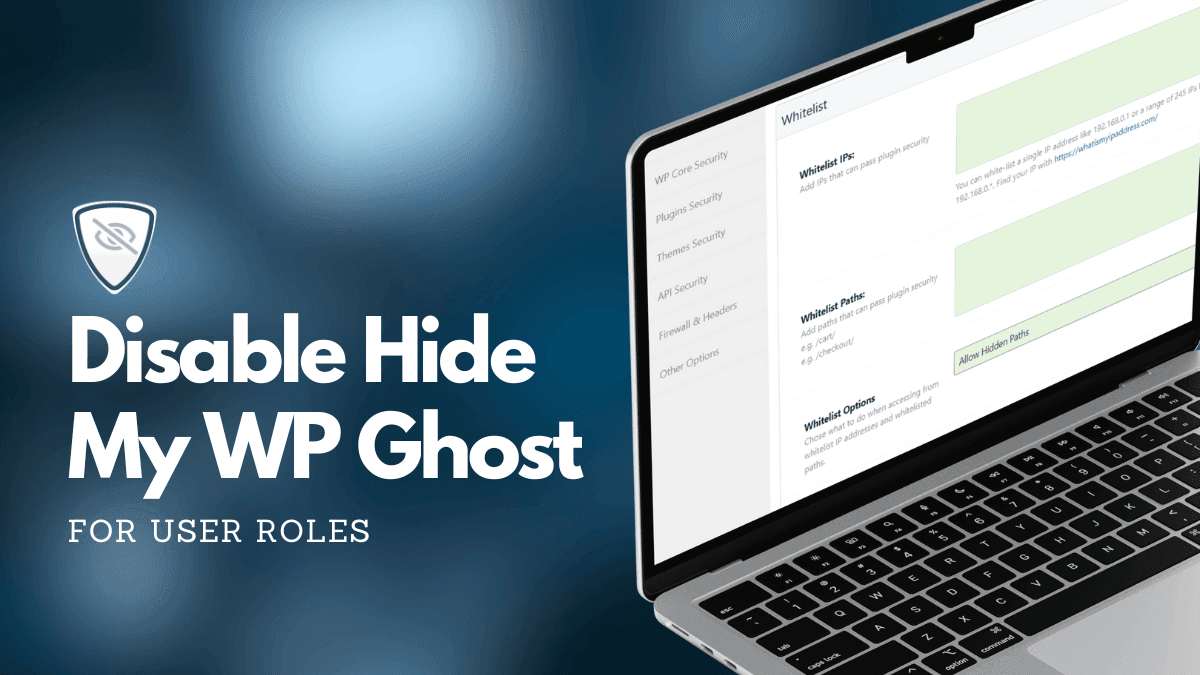
Disable WP Ghost path security for administrators, editors, or any WordPress user role using a simple code snippet. Also covers IP whitelisting as a no-code alternative.
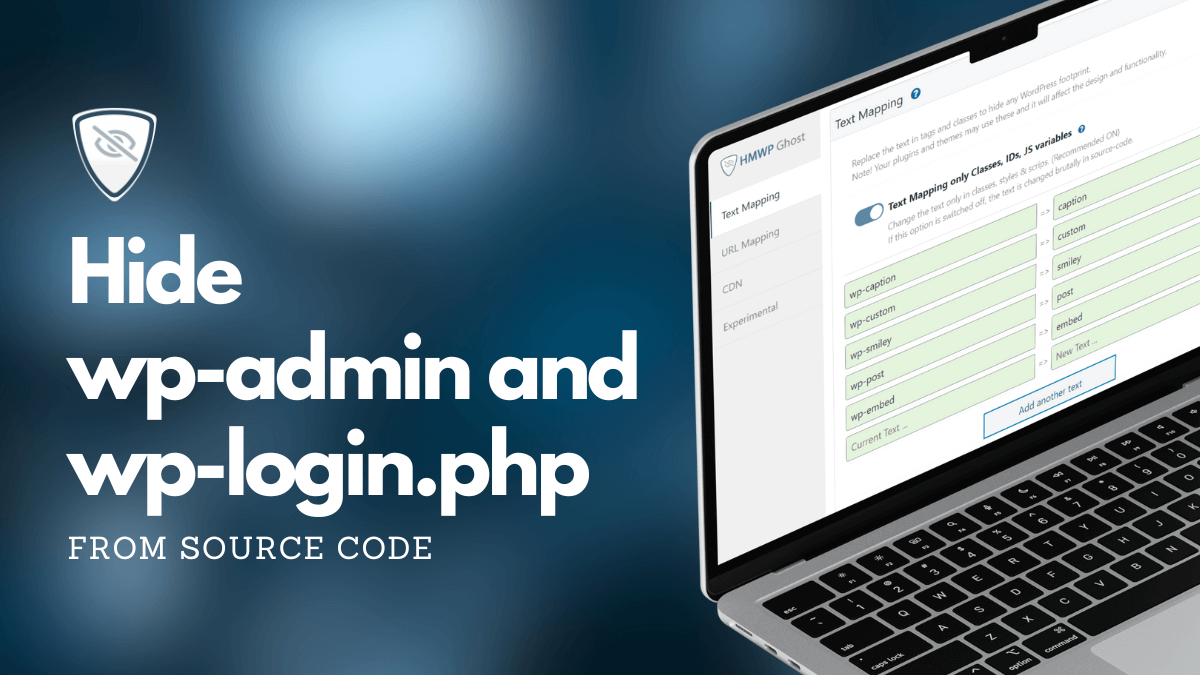
Remove wp-admin and wp-login.php from your WordPress source code using WP Ghost Admin Security and Login Security settings. Step-by-step guide with troubleshooting for stubborn path references.
Configure WP Ghost path security on Ploi.io hosting. Create the hidemywp.conf file, add the include directive in Ploi’s Nginx editor, and verify your WordPress site is protected.
Learn how to configure WP Ghost path security on WPMUDEV hosting. Generate the hidemywp.conf file, send it to WPMUDEV support for Nginx inclusion, and verify your setup.
Configure WP Ghost on Kinsta by sending the hidemywp.conf file to Kinsta support. One-time setup with step-by-step instructions for backup, handoff to support, and verification. Includes CDN and troubleshooting.
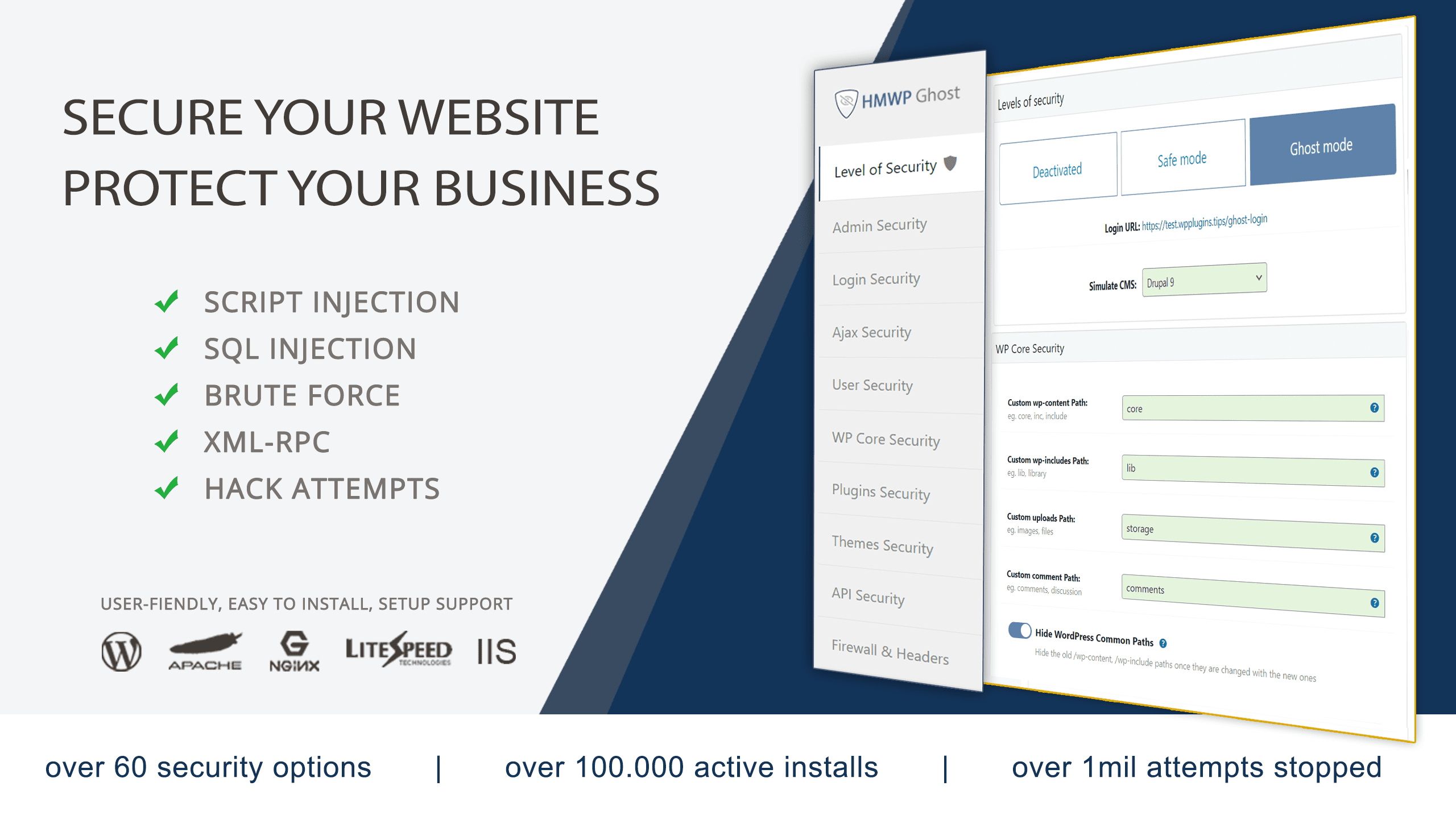
Set up WP Ghost in under 4 minutes: load the Ghost Mode preset, then adjust each section in the order the video shows.
VIDEO OUTLINE
Recommended Actions:
Admin Security
Login Security
Change the theme and plugin names that scanners read in your page source.
Recommended Actions:
👋 How to Fix 403 Forbidden Error caused by mod_security
If your host uses ModSecurity rule #212340, it may prevent the Code Editor from working in Ghost Mode. If you encounter a 403 error, ask your host to whitelist Rule 212340 for your account.
WP Ghost works on all major servers and hosts with two exceptions. WordPress.com blocks login path changes. Shared Nginx without config access limits path features. Workarounds for both documented here.
This tutorial has moved to the new WP Ghost Knowledge Base where each feature is presented in detail.
WP Ghost (formerly Hide My WP Ghost) works on RunCloud with both web application stacks. If you use NGINX + Apache2 Hybrid, WP Ghost works automatically through .htaccess. If you use Native NGINX, add one include line in RunCloud’s NGINX Config panel. Both options are one-time setup steps.
If your RunCloud application uses NGINX + Apache2 Hybrid as the Web Application Stack, WP Ghost works automatically. All rewrite rules load from .htaccess through the Apache layer. No Nginx configuration needed.
Install WP Ghost, go to WP Ghost > Change Paths > Level of Security, select Safe Mode or Ghost Mode, click Save, and follow the Customize All WordPress Paths tutorial.
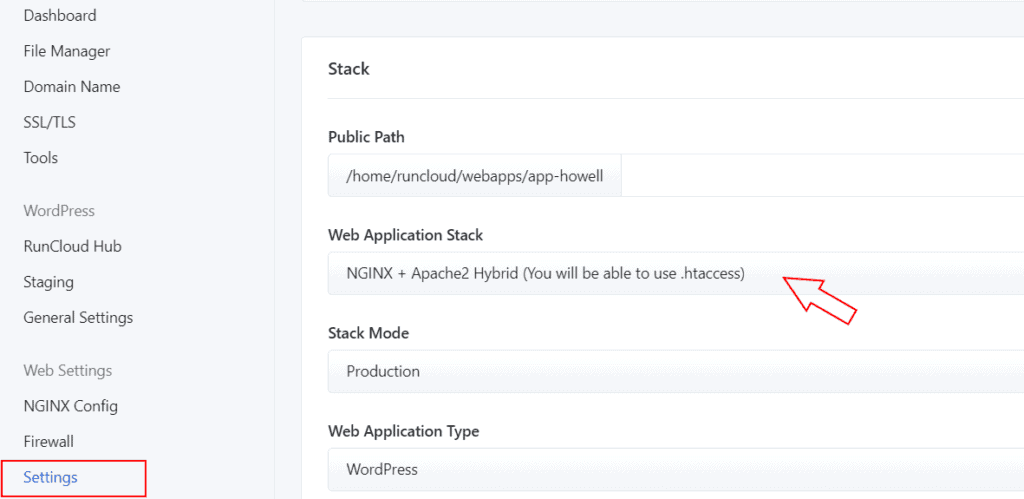
If your RunCloud application uses Native NGINX, you need to add the WP Ghost config file include through RunCloud’s NGINX Config panel.
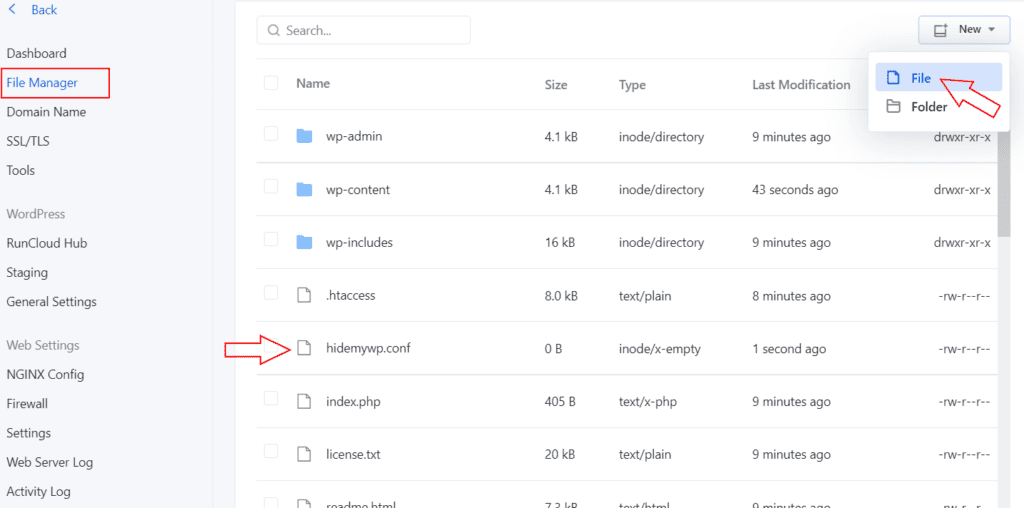
In RunCloud, go to your application’s File Manager. Create a file named hidemywp.conf in your website root directory.
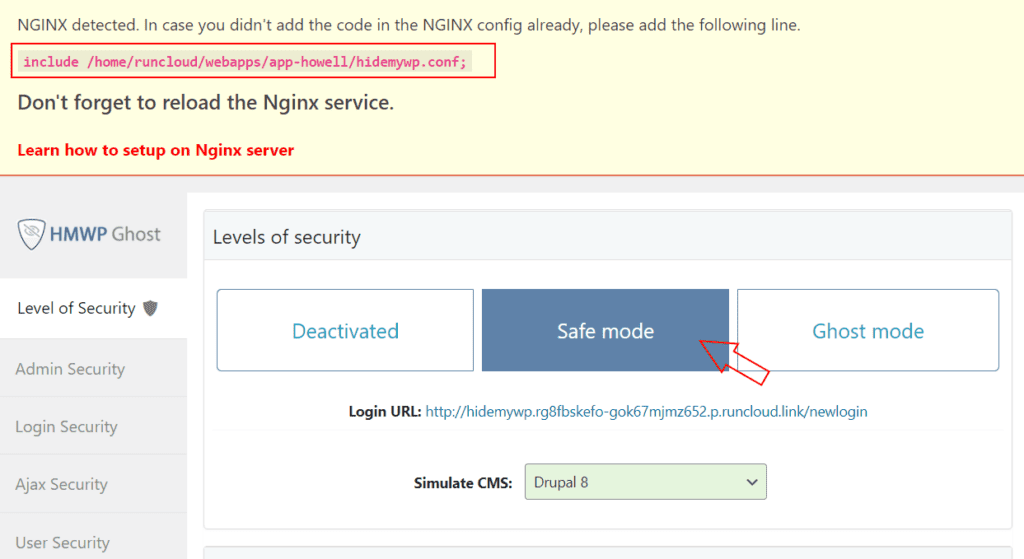
In WP Ghost, go to Change Paths > Level of Security. Select Safe Mode or Ghost Mode. Click Save. WP Ghost detects Nginx and displays the include line you need to add to RunCloud’s config.
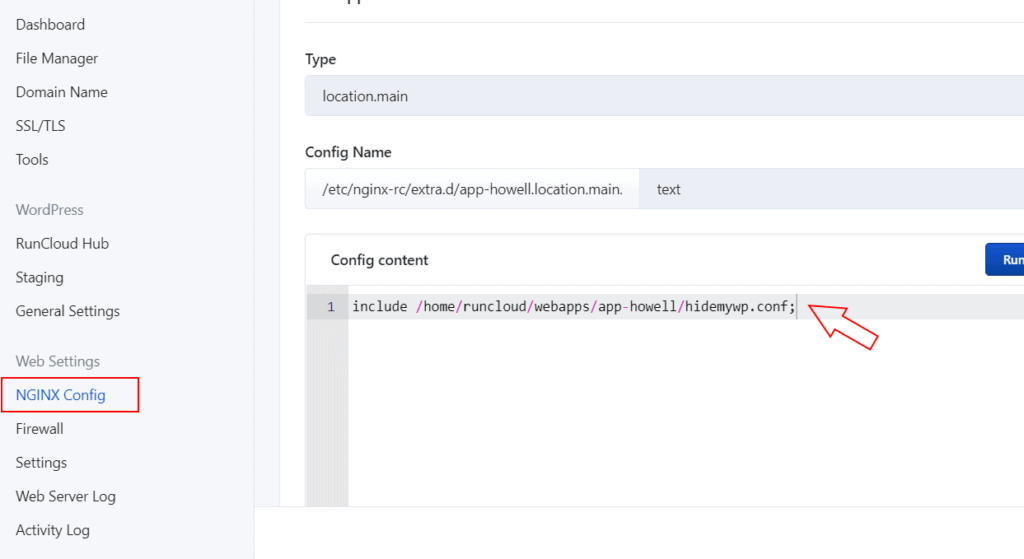
In RunCloud, go to your application’s NGINX Config section. Add the include line from WP Ghost. Click Verify to check the syntax, then Save.
After adding the include, click Rebuild Web App Config in RunCloud to apply the changes. This reloads the Nginx configuration with WP Ghost’s rewrite rules.
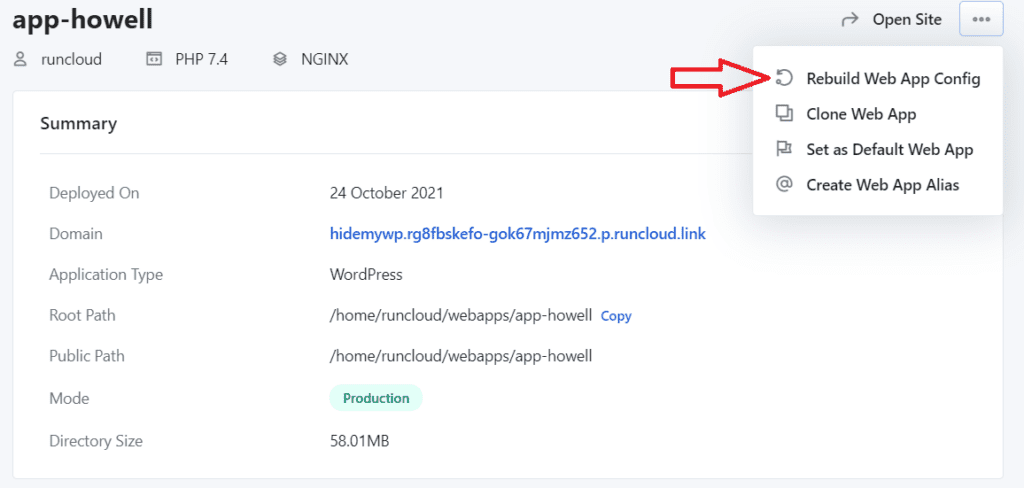
Custom paths return 404 on Native NGINX. The include line was not added or the config was not rebuilt. Go to RunCloud NGINX Config, verify the include line is present, and click Rebuild Web App Config. On WP Ghost Premium 9.0.13 or later, press Start Diagnosis in Ghost Doctor on the Level of Security page (WP Ghost > Change Paths > Level of Security). It loads the site as a logged-out visitor, finds which path Nginx stopped serving and repairs it.
Paths work on Hybrid but not after switching to Native NGINX. The Hybrid stack uses .htaccess (Apache), while Native NGINX ignores .htaccess entirely. You need to add the hidemywp.conf include as described in Option 2.
Locked out after configuration. Use the Safe URL parameter or the Emergency Disable guide. RunCloud provides File Manager access where you can rename the plugin folder.
NGINX + Apache2 Hybrid is easiest for WP Ghost – no Nginx configuration needed. Native NGINX is faster (no Apache overhead) but requires the include line setup. If you already have a Native NGINX app, follow Option 2. If creating a new app, Hybrid is simpler.
On Native NGINX, yes. WP Ghost updates the hidemywp.conf file automatically, but Nginx does not detect file changes until the config is rebuilt. Click Rebuild Web App Config in RunCloud after changing paths. On the Hybrid stack, this is not needed.
Yes. If you switch stacks, you need to set up the hidemywp.conf include as described in Option 2. Your WP Ghost path settings are preserved – only the server configuration method changes.
No. WP Ghost writes rewrite rules to .htaccess (Hybrid) or hidemywp.conf (Native NGINX). No core files modified. Deactivating restores all defaults.
Nginx Server Setup – general Nginx configuration for WP Ghost.
Customize All WordPress Paths – configure paths after server setup.
Theme Not Loading Correctly – troubleshoot path issues across server types.
Emergency Disable Guide – recovery if configuration causes issues.
Compatibility Plugins List – hosting-specific notes.
WP Ghost and SiteGround Security are fully compatible and complement each other. WP Ghost handles path security and firewall. SiteGround handles activity logging and post-attack scanning. Feature comparison table included.
WP Ghost and WP Cerber Security complement each other. WP Ghost handles path security and firewall. WP Cerber handles anti-spam, malware scanning, and traffic inspection. Enable shared features in one plugin only.
WP Ghost and BBQ Firewall both use nG-series rules to block SQL injection and XSS. WP Ghost’s built-in 7G/8G firewall makes BBQ redundant. Use one firewall for efficiency. WP Ghost adds path security, 2FA, headers, and brute force that BBQ lacks.
WP Ghost and Sucuri Security are fully compatible with almost no overlap. WP Ghost handles server-level path security and firewall. Sucuri handles cloud WAF, DDoS protection, malware scanning, and post-hack cleanup. Both can run fully active.
WP Ghost and Anti-Malware Security are fully compatible. WP Ghost prevents attacks through path security and firewall. Anti-Malware detects and removes infections with definition-based scanning. Both can run fully active.
WP Ghost and Limit Login Attempts Reloaded overlap on login protection. WP Ghost includes all LLAR features plus path security, firewall, 2FA, and headers. LLAR Premium adds cloud IP intelligence. Enable login limits in one plugin only.
WP Ghost and Loginizer overlap heavily on login security. WP Ghost includes all Loginizer features (brute force, reCAPTCHA, IP blocking, 2FA) plus path security, firewall, and headers. Enable login protection in one plugin only.
WP Ghost and Wordfence are fully compatible. WP Ghost prevents attacks by changing paths and blocking bots. Wordfence detects threats with its application firewall, malware scanner, and live traffic. Enable shared features in one plugin only.
WP Ghost and Shield Security complement each other. WP Ghost handles path security and firewall. Shield handles automated bot detection, spam filtering, and file scanning. Enable shared features in one plugin only.
WP Ghost and Solid Security complement each other. WP Ghost handles path security and firewall prevention. Solid Security handles monitoring, file detection, site scanning, and alerts. Enable shared features in one plugin only.
Connect new websites to your WP Ghost Premium license or move a license to a different site. Manage connected websites from your WP Ghost Dashboard. Includes license limit info and site removal steps.
Change the default wp_ database prefix to a random one with WP Ghost’s one-click Security Check tool. Prevent SQL injection attacks that target hardcoded WordPress table names.
Configure WP Ghost with WP Rocket. Combine CSS/JS files, enable Change Paths in Cached Files, map the WP Rocket cache directory, and integrate with WP Rocket CDN. Step-by-step with 3 screenshots.
Learn how to configure WP Ghost path security on Flywheel hosting. Activate Safe Mode or Ghost Mode, add redirect rules to Flywheel’s Redirect tool, clear cache, and verify your setup.
WP Ghost and Autoptimize are fully compatible. Learn how to configure both plugins together for optimal WordPress performance and hack prevention, including cache path mapping.