Hide WordPress from Wappalyzer: The 8 Signals It Reads, and How to Zero Each One
August 19, 2026
Open Wappalyzer on your own site. Two seconds later it has your CMS, your WordPress version, your page builder, your ecommerce plugin, your analytics, your CDN. Anyone can do that: a competitor pricing you out, a lead-gen database, or a bot deciding whether your stack matches a public exploit it already has. You did not publish that list. Your markup did.
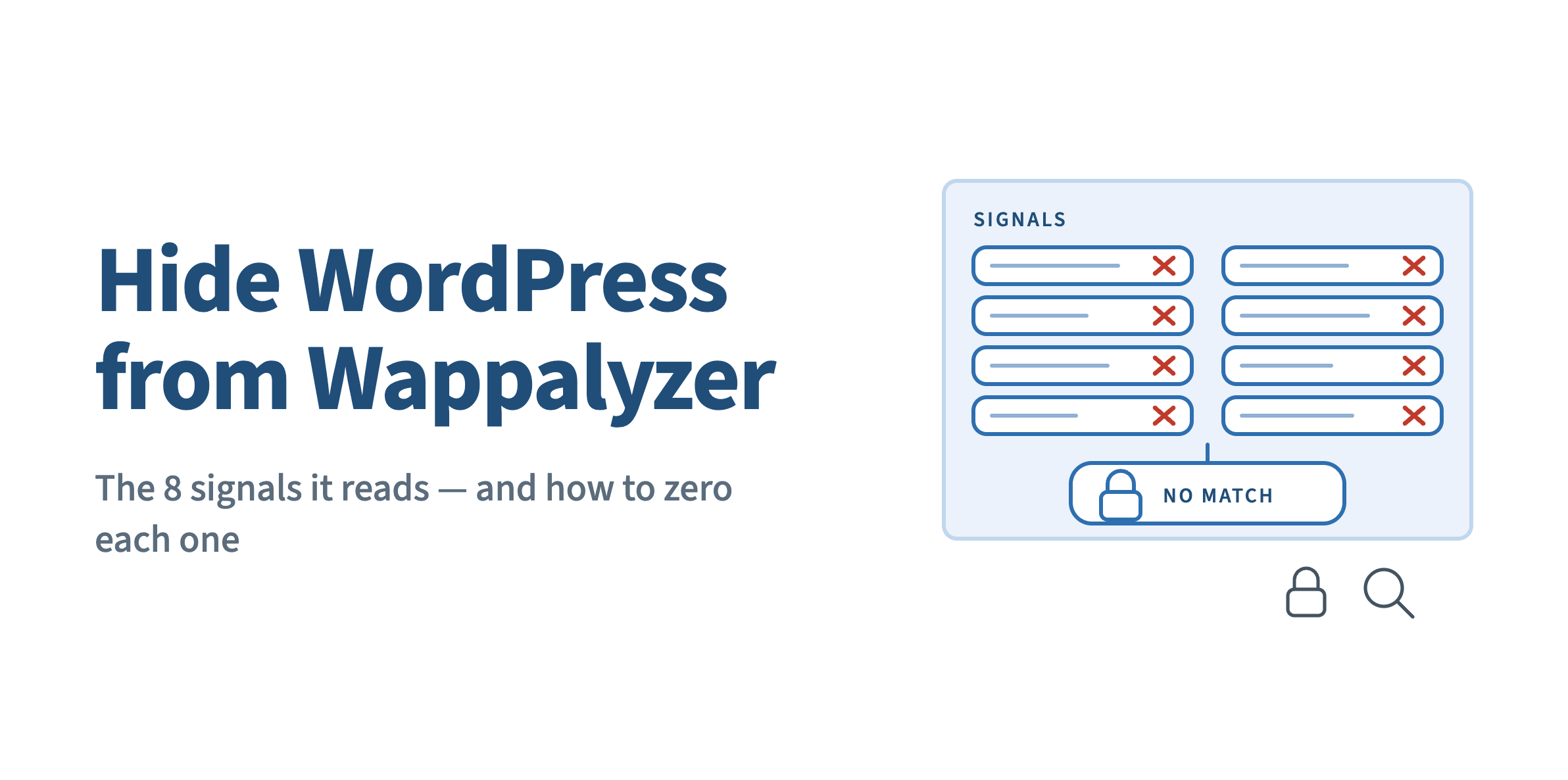
Wappalyzer does not hack anything. It pattern-matches. It pulls your HTML, your response headers, your cookies and your asset URLs, then runs them against a public library of regular expressions. Remove the strings those expressions look for and the match fails. That is the whole job: eight signals, each removable, each verifiable.
That distinction matters because of what fingerprinting feeds. In 2025, 11,334 new vulnerabilities were recorded across the WordPress ecosystem, a 42% year-on-year rise (43 verified WordPress security data points). Bots do not test all of them against every site. They fingerprint first, then fire only the exploits that match. A failed fingerprint drops you out of that queue.
How Wappalyzer identifies WordPress
Wappalyzer is a browser extension scanner and a crawler API built on the same open-source detection set. Its own repository describes the method plainly: “a long list of regular expressions is used to identify technologies on web pages,” inspecting HTML, JavaScript variables and response headers (Wappalyzer on GitHub).
For WordPress, that library keys on eight things:
| # | Signal | Where it lives | What it leaks |
|---|---|---|---|
| 1 | <meta name="generator" content="WordPress 6.x"> | <head> | CMS and exact version |
| 2 | /wp-content/, /wp-includes/ | every CSS, JS and image URL | CMS, theme name, plugin names |
| 3 | /wp-json/ REST API link | <link rel="https://api.w.org/"> and the Link: header | CMS, and often user data |
| 4 | ?ver=6.5.2 query strings | enqueued scripts and styles | core and plugin versions |
| 5 | CSS class fingerprints | wp-block-*, postid-*, woocommerce-*, elementor-* | CMS, page builder, ecommerce plugin |
| 6 | Response headers | X-Powered-By, X-Pingback, Link: | CMS, PHP version, stack |
| 7 | Cookies | wordpress_test_cookie, wp-settings-* | CMS, confirmed on any logged-in hit |
| 8 | Predictable files | /readme.html, /license.txt, /xmlrpc.php, the RSD link, /feed/ generator | CMS and version, even with a clean <head> |
Note what is absent from that list: nothing here requires a login, a scan, or a single suspicious request. Every one of these is served to any visitor, on the first page load.
You removed the generator tag and Wappalyzer still says WordPress
This is where most people stop and get frustrated. You dropped remove_action('wp_head', 'wp_generator') into functions.php, reloaded, and the extension still shows the WordPress logo.
It should. The generator tag is signal #1 of eight. Your stylesheet still loads from /wp-content/themes/, your <head> still advertises /wp-json/, your body tag still carries postid-482 and wp-block-group, and your response still ships an X-Pingback header. Wappalyzer only needs one of those to match.
Fingerprint removal is multi-channel or it is cosmetic. That is the single most useful thing to understand about this problem: there is no one file to edit. There are eight surfaces, and they live in PHP output, in the theme, in the database, in .htaccess and in the HTTP layer at the same time.
Remove each signal
Work down the list in this order. Each step is checkable on its own, so you can stop and test rather than changing eight things and guessing which one broke the layout. The version I would ship first is steps 1, 2 and 5: they take about ten minutes, they carry no layout risk, and between them they account for most of what a detector actually matches on.
- Strip the generator tag and every version string. Remove
<meta name="generator">from the<head>, from the RSS feed, and drop the?ver=query arguments off enqueued assets. Details in remove the generator meta tag and version strings. - Change the core paths. Map
/wp-content/and/wp-includes/to neutral names so nothing in your markup spells “WordPress.” This is the highest-value single change on the list. It kills signals #2 and a large part of #8 at once. - Relocate the REST API endpoint. Move
/wp-json/to a custom path and remove theapi.w.org<link>and its matchingLink:response header. Both the HTML tag and the header have to go; leaving one is the most common miss. This one is not only a fingerprint: the REST API is also a live attack surface, as the WP2Shell chain through the wp-json batch endpoint showed. - Replace the CSS class fingerprints.
wp-block-button,elementor-widgetandwoocommerce-cartare unambiguous. Rewriting them in HTML, CSS and JS is an advanced change with a real performance cost, so read replace WooCommerce and Elementor class names before enabling it, and test your layout afterwards. Core block classes are a separate, cheaper job. See rename the Gutenberg block classes. - Clean the response headers. Remove
X-Powered-By,X-Pingbackand anyServerheader that names a version. These never reach the browser’s rendered page, which is exactly why they get forgotten. - Kill the identifying cookies.
wordpress_test_cookieand thewp-settings-*pair confirm the CMS on the first authenticated hit. - Return 404 for the tell-tale files.
/readme.html,/license.txt,/xmlrpc.phpand the RSD link should not resolve. A 404 at the rewrite layer means the file is never served. The signal is gone, not obscured. If your stack ships extra identifiable files, add them to the hidden common files list rather than blocking them one by one. - Decide what the site should look like instead. Removing everything leaves “Unknown CMS,” which is quiet but conspicuous. Returning a coherent non-WordPress profile is quieter still.
If you would rather not reconfigure eight surfaces by hand, the Wappalyzer configuration walkthrough covers the plugin-side toggles that cover the same ground in one pass. The reason a plugin is worth considering here is not effort. It is drift: detectors add new patterns, and a one-time manual edit does not update itself.
Making a simulated CMS believable
Step 8 has a trap. Writing Drupal 10 into the generator tag while /wp-content/plugins/ is still in your asset URLs does not read as Drupal. It reads as a WordPress site with a fake meta tag, which is a more interesting target, not a less interesting one.
A simulated profile only holds if the signals agree with each other. Paths, headers, cookies, feed structure and the API endpoint all have to match the CMS you are claiming to be. That consistency is what simulate Drupal or Joomla with the CMS Simulator exists to handle. It is the one part of this list that is hard to assemble by hand, because it means aligning every signal at once rather than deleting them one by one.
Pick the simulated CMS to fit the site. Joomla reads naturally on a corporate brochure site; Drupal reads naturally on anything institutional or government-adjacent.
Test it the way a bot would, not the way you browse
Three mistakes make a clean site look dirty, and a leaking site look clean.
- Do not test while logged into wp-admin. Your authenticated session ships admin cookies and unminified assets that a visitor never sees.
- Do not trust the browser extension alone. It reads the page your browser rendered, including anything cached locally. Use a server-side scanner that fetches your URL fresh, then compare.
- Purge every cache first. Page cache, object cache, CDN edge. A cached HTML copy generated before your changes will keep serving the old fingerprint for as long as its TTL says, and you will spend an afternoon debugging a config that was already correct.
Then check the raw response, not the rendered page: view source, read the response headers, and request /wp-json/, /readme.html and /xmlrpc.php directly. Full method in verify your site is hidden from detectors.
What this does not do
Wappalyzer’s own guidance on the subject is worth quoting, because it is honest and it is half right: “The information exposed by Wappalyzer is already public to anyone and hiding it does not make your website secure” (Wappalyzer, How to hide technologies from Wappalyzer).
That is correct about what fingerprint removal is not. It patches nothing, and the honest boundary of the technique is written up in what path security does not cover. An unpatched plugin with a public CVE is still unpatched whether or not the detector names it. If you are behind on updates, do that first.
Where it is incomplete: the majority of attacks against WordPress sites are not chosen by a human reading your stack. They are automated sweeps that fingerprint, filter, then fire. Breaking the fingerprint does not fix the vulnerability. It removes you from the target list that gets the payload. Those are different claims, and only the second one is being made here.
Two more limits, stated plainly:
- Client-side libraries stay visible. As Wappalyzer puts it, “obscuring client-side libraries is a futile effort in almost all cases as the source code has to be sent to the browser to interpret and will always be discoverable.” Your JavaScript framework and your analytics will still be named. The CMS layer is what you can actually remove.
- Cached third-party data lags. Wappalyzer reads your page live, so it updates fast. Crawl-database services keep historical records and will keep showing your old stack for weeks. Same technique, different clock, covered across the detectors that profile WordPress sites.
A correctly configured setup can also stop a WordPress-specific vulnerability scanner from returning a usable fingerprint, but that result depends on completing the full path and tweak configuration. It is not what any single toggle does on its own.
Where this fits
Wappalyzer is one detector. The same eight signals feed every other CMS-detection and technology-profiling tool, which is why the fix generalises: work the pillar guide on hide WordPress from every major CMS detector once, and Wappalyzer, the crawl databases and the vulnerability scanners all come back empty together. For the wider set of traces beyond CMS detection (directory listings, author enumeration, sitemap leaks), reduce your WordPress footprint globally.
FAQ
Isn’t this just security through obscurity?
Obscurity is hiding a key under the mat: the lock is still weak, you just hope nobody looks. This is different in mechanism. Returning a 404 at the rewrite layer means the resource is never served and never executes. You have removed attack surface, not concealed it. It does not replace patching, and nobody should sell it as though it does.
Will hiding WordPress break my plugins or integrations?
Steps 1, 5, 6 and 7 are safe on effectively any site. Path changes and class-name replacement are where breakage happens, usually with page builders and hard-coded asset URLs. Apply those two in a staging environment, and check your builder’s editor as well as the front end.
Will my email marketing or chat widget still work?
Yes, provided anything that authenticates against the REST API is pointed at your new endpoint. Third-party services that detect WordPress by probing /wp-json/ at the default path will need the updated URL. That is a configuration step, not a breakage.
Is it legal to present my site as Drupal or Joomla?
Yes. No regulation requires you to disclose your CMS, any more than you are required to declare your JavaScript framework or your hosting provider. It is the same category as a browser sending a generic user-agent string.
Does removing fingerprints slow the site down?
Steps 1 through 3 and 5 through 7 have no measurable cost. Class-name replacement (step 4) does. It rewrites HTML, CSS and JS output on the fly. Enable it last, and measure before and after.
Does the browser extension count as a real test?
No. It reads the page your browser already rendered and cached, from a session that may be authenticated. Treat it as a smoke test and confirm with a server-side fetch.
Do I still need my malware scanner?
Yes. Fingerprint removal stops reconnaissance; it does not detect a file that is already on your server. They are different layers of the same stack, and neither substitutes for the other.