How to Disable WP Ghost for Specific User Roles in WordPress
January 3, 2023
This tutorial has moved to the new WP Ghost Knowledge Base where each feature is presented in detail.
Quick summary: You can disable WP Ghost’s path security for specific user roles by adding a code snippet to your theme’s functions.php file. For IP-based access control, use the built-in whitelist feature in WP Ghost > Firewall > Whitelist instead.
Why Disable WP Ghost for Certain User Roles
WP Ghost changes and secures WordPress paths for everyone visiting your site. That is exactly what you want for public visitors and bots. But in some situations, you may need certain logged-in users to see the original, unmodified WordPress paths instead.
This is useful when developers or editors need to debug frontend issues without path security interfering, when a third-party plugin expects standard WordPress paths for logged-in users, or when you want administrators to see the default site structure while non-logged visitors see the secured version.
WP Ghost provides two approaches: IP-based whitelisting through the dashboard (no code needed), and role-based disabling through a code snippet. Choose the one that fits your situation.
| Method | Best For | Code Required |
|---|---|---|
| IP Whitelist (dashboard) | Fixed team IPs, third-party services, debugging | No |
| Role-based disable (code) | Specific WordPress user roles regardless of IP | Yes |
Option 1: Use IP Whitelisting (No Code)
If your goal is to give specific people unrestricted access, the easiest approach is to whitelist their IP addresses. This requires no code and is managed entirely from the WP Ghost dashboard.
1. Go to WP Ghost > Firewall > Whitelist.
2. Set the Whitelist Level. Choose Allow Everything for full unrestricted access, or Allow Hidden Paths if you only need them to reach the original paths.
3. Add the IP addresses you want to whitelist. You can use individual IPs or wildcard ranges like 192.168.0.*.
4. Click Save.
Whitelisted IPs bypass the firewall, brute force limits, country blocking, and path security, depending on the level you choose. This is the recommended approach for teams with fixed IP addresses.
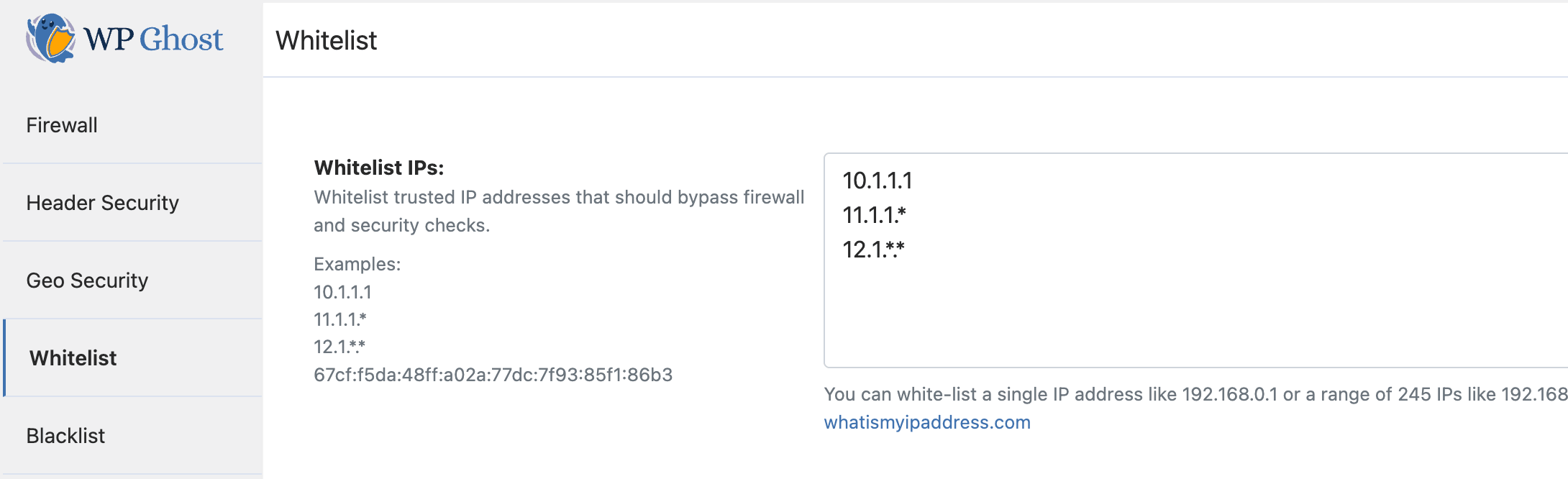
For a complete guide on whitelisting, including path whitelisting and all three whitelist levels, see the WP Ghost Whitelist tutorial.
Option 2: Disable Path Security by User Role (Code)
If you need to disable WP Ghost based on the user’s WordPress role rather than their IP address, add this code snippet to your active theme’s functions.php file or use a code snippets plugin.
The Code Snippet
add_action('template_redirect', 'disableWPGhostByUserRole');
function disableWPGhostByUserRole() {
    if (function_exists('wp_get_current_user')) {
        $user = wp_get_current_user();
        $allowed_roles = array(
            'administrator',
            'editor',
            'author'
        );
        if (isset($user->roles) && is_array($user->roles) && array_intersect($allowed_roles, $user->roles)) {
            add_filter('hmwp_process_paths', '__return_false');
            add_filter('hmwp_process_buffer', '__return_false');
            add_filter('hmwp_process_hide_disable', '__return_false');
            add_filter('hmwp_process_find_replace', '__return_false');
        }
    }
}
This code disables WP Ghost’s path rewriting for administrators, editors, and authors. Non-logged visitors and any other roles still see the secured paths.
How to Customize the Roles
Edit the $allowed_roles array to match your needs. Add or remove roles as necessary. WordPress default roles you can use: administrator, editor, author, contributor, subscriber. If you use WooCommerce, you can also add shop_manager or customer.
For example, to disable path security only for administrators:
$allowed_roles = array(
    'administrator'
);
What the Filters Do
The code uses four WP Ghost filters that control different parts of the path rewriting engine:
hmwp_process_paths controls whether the path rewriting engine runs at all. Setting it to false stops all path changes.
hmwp_process_buffer controls whether the HTML output buffer is processed for path replacements. Setting it to false means the page HTML is sent as-is, without any URL rewriting.
hmwp_process_hide_disable controls the “disable WP paths” feature (renaming wp-admin, wp-content, etc.). Setting it to false shows the original paths.
hmwp_process_find_replace controls the text-mapping find-and-replace engine. Setting it to false skips all text replacements in the output.
Together, these four filters effectively turn off WP Ghost’s path security for the specified roles while keeping everything active for everyone else.
Where to Add the Code
You have two options. Add it to your child theme’s functions.php file (recommended – survives theme updates), or use a code snippets plugin that stores custom PHP independently of your theme.
Do not add this to your parent theme’s functions.php directly. A theme update will overwrite your changes.
Important Considerations
This code only disables path security (URL rewriting) for the specified roles. The firewall, brute force protection, 2FA, security headers, and all other WP Ghost features remain active for everyone, including the roles listed in the code. If you need to disable everything for a specific IP, use the IP Whitelist with “Allow Everything” level instead.
The code runs on template_redirect, which means it only applies to frontend page loads. Admin dashboard (wp-admin) behavior is not affected by this snippet.
Keep in mind that users with the affected roles will see the real WordPress structure in the source code. If your security strategy relies on hiding paths from everyone, be selective about which roles you add.
Frequently Asked Questions
Should I use the code snippet or the IP whitelist?
Use the IP whitelist when you know the specific IP addresses of the people who need unrestricted access. It is easier, requires no code, and covers all WP Ghost features. Use the code snippet when access needs to be based on the user’s WordPress role regardless of which IP they connect from, like remote teams with dynamic IPs.
Does this affect the firewall and brute force protection?
No. The code snippet only disables path rewriting (URL changes in the HTML output). The firewall, brute force protection, 2FA, security headers, and all other WP Ghost features remain fully active for the specified roles. Only the IP whitelist with “Allow Everything” level disables all security features for an IP.
Will this code survive theme updates?
Only if you add it to a child theme or use a code snippets plugin. Adding it to the parent theme’s functions.php means a theme update will overwrite it. A child theme or snippets plugin keeps the code safe.
Can I use this with WooCommerce roles?
Yes. WooCommerce adds roles like customer and shop_manager. Add them to the $allowed_roles array in the code. WP Ghost is fully compatible with WooCommerce and all WooCommerce user roles.
Does WP Ghost have a built-in setting for this?
WP Ghost has a built-in option to show or hide paths for logged-in users in WP Ghost > Change Paths > Change Paths for Logged Users. Check that option first. The code snippet provides more granular control by targeting specific roles rather than all logged-in users.
Does WP Ghost modify WordPress core files?
No. WP Ghost uses WordPress hooks and server rewrite rules. No core files are modified. The code snippet in this tutorial also uses standard WordPress filters, which is the recommended way to customize plugin behavior.
Related Tutorials
For more access control and customization options:
WP Ghost Whitelist (IPs and Paths) – Whitelist specific IPs and paths from the dashboard without code.
Disable WP Ghost on Specific Pages – Turn off path security on individual pages instead of by user role.
Customize Paths in WP Ghost – Full guide to all path security options including the “Change Paths for Logged Users” setting.
Grant User Role Access to WP Ghost Settings – Allow non-admin users to configure WP Ghost.
Brute Force Attack Protection – Login security that works alongside role-based path disabling.