
How to Set Up WP Ghost on Ploi.io Hosting – Nginx Setup Guide
February 7, 2022
This tutorial has moved to the new WP Ghost Knowledge Base where each feature is presented in detail.
To set up WP Ghost on Ploi.io hosting, configure your paths in WP Ghost, create the hidemywp.conf file on the server, add the include directive in the Ploi.io Nginx configuration editor, and verify the frontend loads correctly.
Why Ploi.io Requires Nginx Configuration
Ploi.io is a server management platform that makes it easy to deploy WordPress on cloud servers like DigitalOcean, Hetzner, AWS, and Vultr. Ploi provisions servers with Nginx by default, which means WP Ghost can not write rewrite rules to .htaccess like it does on Apache servers.
Instead, WP Ghost generates a hidemywp.conf file containing all the Nginx rewrite rules. You need to include this file in the Nginx configuration through Ploi’s built-in Nginx editor. The process takes about 5 minutes and Ploi applies the changes automatically without requiring a manual Nginx restart.
Prerequisites
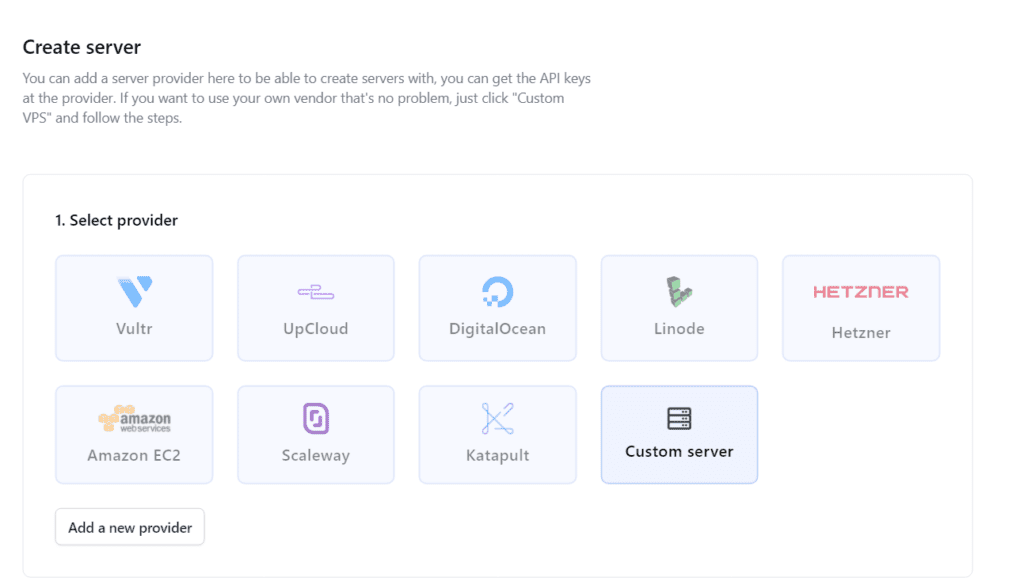
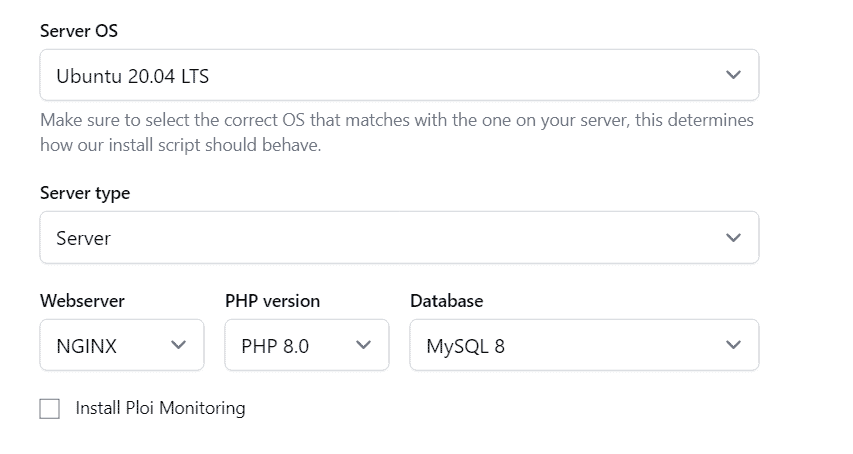
Before you start, make sure you have a Ploi.io server running Ubuntu with Nginx and PHP 8.0 or higher, and WordPress installed on that server. If you have not set this up yet, follow Ploi’s documentation to create a server and install WordPress first.

Step 1 – Install and Configure WP Ghost
1. Install the WP Ghost plugin from your WordPress dashboard. Go to Plugins > Add New, search for “WP Ghost”, and click Install then Activate. For the full installation guide, see Install WP Ghost.
2. Go to WP Ghost > Change Paths.
3. Select Safe Mode (recommended for first-time setup) or Ghost Mode (Premium).
4. Customize your paths as needed.

Step 2 – Create the hidemywp.conf File
5. Before saving WP Ghost settings, go to the Ploi.io panel and open the File Manager for your website.
6. Create an empty file named hidemywp.conf in the website root directory (the same folder that contains wp-config.php).
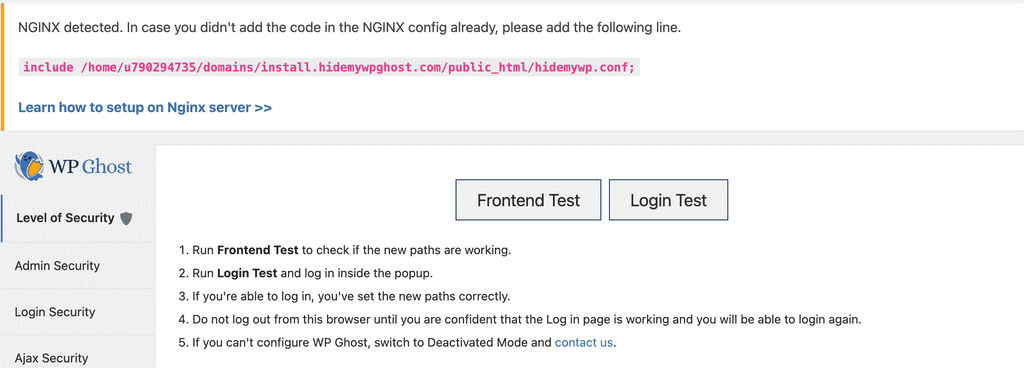
7. Go back to WP Ghost and click Save. WP Ghost detects the Nginx server and writes the rewrite rules to the hidemywp.conf file. It also shows you the include line you need to add to the Nginx configuration.
Step 3 – Add the Include Directive in Ploi.io
8. In the Ploi.io panel, go to your website’s Manage section.
9. Click Edit NGINX configuration.
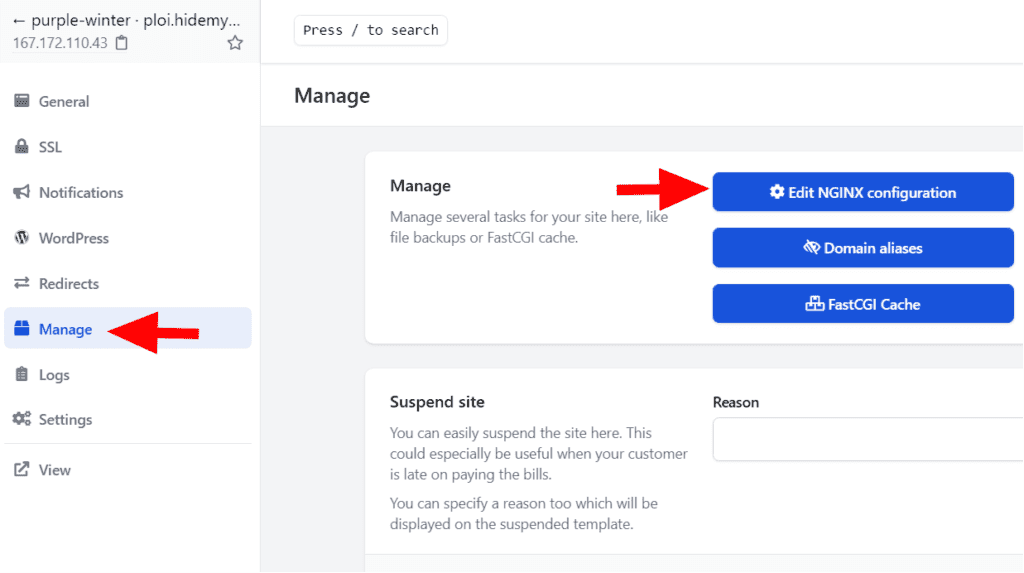
10. Copy the include line from the WP Ghost notification and paste it into the Nginx configuration. Add it before the SSL protocol definition line.
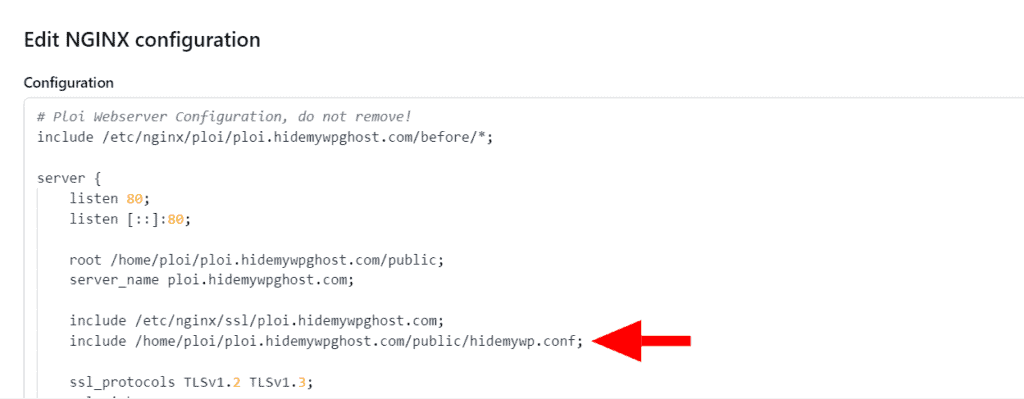
11. Click Save. Ploi applies the Nginx configuration changes automatically. You do not need to restart the server manually.
Step 4 – Verify Your Setup
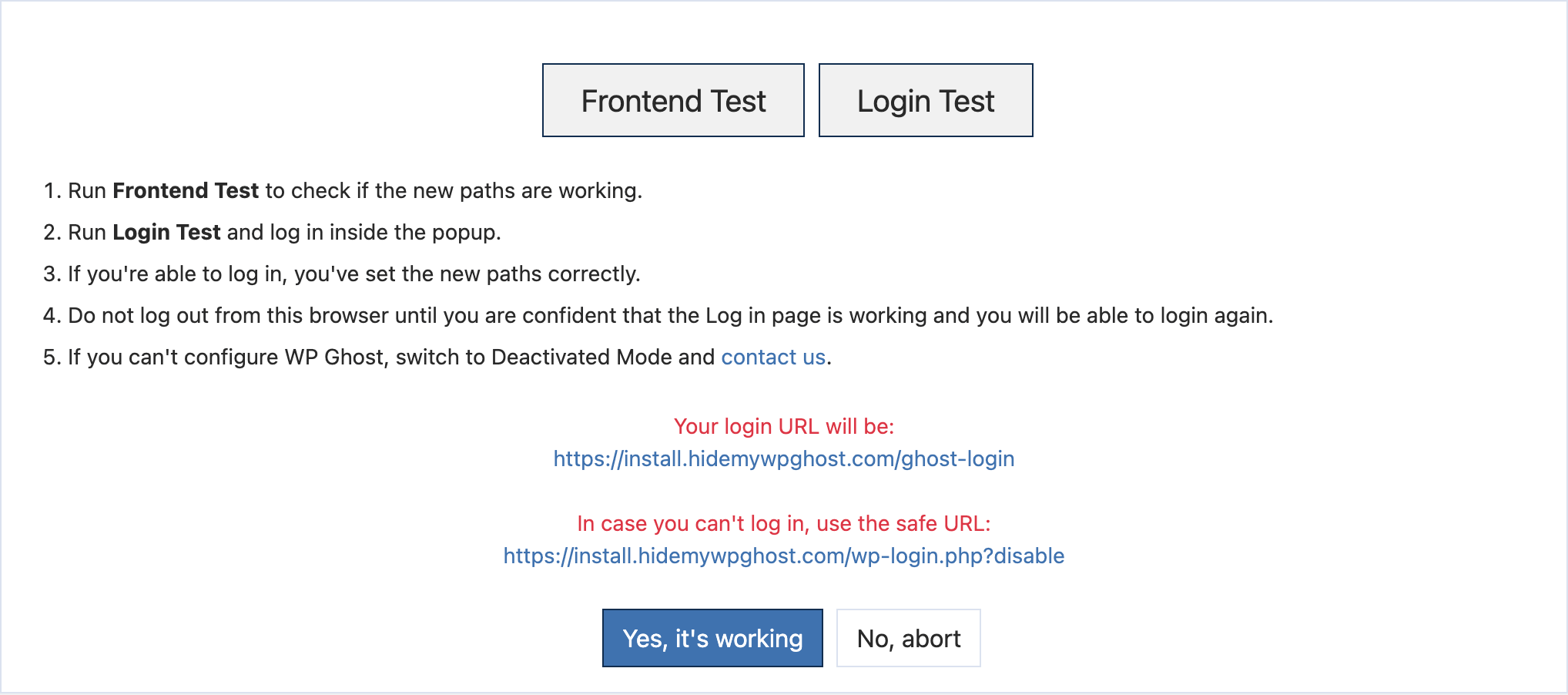
12. Go back to your WP Ghost settings and click the Frontend Login Test to verify your new login path loads correctly.
13. Open your site in an incognito browser window and confirm the old paths (like /wp-login.php and /wp-admin/) return 404 errors.
14. If everything works, click “Yes, it’s working” to confirm. If something is wrong, click “No, abort” to roll back instantly.
Troubleshooting
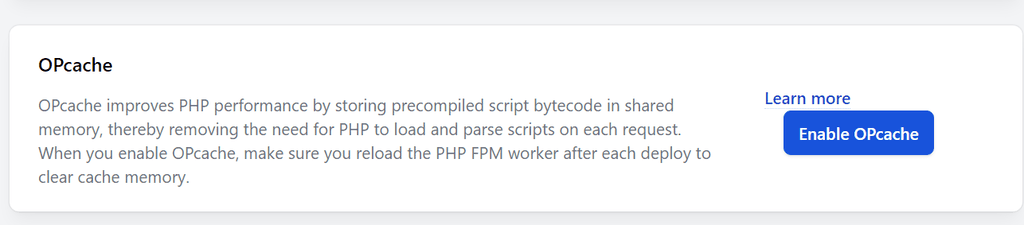
Error when changing the admin path on Ploi server. If you get a cache-related error when changing the admin path, turn off OPCache in the Ploi server settings until your WP Ghost configuration is finished. OPCache can serve stale PHP files during configuration changes, which causes redirect loops or incorrect path resolution. Re-enable OPCache after you confirm the setup works.
Paths not changing after saving Nginx configuration. Make sure the include directive points to the correct absolute path of the hidemywp.conf file. The path must match the actual server directory where WordPress is installed. Check the Ploi file manager to verify the hidemywp.conf file exists and is not empty.
Login page does not load. Wait a moment for Ploi to apply the Nginx changes. If the issue persists, verify the include line is placed before the SSL definition in the Nginx config. Also clear any server-level or WordPress cache.
Locked out completely. Add define('HMWP_DISABLE', true); to wp-config.php via Ploi’s File Manager or sFTP. This disables WP Ghost temporarily so you can log in and reconfigure. See the emergency disable guide for more options.
For more details on Nginx configuration with WP Ghost, see the Nginx Server Setup guide or the Custom Nginx Config File tutorial.
Frequently Asked Questions
Does Ploi automatically restart Nginx when I save the configuration?
Yes. When you save the Nginx configuration in the Ploi panel, Ploi applies the changes and reloads Nginx automatically. You do not need SSH access or manual server commands.
Do I need to update the Nginx config every time I change WP Ghost settings?
Only when you change paths that affect the rewrite rules (login path, admin path, plugins path, themes path, etc.). The hidemywp.conf file is updated automatically by WP Ghost when you save. Since Ploi includes the file dynamically, Nginx picks up the new rules on the next reload. Changes to settings like brute force protection, 2FA, or firewall level do not require Nginx config updates.
Can I use Ghost Mode on Ploi.io?
Yes. Ghost Mode works on Ploi.io. It generates more rewrite rules than Safe Mode, but the setup process is identical. Safe Mode is recommended for first-time setup because it is easier to troubleshoot.
Is Ploi.io similar to RunCloud?
Yes. Both are server management platforms that help you deploy and manage WordPress on cloud servers with Nginx. The WP Ghost setup process is similar on both. For RunCloud-specific instructions, see the RunCloud Setup guide.
Does WP Ghost modify WordPress core files?
No. WP Ghost generates a separate hidemywp.conf file for Nginx and uses WordPress hooks for application-level features. No core files are moved, renamed, or modified. Deactivating the plugin restores all default paths instantly.