
Fix upgrade.php Not Working After WordPress Auto-Upgrade with WP Ghost
January 26, 2022
If WordPress gets stuck after an auto-upgrade, it may be because WP Ghost’s “Hide WordPress Common Files” option is blocking access to upgrade.php. This was fixed in version 6.0.13 and later – just update the plugin and save settings.
What Causes This Issue
WP Ghost includes an option to hide common WordPress files like readme.html, license.txt, install.php, and upgrade.php. You can find it at WP Ghost > Change Paths > WP Core Security > Hide WordPress Common Files. This feature blocks public access to these files, which is an important part of reducing your site’s attack surface.
However, on older plugin versions (before 6.0.13), this rule also blocked WordPress itself from accessing upgrade.php during the auto-upgrade process. When WordPress runs an automatic update, it needs to access upgrade.php to finalize the process. If that file is blocked by the .htaccess rewrite rule, the upgrade gets stuck and WordPress can not complete the update.
How to Fix It
If you are running WP Ghost version 6.0.13 or later (current version is 9.x), this issue is already fixed. Simply update the plugin to the latest version and click Save in the WP Ghost settings to rebuild the .htaccess rules.
If you are stuck on an older version and can not access your dashboard to update, follow these steps to fix it manually:
1. Connect to your server using sFTP or your hosting’s File Manager.
2. Open the .htaccess file in your WordPress root directory.
3. Find and remove this block of code:
<IfModule mod_rewrite.c>
  RewriteEngine On
  RewriteCond %{REQUEST_URI} /(readme\.html|readme\.txt|install\.php|license\.txt|php\.ini|upgrade\.php|bb-config\.php|error_log) [NC]
  RewriteRule ^(.*)$ - [L,R=404]
</IfModule>
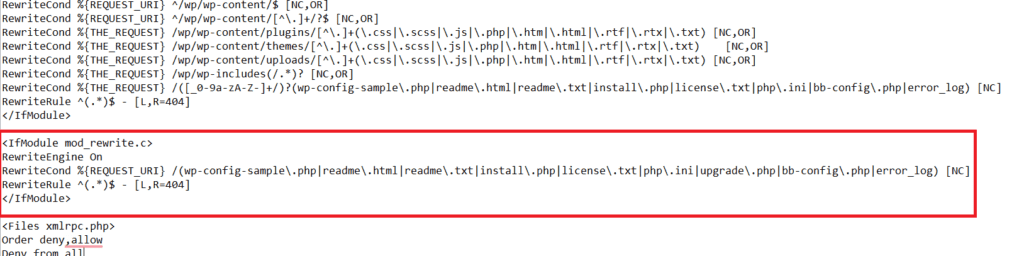
4. Save the .htaccess file and try the WordPress upgrade again.
5. After the upgrade completes, log into your WordPress dashboard, update WP Ghost to the latest version, and click Save in the settings. This rebuilds the .htaccess rules with the corrected version that no longer blocks upgrade.php during auto-updates.
How to Prevent This in the Future
Keep WP Ghost updated to the latest version. The current version (9.x) handles upgrade.php correctly and will not interfere with WordPress auto-updates. WP Ghost does not modify WordPress core files. It uses rewrite rules in .htaccess (on Apache) or config files (on Nginx), and all rules are rebuilt automatically when you save your settings.
If you ever encounter unexpected behavior after a WordPress update, you can temporarily disable WP Ghost by adding this line to your wp-config.php file:
define('HMWP_DISABLE', true);This disables WP Ghost without deactivating it, so you can access your dashboard and troubleshoot. Remove the line when you are done. For more emergency options, see How to Disable WP Ghost in Case of Error.
Frequently Asked Questions
Does the current version of WP Ghost still have this issue?
No. This was fixed in version 6.0.13, released in 2021. All current versions (8.x, 9.x) handle upgrade.php correctly during auto-updates.
Will hiding common WordPress files break anything else?
No. The “Hide WordPress Common Files” feature is designed to block public access to files that should never be accessed directly by visitors or bots. WordPress internal processes like auto-updates work normally on current WP Ghost versions.
I can not access my WordPress dashboard at all. What do I do?
If you are locked out of your dashboard completely, you can disable WP Ghost via sFTP by either removing the rewrite rules from .htaccess or adding the HMWP_DISABLE constant to wp-config.php. See the full guide at Disable WP Ghost in Case of Error.
Does WP Ghost modify WordPress core files?
No. WP Ghost uses server rewrite rules and WordPress hooks. No core files are moved, renamed, or modified. Deactivating the plugin restores all default paths instantly.