How to Hide the wp-content Folder in WordPress (Path Masking Done Right)
September 7, 2026
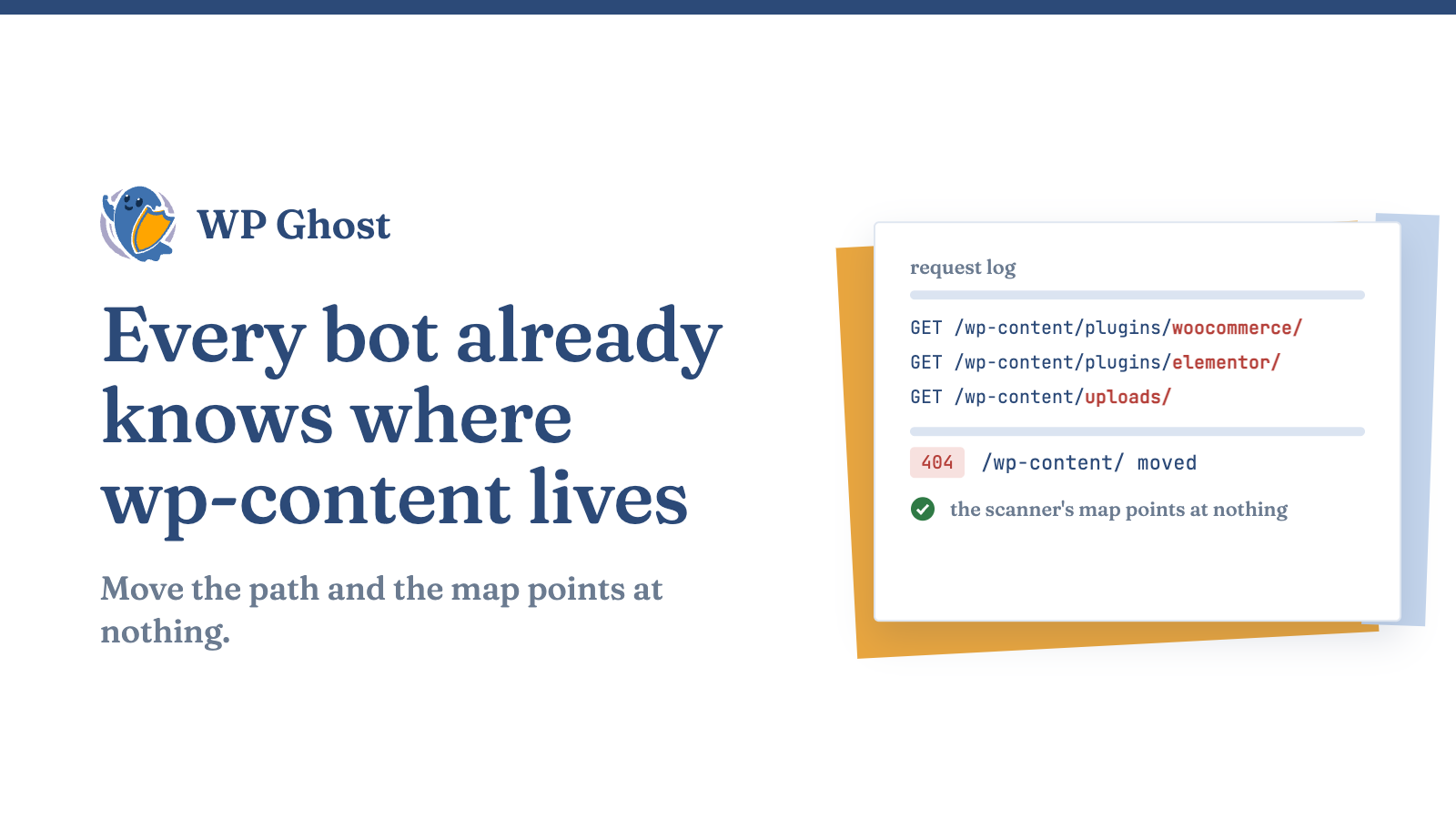
Every WordPress install keeps plugins, themes and uploads under /wp-content/, so bots already know where to look. Once a bot finds a plugin folder, it reads the version and fires a matching exploit. Changing the path removes that starting point.
Why the standard wp-content path is a liability
This is the attack chain when the path is standard:
- A scanner requests
/wp-content/plugins/<name>/readme.txtand reads the exact version. - It matches that version against a public vulnerability database.
- If a known flaw exists, it sends the exploit straight to the folder it already knows.
Fingerprinting: one exposed path tells an attacker a lot
Scanners fingerprint your site by requesting known asset paths. A CSS file under /wp-content/plugins/elementor/assets/ confirms a specific page builder. A script under /wp-content/plugins/woocommerce/ confirms a store.
Uploads exposure
On many WordPress sites, the uploads folder returns a full file listing. That exposes PDFs, invoices and client documents.
Two ways to change your wp-content path
| Edit wp-config.php by hand | One-click path security tool | |
|---|---|---|
| What it does | Relocates the directory with two constants | Rewrites the path the browser sees, through URL rewriting rules. The files stay put |
| References | Doesn’t update the hundreds already hard-coded in your database, theme files, CDN settings and plugins | Updates 100+ references (CDN URLs, plugin asset paths, theme calls) automatically |
| Risk | Broken images, missing stylesheets, plugins that can’t find their assets | Built to run without conflicts with plugins that depend on those paths |
| Fits | A fresh install | Any site with history |
Option 1: edit wp-config.php
WordPress lets you relocate wp-content with constants in wp-config.php:
define( 'WP_CONTENT_DIR', dirname(__FILE__) . '/assets' );
define( 'WP_CONTENT_URL', 'https://yourdomain.com/assets' );
Option 2: a path security tool
WP Ghost’s path security features rewrite the path and keep internal references intact.
Change your wp-content path safely, step by step
On a live store, use the one-click path change and flush every cache straight after, not a hand-edited wp-config.php.
- Back up first. Take a full backup of files and database before you touch any path. It’s your undo button.
- Change the wp-content path. Set a new, non-obvious name in your path security settings and save. The walkthrough is here: change the wp-content path.
- Change the plugins path. Give the plugins folder its own path so
/wp-content/plugins/stops resolving. See change the plugins path and hide plugin names. - Change the uploads path. This closes the forced-browsing exposure. The steps are in change the uploads path.
- Flush every cache. Clear page cache, object cache and CDN cache so old paths stop being served.
- Test the front end and the back end. Load the homepage, a post and the editor. Check that images, styles and scripts load. In dev tools, confirm no request still points at the old
/wp-content/location. - Confirm the old paths return 404. Request
/wp-content/plugins/directly. A 404 means the reconnaissance path is closed.
You can manage all of these in one place. See how to customize all your WordPress paths from one screen. The complete hack prevention guide covers the layers around path security.
What changing the path does and doesn’t do
FAQ
Will changing the wp-content path break my site or my plugins?
It can, if you do it by hand and miss a reference.
Does changing the wp-content path break my CDN?
Not if the rewrite updates your CDN URLs with everything else.
Is hiding wp-content enough to secure my WordPress site on its own?
No. Keep core, plugins and themes updated too.
Can I change the wp-content path without a plugin?
Yes, with WP_CONTENT_DIR and WP_CONTENT_URL in wp-config.php.