How to Change the wp-content/uploads Path in WordPress with WP Ghost
This tutorial has moved to the new WP Ghost Knowledge Base where each feature is presented in detail.
- Why you need to secure the uploads path
- How to change the uploads path with WP Ghost
- Troubleshooting
- Frequently asked questions
- Will my existing images break when I change the uploads path?
- Should I also change the wp-content path?
- Will old image URLs still work after this change?
- Does this work with WooCommerce product images?
- Will changing the uploads path affect my image SEO?
- Why does this not work on my Nginx server?
- Does WP Ghost physically move my uploaded files?
- Related tutorials
Change the WordPress uploads path with WP Ghost (formerly Hide My WP Ghost) to hide the /wp-content/uploads/ directory from your source code. Every image on your site reveals this path in its URL. Since upload URLs appear inside posts and pages (not just scripts), this is the most content-visible path change you can make. Change it once, and every media URL updates automatically.
The uploads directory stores every image, video, audio file, and document you upload through the WordPress admin. By default, each media URL follows the same predictable pattern: /wp-content/uploads/2025/03/photo.jpg. This path appears in every post, page, RSS feed, and image sitemap entry. It tells scanners your CMS, your directory structure, and even the approximate date you uploaded each file.
Why you need to secure the uploads path
| Default /wp-content/uploads/ (exposed) | With WP Ghost (secured) |
|---|---|
| Every image URL reveals WordPress structure | Custom path, no WordPress fingerprint |
| Directory browsing may expose all files | Old path blocked, returns 404 |
| Hotlinking bots target predictable URLs | Custom URLs harder to scrape |
| Scanners confirm CMS from media paths | CMS detection through media fails |
If you have already changed the wp-content path but left uploads at its default, your media URLs still contain “uploads” which is a recognizable WordPress pattern. For complete protection, change both: the wp-content parent path and the uploads sub-path. That way /wp-content/uploads/ becomes something like /custom-parent/custom-media/.
How to change the uploads path with WP Ghost
Activate Safe Mode or Ghost Mode
Go to WP Ghost > Change Paths > Level of Security. Select Safe Mode or Ghost Mode and click Save.

Change the uploads path
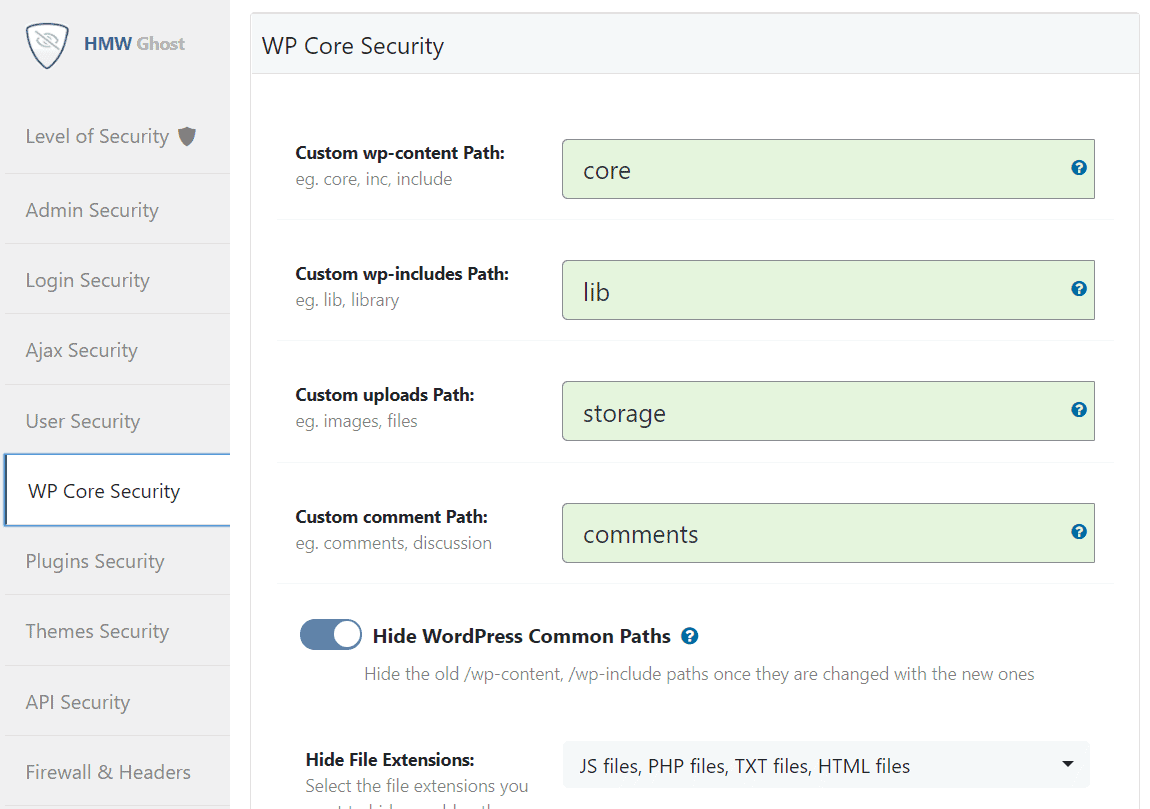
This replaces /wp-content/uploads/ in every media URL across your site. Where you used to see /wp-content/uploads/2025/03/photo.jpg, you will see /your-custom-name/2025/03/photo.jpg instead.
Go to WP Ghost > Change Paths > WP Core Security. Find the Custom uploads Path field. Enter a custom name. Click Save.

Verify with a Security Check
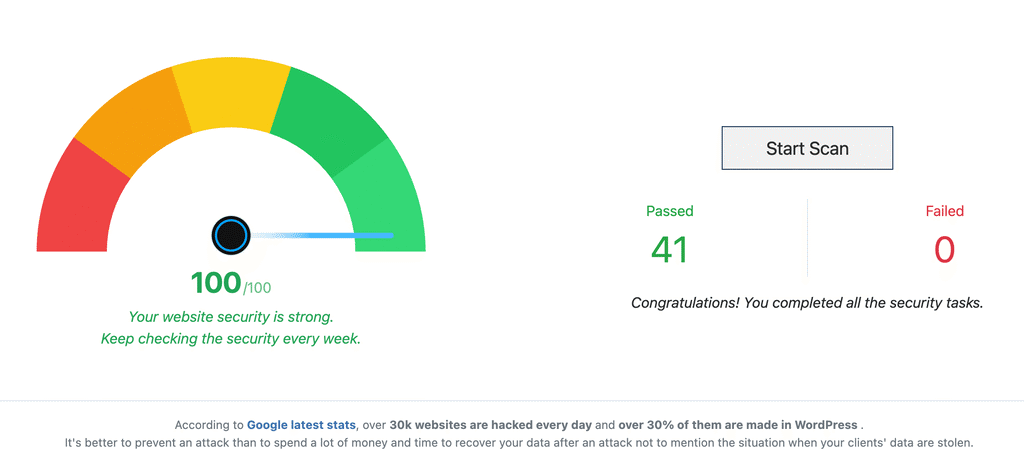
Go to WP Ghost > Security Check. Click Start Scan. The scan confirms the uploads path is changed.
For a quick manual test, view any post that contains an image, right-click the image, and select “Copy image address.” The URL should show your custom path instead of /wp-content/uploads/.
Troubleshooting
If images stop displaying after changing the uploads path:
Clear all caches. This is the most common cause. Clear your browser cache, WordPress caching plugin (WP Rocket, LiteSpeed Cache, etc.), CDN cache, and server-level cache. Cached pages still contain old /wp-content/uploads/ URLs until refreshed.
Check your server type. On Apache servers with mod_rewrite, this works automatically. On Nginx servers, WP Ghost writes the rules to its hidemywp.conf file, and your Nginx config needs to include that file once. If you can’t edit nginx.conf, your hosting provider can add the line and reload Nginx. See the Nginx setup guide. On WP Ghost Premium 9.0.13 or later, press Start Diagnosis in Ghost Doctor on the Level of Security page (WP Ghost > Change Paths > Level of Security). It loads the site as a logged-out visitor, finds which path your server stopped serving and repairs it.
Follow the on-screen instructions. After you save, WP Ghost shows the server configuration steps at the top of the WP Ghost > Change Paths page when your server needs them. Follow them and click Okay, I set it up.
Update your CDN configuration. If you use a CDN configured to serve from /wp-content/uploads/, it needs to know about the new path. Add your CDN domain in WP Ghost > Mapping > CDN Mapping. Most CDNs handle the new path through their origin pull rules.
Use the Safe URL. If your site is completely broken, use the Safe URL parameter or the Emergency Disable guide.
Frequently asked questions
Will my existing images break when I change the uploads path?
No. WP Ghost uses URL rewrite rules that serve files from the original location through the new path. Your physical files do not move. Every image, video, and document keeps loading normally. If you see issues, it is almost always a cache that needs clearing.
Should I also change the wp-content path?
Yes. Changing just the uploads path still leaves /wp-content/ visible in the URL. For complete protection, change the wp-content path first, then change uploads within it. That way the entire structure changes from /wp-content/uploads/ to something like /custom-parent/custom-media/.
Will old image URLs still work after this change?
In most cases, yes. Hide WordPress Common Paths blocks only the file types you select under Hide File Extensions, and image types are not on that list, so old image URLs keep loading. To send visitors from old image URLs to the new ones, see the Redirect Images from Old Paths tutorial.
Does this work with WooCommerce product images?
Yes. WooCommerce stores product images in wp-content/uploads. Changing the uploads path automatically updates product images, gallery thumbnails, and downloadable files. WP Ghost is fully compatible with WooCommerce.
Will changing the uploads path affect my image SEO?
Images keep loading at the same speed and quality. If they are indexed in Google Image Search, Google replaces the old URLs as it recrawls your pages. Resubmit your sitemap in Search Console to speed this up.
Why does this not work on my Nginx server?
On Apache servers, WP Ghost writes rewrite rules to .htaccess automatically. On Nginx, WP Ghost writes the rules to its hidemywp.conf file, but Nginx only loads them after your nginx.conf includes that file and the server reloads. Ask your host to add the include line, or follow the Nginx setup guide.
Does WP Ghost physically move my uploaded files?
No. WP Ghost does not move, rename or modify your uploaded files. Your media stays in wp-content/uploads/. Virtual paths are created through rewrite rules. Deactivating WP Ghost restores all original URLs instantly.
Related tutorials
Change the wp-content Path: hide the parent directory that contains uploads, plugins, and themes.
Redirect Images from Old Paths: set up redirects so external links to old image URLs still work.
Customize All WordPress Paths: change every path in one guide.
URL Mapping and Text Mapping: change remaining class names and URLs in source code.
Website Security Check: verify your configuration after making changes.