How to Hide the wp-content Folder in WordPress (Path Masking Done Right)

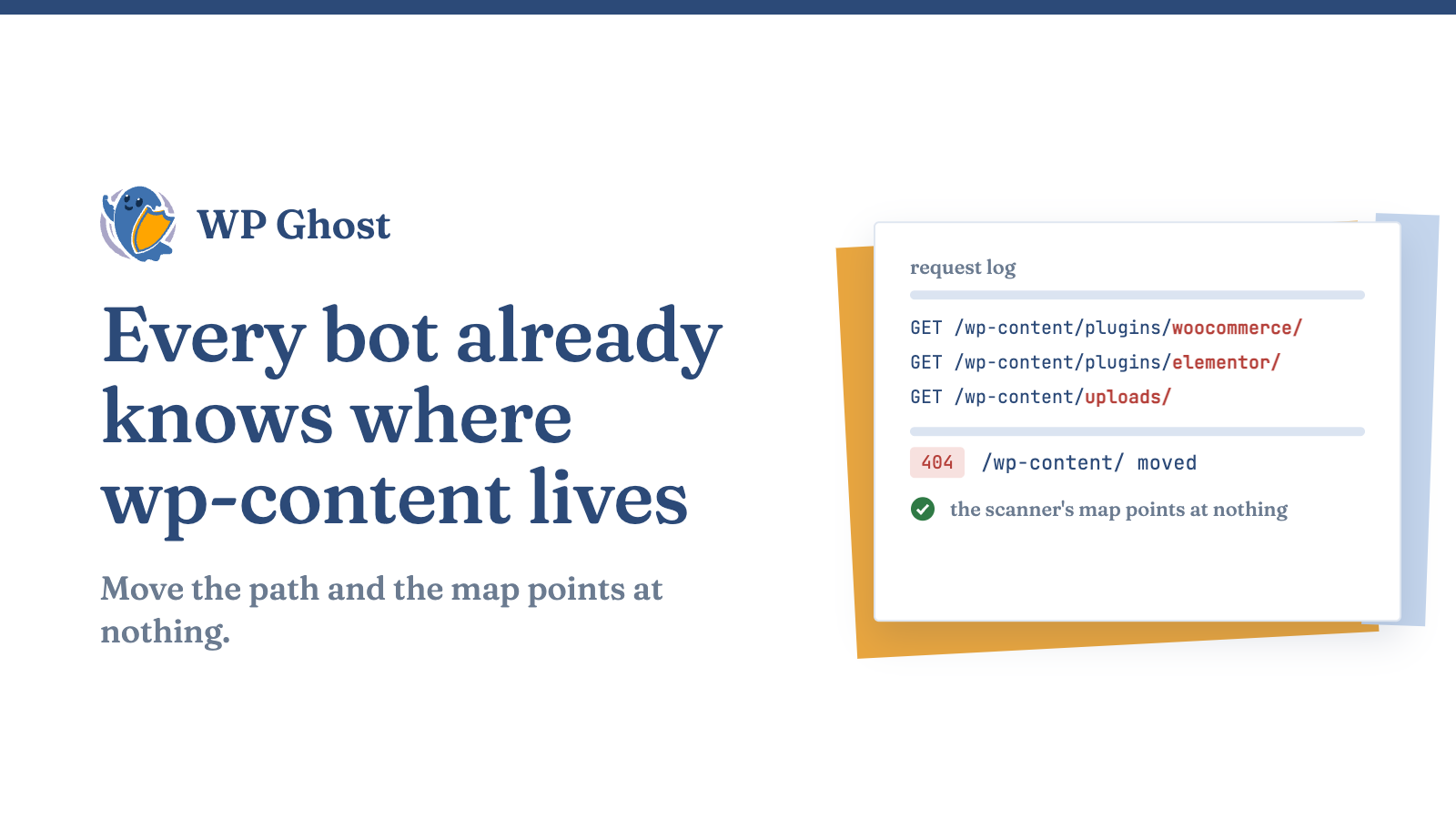
Diagram of a WordPress content folder path being redirected away from its default location.

Open your access log. You will see them: direct hits on /wp-content/plugins/akismet/, /wp-content/themes/twentytwentyfour/, /wp-content/plugins/ with no referrer and no human behind them. Nobody guessed those paths. They didn’t have to. Every WordPress install on the planet puts plugins, themes, and uploads in the same place, so an attacker doesn’t explore your site. They already have the map.

That predictability is the problem. Once a bot knows a plugin folder exists, it reads the version, checks it against a list of known vulnerabilities, and fires the matching exploit. No reconnaissance, no probing, no time wasted. You want those paths to stop being predictable. This guide shows you how to change the wp-content path so the map an attacker arrives with points at nothing.

Why the standard wp-content path is a liability

The /wp-content/ directory holds everything an attacker cares about: your plugins, your themes, your uploads, and sometimes cached config. Its location is fixed by WordPress convention, which is convenient for you and just as convenient for the bot scanning ten thousand sites an hour.

Here is the attack chain when the path is standard:

  1. A scanner requests /wp-content/plugins/<name>/readme.txt and reads the exact version number.
  2. It matches that version against a public vulnerability database.
  3. If a known flaw exists for that version, it sends the exploit straight to the folder it already knows.

Change the path and that chain breaks at step one. The request for /wp-content/plugins/ returns a 404, the version read fails, and the reconnaissance the attacker relies on comes back empty. You haven’t patched anything yet, but you have taken away the attacker’s starting point.

Plugins and themes are where most WordPress vulnerabilities actually live, which is why the folder that stores them is worth securing first. If you want the numbers behind that, the verified WordPress security statistics lay out where real breaches start.

Fingerprinting: how one exposed path tells an attacker everything

This is the part most people underestimate. A public folder path is not just a door, it is a signature.

Detection tools and scanners fingerprint your site by requesting known asset paths. A CSS file at /wp-content/plugins/elementor/assets/ confirms you run a specific page builder. A script at /wp-content/plugins/woocommerce/ confirms you run a store. From those signatures a scanner builds a complete inventory of your stack, then targets the weakest item on the list. The more of your real paths are visible, the more precise that targeting gets.

Changing the wp-content path removes those signatures from the response an attacker sees. When the plugin and theme folders answer from a non-standard location, the fingerprint the scanner was building falls apart. It can no longer tell which page builder you run, which store plugin you use, or which version of either. You reduce your attack surface not by removing a plugin, but by removing the scanner’s ability to name it.

Uploads exposure: the folder your visitors can browse

There is a smaller pain hiding inside the larger one, and it catches people off guard. Type /wp-content/uploads/ into a browser on many WordPress sites and the server hands back a full file listing. Every PDF, every invoice, every document a client uploaded, sitting in a public index because no index.html blocks the view.

That is forced browsing (CWE-425), and it is a data-exposure problem as much as a security one. Relocating the uploads path removes the guessable URL that makes casual browsing possible, and pairing that with a rule that returns 404 on directory requests closes the listing entirely. If your site accepts client uploads, treat this as a priority, not a nice-to-have.

The two ways to change your wp-content path

You have two real options. One is manual and partial. One is one-click and complete. Both are legitimate; they solve different amounts of the problem.

Option 1: Edit wp-config.php by hand

WordPress lets you relocate wp-content through constants in wp-config.php:

php

define( 'WP_CONTENT_DIR', dirname(__FILE__) . '/assets' );
define( 'WP_CONTENT_URL', 'https://yourdomain.com/assets' );

This works, and it is documented in the WordPress developer handbook. But it comes with real limits. It relocates the directory, yet it does not rewrite the hundreds of references already hardcoded across your database, your theme files, your CDN configuration, and third-party plugins that build their own paths. Miss one and you get broken images, missing stylesheets, or a plugin that can no longer find its own assets. On a site with any real history, hand-editing every reference is not practical.

Option 2: Change the path with a one-click path security tool

The cleaner route is a plugin that rewrites the paths for you and updates every reference at the same time. This is what WP Ghost’s path security features are built for. Instead of relocating files and chasing references, the plugin rewrites the path the browser sees through URL rewriting rules, so /wp-content/ answers from a new address while the files themselves stay put and every internal reference stays intact.

Two things make this the safer default. First, it is a Plug and Play setup: you change the path from one screen, and the plugin translates the 100-plus references (CDN URLs, plugin asset paths, theme calls) automatically, which is the part that makes manual editing impractical. Second, it runs conflict-free, so the rewrite does not break the plugins that depend on those paths. Path changes can break a site when done carelessly; a tool designed for it is what keeps the change from turning into an outage.

How to change your wp-content path safely, step by step

Here is the sequence I recommend. If you’re doing this on a live store, the version I’d ship first is the one-click path change with a full cache flush right after, not a hand-edited wp-config.php.

  1. Back up first. Take a full backup of files and database before you touch any path. This is your undo button.
  2. Change the wp-content path. In your path security settings, set a new, non-obvious name for the wp-content directory, then save. Full walkthrough: change the wp-content path.
  3. Change the plugins path. Give the plugins folder its own new path so /wp-content/plugins/ stops resolving. See change the plugins path and hide plugin names.
  4. Change the uploads path. Relocate the uploads directory to close the forced-browsing exposure. Steps here: change the uploads path.
  5. Flush every cache. Clear your page cache, object cache, and CDN cache so old paths stop being served.
  6. Test the front end and the back end. Load the homepage, a post, and the editor. Check that images, styles, and scripts resolve. Open the browser dev tools and confirm no request still points at the old /wp-content/ location.
  7. Confirm the old paths return 404. Request /wp-content/plugins/ directly. A 404 means the reconnaissance path is closed.

You can manage all of these from one place rather than screen by screen; see how to customize all your WordPress paths from one screen. For the broader context on where this fits, the complete WordPress hack prevention guide covers the layers that sit around path security.

What changing the path does and does not do

Be honest with yourself about scope. Changing your wp-content path is surface minimization: it breaks the attacker’s map and defeats automated fingerprinting. It is one strong layer, and it is a layer most sites skip.

It is not a replacement for updates. A path change buys you time against automated scanning, but a plugin with a critical flaw still needs patching. Run both. Change the paths so the bots can’t find the target, and keep the software current so there’s less to find.

FAQ

Will changing the wp-content path break my site or my plugins?

It can if you do it by hand and miss a reference, which is exactly why the manual wp-config.php route is risky on established sites. A path security tool built for this rewrites every reference at once and runs conflict-free, so plugins keep resolving their assets. Back up first, change the path, flush caches, then test the front end and editor before you walk away.

Does changing the wp-content path break my CDN?

Not if the rewrite updates your CDN URLs along with everything else. This is where hand-editing tends to fail, because CDN paths are one more set of references to chase. A one-click path change translates CDN URLs automatically. After the change, flush your CDN cache so it stops serving assets from the old path.

Is hiding wp-content enough to secure my WordPress site on its own?

No, and treating it that way is a mistake. Changing paths removes your site from automated target lists and defeats fingerprinting, but it works alongside patching, correct file permissions, and login protection, not instead of them. Think of it as one layer that makes every other layer harder to reach.

Can I change the wp-content path without a plugin?

Yes, using WP_CONTENT_DIR and WP_CONTENT_URL in wp-config.php, but the manual method only relocates the directory. It does not rewrite the hardcoded references across your database, theme, and third-party plugins, so you are left fixing broken assets by hand. On anything larger than a fresh install, a one-click path change is the practical choice.