WordPress Hacked? 10-Step Recovery Guide (2026)
April 23, 2026

Last updated: April 2026
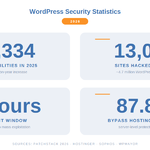
If your WordPress site has been hacked, act in this order: isolate the site, change every password, scan and clean the infection, then harden the site so it doesn’t happen again. Around 13,000 WordPress sites are hacked every day. In most cases the owner finds out from a Google warning, a hosting suspension, or customers reporting spam redirects. This guide covers the immediate steps to contain the damage, the cleanup process, and the hardening steps that prevent reinfection. It’s written for site owners who need to fix the problem right now, not next week.
How to Tell If Your WordPress Site Has Been Hacked
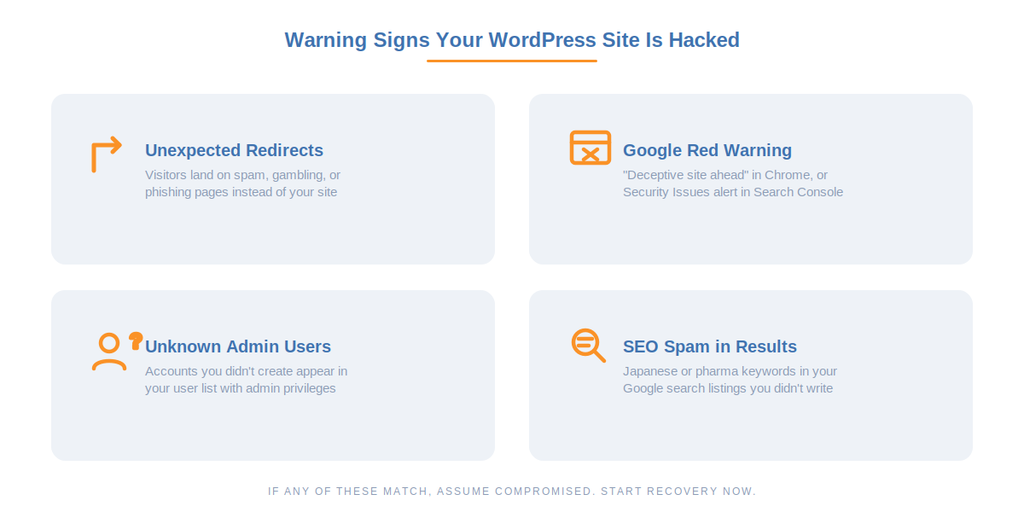
Hacks are not always obvious. Some signs are immediate, others take weeks to surface. Check for these:
You can see it. The homepage is defaced or replaced. Visitors get redirected to gambling, pharmacy, or phishing sites. Popup ads or scripts appear that you didn’t add. New pages or posts you didn’t create show up in your dashboard or in Google search results.
Google tells you. Google Search Console shows a “Security Issues” warning. Chrome displays a red “Deceptive site ahead” screen when visitors try to load your page. Your search results show keywords in Japanese, Chinese, or pharmaceutical terms (known as Japanese SEO spam).
Your host tells you. Your hosting provider suspended your account citing malware detection. You receive an email about unusual server resource usage. Your site is suddenly offline with no changes on your end.
You notice the clues. New admin users you didn’t create appear in your user list. Your WordPress admin password stops working. Files you didn’t upload appear in your /wp-content/uploads/ directory. Your site loads noticeably slower. Email from your domain starts bouncing or getting flagged as spam.
If any of these match, assume the site is compromised and start working through the steps below.
Step 1: Put the Site in Maintenance Mode
Stop the bleeding first. Every minute a hacked site stays live, visitors get exposed to malicious content, search engines crawl the injected spam, and the infection can spread deeper into the database.
If you can access the WordPress dashboard, install a maintenance mode plugin and activate it immediately. If you can’t access the dashboard, contact your hosting provider and ask them to take the site offline temporarily. Most hosts can put a site in maintenance mode at the server level within minutes. If you have FTP access, you can add a temporary index.html file or modify .htaccess to block all traffic while you work.
Step 2: Change Every Password
Assume all credentials are stolen. Change them now, from a different device if possible:
- WordPress admin passwords for every user account (especially administrators and editors)
- Hosting control panel password
- FTP and SFTP passwords
- Database password (update wp-config.php to match the new database password)
- Email account passwords associated with admin users
- Any third-party services connected to the site (payment gateways, email marketing tools, CDN)
While you’re in wp-config.php, regenerate the WordPress SALT keys. Go to the WordPress salt key generator, copy the output, and paste it over the existing keys in your wp-config.php file. This invalidates all existing login sessions, including any the attacker might still have open.
Step 3: Check for Unauthorized Users
Attackers often create hidden admin accounts as a backdoor. Go to Users in the WordPress dashboard and look for any account you don’t recognize. Pay attention to accounts with Administrator or Editor roles. Delete any you didn’t create. If you can’t access the dashboard, check the wp_users table directly through phpMyAdmin in your hosting panel.
Sucuri’s data shows 69.6% of hacked WordPress sites contain unauthorized backdoors, and rogue admin accounts are one of the most common types.
Step 4: Scan for Malware
Use a security scanning plugin to find the infected files. The most effective free options for post-hack scanning:
- Wordfence runs a server-side scan that checks core files, plugins, and themes against the WordPress.org repository and flags any modifications.
- Sucuri SiteCheck (free online scanner at sitecheck.sucuri.net) checks the front-end for injected content, blacklist status, and known malware signatures.
- MalCare runs scans off-server, which means it doesn’t slow your site during the scan and can catch malware that hides from local scanners.
Use more than one scanner. What one misses, another catches. If scanners find infected files, move to the next step. If they don’t find anything but you’re still seeing symptoms, the infection might live in the database rather than in files, or it might use cloaking to hide from scanners.
Step 5: Clean the Infection
You have three paths for cleanup, depending on your budget and comfort level.
Option A: Restore from a clean backup. The fastest route if you have a backup from before the infection. Restore the full site (files and database), then immediately change all passwords again and update everything. The risk: if you don’t know exactly when the hack happened, your backup might already contain the malicious code.
Option B: Manual cleanup. Compare your WordPress core files against a fresh download from wordpress.org. Any differences in wp-admin/ or wp-includes/ mean those files were modified and should be replaced with clean copies. For plugins and themes, delete them entirely and reinstall fresh from the original source. Check the wp-content/uploads/ directory for PHP files, there should be none. Search the database (especially wp_posts and wp_options) for injected scripts, iframes, and suspicious URLs.
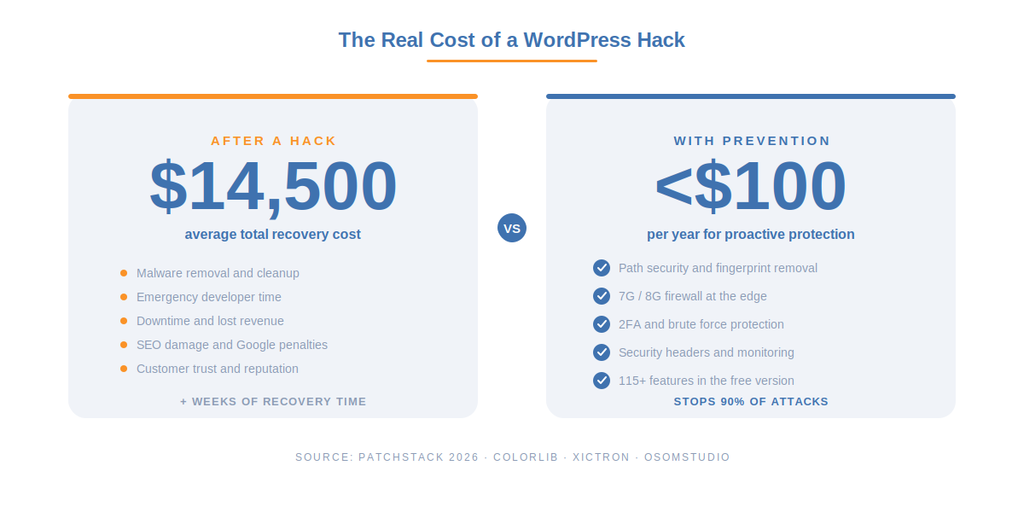
Option C: Professional cleanup service. If the infection is deep or you’re not comfortable editing files, pay a professional. Sucuri, MalCare, and Wordfence all offer cleanup services. Typical cost is $100 to $300 for the cleanup itself, but the total recovery cost (including lost revenue, developer time, and SEO damage) averages around $14,500 for a small business.
Step 6: Update Everything
After cleaning, update immediately. Many hacks exploit known vulnerabilities in outdated plugins and themes, and 91% of WordPress vulnerabilities live in plugins (Patchstack, 2026). Update WordPress core to the latest version, update every plugin, and update every theme. Delete any plugins and themes you’re not actively using. Every inactive plugin is an attack surface with zero upside.
Step 7: Check With Google and Your Host
If Google flagged your site, you need to request a review after cleanup. Log in to Google Search Console, go to the Security Issues section, and submit a review request explaining what you fixed. Google typically takes a few days to process. Until the review is approved, Chrome will continue showing the warning to your visitors.
If your hosting provider suspended your account, contact support with the specifics of what you found and cleaned. Most hosts will rescan your site and restore access once they confirm the malware is gone.
If your domain was blacklisted by email providers (spam was sent from your server), check MXToolbox or your mail provider’s reputation tools and submit delisting requests where needed.
Step 8: Harden the Site to Prevent Reinfection
This is where the story usually ends in most recovery guides. They tell you to “install a security plugin” and leave it there. That’s not enough. Most reinfections happen within days because the hardening was too shallow.
The 2026 data is clear: 87.8% of WordPress-specific exploits bypass standard hosting firewalls, and bots exploit newly disclosed vulnerabilities within a median of 5 hours. Cleanup without hardening is just waiting for the next breach.
Hardening after a hack should cover three layers. This is the 3-Layer Hack Prevention Framework:
Layer 1: Reduce the Attack Surface
The bot that hacked you found your site by scanning for default WordPress paths. Remove those fingerprints so the next scan misses you entirely. Change every default WordPress path: wp-login.php, wp-admin, wp-content, wp-includes, uploads, admin-ajax, plugin and theme directory names, REST API path. Strip the WordPress version from meta tags and hide style and meta IDs. Hide readme.html, license.txt, and wp-config.php from public access.
WP Ghost does all of this through rewrite rules and WordPress filters without modifying any core files. The free version covers every path listed above. Preset Security Options let you apply a recommended configuration in one click.
Layer 2: Filter Traffic at the Edge
Enable a WordPress-specific firewall. The 7G and 8G rulesets in WP Ghost block SQL injection, XSS, file inclusion, directory traversal, and automated vulnerability scans at the server edge, before PHP even loads. Standard hosting firewalls miss 87.8% of these attacks because they weren’t designed for WordPress-specific exploit patterns.
Add security headers (HSTS, CSP, X-Frame-Options, X-Content-Type-Options) to close browser-side attack vectors. Disable XML-RPC unless you specifically need it. On Premium, enable IP Block Automation to auto-block repeat offenders and Country Blocking if your logs show heavy traffic from countries you don’t serve.
Layer 3: Harden Authentication
A stolen or guessed password was probably how the attacker got in. Close that door permanently. Enable Two-Factor Authentication on every admin and editor account. Passkeys (Face ID, Touch ID, Windows Hello) are the strongest option because there’s no password to steal. Code-based 2FA (Google Authenticator, Authy) is the next best. Email-based 2FA is the minimum.
Enable brute force protection with attempt limits and reCAPTCHA on the login, registration, and lost password forms. For anyone who doesn’t need a permanent account, use Temporary Logins that expire automatically.
Step 9: Set Up Monitoring
After recovery, you need visibility. The difference between catching a reinfection attempt in hour one and discovering it three months later when Google sends another penalty is the difference between a five-minute block and another $14,500 recovery.
Enable the Security Threats Log (WP Ghost Premium) to record every blocked attack in real time. Enable the User Events Log to track login activity, user role changes, plugin activations, and setting modifications. Set up email alerts for risky events so you hear about them before they escalate.
Run the Website Security Check to verify file permissions, database prefix, SALT keys, and weak admin usernames. Fix anything it flags.
Step 10: Document a Recovery Plan
According to the Melapress WordPress Security Survey 2025, 73% of WordPress site owners have no documented breach recovery plan. That means if this happens again, you’ll be making decisions under stress without a framework, which takes 3 to 4 times longer.
Write one page that answers these questions: who do I contact first? Where are my backups stored? How do I put the site in maintenance mode? What are my login credentials for hosting, FTP, and database? Where is the WP Ghost emergency disable guide? Keep this document somewhere accessible, not on the server that might be compromised.
The Full Recovery Checklist
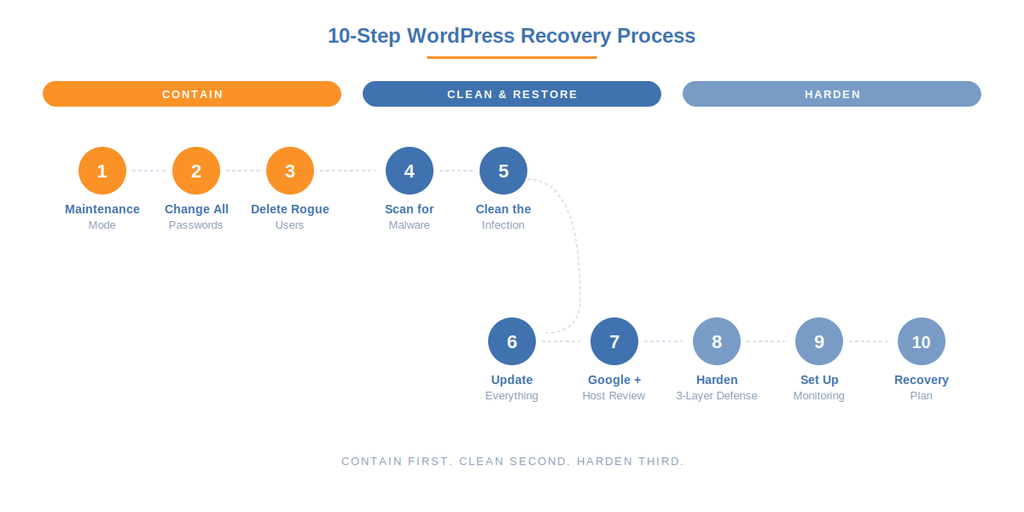
Print this or save it. Work through it in order.
- Put the site in maintenance mode to stop visitor exposure and further crawling.
- Change all passwords: WordPress admins, hosting, FTP, database, email, third-party services.
- Regenerate WordPress SALT keys in wp-config.php to kill all existing sessions.
- Delete any admin accounts you didn’t create.
- Scan with at least two tools (Wordfence + Sucuri SiteCheck, or add MalCare).
- Clean infected files by restoring from backup, replacing manually, or hiring a professional.
- Check the database for injected scripts in wp_posts, wp_options, and wp_comments.
- Update WordPress core, every plugin, and every theme. Delete anything unused.
- Request a Google review in Search Console if the site was flagged.
- Contact your host to have the account unsuspended if applicable.
- Install WP Ghost and apply a security preset to hide all default WordPress paths.
- Enable the 7G or 8G firewall to block SQL injection, XSS, and file inclusion at the edge.
- Enable 2FA on every admin and editor account.
- Enable brute force protection with reCAPTCHA.
- Enable the Security Threats Log and User Events Log for ongoing monitoring.
- Run the Website Security Check and fix every flagged item.
- Set up off-site automatic backups (UpdraftPlus, BlogVault, or your host’s daily snapshots).
- Write a one-page recovery plan and store it off-server.
How WP Ghost Fits Into Post-Hack Recovery
To be direct about what WP Ghost does and doesn’t do in a hack scenario:
WP Ghost does not scan for or remove malware. It is not a malware scanner. If your site is currently infected, you need Wordfence, Sucuri, MalCare, or a professional cleanup service to remove the malicious files. WP Ghost is a hack prevention plugin, not a cleanup tool.
WP Ghost prevents reinfection after cleanup. Once the site is clean, WP Ghost closes the entry points the attacker used. It hides the paths bots scan for, blocks exploit patterns at the firewall level, and hardens authentication so stolen credentials aren’t enough to get back in.
The combination that works: a scanner (Wordfence, Sucuri, or MalCare) for detection and cleanup + WP Ghost for prevention and hardening. The scanner catches what got through, WP Ghost prevents the next attempt from getting through in the first place. For compatibility details, see WP Ghost with Wordfence, WP Ghost with Sucuri, and the full compatibility plugins list.
Frequently Asked Questions
How do I know if my WordPress site has been hacked?
The most common signs are unexpected redirects to spam sites, new admin users you didn’t create, a Google Search Console security warning, your host suspending your account, Japanese or pharmaceutical SEO spam in your search results, or unknown files appearing in your uploads directory. If anything looks off, scan immediately with Wordfence or Sucuri SiteCheck.
Can I fix a hacked WordPress site myself?
Yes, if the infection is straightforward (injected files, rogue users, modified core files). The steps above walk you through the full process. If the malware keeps coming back, lives in the database, or uses advanced cloaking, hire a professional. The cost of a cleanup service ($100-$300) is far less than the $14,500 average total recovery cost when a hack goes unresolved for weeks.
My site was hacked but looks normal to me. Is it really infected?
Probably. Modern malware families like Parrot TDS use cloaking, they serve clean content to logged-in admins and security scanners while redirecting regular visitors to phishing or spam sites. Check your site in an incognito browser window without logging in. Check Google Search Console for security warnings. Search “site:yourdomain.com” in Google and look for pages you didn’t create or foreign-language spam in the results.
How long does it take to recover from a WordPress hack?
The technical cleanup takes hours to days depending on severity. The full recovery, including Google review, SEO damage reversal, and customer trust rebuilding, can take weeks to months. Sites with a documented recovery plan recover 3 to 4 times faster than those without one.
Will my SEO rankings recover after a hack?
They can, but it takes time. Once you clean the site and Google approves your review request, the “Deceptive site” warning is removed within days. Recovering lost rankings takes longer because Google needs to recrawl and re-evaluate your content. If the attacker injected thousands of spam pages, you may need to submit a new sitemap and use the URL Removal tool for the junk pages. The faster you clean up, the less SEO damage accumulates.
Should I restore from a backup or clean manually?
Restore from backup if you have a clean, recent backup from before the infection started. This is the fastest path. Clean manually if your backup might already be infected, or if you don’t have a backup at all. Either way, change all passwords and update everything immediately after the restore or cleanup.
How do I prevent getting hacked again?
Three layers: reduce the attack surface (hide default WordPress paths with WP Ghost), filter traffic at the edge (7G/8G firewall, security headers, IP blocking), and harden authentication (2FA, brute force protection, reCAPTCHA). Keep plugins and themes updated. Delete anything you don’t use. Maintain off-site backups. The full framework is in our WordPress Hack Prevention guide.
Will WP Ghost remove malware from my site?
No. WP Ghost is a hack prevention plugin, not a malware scanner. It prevents attacks from landing in the first place and prevents reinfection after cleanup. For malware removal, use Wordfence, Sucuri, or MalCare. Then install WP Ghost to close the entry points and make sure it doesn’t happen again. Both tools together give you the strongest protection.
Does WP Ghost modify WordPress core files?
No. WP Ghost never touches WordPress core files. It uses rewrite rules, filters, and a mapping engine to redirect requests and hide the real paths. Core, plugins, and themes stay untouched, which means updates apply normally and nothing breaks when you deactivate the plugin.
Related Tutorials
- WordPress Hack Prevention: The Complete 2026 Guide
- WordPress Security Statistics 2025-2026 (43 verified data points)
- Disable WP Ghost in case of error (emergency access)
- Customize WordPress paths
- Firewall and Geo Security
- Two-Factor Authentication
- Brute Force Protection
- Security Threats Log
- Website Security Check
- Preset Security Options
- WP Ghost with Wordfence
- WP Ghost with Sucuri
- WP Ghost settings best practice