
Setup Hide My WP on RunCloud
October 24, 2021
This tutorial has moved to the new WP Ghost Knowledge Base where each feature is presented in detail.
WP Ghost (formerly Hide My WP Ghost) works on RunCloud with both web application stacks. If you use NGINX + Apache2 Hybrid, WP Ghost works automatically through .htaccess. If you use Native NGINX, add one include line in RunCloud’s NGINX Config panel. Both options are one-time setup steps.
Option 1: NGINX + Apache2 Hybrid (Easiest)
If your RunCloud application uses NGINX + Apache2 Hybrid as the Web Application Stack, WP Ghost works automatically. All rewrite rules load from .htaccess through the Apache layer. No Nginx configuration needed.
Install WP Ghost, go to WP Ghost > Change Paths > Level of Security, select Safe Mode or Ghost Mode, click Save, and follow the Customize All WordPress Paths tutorial.
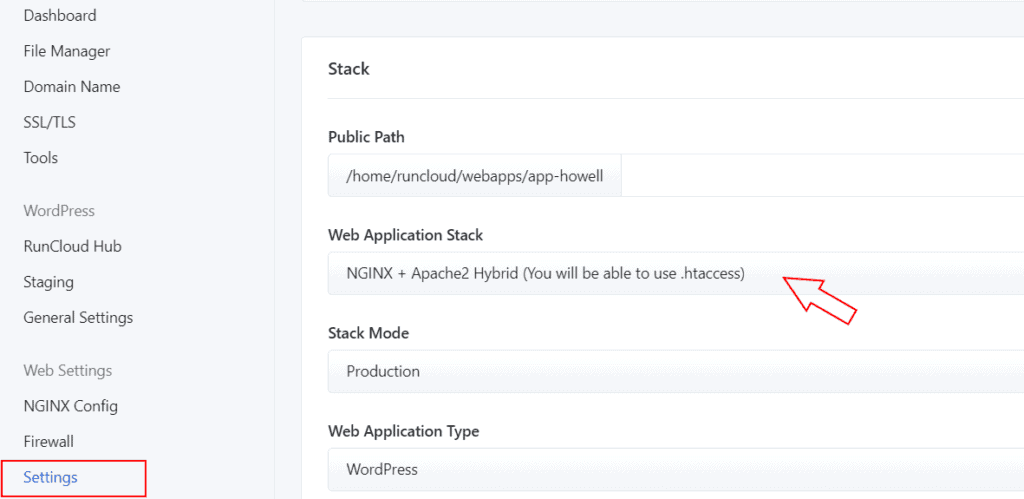
Option 2: Native NGINX
If your RunCloud application uses Native NGINX, you need to add the WP Ghost config file include through RunCloud’s NGINX Config panel.
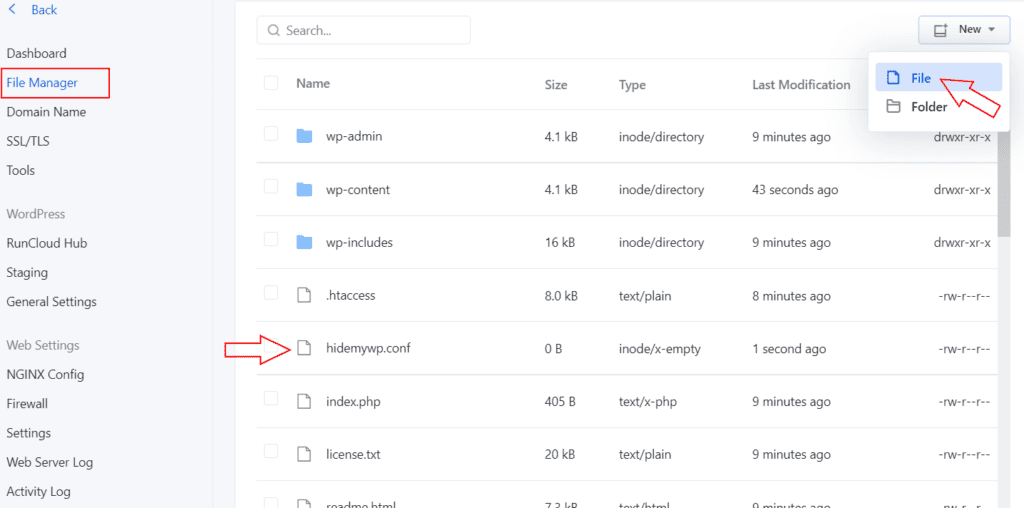
Step 1: Create the hidemywp.conf File
In RunCloud, go to your application’s File Manager. Create a file named hidemywp.conf in your website root directory.
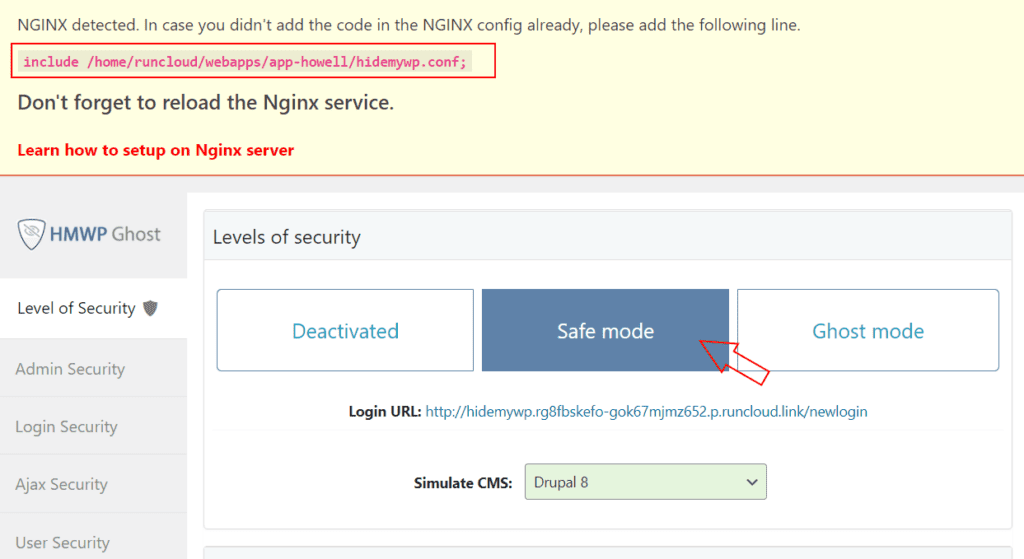
Step 2: Activate WP Ghost and Get the Include Line
In WP Ghost, go to Change Paths > Level of Security. Select Safe Mode or Ghost Mode. Click Save. WP Ghost detects Nginx and displays the include line you need to add to RunCloud’s config.
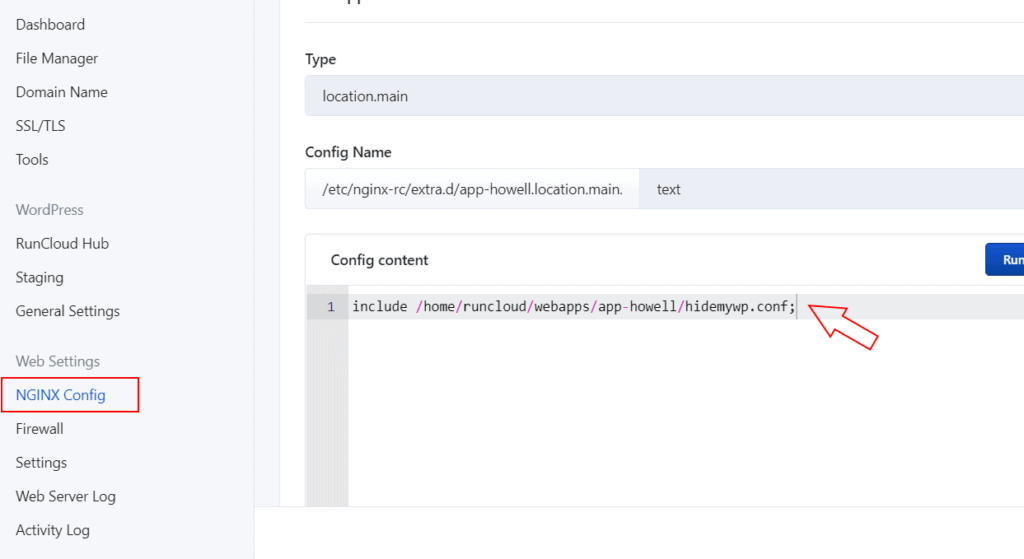
Step 3: Add the Include Line in RunCloud
In RunCloud, go to your application’s NGINX Config section. Add the include line from WP Ghost. Click Verify to check the syntax, then Save.
Step 4: Rebuild the Web App Config
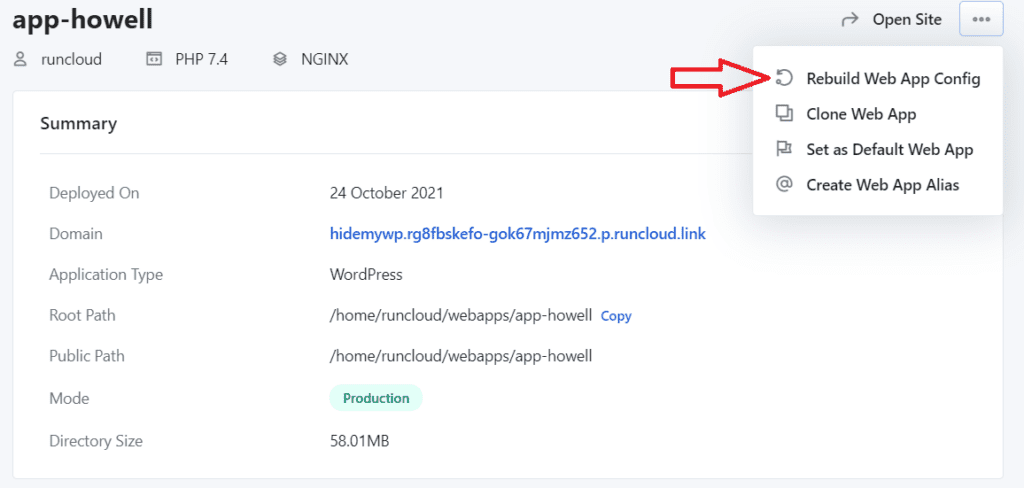
After adding the include, click Rebuild Web App Config in RunCloud to apply the changes. This reloads the Nginx configuration with WP Ghost’s rewrite rules.
Troubleshooting
Custom paths return 404 on Native NGINX. The include line was not added or the config was not rebuilt. Go to RunCloud NGINX Config, verify the include line is present, and click Rebuild Web App Config.
Paths work on Hybrid but not after switching to Native NGINX. The Hybrid stack uses .htaccess (Apache), while Native NGINX ignores .htaccess entirely. You need to add the hidemywp.conf include as described in Option 2.
Locked out after configuration. Use the Safe URL parameter or the Emergency Disable guide. RunCloud provides File Manager access where you can rename the plugin folder.
Frequently Asked Questions
Which RunCloud stack should I choose?
NGINX + Apache2 Hybrid is easiest for WP Ghost – no Nginx configuration needed. Native NGINX is faster (no Apache overhead) but requires the include line setup. If you already have a Native NGINX app, follow Option 2. If creating a new app, Hybrid is simpler.
Do I need to rebuild after every WP Ghost path change?
On Native NGINX, yes. WP Ghost updates the hidemywp.conf file automatically, but Nginx does not detect file changes until the config is rebuilt. Click Rebuild Web App Config in RunCloud after changing paths. On the Hybrid stack, this is not needed.
Can I switch from Hybrid to Native NGINX later?
Yes. If you switch stacks, you need to set up the hidemywp.conf include as described in Option 2. Your WP Ghost path settings are preserved – only the server configuration method changes.
Does WP Ghost modify WordPress core files?
No. WP Ghost writes rewrite rules to .htaccess (Hybrid) or hidemywp.conf (Native NGINX). No core files modified. Deactivating restores all defaults.
Related Tutorials
Nginx Server Setup – general Nginx configuration for WP Ghost.
Customize All WordPress Paths – configure paths after server setup.
Theme Not Loading Correctly – troubleshoot path issues across server types.
Emergency Disable Guide – recovery if configuration causes issues.
Compatibility Plugins List – hosting-specific notes.