Grant a User Access to WP Ghost Settings (hmwp_manage_settings Capability)
May 17, 2021
This tutorial has moved to the new WP Ghost Knowledge Base where each feature is presented in detail.
Grant a specific WordPress user access to WP Ghost (formerly Hide My WP Ghost) settings without giving them full administrator access. By default, only administrators can see and configure WP Ghost. Use the User Role Editor plugin to assign the hmwp_manage_settings capability to any user.
How to Grant User Access to WP Ghost
Step 1: Install User Role Editor
Go to Plugins > Add New. Search for User Role Editor. Install and activate. This plugin only needs to be active while you are configuring capabilities – you can deactivate it after assigning the capability.
Step 2: Assign the hmwp_manage_settings Capability
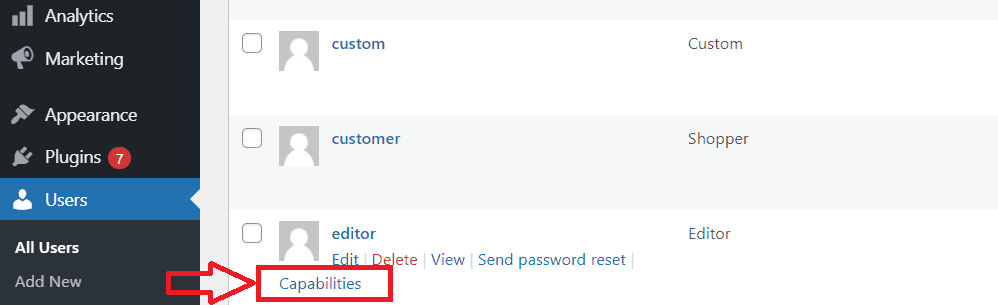
Go to Users > All Users. Find the user you want to grant access to. Click Capabilities from the user menu.
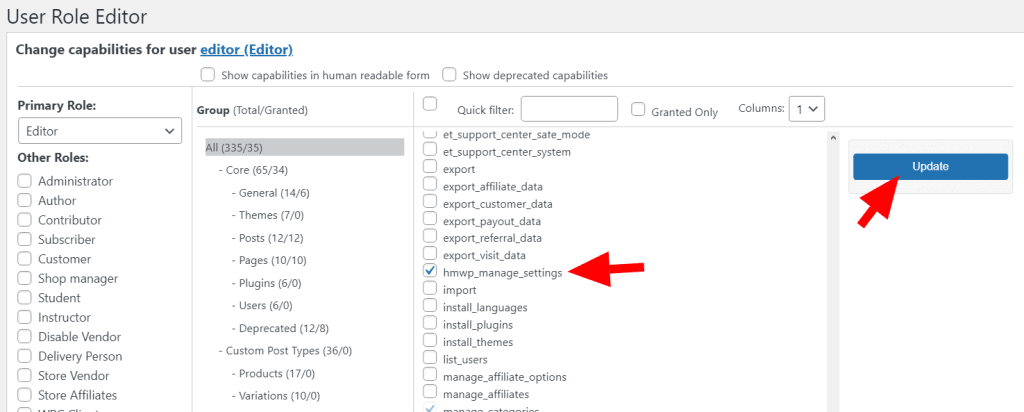
In the User Role Editor page, find and select the hmwp_manage_settings capability. Click Update.
Step 3: Verify Access
Log in as the user you assigned the capability to. The WP Ghost menu should now appear in the WordPress admin sidebar. Verify that all WP Ghost settings pages are accessible.
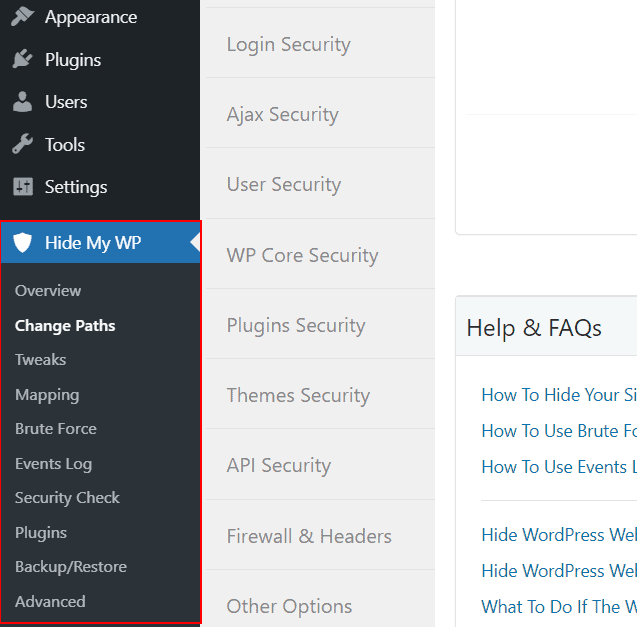
Log in as a different user to confirm the WP Ghost menu is hidden for users who do not have the capability.
Hide WP Ghost from Other Administrators (Optional)
If you want only a specific user to access WP Ghost settings – not even other administrators – you can remove the hmwp_manage_settings capability from the administrator role itself. Go to Users > Roles in User Role Editor, quick-edit the administrator role, and uncheck hmwp_manage_settings. Then grant it only to the specific user. This hides WP Ghost from all other admin accounts.
Frequently Asked Questions
Can I deactivate User Role Editor after assigning the capability?
Yes. Once the hmwp_manage_settings capability is assigned to a user, it persists in the WordPress database regardless of whether User Role Editor is active. You can deactivate or uninstall it after configuring.
Does this work with other role editor plugins?
Yes. Any plugin that lets you assign custom capabilities to users or roles works. The capability name is hmwp_manage_settings. You can also assign it programmatically via code if you prefer not to install a plugin.
Can I assign this to a role instead of a specific user?
Yes. In User Role Editor, you can add hmwp_manage_settings to any role (e.g., Editor). All users with that role will see the WP Ghost menu. Be careful granting this to roles with many users – WP Ghost settings affect site security.
Does WP Ghost modify WordPress core files?
No. User capabilities are stored in the WordPress database. WP Ghost uses rewrite rules and hooks. No core files modified.
Related Tutorials
Install WP Ghost Premium – full installation and activation guide.
Customize All WordPress Paths – configure paths after granting access.
Preset Security Options – Safe Mode and Ghost Mode overview.
Website Security Check – verify configuration after setup.
Emergency Disable Guide – recovery if access is lost.