WP Ghost with ManageWP – Must Use Plugin Loading Configuration
November 14, 2020
This tutorial has moved to the new WP Ghost Knowledge Base where each feature is presented in detail.
WP Ghost (formerly Hide My WP Ghost) works with ManageWP. ManageWP’s worker plugin talks to the ManageWP servers from your site. Set WP Ghost’s Plugin Loading Hook to Load As Must Use Plugin so WP Ghost loads in the right order and lets the worker’s API calls through.
Why ManageWP Needs Configuration
ManageWP’s worker plugin calls WordPress paths and API endpoints to run updates, backups and security scans from the ManageWP dashboard. In Ghost Mode, WP Ghost changes those paths and blocks unknown requests, so the worker’s calls can get caught. Loaded as a Must Use Plugin, WP Ghost starts before the worker and maps the paths first.
How to Configure WP Ghost for ManageWP
Step 1: Set Plugin Loading Hook to Must Use Plugin
Go to WP Ghost > Advanced > Compatibility. Find Plugin Loading Hook. Select Load As Must Use Plugin. Click Save.
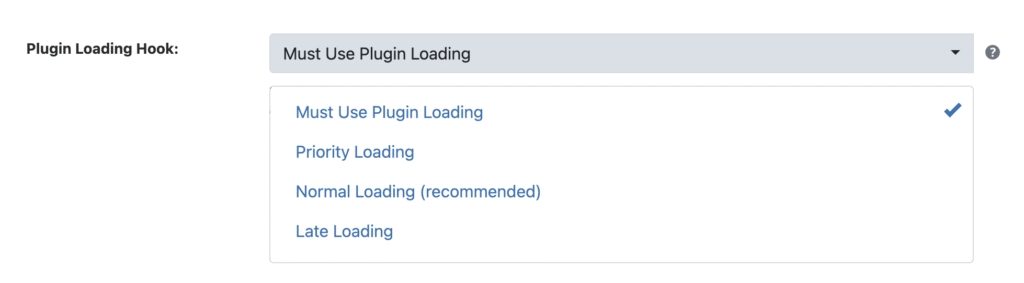
WP Ghost then adds a small loader file to wp-content/mu-plugins/. Deactivating WP Ghost deletes it.
Step 2: Whitelist ManageWP Paths (If Needed)
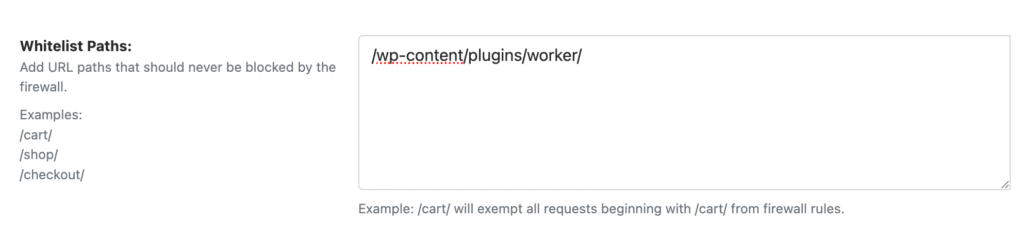
If ManageWP still can’t connect after Step 1, whitelist the worker plugin path. Go to WP Ghost > Firewall > Whitelist > Whitelist Paths. Add /wp-content/plugins/worker/. Click Save.
Step 3: Verify the Connection
Log in to your ManageWP dashboard and check that the site shows as Connected. Run a check for updates on it. Then open the site’s admin from the ManageWP panel. It should land on your custom wp-admin path.
Troubleshooting
ManageWP shows site as disconnected. Check that Plugin Loading Hook is set to Load As Must Use Plugin. If it is and the site stays disconnected, whitelist the worker plugin path (Step 2). Clear all caches, then reconnect from the ManageWP dashboard.
ManageWP backups fail. A ManageWP backup reads the WordPress file system. If WP Ghost’s firewall blocks the backup requests, whitelist ManageWP’s IP addresses or User Agent in WP Ghost > Firewall > Whitelist.
ManageWP updates fail with 404 errors. The worker is calling a path WP Ghost has changed. Check that Must Use Plugin Loading is active. On Ghost Mode, switch to Safe Mode for a test: if updates work there, the wp-admin or admin-ajax.php path change is the conflict.
Frequently Asked Questions
Is the Must Use Plugin Loading option required for ManageWP?
Yes. ManageWP’s worker loads as a Must Use Plugin itself, so WP Ghost needs the same loading priority to start in the right order.
Does this apply to MainWP too?
Yes. MainWP’s child plugin talks to a central dashboard the same way, so use the same Must Use Plugin Loading option.
Is Must Use Plugin Loading safe?
Yes. Must Use Plugins are a standard WordPress feature. WP Ghost’s loader file in wp-content/mu-plugins/ only starts WP Ghost early, and deactivating WP Ghost removes it.
Can I manage WP Ghost settings from ManageWP?
Only through each site’s own admin. ManageWP opens a connected site’s WordPress dashboard, and WP Ghost’s settings are there. WP Ghost has no ManageWP-specific panel.
Does WP Ghost modify WordPress core files?
No. The loader file goes in wp-content/mu-plugins/, which isn’t part of core. Everything else runs through rewrite rules and WordPress hooks.
Related Tutorials
Customize All WordPress Paths – configure paths on each managed site.
Compatibility Plugins List – all tested management tools and plugins.
Firewall and Geo Security – manage whitelist and firewall settings.
Emergency Disable Guide – recovery if configuration causes issues.
Website Security Check – verify configuration after setup.