How to Remove the WordPress Meta Generator Tag (Every Place It Leaks)
September 14, 2026
You ran View Source on your own site and there it was, in plain text near the top of the page: <meta name="generator" content="WordPress 6.5.2" />. Your exact version, published to anyone who looks. So you did the sensible thing. You dropped remove_action('wp_head', 'wp_generator'); into your theme’s functions.php, reloaded, and the tag was gone from the header.
Then you checked your RSS feed. The version was still there. You checked a stylesheet URL. There it was again, hanging off the end as ?ver=6.5.2. The header was only one of the places WordPress announces itself. Removing the meta generator tag is the right instinct; the mistake is thinking it lives in one spot. This guide covers every place your version leaks, and how to close all of them at once.
Why your WordPress version is worth removing
Your version number is a targeting shortcut for attackers. A bot doesn’t need to test whether an exploit works if it can read the version and check it against a list of known vulnerabilities for that exact release. Match found, exploit fired. This is information disclosure (CWE-200), and the version string is the most common form of it on a WordPress site.
Remove the version and you break that shortcut. The bot can no longer tell whether you patched last week or two years ago, so a whole category of automated, version-matched attacks stops finding a target on your site. You haven’t changed a single line of core, but you have taken away the reconnaissance the attack depends on.
WordPress publishes that version in more places than most people check. Close the obvious one and the others keep talking.
The five places WordPress leaks its version
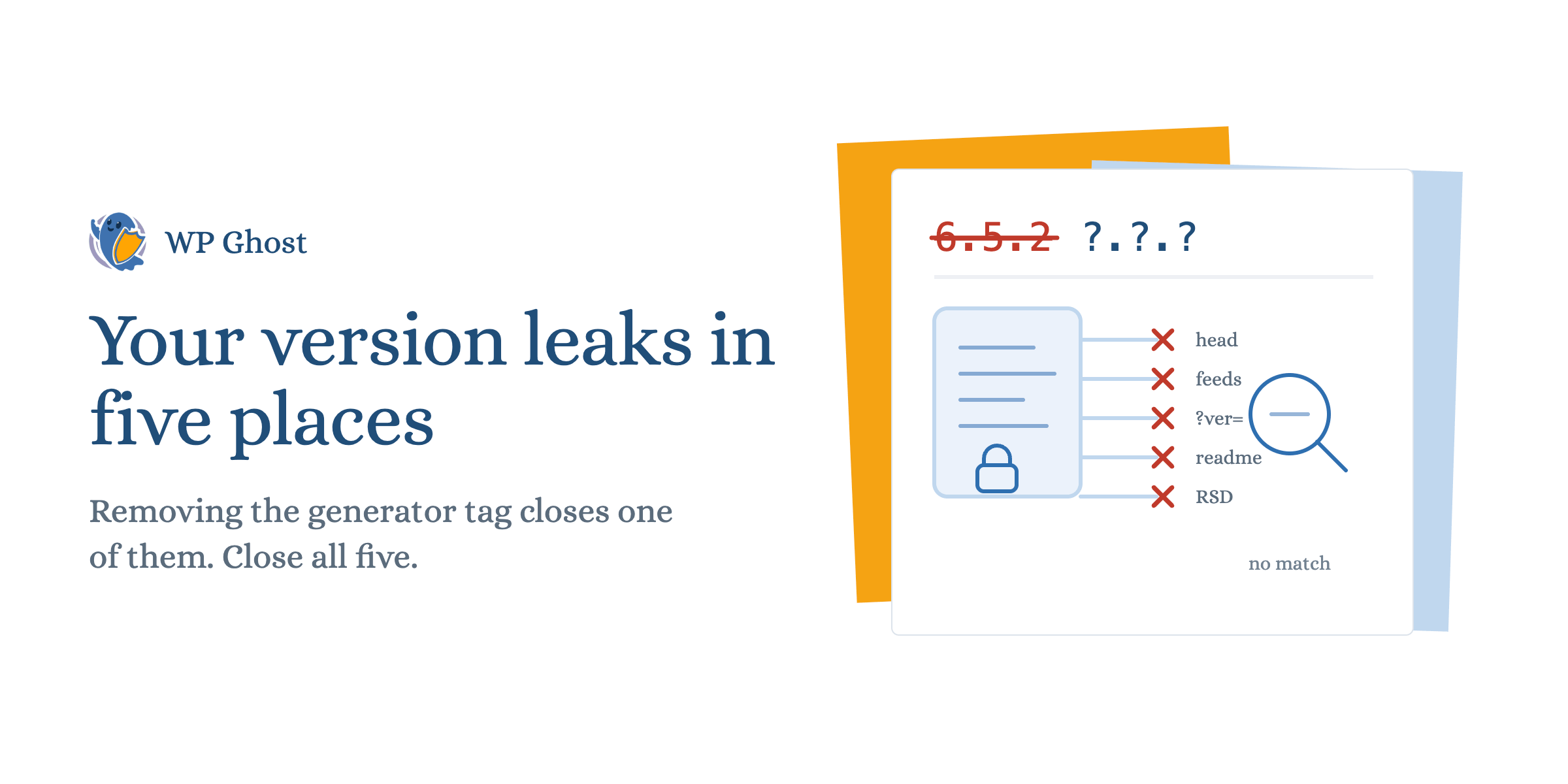
Here is the full list. A partial fix leaves the door open, so treat this as a checklist, not a menu.
- The generator meta tag in your HTML head:
<meta name="generator" content="WordPress 6.5.2" />. The one you already found. - The RSS and Atom feeds. Every feed carries its own
<generator>element with the version, andremove_action('wp_head', 'wp_generator')does not touch it. - The
?ver=query string on every enqueued script and stylesheet:style.css?ver=6.5.2. This one is easy to miss because it is not in the page body, only on asset URLs. readme.htmlin your site root. This static file states the major version in plain text and loads for anyone who requests it directly.- The RSD link and other head references that hint at version and endpoints. Smaller signals, but they add up to the same fingerprint.
The manual route means editing functions.php for the head, adding filters for the feeds and the ?ver= strings, and deleting or blocking readme.html by hand, then re-checking each one after every core update. It works, but it is five separate fixes you have to maintain. Miss one, or lose it in a theme update, and the version is public again.
Remove the version everywhere with one setting
The cleaner approach is a tool that strips the version from all five locations at once and keeps it stripped. WP Ghost’s information-disclosure removal is built for exactly this: it handles the head, the feeds, the ?ver= strings, and the static files together, so you configure it once instead of maintaining five filters.
Two points worth being precise about, because they are confirmed capabilities rather than marketing. First, it removes more than the generator tag: the plugin eliminates 10-plus separate information disclosures that give away your stack, not just the version. Second, it logs what happens on your site. The complete activity log records login attempts and changes, so removing the fingerprint is paired with seeing who probes for it.
Start with the two core how-tos: remove the generator meta tag for the head, and strip the WordPress version everywhere it leaks for the feeds, query strings, and static files.
Version isn’t the only thing in your meta tags
There is a related leak that catches developers who have already handled the version. Your meta tags and head can expose author IDs, plugin-specific tags, and other identifiers that fingerprint your setup even after the version is gone. An exposed author ID, for example, hands an attacker a valid username to aim brute-force attempts at.
Closing those means cleaning the head more broadly, not just deleting one line. You can hide IDs and fingerprints in meta tags as part of the same pass, so the head stops naming your users and your plugins along with your version.
How to confirm the version is actually gone
Do not trust the setting; verify it. Run through these checks after you make the change.
- View Source on the homepage. Search the source for “generator” and for your version number. Both should be absent.
- Open your feed at
/feed/. Search for<generator>and the version. Gone. - Inspect an asset URL. Look at a loaded
.cssor.jsfile in dev tools. The?ver=should be removed or changed to a neutral value. - Request
readme.htmldirectly. It should return 404 rather than a page stating your version. - Search the raw HTML for your version string one more time, across head and body. Zero matches is the goal.
If you’re triaging this on a live site, the version I’d ship first is the one-click removal across all five locations, then the manual readme.html deletion as a belt-and-braces step, because static files sometimes survive a plugin’s cleanup depending on your host.
What removing the version does and does not do
Be clear about scope. Removing your version and meta fingerprints is surface minimization. It defeats automated, version-matched scanning and makes your site a poor target for the bots that pick victims by reading their software. That is a real, measurable reduction in the attacks that reach you.
It is not a patch. A vulnerable plugin is still vulnerable whether or not its version is visible. Remove the fingerprint so the bots can’t sort you into a target list, and keep your software current so there’s less to exploit if one gets through. The complete hack prevention guide covers the layers that sit around this one.
FAQ
Does removing the generator tag hide my WordPress version completely?
Not by itself. remove_action('wp_head', 'wp_generator') only clears the HTML head. Your version still appears in the RSS and Atom feeds, in the ?ver= query strings on scripts and styles, and in readme.html. Remove it from all of those together, then verify each one, or the version stays public in the places you didn’t check.
Will removing the WordPress version break my site or my feeds?
No. Stripping the version string from the head, feeds, and asset URLs does not change how those resources work. Your RSS feed still validates and still delivers posts; your styles and scripts still load. The version number is metadata, not functionality, so removing it is safe.
Is hiding my WordPress version enough to secure my site?
No, and it was never meant to be. Removing the version takes your site off automated, version-matched target lists, but it works alongside updates, strong login protection, and a firewall, not instead of them. Treat it as one cheap, high-value layer that makes the others harder to reach.
Do I still need to delete readme.html manually?
Often, yes. Some hosts and setups leave readme.html reachable even after a plugin cleans the head and feeds. After you remove the version everywhere else, request readme.html directly. If it still loads and states your version, delete or block it so it returns 404.