Redirect WordPress Images from Old Paths to New Paths with WP Ghost
May 17, 2023
This tutorial has moved to the new WP Ghost Knowledge Base where each feature is presented in detail.
Quick summary: After changing your uploads path in WP Ghost, redirect old image URLs to the new ones by selecting MEDIA Files in the Hide File Extensions list. This prevents duplicate content, preserves external links, and hides your WordPress structure from bots.
Why Image Path Redirects Matter
When you change your uploads path from /wp-content/uploads/ to a custom name like /storage/, your images get a new URL. But depending on your server configuration, the original /wp-content/uploads/ path might still serve the same files. That means the same image is accessible at two different addresses, and search engines treat that as duplicate content.
Duplicate image URLs dilute your SEO signals. When Google finds the same image at two URLs, it has to decide which one is canonical. That splits your page’s authority and can result in the wrong URL being indexed. Redirecting the old path to the new one consolidates everything to a single URL.
Old paths also leak your WordPress structure. If the old /wp-content/uploads/ path still works, bots and theme detectors can confirm you are running WordPress just by checking image URLs. The entire point of changing the uploads path is to eliminate this fingerprint. Leaving the old path active undermines that protection.
External links should not break either. Other websites, social media posts, and email newsletters may link to your images using the old URLs. A redirect sends visitors to the new path seamlessly. The image loads. The link works. WordPress is hidden.
| Scenario | Without Redirect | With Redirect |
|---|---|---|
| Same image, two URLs | Duplicate content issue | One canonical URL |
| External link to old image URL | May still resolve (leaks WordPress) | Redirects to new URL seamlessly |
| Bot checks /wp-content/uploads/ | Confirms WordPress | Redirected, WordPress hidden |
| Google Image Search | May index wrong URL | Consolidates to new URL |
How to Redirect Old Image Paths
Two steps. First set the new uploads path, then enable the media file redirect from the old path to the new one.
Step 1: Set a Custom Uploads Path
1. Go to WP Ghost > Change Paths > WP Core Security.
2. Enter a custom directory name in the Custom Uploads Path field. For example, storage.
3. Click Save.

Your images are now served from the new path (e.g. /storage/2025/03/photo.jpg instead of /wp-content/uploads/2025/03/photo.jpg). But the old path may still work. That is what Step 2 fixes.
Step 2: Enable the Media File Redirect
1. In the same WP Core Security tab, enable Hide WordPress Common Paths.
2. Under Hide File Extensions, select MEDIA Files from the list.
3. Click Save.
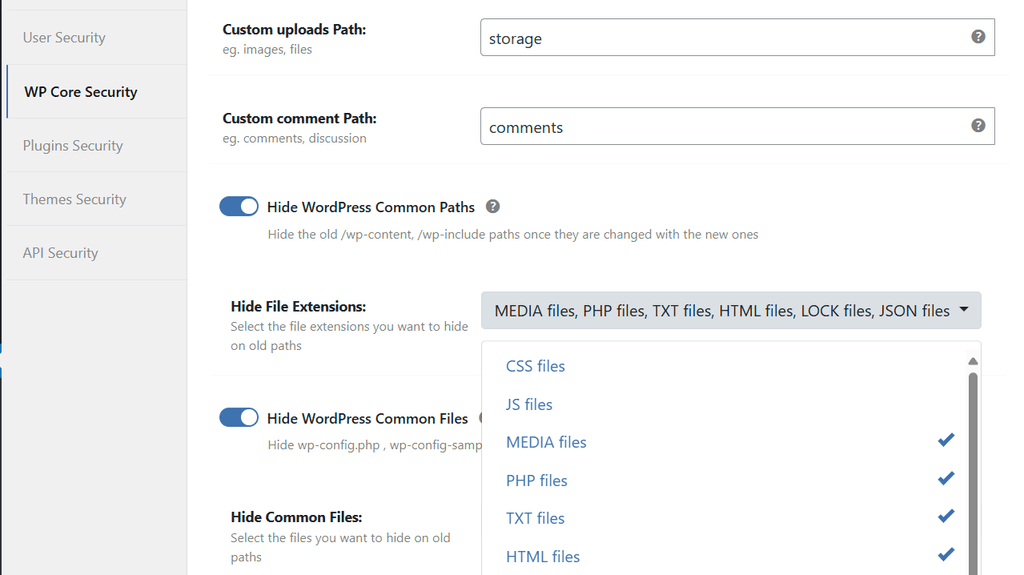
Any request for images through the old /wp-content/uploads/ path now redirects to the new custom path. One image, one URL, no duplicates.
What Happens After You Enable the Redirect
Old image URLs redirect to new ones. A request to /wp-content/uploads/2025/03/photo.jpg automatically redirects to /storage/2025/03/photo.jpg. The image loads at the new URL. The old URL is no longer a standalone resource.
External links keep working. Any site, social media post, or email that links to your old image URLs will still display the image correctly. Visitors are redirected transparently.
Google consolidates to the new URL. Over time, as Google encounters the redirects, it updates its index to use the new image URLs. To speed this up, resubmit your sitemap in Google Search Console after making the change.
WordPress fingerprints are eliminated. Since the old /wp-content/uploads/ path no longer serves images directly, bots cannot confirm WordPress through image URL patterns.
Redirect vs Hide: Which Should You Use?
WP Ghost offers two approaches for handling old image paths. Choosing between them depends on whether external sites link to your images.
Redirect (MEDIA Files) sends requests from the old URL to the new one. The image still loads, just at the new address. This preserves external links and avoids broken images. Use this when other websites, social media, or email campaigns link to your images.
Hide (IMAGE Files) returns a 404 for the old URL. The image does not load at the old address at all. This is the more aggressive approach. Use this when you want maximum security and do not care about old links breaking. Hiding requires adding define('HMW_HIDE_OLD_IMAGES', true); to your wp-config.php first to reveal the IMAGE Files option in the dropdown. For the full walkthrough, see the Hide the Old Image Paths tutorial.
Troubleshooting
Images not loading in the frontend after enabling the redirect
If your theme or plugins load images into CSS or JS files, the paths inside those files may not be updated. Enable Change Paths in Cache Files in WP Ghost > Advanced > Tweaks and clear your cache. If you use a cache plugin, also activate the Combine CSS/JS option so cached files reference the new paths.
CDN still serves images from the old path
Your CDN may have cached images under the old /wp-content/uploads/ path. Purge the CDN cache after making the change. Then confirm the CDN is configured to serve from the new custom path. See the CDN URL Mapping tutorial for configuration details.
Frequently Asked Questions
Will this help or hurt my image SEO?
It helps. Duplicate image URLs dilute SEO signals. By redirecting old paths to new ones, you consolidate all image authority to a single URL. Resubmit your sitemap in Google Search Console to accelerate re-indexing of the new image URLs.
Does this work with WooCommerce product images?
Yes. WooCommerce product images live in wp-content/uploads/ like all WordPress media. The redirect applies to all media files including product images, gallery thumbnails, and downloadable files.
Does WP Ghost physically move my images?
No. WP Ghost never moves, renames, or modifies any file. Your images stay in wp-content/uploads/. The redirect is handled through URL rewrite rules. Deactivating WP Ghost restores the original paths instantly.
Should I also change the wp-content path?
Yes. Changing the uploads path alone still leaves /wp-content/ visible in the URL. For complete protection, change the wp-content path first, then change the uploads path within it. This way the entire URL structure changes.
Does WP Ghost modify WordPress core files?
No. All path changes use server rewrite rules and WordPress hooks. No files are moved, renamed, or modified. Deactivating the plugin restores all original paths instantly.
Related Tutorials
For complete image and uploads path security:
Change the Uploads Path – Set the custom uploads directory that old paths redirect to.
Hide the Old Image Paths – Block old image URLs entirely (404) instead of redirecting.
Change the wp-content Path – Rename the parent directory of uploads, plugins, and themes.
CDN URL Mapping – Configure CDN paths to work with custom upload URLs.
Hide from WordPress Theme Detectors – Complete checklist for removing all CMS detection signals.