
Lesson 4 – WP Ghost Events Log and Email Alerts
November 17, 2018
This tutorial has moved to the new WP Ghost Knowledge Base where each feature is presented in detail.
WP Ghost (formerly Hide My WP Ghost) logs user events locally and optionally syncs to the cloud for 30-day access from any device. View logs at WP Ghost > Logs > Events Log or on the WP Ghost Dashboard. Cloud-stored logs survive plugin deletion. Configure email alerts for critical actions like logins from new IPs or unauthorized settings changes. This is a premium feature.
Step 1: Enable the Events Log
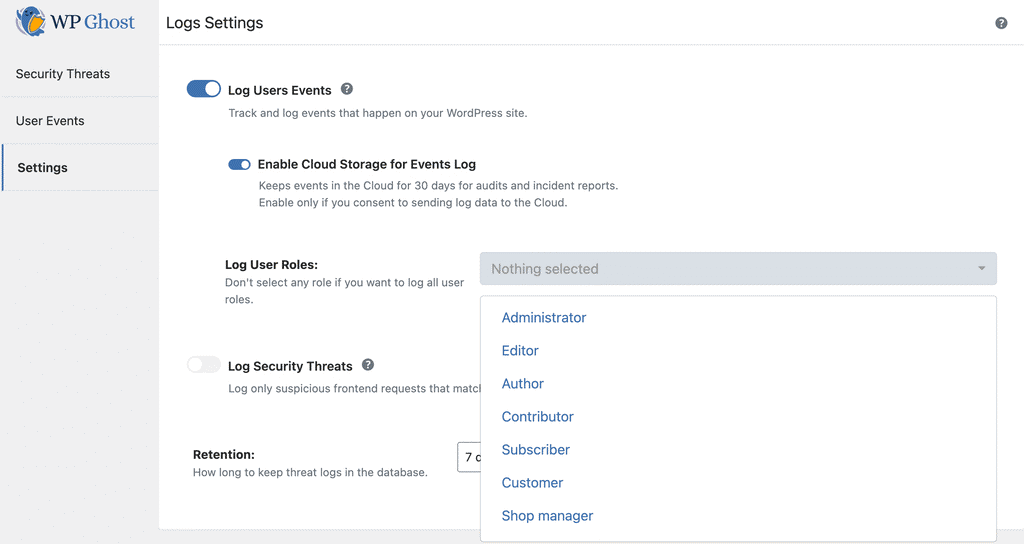
Go to WP Ghost > Logs > Settings. Switch on Log Users Events. Optionally enable Cloud Storage to keep a copy on the WP Ghost Dashboard for 30 days. Select which user roles to monitor from Log User Roles (leave empty to track all roles). Click Save. WP Ghost begins logging actions, recording details like username, role, paths accessed, post names, plugin changes, and attachments.
Logs are stored locally in your WordPress database. When cloud storage is enabled, a copy is also sent to the WP Ghost Dashboard, accessible from any device for 30 days – even if the plugin is deactivated or deleted. Local logs are removed if the plugin is uninstalled, but cloud logs survive.
Step 2: View and Filter Events
Access logs from your WordPress dashboard (WP Ghost > Logs > Events Log) or from the WP Ghost Dashboard online (requires cloud storage enabled).
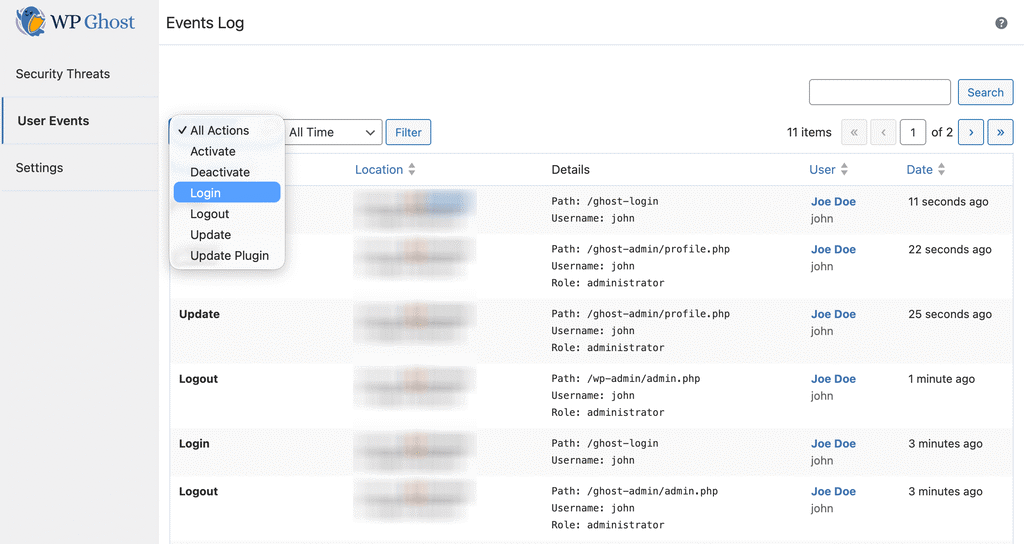
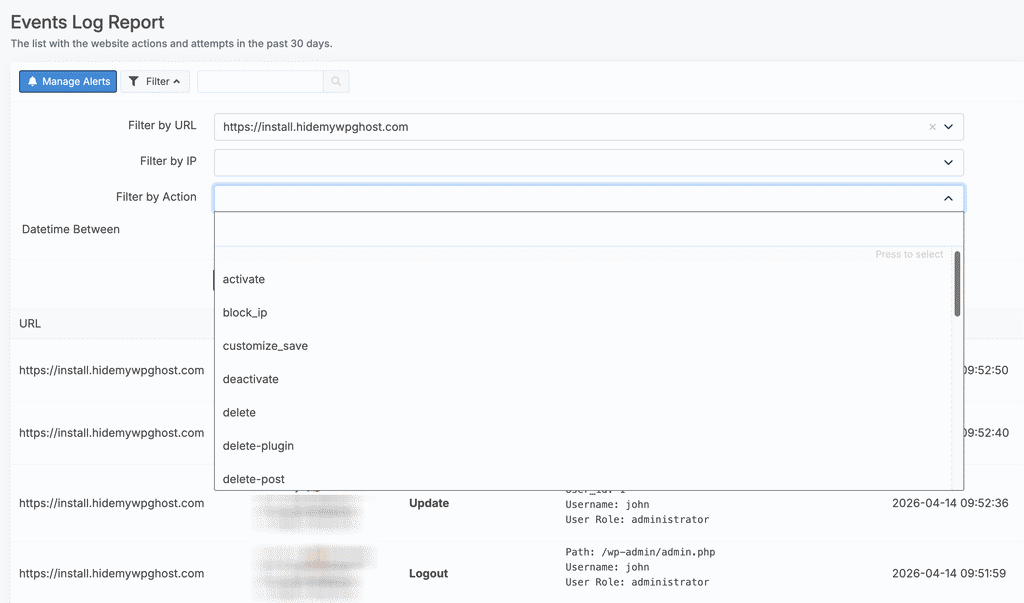
If you manage multiple sites, use the Filter button to select a specific website. You can also filter by User Action type and time interval. Click Search to see matching events with full details. Events are retained for 30 days. All timestamps use UTC+0.
Step 3: Configure Email Alerts
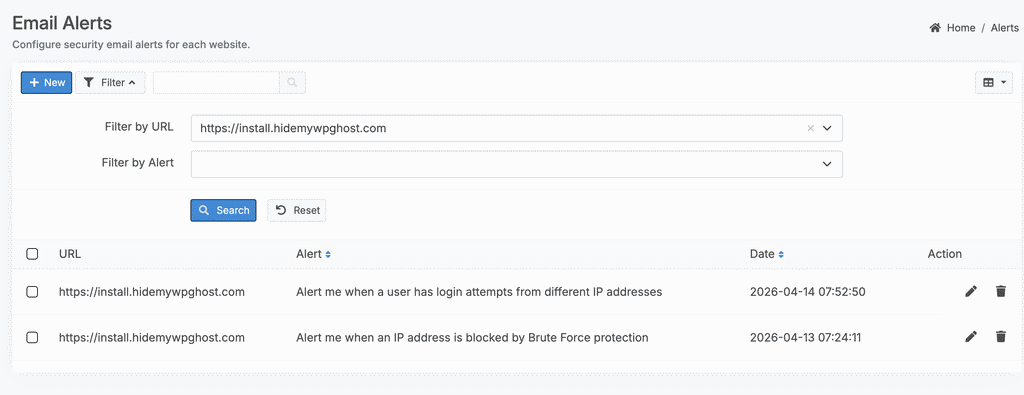
Go to the WP Ghost Dashboard at Email Alerts > New Alert. Select the event types you want to receive email notifications for. Alerts trigger immediately when the configured event occurs.
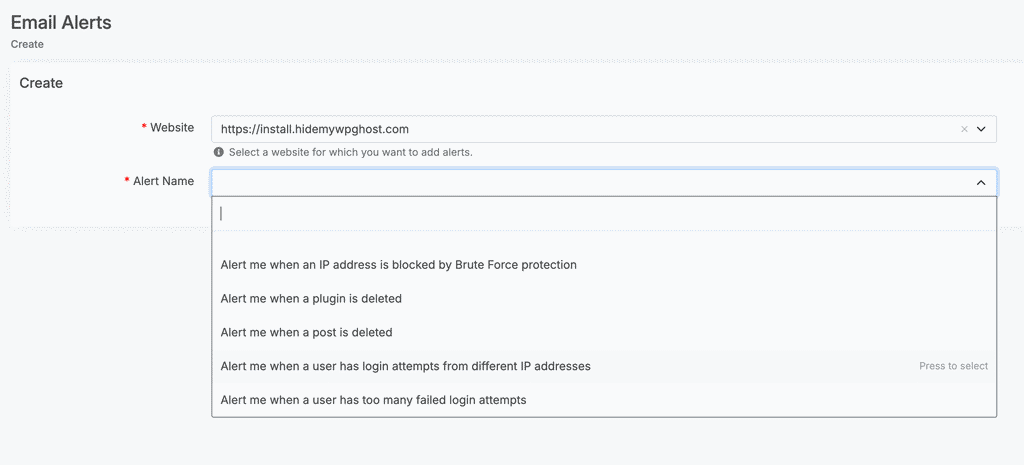
Manage all alerts from the Email Alerts section. You can create different alerts for each website connected to your account.
Frequently Asked Questions
Is the Events Log available in the free version?
Cloud-based user events logging and email alerts are premium features. The free version includes basic security logging.
Where are the logs stored?
Locally in your WordPress database with configurable retention. Optionally, enable cloud storage to sync a copy to the WP Ghost Dashboard for 30 days. Cloud logs are accessible from any device and survive plugin deletion. Local logs are removed if the plugin is uninstalled. Email alerts require cloud storage to be enabled.
How long are logs retained?
Cloud logs are retained for 30 days, then automatically deleted. Local logs are retained based on the retention period you configure in WP Ghost > Logs > Settings.
What events can I receive alerts for?
Logins from new IPs, logins from new countries, plugin activations/deactivations, settings changes, user role changes, and other security-relevant actions. WP Ghost includes predefined alert templates you can enable with one click.
Does WP Ghost modify WordPress core files?
No. WP Ghost uses WordPress hooks to capture events. Deactivating restores all defaults.
Related Tutorials
Getting Started with WP Ghost – initial setup and path configuration.
Brute Force Protection – protect login forms from automated attacks.
Security Check Report – verify your overall security configuration.
Customize All WordPress Paths – configure paths before monitoring.
Compatibility Plugins List – all tested plugins.