How to Use URL Mapping in WP Ghost to Change Asset URLs
October 15, 2018
This tutorial has moved to the new WP Ghost Knowledge Base where each feature is presented in detail.
Use URL Mapping in WP Ghost (formerly Hide My WP Ghost) to change specific CSS, JS, or asset URLs that standard path changes do not cover. URL Mapping gives you control over any URL in your source code – rename individual files, change cache directories, or hide plugin names in asset filenames.
When to Use URL Mapping
WP Ghost’s standard path changes handle wp-content, wp-includes, plugins, themes, uploads, and login URLs. But some URLs in your source code may still reveal WordPress or plugin information after these changes. URL Mapping catches everything else: cache plugin directories, CDN-rewritten asset paths, custom upload structures, or plugin-generated filenames that include the plugin name.
View your page source after activating Safe Mode or Ghost Mode. Search for any remaining WordPress-related URLs. Those are your URL Mapping targets.
How to Configure URL Mapping
Go to WP Ghost > Mapping > URL Mapping. Enter the original URL (or URL fragment) in the left field. Enter the custom replacement in the right field. Click Save.
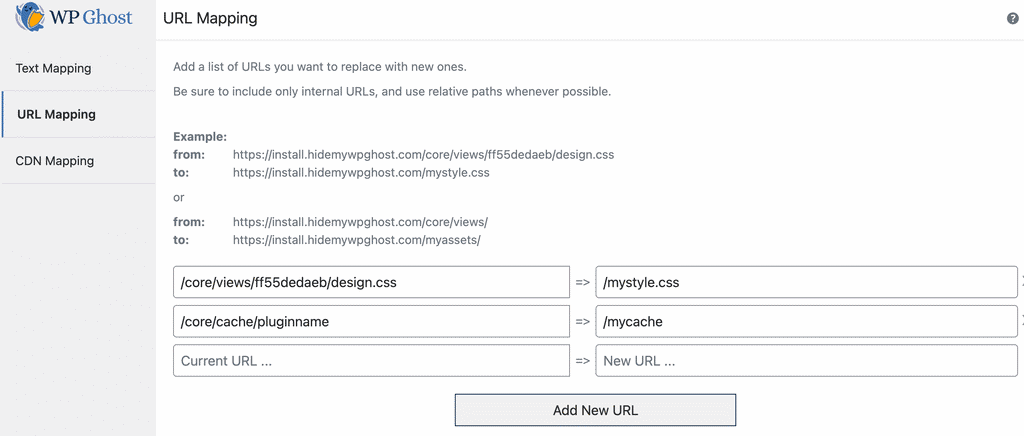
Only use internal URLs from your frontend source code. Keep the same file extension when mapping static files (CSS, JS, images) to ensure they load correctly.
Common Examples
| Original URL | Replacement | What it hides |
|---|---|---|
| /core/module/ff55dedaeb/woocommerce.css | /core/module/ff55dedaeb/shop.css | WooCommerce name in filename |
| /core/cache/litespeed/ | /core/mycache/ | LiteSpeed Cache plugin directory |
| /core/module/f9f4ca341/main.css | /mystyle.css | Entire plugin directory structure |
| /core/module/f9f4ca341/ | /custom_assets/ | Entire asset directory path |
Combine with Cache Plugin Minification
If plugin names still appear inside CSS or JS filenames and URL Mapping alone does not cover them, use your caching plugin’s minify/combine feature. When enabled, caching plugins like WP Rocket, LiteSpeed Cache, and Autoptimize merge multiple files into a single file with a generated hash name. Individual plugin filenames become undetectable. See the Compatibility Plugins List for tested cache plugins.
Troubleshooting
Mapped URLs not changing in page source
Clear all caches (WordPress caching plugin, CDN, browser, server) and test in a private browser. If you use a caching plugin, also enable Change Paths in Cached Files in WP Ghost > Tweaks so cached HTML files are processed too.
Mapped CSS or JS file returns 404
The replacement URL must keep the same file extension as the original. If you map a .css file to a URL without .css, the server may not serve it with the correct MIME type. Check your mapping rules for extension mismatches.
Too many URLs to map individually
If you have many URLs from the same directory, map the directory path instead of individual files. For example, mapping /assets/f9f4ca341/ to /custom_assets/ changes every file within that directory in one rule.
Frequently Asked Questions
What is the difference between URL Mapping and Text Mapping?
URL Mapping changes full or partial URLs in the source code and creates server rewrite rules so the files actually load from the new path. Text Mapping replaces text strings (like CSS class names) in the HTML output without creating rewrite rules. Use URL Mapping for file paths. Use Text Mapping for class names and non-URL text. See the Text Mapping and URL Mapping tutorial for the full comparison.
Can I use URL Mapping with a CDN?
Yes. If your CDN rewrites asset URLs to a different domain or subdomain, URL Mapping can change the paths within those CDN URLs. For CDN-specific path mapping, also see the CDN URL Mapping tutorial.
Do I need to map every remaining URL manually?
Not necessarily. Map directory paths instead of individual files to cover multiple URLs in one rule. Also check if your caching plugin’s CSS/JS combine feature can eliminate the URLs entirely by merging files into a single combined file.
Does URL Mapping affect SEO?
No. URL Mapping changes asset URLs (CSS, JS, images), not page URLs. Search engines do not index CSS or JS files. Your sitemaps, canonical URLs, and page content are unaffected.
Does WP Ghost modify WordPress core files?
No. URL Mapping creates rewrite rules and replaces URLs in the HTML output. No files are moved or renamed. Removing a mapping rule and saving restores the original URL.
Related Tutorials
Text Mapping and URL Mapping – the complete guide covering both mapping features.
CDN URL Mapping – extend path changes to CDN-served assets.
Hide Paths in CSS Files – Change Paths in Cached Files for cache plugin output.
Hide from Theme Detectors – complete CMS hiding strategy including URL Mapping.
Website Security Check – verify no WordPress URLs remain after mapping.