How to Disable Directory Browsing in WordPress (Before Someone Reads Your Files)
September 28, 2026
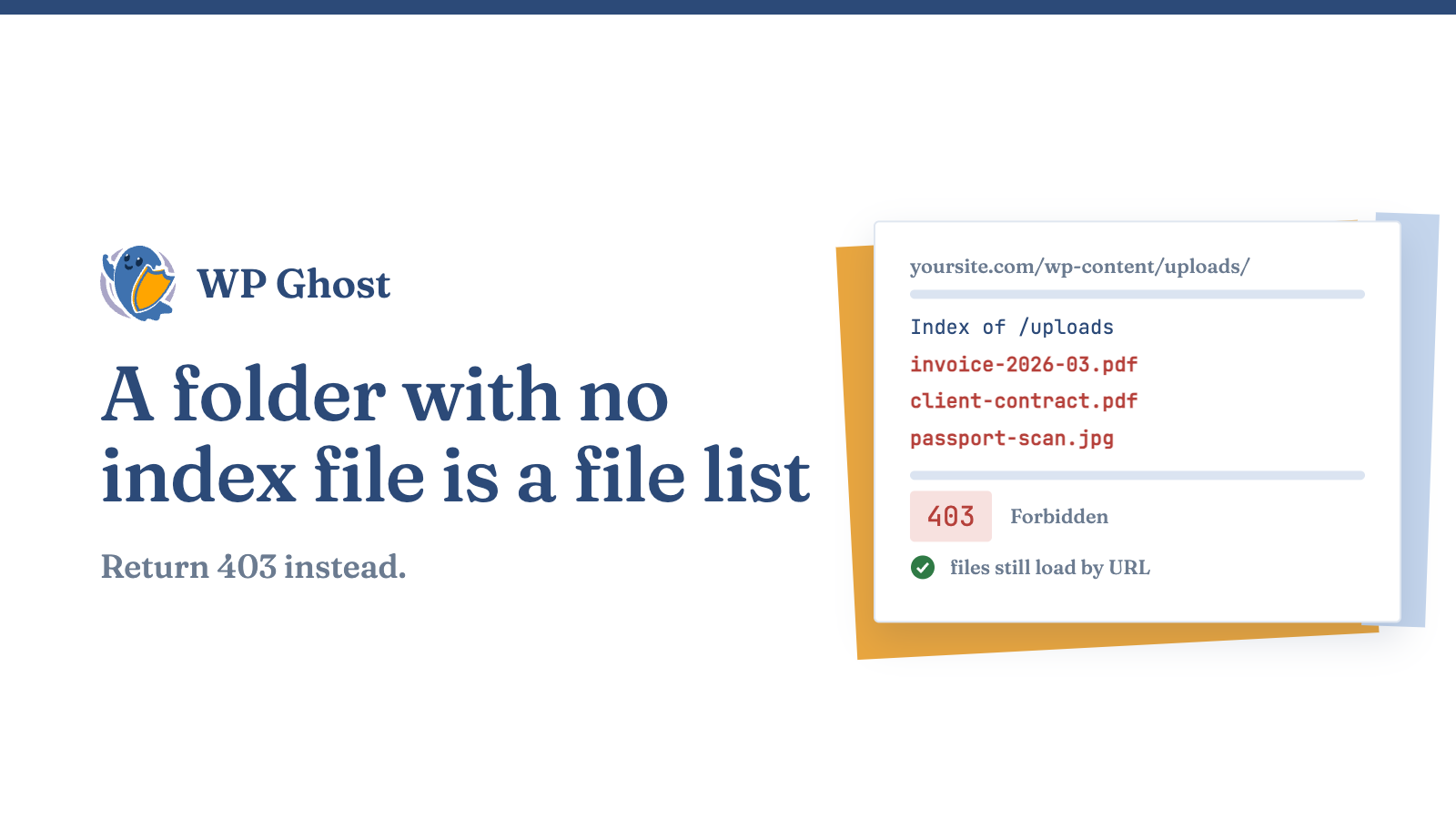
Directory browsing means the server lists a folder’s files when the folder has no index file. This page shows how to turn it off and check that it worked.
What directory browsing exposes
Directory browsing is catalogued as CWE-548, an information-disclosure flaw. It doesn’t run code or steal passwords. It shows attackers what you have.
| Exposure | What an attacker gets |
|---|---|
| Your data | Anything sensitive in uploads is one click away: private documents, client files, membership info |
| Reconnaissance | If /wp-content/plugins/ or /wp-content/themes/ are listed, attackers see which plugins and themes you run, and often their versions |
Close it and both problems go away. Your files still work.
How to disable directory browsing
There are three ways to do it. Each one makes the server return a 403 error for a folder request.
Option 1: Apache, with .htaccess
Add this line to the .htaccess file in your site root:
Options -IndexesIt only works if Apache allows overrides. If it doesn’t, check that AllowOverride All is set.
Option 2: Nginx, in the config
Nginx doesn’t use .htaccess. The autoindex directive controls listing, and it’s off by default. Make sure your server or location block has this line, then reload Nginx:
autoindex off;You’ll usually need SSH or your host’s control panel to edit it.
Option 3: a security plugin
A plugin can do it for you. WP Ghost turns off directory listing with one click, and you can repeat it across several sites.
Pair whichever method you use with correct file permissions. Listing controls what folders show. Permissions control who can read or change individual files.
Check that it worked
- Open
/wp-content/uploads/in your browser. You should see a 403 Forbidden or your site’s 404 page, not a list of files. - Open a subfolder with no index file, such as
/wp-content/uploads/2026/09/. You should get the same result. - Check
/wp-content/plugins/and/wp-content/themes/. Neither should list anything. - Test from a private window, so you don’t see a cached or logged-in view.
- Test again after you change hosts. A migration or a rebuilt server can switch listing back on.
What it does and doesn’t do
| Does | Doesn’t |
|---|---|
| Stops your uploads being browsed | Make a file private. A guessable URL still works for anyone who guesses it |
| Stops attackers getting a free list of your plugins and themes | Replace permissions and access rules for sensitive files |
Our hack prevention guide shows how this fits with the other steps.
FAQ
How do I know if directory browsing is enabled on my site?
Open a folder with no index file, such as /wp-content/uploads/, in your browser.
Will disabling directory browsing break my images or my site?
No. Files still load by their full URLs.
Does hiding the listing make my files private?
Not fully. Anyone who knows a file URL can still open it.
Directory browsing came back after I changed hosts. Why?
It’s a server default, and migrations or rebuilds can reset it.