How to Change Your WordPress Login Slug Without Breaking Anything

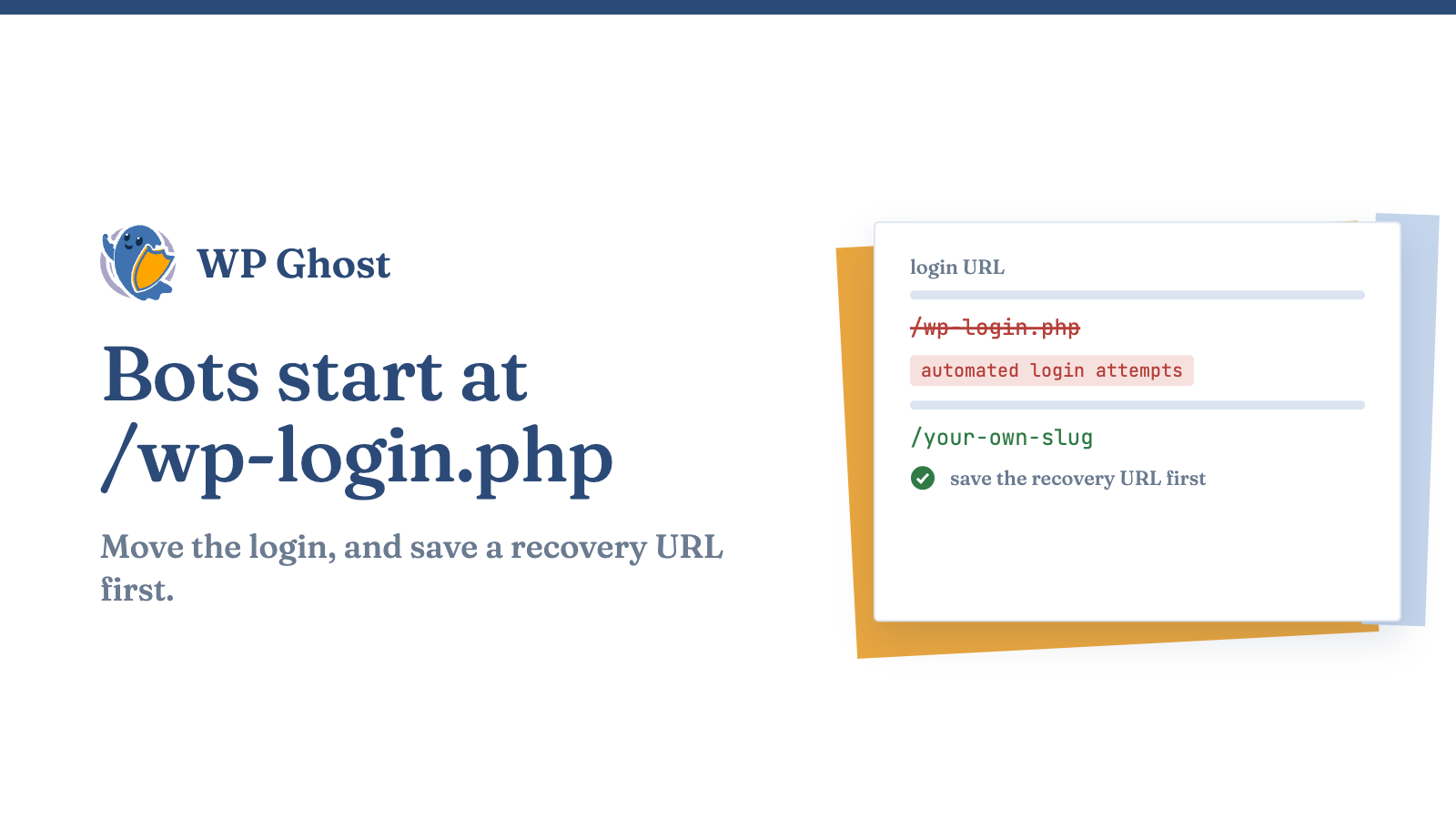
A WordPress login page being moved from the default address to a custom URL.

Check your login logs. You’ll see failed attempts piling up, all targeting /wp-login.php, from unknown IPs, guessing usernames and passwords around the clock. You haven’t done anything to invite them. Every WordPress site puts its login in the same place, so brute-force bots always start there. Your login page is on a universal list the whole internet.

You already know the solution: move your login off /wp-login.php to a URL bots can’t guess. However, what often holds site owners back is the fear of breaking something essential. Perhaps you have heard stories about custom logins conflicting with membership plugins, WooCommerce password reset emails directing users to nonfunctional links, or accidental lockouts resulting in late-night troubleshooting. This concern is valid, and this guide addresses it directly. In the following sections, we will examine the reasons /wp-login.php is targeted, explore how improper login-slug changes can disrupt site functionality, and provide a clear, step-by-step method to change your login slug safely. The aim is to enable you to protect your site from bots without compromising the essential user flows your site depends on.

Why /wp-login.php is the first door every bot tries

Brute-force attacks are so common because the target never moves. Bots don’t need to scan for your login they already know the path. They try lists of common passwords against /wp-login.php or /wp-admin/ on your site and thousands of others, all at once.

Change the slug, and that whole system breaks. When /wp-login.php returns nothing useful and the real login is at a hidden address, automated attacks hit a wall before they can even begin. This is endpoint obfuscation making your login page impossible to find by default. The brute-force traffic that fills your logs simply stops finding a door to knock on.

It’s a real layer of defense. Moving your login won’t replace strong passwords or rate limiting, but it takes your site off the automated target list that most attacks work from which eliminates most of the noise.

Why login-slug changes break sites (and how to avoid it)

Here’s where things can go wrong this is where all the horror stories start. Changing your login slug breaks things when the new URL isn’t updated everywhere the old one was used. The failure points are predictable:

  • Membership and community plugins that hardcode /wp-login.php in their own redirects and forms.
  • WooCommerce transactional emails with “log in to your account” or password-reset links pointing at the default path.
  • Bookmarks and SSO flows that expect the standard endpoint.
  • Redirect loops when the old path is blocked but something still routes to it.

Manually editing .htaccess to move your login only changes the door it doesn’t fix all those other references. That’s why DIY login changes so often end in lockouts. The answer isn’t to avoid changing the slug, but to use a tool that handles all the references and avoids conflicts.

This is where a conflict-free path change matters. WP Ghost’s login-path features are built to safely change your slug while keeping everything working so membership plugins, WooCommerce emails, and redirects point to the new URL, not a dead one. You get a plug-and-play setup to set your new slug from one place, and it works smoothly with plugins that assume the default path, instead of breaking them.

How to change your login slug safely, step by step

Follow these steps. If you’re changing a live store or membership site, always start with a conflict-free slug change and save a recovery URL before enabling it never just edit .htaccess by hand.

  1. Save a recovery URL first. Before you make any changes, write down the recovery or emergency-access URL your tool provides and store it somewhere safe, off your site. If anything goes wrong, this is your way back in.
  2. Pick a non-obvious slug something that isn’t a dictionary word or an easy guess. Change your WordPress login path to this new slug.
  3. Change your wp-admin path too. The login page is just one endpoint /wp-admin/ is another. Hide and change the wp-admin path so both default doors are closed. For more options, see our guide on changing your wp-admin URL.
  4. Test all the user-facing flows. Log out, try the new login URL, and then test the things that often break like password resets, WooCommerce account logins from email links, and membership logins if you have them.
  5. Make sure the old paths are closed. Visit /wp-login.php and /wp-admin/ directly they shouldn’t show a working login form to anyone who isn’t logged in.
  6. Add rate limiting, too. Even a hidden login benefits from limiting attempts. Turn on brute-force protection so anyone who does find the page gets throttled.

This sequence addresses your worries head-on: you change the slug, verify every flow you were concerned about, and keep a recovery URL handy the whole time.

What a login-slug change does and does not do

Changing your login slug takes your site off the default brute-force target list and slashes the automated login traffic that clogs most logs. For the effort, it’s one of the best value hardening steps you can take.

But this isn’t a replacement for the basics. If an attacker already knows your custom URL, you still need strong passwords, rate limiting, and two-factor authentication. Change the slug to keep bots out, and keep your login tough for anyone else. Check out our complete hack prevention guide to see how these layers work together.

FAQ

Will changing my login slug break WooCommerce or membership plugins?

It can if you do it manually, because those plugins use the default login path in their redirects and emails. A conflict-free login change refreshes these flows so WooCommerce account links, password resets, and membership logins point to the new URL. Change the slug, then test a password reset and an account login from an email before you’re done.

What happens if I get locked out after changing the login URL?

This is why you save a recovery URL before making the change. If you get locked out, use the recovery link, or disable the plugin through your hosting file manager by renaming its folder in wp-content/plugins/ that brings back the default /wp-login.php. If you set the recovery URL first, a lockout is a two-minute fix, not a crisis.

Is changing the login slug enough to stop brute-force attacks?

No, but it stops most of the noise. Moving your login off the default path blocks the bots that only try /wp-login.php. Pair it with rate limiting and two-factor authentication so that even if someone discovers your custom URL, they still can’t break in.

Can I change my login slug without a plugin?

You can, using an .htaccess RewriteRule but that only moves the endpoint. It won’t update membership plugins, WooCommerce emails, or redirects that depend on the old path, which is what often causes lockouts. If your site has users or a store, a conflict-free plugin change is the safer solution.