
How to Add Files to “Hide WordPress Common Files” in WP Ghost
July 22, 2024
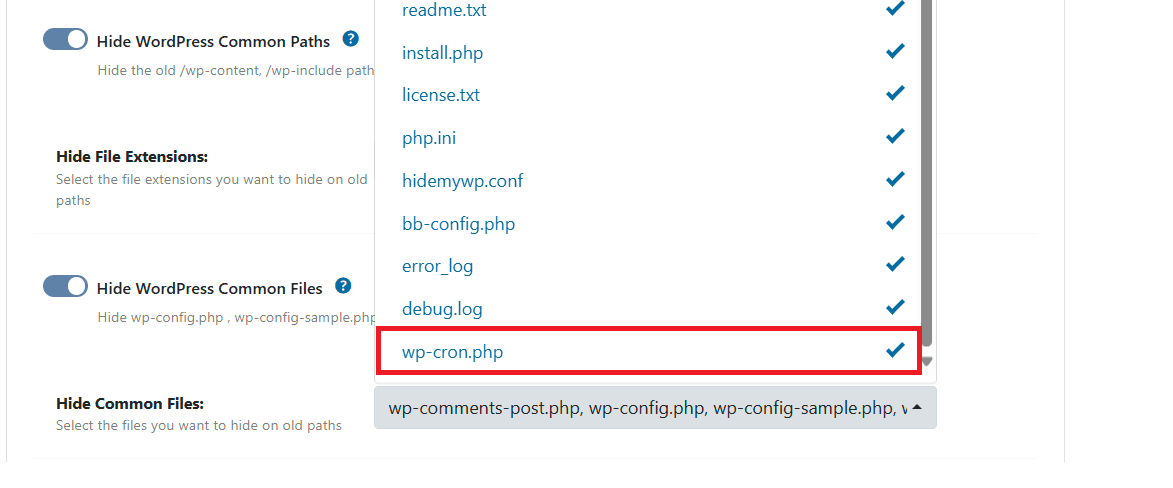
This tutorial has moved to the new WP Ghost Knowledge Base where each feature is presented in detail.
Quick summary: Add custom files to WP Ghost’s “Hide WordPress Common Files” list by using the hmwp_hide_commonfiles_files filter in your child theme’s functions.php or wp-config.php. Then select the file in WP Ghost > Change Paths > WP Core Security and save.
Why Hide Additional WordPress Files
WP Ghost already hides common WordPress files like readme.html, license.txt, wp-config.php, and others by default. But your WordPress installation may have additional files in the root directory that reveal information about your setup. Files like wp-cron.php, wp-trackback.php, xmlrpc.php, or even custom files like composer.json and package.json can confirm to bots that your site is running WordPress or expose internal project details.
The hmwp_hide_commonfiles_files filter lets you add any file to WP Ghost’s hidden files list. Once added, the file appears in the WP Ghost dashboard where you can select it and save. Accessing that file directly will then return a 404 error for non-logged visitors.
| File | Default (Accessible) | After Hiding (Secured) |
|---|---|---|
| wp-cron.php | Accessible, confirms WordPress | Returns 404 for non-logged visitors |
| wp-trackback.php | Accessible, used in trackback spam | Returns 404 |
| composer.json | Reveals project dependencies | Returns 404 |
| Custom PHP files | Accessible by URL | Returns 404 |
How to Add the Filter
You need to register your custom files using the hmwp_hide_commonfiles_files filter. Add the code to either your child theme’s functions.php file or your wp-config.php file. Both work – choose whichever you prefer.
Option A: Add to functions.php (Child Theme)
1. Go to Appearance > Theme File Editor.
2. Select functions.php from the file list on the right.
3. Add the following code at the bottom of the file:
add_filter('hmwp_hide_commonfiles_files', function($files){
    $files[] = 'wp-cron.php';
    return $files;
});
4. Click Update File to save.
Use a child theme so the code survives theme updates. If you do not have a child theme, a code snippets plugin is a good alternative.
Option B: Add to wp-config.php
1. Access your WordPress root directory via FTP, SFTP, or your hosting file manager.
2. Open wp-config.php for editing.
3. Add the following code before the line that says /* That's all, stop editing! */:
add_filter('hmwp_hide_commonfiles_files', function($files){
    $files[] = 'wp-cron.php';
    return $files;
});
4. Save the file.
Adding Multiple Files at Once
You can add as many files as you need in a single filter. Each $files[] line adds one file to the list:
add_filter('hmwp_hide_commonfiles_files', function($files){
    $files[] = 'wp-cron.php';
    $files[] = 'wp-trackback.php';
    $files[] = 'xmlrpc.php';
    $files[] = 'composer.json';
    $files[] = 'package.json';
    return $files;
});
Use the filename only, not the full path. WP Ghost looks for these files relative to your WordPress root directory.
Select the File in WP Ghost and Save
Adding the filter alone is not enough. It registers the file in WP Ghost’s list, but you still need to select it and save for the hiding to take effect.
1. Go to WP Ghost > Change Paths > WP Core Security > Hide WordPress Common Files.
2. Your custom file (e.g. wp-cron.php) now appears in the dropdown list alongside the default files.
3. Select the file from the list.
4. Click Save to apply.

Nginx users: You need to restart the Nginx service after saving the settings in WP Ghost. The rewrite rules are loaded from the config file at startup, so changes only take effect after a restart.
Important Considerations
Do not hide files that WordPress needs to function. For example, hiding xmlrpc.php blocks remote publishing tools, Jetpack, and applications that use the XML-RPC protocol. If you are not using any XML-RPC-based services, it is safe to hide. If you are unsure, WP Ghost has a separate option to disable XML-RPC access that is safer than hiding the file entirely.
Be careful with wp-cron.php. WordPress uses this file for scheduled tasks like publishing scheduled posts, checking for updates, and sending email notifications. If you hide it, make sure you have a real server-side cron job configured as a replacement. Many managed hosting providers already do this automatically.
Always test after adding files. Visit the file URL directly while logged out (e.g. yourdomain.com/wp-cron.php) and confirm it returns a 404. Then test your site’s core functionality to make sure nothing is broken.
Frequently Asked Questions
Why do I need the filter? Can I just type the filename in the WP Ghost settings?
The “Hide WordPress Common Files” dropdown only shows files that are registered in WP Ghost’s internal list. The hmwp_hide_commonfiles_files filter adds your custom files to that list. Without the filter, your file will not appear as an option in the dropdown.
Will this survive WP Ghost updates?
Yes. The filter is in your functions.php or wp-config.php, not inside the WP Ghost plugin. Plugin updates do not affect your custom code. The selected files in WP Ghost settings are saved in the database, so they also persist through updates.
Can I hide files in subdirectories?
The hmwp_hide_commonfiles_files filter is designed for files in the WordPress root directory. For files inside wp-content, plugins, or themes directories, use the path security features in WP Ghost > Change Paths to secure entire directory paths instead.
Does hiding a file delete it from the server?
No. The file stays on the server exactly where it is. WP Ghost creates a rewrite rule that returns a 404 error when someone tries to access the file directly via URL. WordPress and other server-side processes can still use the file normally. Only direct browser or bot access is blocked.
Does WP Ghost modify WordPress core files?
No. WP Ghost uses server rewrite rules to block access to the files you select. No files are modified, moved, or deleted. Deactivating WP Ghost restores direct access to all files instantly.
Related Tutorials
For more file and path security options:
Customize Paths in WP Ghost – Change wp-content, wp-includes, plugins, and themes paths.
Disable XML-RPC Access – A safer way to block XML-RPC than hiding the file entirely.
Change .htaccess Permission to Read-Only – Lock down server config files from modification.
Hide from WordPress Theme Detectors – Complete checklist for removing all CMS detection signals.
Website Security Check – Verify your file hiding and all other security tasks pass.