Add Brute Force Protection to Elementor Login Forms with WP Ghost
July 13, 2024
This tutorial has moved to the new WP Ghost Knowledge Base where each feature is presented in detail.
Add WP Ghost’s brute force reCAPTCHA protection to custom Elementor login forms using the shortcode. WP Ghost automatically protects the default WordPress login page, but custom page builder forms need the shortcode to enable the same protection.
When You Need the Brute Force Shortcode
WP Ghost’s Brute Force Protection works automatically on the standard WordPress login page (wp-login.php). It adds reCAPTCHA, limits login attempts, and blocks IPs that exceed the threshold. No setup is needed for the default login form.
But if your site uses a custom login page built with Elementor, Divi, WPBakery, or another page builder, the brute force protection does not load on those forms by default. Page builder login forms use their own form handling, so WP Ghost can not inject the protection automatically.
The shortcode solves this. Place it inside any page builder form, and it renders the same reCAPTCHA widget and attempt-limiting logic that the default login page uses. This tutorial shows the Elementor workflow, but the shortcode works in any builder that supports WordPress shortcodes.
Step 1 – Activate Brute Force Protection
The shortcode only works when Brute Force Protection is active. If you have not enabled it yet:
1. Go to WP Ghost > Brute Force > Settings.
2. Switch on Use Brute Force Protection.
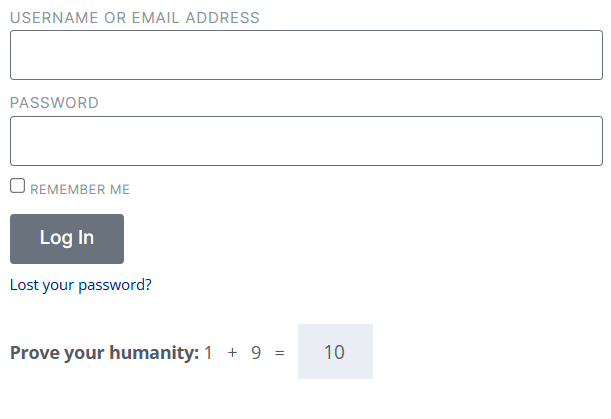
3. Select your preferred reCAPTCHA type. You have four options: Math reCAPTCHA (no API keys needed, simplest setup), Google reCAPTCHA V2 (the “I’m not a robot” checkbox), Google reCAPTCHA V3 (invisible, behavior-based scoring), or Google reCAPTCHA Enterprise (advanced risk analysis for high-value sites).
4. Click Save.
For the full reCAPTCHA configuration guide including API key setup, see the Brute Force Protection tutorial.
Step 2 – Add the Shortcode to Elementor
5. Open the page containing your login form in the Elementor editor.
6. If you have not created a login form yet, drag the Elementor Pro Login widget onto your page.
7. In the Login widget settings, go to the Form Fields section.
8. Add a Shortcode field and enter:
[hmwp_bruteforce]9. Save and publish the page.
The reCAPTCHA widget now appears on your Elementor login form. It renders whichever reCAPTCHA type you selected in WP Ghost’s Brute Force settings. If you later switch from Math reCAPTCHA to Google V3, the shortcode automatically renders the V3 widget. No need to change the shortcode itself.
Failed login attempts are tracked and IPs are blocked according to your Brute Force settings (max failed attempts, ban duration, lockout message).
Using the Shortcode with Other Page Builders
The shortcode works anywhere WordPress shortcodes are supported. Here is how to add it to other popular page builders:
Divi. Add a Code module inside your login form section. Paste in the code field.
WPBakery. Add a Text Block or Raw HTML element inside your form layout. Enter .
Beaver Builder. Add an HTML module inside the form section and enter the shortcode.
Bricks. Use a Shortcode element and paste .
The shortcode renders the same reCAPTCHA widget regardless of which builder you use.
What About WooCommerce Login Forms
WooCommerce login forms have their own toggle in WP Ghost > Brute Force > WooCommerce > WooCommerce Support. WP Ghost auto-detects WooCommerce login forms and adds protection automatically when this option is enabled. You do not need the shortcode for WooCommerce login forms.
Use the shortcode only for custom-built forms that WP Ghost can not auto-detect, like page builder login widgets and custom registration forms.
Frequently Asked Questions
Do I need the shortcode on the default WordPress login page?
No. WP Ghost automatically adds brute force protection to the standard WordPress login page (wp-login.php). The shortcode is only needed for custom login forms built with page builders that do not use the default WordPress login mechanism.
Which reCAPTCHA type works best with Elementor?
All four types work with Elementor. Math reCAPTCHA is the simplest because it requires no API keys and has no external dependencies. Google reCAPTCHA V3 is invisible and provides the smoothest user experience. Choose based on your preference for simplicity vs. user experience.
Can I use this shortcode on registration forms too?
Yes. The shortcode works on any form where you want brute force protection, including custom registration forms, membership signup forms, and any other form that accepts user credentials. Place the shortcode inside the form to add reCAPTCHA protection.
The reCAPTCHA does not appear after adding the shortcode.
Make sure Brute Force Protection is enabled in WP Ghost > Brute Force > Settings. The shortcode only renders the reCAPTCHA widget when Brute Force Protection is active. Also clear any page cache and check that the shortcode is placed inside the form area, not outside it.
Does WP Ghost modify WordPress core files?
No. The shortcode renders through WordPress’s standard shortcode API. No core files are modified. Removing the shortcode removes the reCAPTCHA widget instantly.