
How to Force Login and Redirect Visitors to WordPress Login Page
March 14, 2017
This tutorial has moved to the new WP Ghost Knowledge Base where each feature is presented in detail.
Force all visitors to log in before they can see your WordPress site. Use WP Ghost’s built-in role-based redirects, or add a template_redirect hook to your functions.php to send non-logged-in visitors to the login page automatically.
When You Need a Login-Only Website
Some WordPress sites are not meant for public access. Membership sites, internal company portals, client dashboards, and private communities all need visitors to log in before they can see any content. Instead of protecting individual pages one by one, you can force every visitor to the login page automatically.
This tutorial covers three approaches: WP Ghost’s built-in redirects (no code), a functions.php hook that redirects all visitors to the login page, and a code snippet that blocks subscribers from accessing the dashboard.
Option 1 – Use WP Ghost Built-in Redirects (No Code)
WP Ghost includes role-based login and logout redirects directly in the plugin settings. You can set different redirect destinations for each user role without writing any code.
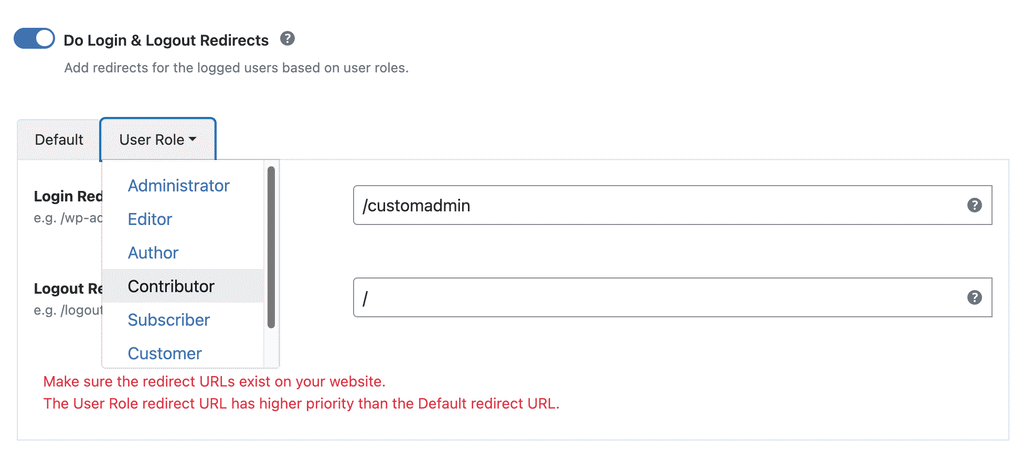
1. Go to WP Ghost > Change Paths.
2. Scroll down to the Login Security section.
3. Configure the Redirect on Login and Redirect on Logout URLs based on user role.
4. Click Save.
This method is ideal when you want different user roles to land on different pages after login. For example, administrators go to the dashboard, editors go to the posts page, and subscribers go to a members-only homepage.
This option controls where users go after they log in, but it does not force non-logged-in visitors to the login page. For that, you need Option 2.
Option 2 – Force All Visitors to the Login Page (Code)
If you want every non-logged-in visitor to be automatically redirected to your login page, regardless of which URL they try to access, add this code to your theme’s functions.php file.
function protect_whole_site() {
   if (!is_user_logged_in()) {
     if (isset($_SERVER['REQUEST_URI'])) {
        $url = untrailingslashit($_SERVER['REQUEST_URI']);
        if (strpos($url, HMWP_Classes_Tools::getOption('hmwp_login_url')) === false) {
           wp_redirect(site_url('wp-login.php'));
           exit();
        }
    } else {
        wp_redirect(site_url());
        exit();
    }
  }
}
add_action('template_redirect', 'protect_whole_site');
This code runs on every page load. It checks whether the visitor is logged in. If they are not, it redirects them to the login page. The code is also aware of WP Ghost’s custom login path – if you have changed the login URL with WP Ghost, the redirect goes to the new custom login path automatically.
A few things to keep in mind with this approach:
SEO impact. If your site needs to be indexed by search engines, do not use this code. It redirects Googlebot and other crawlers to the login page too, which means none of your content will be indexed.
Public pages. If you need certain pages to remain accessible without login (like a homepage, pricing page, or contact form), you will need to add exceptions to the code. Check the current URL against a list of allowed paths before redirecting.
Caching. If you use a cache plugin, cached pages may be served to non-logged-in visitors before the redirect fires. Exclude all pages from caching or configure your cache plugin to skip caching for visitors without a login cookie.
Option 3 – Block Subscribers from the Dashboard
If your site has subscriber accounts (common with WooCommerce, membership plugins, or community sites), you may want subscribers to use the frontend only and never see the WordPress admin dashboard. This code redirects any subscriber who tries to access /wp-admin/ back to the homepage.
function no_dashboard() {
   if ( current_user_can( "subscriber" ) ) {
       wp_redirect(home_url());
       exit();
   }
}
add_action('admin_init', 'no_dashboard');
Add this to your theme’s functions.php file. Subscribers will be sent to the homepage when they try to access any admin page. All other user roles (administrator, editor, author, contributor) can still access the dashboard normally.
You can change home_url() to any URL you want. For example, redirect subscribers to a members area or a WooCommerce My Account page instead.
Combining These Options with WP Ghost Security
All three options work with WP Ghost’s path security features. When you change the login path with WP Ghost, the redirect code in Option 2 automatically sends visitors to the new custom login URL. The dashboard block in Option 3 works with the custom admin path too.
For maximum security on a login-only site, combine these redirect options with WP Ghost’s Brute Force Protection (to protect the login form with reCAPTCHA), Two-Factor Authentication (to add a second verification step), and the 8G Firewall (to block injection attacks).
Frequently Asked Questions
Will forcing login affect my SEO rankings?
Yes. If you redirect all non-logged-in visitors (including search engine crawlers) to the login page, Google will not be able to index your content. Only use this approach for sites that do not need to appear in search results, like private portals, intranets, or client dashboards.
Does this work with WooCommerce?
Yes. The force login code redirects all visitors to the login page, and WooCommerce login pages work with WP Ghost’s custom paths. The subscriber dashboard block also works with WooCommerce customer accounts. You can redirect customers to the My Account page instead of the homepage by changing home_url() to the My Account URL.
Can I allow some pages to be public while forcing login on others?
Yes. Modify the protect_whole_site function to check the current URL against a list of allowed public paths before redirecting. For example, check if the URL contains “/pricing” or “/contact” and skip the redirect for those pages.
Where should I add the code – functions.php or a custom plugin?
Either location works. Adding it to functions.php is simpler, but the code will be lost if you change themes. For a permanent solution, create a small custom plugin or add the code to a site-specific plugin that persists across theme changes.
Does WP Ghost modify WordPress core files?
No. WP Ghost uses server rewrite rules and WordPress hooks. No core files are moved, renamed, or modified. Deactivating the plugin restores all default paths instantly.