How to Protect Your WordPress Website from Hackers – Complete Guide
November 25, 2020
This tutorial has moved to the new WP Ghost Knowledge Base where each feature is presented in detail.
Protect your WordPress website by securing default paths with WP Ghost, enabling the 8G Firewall, activating brute force protection, choosing secure hosting, and keeping regular backups.
Why WordPress Sites Get Hacked
If you run a business on WordPress, you have probably asked yourself the same question every site owner eventually asks: how do I protect my WordPress website from being hacked?
It is a fair concern. WordPress powers over 43% of all websites on the internet, and that popularity makes it the biggest target for automated attacks. But here is the part most people get wrong: the WordPress core itself is not the main vulnerability. The real risk comes from the plugins and themes installed on your site.

Many free plugins and themes are built by developers who are skilled at creating features but not trained in security best practices. Some do not validate user inputs. Others expose file paths or leave debug information accessible. With over 64,000 tracked vulnerabilities in the WPScan database and new ones discovered every week, it is practically impossible to guarantee that every plugin on your site is 100% secure at all times.
Since WordPress can not function without plugins and themes, every production website has likely had a vulnerable component installed at some point. The question is not whether your site will be targeted, but whether bots will find anything to exploit when they arrive.
Why Paths Security Matters
Every WordPress site uses the same default structure. Paths like /wp-admin, /wp-login.php, /wp-content/plugins/, and /wp-content/themes/ are identical on millions of websites. Hacker bots do not need to guess where things are. They already know.
The attack follows a simple two-phase pattern. First, the bot scans for default WordPress paths to confirm the site is a target. Second, it runs known exploits against those paths. If the bot can not complete phase one, phase two never happens. Your site stays safe because there is nothing for the bot to find.
This is the core idea behind path security. Instead of waiting for an attack to reach a vulnerable plugin and then trying to clean up, you prevent the attack from ever finding the plugin in the first place.
Default Paths vs. Secured Paths
| WordPress Path | Default (Vulnerable to bots) | Secured with WP Ghost |
|---|---|---|
| Admin dashboard | /wp-admin/ | /your-custom-admin/ |
| Login page | /wp-login.php | /your-custom-login/ |
| Plugins directory | /wp-content/plugins/ | /custom-assets/extensions/ |
| Themes directory | /wp-content/themes/ | /custom-assets/layouts/ |
| Uploads folder | /wp-content/uploads/ | /custom-assets/media/ |
| REST API | /wp-json/ | /custom-api/ |
| Old paths accessible? | Yes (exploitable) | 404 Not Found |
How to Protect Your WordPress Website with WP Ghost
WP Ghost was built specifically to solve this problem. Instead of scanning for malware after a breach has already happened, it prevents the breach from occurring by removing the attack surface entirely.
The plugin changes all common WordPress paths using server rewrite rules and WordPress hooks. No files are physically moved or renamed, which means there is zero risk of breaking your installation. Deactivating the plugin restores all original paths instantly.
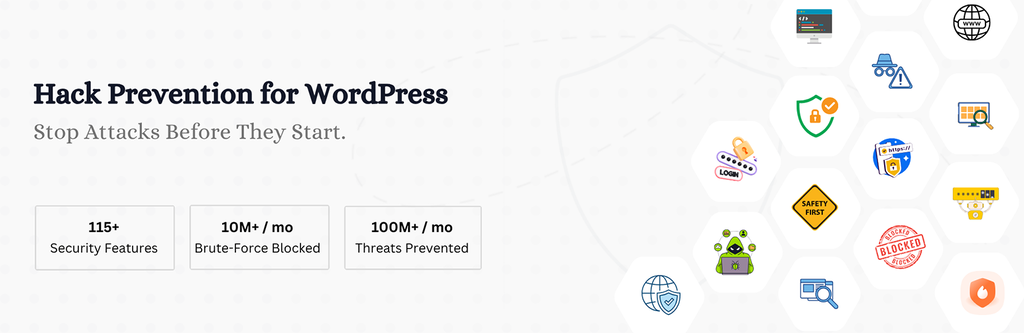
When properly configured, WP Ghost reduces SQL injection and script injection attacks by up to 99%. It also significantly reduces brute force and XSS attacks by making the login page invisible to bots and filtering malicious requests through the built-in 8G Firewall before they reach WordPress core.
Layer 1 – Path Security
WP Ghost changes and secures every common WordPress path: wp-admin, wp-login.php, wp-includes, wp-content, plugins, themes, uploads, REST API, author paths, comments path, admin-ajax.php, and more. It also hides common files like wp-config.php, readme.html, license.txt, and debug.log. Once the paths are changed, the old paths return a 404 error when bots try to access them. For the full path security guide, see Customize Paths with WP Ghost.
Layer 2 – 8G Firewall
The built-in 8G Firewall operates at the server edge, filtering out SQL injection, script injection, XSS, file inclusion exploits, and directory traversal attacks before they reach your WordPress core or database. Because it works through lightweight server rules, malicious requests are blocked before PHP even loads.
Layer 3 – Brute Force Protection
WP Ghost protects your login page, registration form, lost password form, and comment forms with Math reCAPTCHA, Google reCAPTCHA V2, and Google reCAPTCHA V3. Combined with a changed login path, bots can not even find the login page, let alone brute-force it. See the full setup at Brute Force Protection.
Layer 4 – Two-Factor Authentication
Even if an attacker obtains a password, 2FA stops them. WP Ghost supports 2FA by code (Google Authenticator), 2FA by email, and 2FA by passkey, including Face ID, Touch ID, Windows Hello, and hardware security keys. All three methods are included in the free version.
Layer 5 – Security Headers
WP Ghost adds browser-level protection through security headers like Strict-Transport-Security, Content-Security-Policy, X-Frame-Options, X-Content-Type-Options, and X-XSS-Protection. These prevent clickjacking, content sniffing, and cross-site scripting at the browser level.
Works Together with Other Security Plugins
WP Ghost is designed to complement, not replace, other security tools. It works alongside Wordfence, Solid Security, Shield Security, Sucuri, and many others. While those plugins focus on malware scanning and file integrity monitoring (reactive security), WP Ghost focuses on preventing attacks from reaching your site (proactive security). Use them together for full defense in depth.
You do not need to deactivate other security plugins when you install WP Ghost. For the full list of tested plugins, see the Plugin Compatibility List.
Choose Secure Hosting
Your hosting environment is the foundation of your security stack. A secure host provides server-level firewalls, automatic updates, malware scanning, and isolation between accounts. Choosing a managed WordPress hosting provider adds another layer of protection that works alongside WP Ghost.

Some of the best managed WordPress hosting providers include WP Engine, Kinsta, SiteGround, Cloudways, InMotion, Flywheel, and GoDaddy Managed WordPress. WP Ghost has been tested and is fully compatible with all of these hosts and many more.
When choosing a hosting plan, make sure it includes daily automatic backups. No security setup is complete without a reliable backup strategy. If the worst happens, you need to be able to restore your site quickly.
The Complete WordPress Security Checklist
Here is a practical checklist that covers everything you need to protect your WordPress site:
1. Install WP Ghost and activate path security. Change all default WordPress paths and hide common files. Use Safe Mode or Ghost Mode for a quick setup. Follow the Safe Mode setup guide to get started in 3 minutes.
2. Enable the 8G Firewall. Go to WP Ghost > Firewall and select the 8G Firewall level. This blocks SQL injection, script injection, XSS, and file inclusion attacks at the server edge.
3. Activate brute force protection. Go to WP Ghost > Brute Force and enable reCAPTCHA on your login, registration, and lost password forms.
4. Enable Two-Factor Authentication. Go to WP Ghost > 2FA Login and activate at least one 2FA method for all admin accounts. Passkeys are the most secure option.
5. Run a Security Check. Go to WP Ghost > Security Check and click Start Scan. Fix any issues the scanner identifies. See the Website Security Check tutorial for details.
6. Choose secure hosting with daily backups. Make sure your hosting provider includes automatic daily backups and server-level security.
7. Keep plugins, themes, and WordPress core updated. Updates often contain security patches. Apply them promptly.
8. Use strong, unique passwords. Never use “admin” as a username. Use a password manager to generate and store complex passwords.
For the complete recommended configuration, see the WP Ghost Settings Best Practice guide.
Frequently Asked Questions
Is WP Ghost enough to protect my WordPress website?
For most WordPress sites, yes. WP Ghost includes 115+ free features covering path security, the 8G Firewall, brute force protection, 2FA with passkeys, security headers, and temporary logins. When properly configured, it blocks up to 99% of automated bot attacks. For additional malware scanning and file integrity monitoring, you can run WP Ghost alongside plugins like Wordfence or Sucuri.
Does WP Ghost replace my hosting security?
No. WP Ghost and hosting security operate at different levels. Your hosting provider secures the server infrastructure, while WP Ghost secures the WordPress application layer. Both are important. WP Ghost is compatible with all major managed WordPress hosts and their built-in security features.
Will WP Ghost slow down my website?
No. WP Ghost is built for zero-bloat performance. The firewall operates at the server edge using lightweight rules, and path security works through rewrite rules rather than heavy database scans. By blocking bot traffic before it reaches WordPress, WP Ghost can actually reduce server load.
Does WP Ghost modify WordPress core files?
No. WP Ghost uses server rewrite rules (.htaccess on Apache, config files on Nginx) and WordPress hooks. No core files are moved, renamed, or modified. Deactivating the plugin restores all default paths instantly.
Does this work with WooCommerce?
Yes. WP Ghost is fully compatible with WooCommerce. Cart, checkout, product pages, customer accounts, and AJAX-powered features all work normally with secured paths.
Do I need coding skills to set this up?
No. WP Ghost includes one-click security presets that configure the most important settings automatically. The Safe Mode setup takes about 3 minutes and requires no technical knowledge.