
How to Change the wp-content Directory in WordPress for Better Security
May 16, 2019
This tutorial has moved to the new WP Ghost Knowledge Base where each feature is presented in detail.
Change the default /wp-content/ directory path to a custom name to prevent hacker bots from finding your plugins, themes, and uploads. Use WP Ghost for a safe, virtual path change or edit wp-config.php for a physical directory rename.
Why Changing the wp-content Path Matters
The /wp-content/ directory is the heart of every WordPress installation. It contains all your plugins, themes, uploads, and cache files. Every hacker bot on the internet knows this path. When a bot scans your site and finds /wp-content/plugins/contact-form-7/ in your source code, it instantly knows you are running WordPress and which plugins to target.
Changing the wp-content path to something custom, like /lib/ or /assets/, removes this fingerprint entirely. Bots scanning for /wp-content/ get a 404 error, and the actual directory is served under a name they do not recognize. This is one of the most impactful path security changes you can make.
| Path | Default (Vulnerable to bots) | Secured |
|---|---|---|
| Content directory | /wp-content/ | /lib/ (or any custom name) |
| Plugins | /wp-content/plugins/ | /lib/extensions/ |
| Themes | /wp-content/themes/ | /lib/layouts/ |
| Uploads | /wp-content/uploads/ | /lib/media/ |
| Old path accessible? | Yes | 404 Not Found |
Method 1 – Use WP Ghost (Recommended)
The easiest and safest way to change the wp-content path is with WP Ghost. The plugin changes the path using server rewrite rules, so no files are physically moved. Your directory structure stays exactly the same. If you ever deactivate the plugin, everything goes back to normal instantly.
1. Go to WP Ghost > Change Paths.
2. Select Safe Mode or Ghost Mode (Premium) if you have not already.
3. Scroll to the wp-content path field and enter your custom name (for example, lib).
4. Click Save.
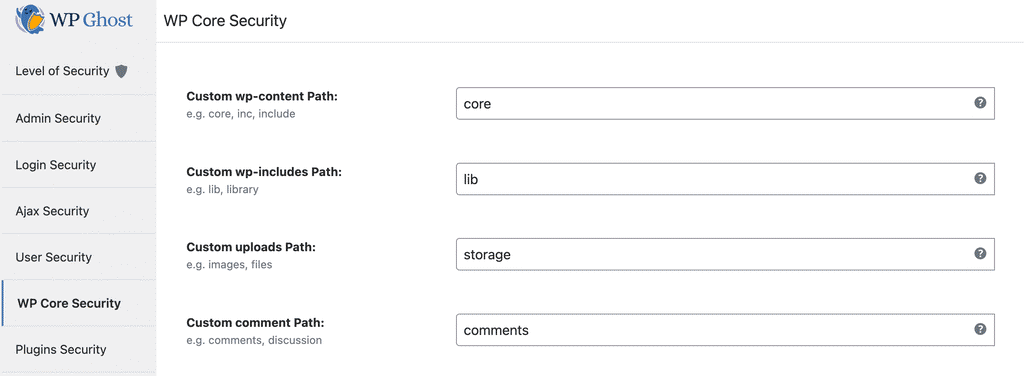
Your wp-content directory is now served under the custom path. Every reference in your page source changes from /wp-content/ to your custom name. The original /wp-content/ path returns a 404 error when accessed directly.
WP Ghost also lets you change the wp-includes path, plugins path, themes path, uploads path, and individual plugin and theme names from the same settings page. For the complete guide to all path options, see Customize Paths with WP Ghost.
This method is available in the free version of WP Ghost. You do not need Premium to change wp-content and wp-includes paths.
Method 2 – Edit wp-config.php (Physical Change)
If you prefer to physically rename the wp-content directory at the server level, you can do this through wp-config.php. This method actually moves the directory, which means you need to be more careful and you can not easily undo it.
1. Connect to your server using sFTP or your hosting File Manager.
2. Open wp-config.php and add the following lines at the beginning of the file (before the “That’s all, stop editing!” comment):
define('WP_CONTENT_DIR', __DIR__ . '/lib');
define('WP_CONTENT_URL', 'https://yourdomain.com/lib');
define('UPLOADS', 'lib/uploads');
Replace lib with whatever custom directory name you want. Replace yourdomain.com with your actual domain. Use https if your site has SSL enabled.

3. Now physically rename the wp-content folder to lib (or your chosen name) using File Manager or sFTP.
4. Log out and log back into your WordPress dashboard.
5. Verify that your site loads correctly and all images, plugins, and theme files work as expected.
Which Method Should You Use
Use WP Ghost (Method 1) if you want a safe, reversible path change that does not touch your file structure. This is the recommended approach for most users. WP Ghost handles the rewrite rules automatically, changes all references in the source code, and lets you undo everything by deactivating the plugin.
Use wp-config.php (Method 2) if you specifically need the directory to be physically renamed at the server level. Keep in mind that physically moving the directory can cause issues with some plugins that hardcode the /wp-content/ path. It is also harder to undo – you need to reverse the wp-config.php changes and rename the folder back.
You can also combine both methods. Physically rename the directory first, then use WP Ghost to change the remaining paths (plugins, themes, uploads, login, admin) and add the 8G Firewall on top. WP Ghost detects the custom WP_CONTENT_DIR constant and works with it automatically.
What Else You Should Change
Changing wp-content alone is a good start, but bots also target other default paths. For complete path security, also change the wp-includes path, the wp-admin path, the login path, individual plugin names, and individual theme names. WP Ghost lets you change all of these from a single settings page.
Frequently Asked Questions
Will changing wp-content break my plugins?
With WP Ghost (Method 1), no. WP Ghost uses rewrite rules that do not physically move any files. Plugins continue to access files from their original locations internally. With the wp-config.php method (Method 2), some plugins that hardcode the /wp-content/ path may need adjustment, but this is rare with well-coded plugins.
Is changing wp-content enough to hide WordPress?
No. Changing wp-content removes one major fingerprint, but bots also look for /wp-admin/, /wp-login.php, /wp-includes/, generator meta tags, and other WordPress indicators. For complete protection, change all default paths, enable the 8G Firewall, and follow the full Hide From Theme Detectors checklist.
Does WP Ghost change the directory physically?
No. WP Ghost uses server rewrite rules and WordPress output filters to change how URLs appear to browsers and bots. The actual files stay in /wp-content/ on your server. Deactivating the plugin restores all original paths instantly. This is safer than physically moving files because there is nothing to break and nothing to undo.
Can I use WP Ghost’s path change together with the wp-config.php method?
Yes. If you have already physically renamed wp-content using wp-config.php constants, WP Ghost detects the custom WP_CONTENT_DIR and works with it. You can then use WP Ghost to change the remaining paths on top of the physical rename.
Does WP Ghost modify WordPress core files?
No. WP Ghost uses server rewrite rules and WordPress hooks. No core files are moved, renamed, or modified. Deactivating the plugin restores all default paths instantly.