
How to Hide wp-admin and wp-login.php from WordPress Source Code
June 8, 2022
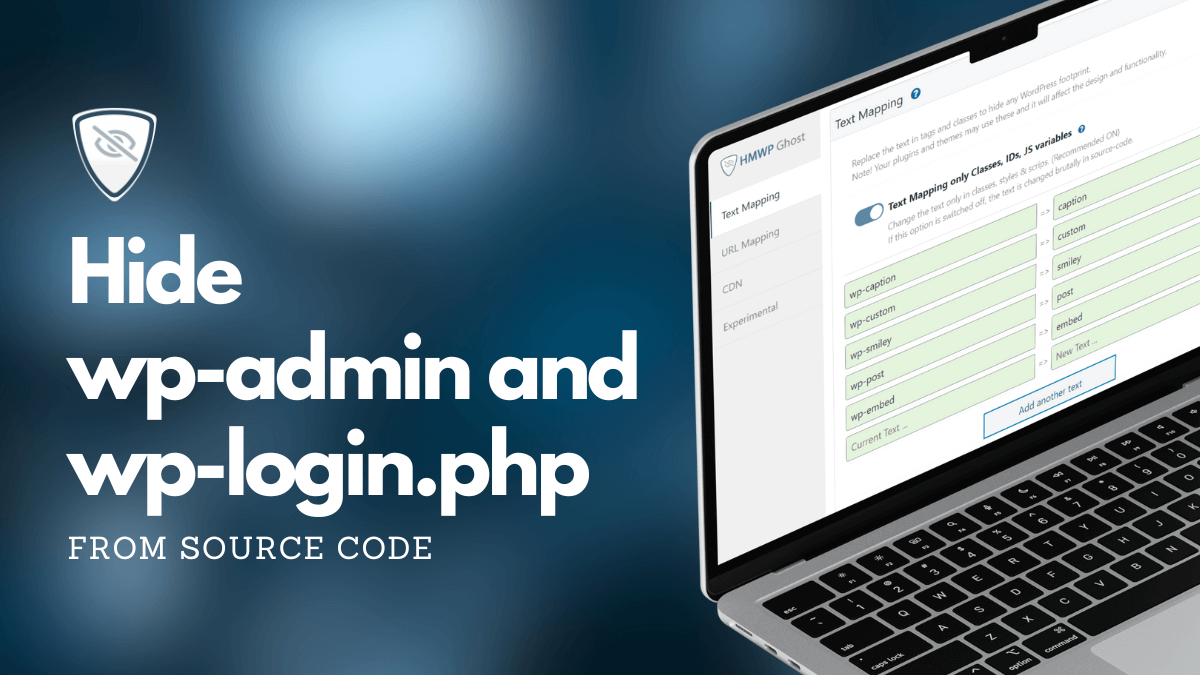
This tutorial has moved to the new WP Ghost Knowledge Base where each feature is presented in detail.
Quick summary: Change and hide wp-admin and wp-login.php from your site’s source code using WP Ghost > Change Paths > Admin Security and WP Ghost > Change Paths > Login Security. These are the correct features for securing admin and login paths – not Text Mapping.
Why Hide wp-admin and wp-login.php from Source Code
Every WordPress site uses the same two paths for administration: /wp-admin for the dashboard and /wp-login.php for the login form. Bots know this. They scan millions of sites targeting these exact URLs to launch brute force attacks, probe for vulnerabilities, and attempt unauthorized access.
If these paths appear anywhere in your site’s source code – in links, scripts, AJAX calls, or plugin output – they confirm to scanners that your site is running WordPress and tell them exactly where to attack. Removing them from the source code is a foundational step in your hack prevention strategy.
| Path | Default (Visible to Bots) | After WP Ghost (Secured) |
|---|---|---|
| Admin dashboard | /wp-admin | Your custom path (e.g. /my-dashboard) |
| Login form | /wp-login.php | Your custom path (e.g. /my-access) |
| Original paths in source code | Visible – confirms WordPress | Hidden – returns 404 for non-logged users |
How to Change and Hide the wp-admin Path
The wp-admin path is managed in Admin Security, not in Text Mapping. WP Ghost handles the path change and the hiding through dedicated settings.
Change the wp-admin Path
1. Go to WP Ghost > Change Paths > Admin Security.
2. Enter a custom name in the Custom Admin Path field. Choose something unique and not easily guessable.
3. Click Save.
Hide the wp-admin Path
Changing the path alone is not enough. You also need to hide the original /wp-admin so that bots get a dead end when they try it.
1. Stay in WP Ghost > Change Paths > Admin Security.
2. Switch on Hide “wp-admin”.
3. Click Save.
Once activated, any bot or visitor trying to access /wp-admin will see a 404 error. Only users who are already logged in through the custom login path can reach the dashboard.
For a complete walkthrough of all wp-admin options, see the Change and Hide wp-admin Path tutorial.
How to Change and Hide the wp-login.php Path
The wp-login.php path is managed in Login Security, separate from the admin path.
Change the Login Path
1. Go to WP Ghost > Change Paths > Login Security.
2. Enter a custom name in the Custom Login Path field.
3. Click Save.
Hide the wp-login Path
1. Stay in WP Ghost > Change Paths > Login Security.
2. Switch on Hide “wp-login” to hide the wp-login.php path from non-logged users.
3. Optionally, switch on Hide “login” to also hide the /login path.
4. Click Save.
For a complete walkthrough of all login options including redirect behavior and conflict checking, see the Change and Hide wp-login Path tutorial.
What If the Paths Still Appear in Source Code
If you have changed and hidden both paths with WP Ghost but still see /wp-admin or /wp-login.php in your site’s front-end source code, this usually means another active plugin or your theme is hardcoding those paths directly.
Here is how to find the culprit:
1. Deactivate your plugins one by one and check the source code after each deactivation. When the path disappears, you have found the responsible plugin.
2. Contact the plugin author and ask them to use WordPress functions instead of hardcoded paths. The correct functions are: admin_url('/') for wp-admin and wp_login_url() for wp-login.php. When plugins use these functions, WP Ghost can replace the paths automatically in the output.
3. If the plugin author cannot fix it, you can use WP Ghost > Mapping > Text Mapping to replace specific text strings that appear in the source code. But note: Text Mapping can replace text references in the HTML output, it cannot change or hide the actual admin and login paths themselves. That is only done through Admin Security and Login Security.
Run a Security Check
After changing and hiding both paths, verify everything is working correctly.
1. Go to WP Ghost > Security Check and click Start Scan. The report will confirm if the paths are properly hidden and flag anything that still needs attention.
2. Open your site in an incognito browser and view the source code (view-source:https://yourdomain.com/). Search for wp-admin and wp-login using Ctrl+F. If neither appears, your configuration is correct.
3. Try accessing yourdomain.com/wp-admin and yourdomain.com/wp-login.php while logged out. Both should return a 404 error or redirect to a custom page.
Frequently Asked Questions
Can I use Text Mapping to change the wp-admin and wp-login paths?
No. Text Mapping replaces text strings in the HTML output but cannot change or hide the actual wp-admin and wp-login.php paths. The correct way to change these paths is through WP Ghost > Change Paths > Admin Security and WP Ghost > Change Paths > Login Security. Text Mapping is useful for replacing leftover text references from third-party plugins that hardcode these paths in the source code.
What if a plugin keeps adding wp-admin or wp-login in the source code?
The plugin is likely hardcoding paths instead of using WordPress functions. Contact the plugin author and ask them to use admin_url('/') for admin paths and wp_login_url() for login paths. These functions let WP Ghost replace the paths automatically. Until the plugin is fixed, Text Mapping can replace the visible text references as a temporary workaround.
Do I need to change both wp-admin and wp-login?
For maximum protection, yes. They are two separate entry points and bots target both. Changing only one still leaves the other as a confirmed WordPress signal. WP Ghost handles them independently in Admin Security and Login Security, giving you full control over each.
Will this affect logged-in users?
No. Logged-in users are redirected to the custom admin path automatically. The hiding only applies to non-logged visitors and bots. Your team continues working normally through the new custom paths.
Does WP Ghost modify WordPress core files?
No. WP Ghost uses rewrite rules and WordPress hooks. No files are physically moved, renamed, or modified. Deactivating the plugin restores all default paths instantly.
Related Tutorials
For complete path security across your WordPress site:
Change and Hide the wp-admin Path – Full guide to all wp-admin security options.
Change and Hide the wp-login Path – Full guide to all login path security options.
Text Mapping and URL Mapping – Replace leftover text references in the HTML source code.
Website Security Check – Verify your paths are hidden and all security tasks pass.
Hide from WordPress Theme Detectors – Complete checklist for removing all CMS detection signals.