
How Do I Change the Default Login Page in WordPress?
This tutorial has moved to the new WP Ghost Knowledge Base where each feature is presented in detail.
Change your WordPress login URL with WP Ghost by entering a custom name in WP Ghost > Change Paths > Login Security > Custom Login Path. The default /wp-login.php is the most attacked page on any WordPress site. Every bot already knows its address. Changing it to a custom URL that only you know eliminates the highest-volume attack vector instantly. No files are changed, and the process is fully reversible.
How Do I Change the Login Path with WP Ghost?
Go to WP Ghost > Change Paths > Login Security. Enter your custom name in the Custom Login Path field. For example, instead of /wp-login.php you could use /my-secret-entry or any name that’s not easily guessable. Click Save.
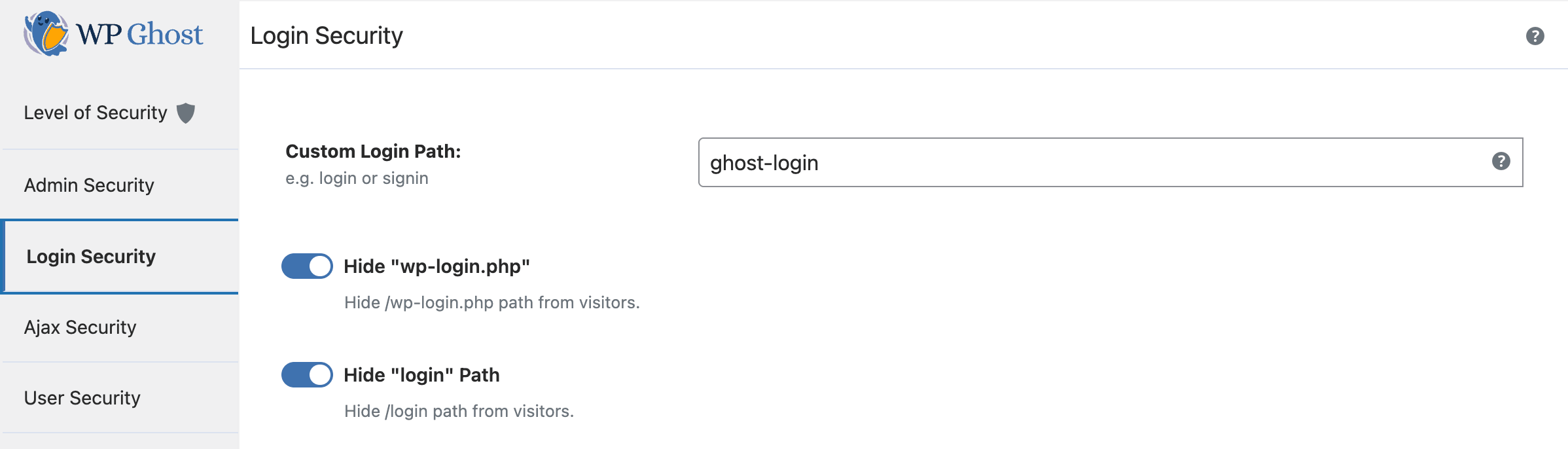
After saving, the old /wp-login.php, /wp-login, and /login paths return a 404 error for non-logged-in visitors. Only your custom URL reaches the login form. Bookmark your new login URL immediately, as the default paths will no longer work.
WP Ghost does not physically change any files on your server. It uses rewrite rules to route requests from the new URL to the login handler. Deactivating WP Ghost restores the default login paths instantly.
What Else Should I Do After Changing the Login Path?
Changing the path is the first step. For complete login security, also enable these features in WP Ghost > Change Paths > Login Security:
Hide “wp-login” and Hide “login”: With these on, the old paths return a 404 for non-logged-in visitors. Without these enabled, the old paths might still redirect to your new login URL, which defeats the purpose.
Hide the New Login Path: This advanced option prevents internal WordPress redirects from accidentally exposing your custom URL. Only direct access works. Bots that follow redirects can’t discover the new path.
Then add brute force protection on top. Go to WP Ghost > Brute Force > Settings, enable Use Brute Force Protection, and select a reCAPTCHA type. This catches any attacker who somehow discovers your custom login URL. For the strongest login security, also enable two-factor authentication so that even a correct password isn’t enough to log in.
For the complete step-by-step guide with all options, see the change and hide login path tutorial.
Why Is Changing the Login Page So Important?
The /wp-login.php path is the single most attacked page on any WordPress site. With WordPress powering over 43% of all websites, bots don’t need to discover your login page. They already know where it is. Automated brute force bots hit the default login URL thousands of times per hour, trying common username and password combinations. When that URL doesn’t exist, bots can’t find the login form and move on to the next target.
Changing the login path eliminates the highest-volume attack vector on your site. Combined with brute force protection and 2FA, your login page becomes virtually impenetrable to automated attacks.
Frequently Asked Questions
What if I forget my custom login URL?
Bookmark it immediately after saving. If you do forget it, you can use the emergency disable method (rename the plugin folder via FTP) to restore the default /wp-login.php path. You can also add a safe URL constant to wp-config.php to create a temporary recovery URL.
Will registration and password reset still work?
Yes. The wp-login.php file handles registration, password recovery, and user activation in addition to login. When you change the login path, all of these functions continue working through the new URL. You can also customize the register path and lost password path individually.
Does this work with WooCommerce?
Yes. Changing the WordPress login path doesn’t affect WooCommerce’s “My Account” customer login form. WooCommerce customer logins work independently. WP Ghost is fully compatible with WooCommerce, and brute force protection also covers WooCommerce login and registration forms.
Is this a free feature?
Yes. Changing and hiding the login path, brute force protection with all reCAPTCHA types, and hiding the old login paths are all included in WP Ghost Free with 115+ other security features.
Does WP Ghost modify WordPress core files?
No. WP Ghost uses server rewrite rules and WordPress filters to change the login path. No files are moved, renamed, or modified. The wp-login.php file stays in your WordPress root. Deactivating WP Ghost restores the default login URL instantly.