How to Change the Lost Password Path in WordPress with WP Ghost
This tutorial has moved to the new WP Ghost Knowledge Base where each feature is presented in detail.
Change the WordPress lost password path with WP Ghost (formerly Hide My WP Ghost) to block spam reset emails, prevent username enumeration, and stop bots from exploiting the password reset form. The default path /wp-login.php?action=lostpassword is identical on every WordPress site. Change it once, and bots can no longer find it.
The WordPress password reset page is one of the most overlooked attack vectors. Bots submit usernames or email addresses to the default lost password form in rapid succession. Each submission triggers WordPress to send a password reset email. If bots know valid email addresses, they can flood inboxes with reset emails users never requested. They can also use the form to confirm which usernames exist on your site before launching targeted brute force attacks.
Why You Need to Secure the Lost Password Path
| Default path (exposed) | With WP Ghost (secured) |
|---|---|
| /wp-login.php?action=lostpassword on every site | Custom URL only you know |
| Bots flood inboxes with spam reset emails | Reset form unreachable, spam stops |
| Form confirms valid usernames | Username enumeration blocked |
| Exposed to automated reset token attacks | Bots get 404, attack fails |
How to Change the Lost Password Path with WP Ghost
Activate Safe Mode or Ghost Mode
Go to WP Ghost > Change Paths > Level of Security. Select Safe Mode or Ghost Mode and click Save.

Change the Lost Password Path
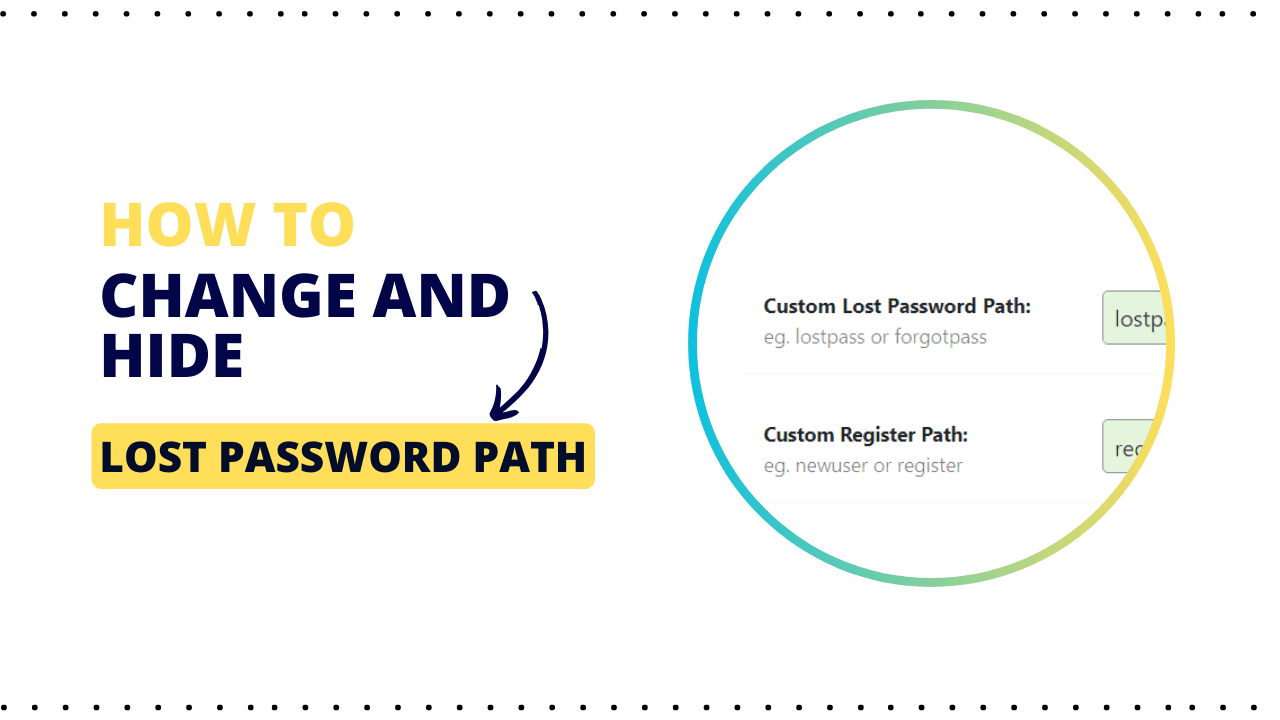
Go to WP Ghost > Change Paths > Login Security. Find the Custom Lost Password Path field. A predefined name is already filled in. Enter a different name or keep the predefined one. Click Save.

Avoid obvious names like “reset-password”, “forgot-password”, or “lostpassword”. These are common variations that bots try. Use something unique that is not related to password recovery.
Verify with a Security Check
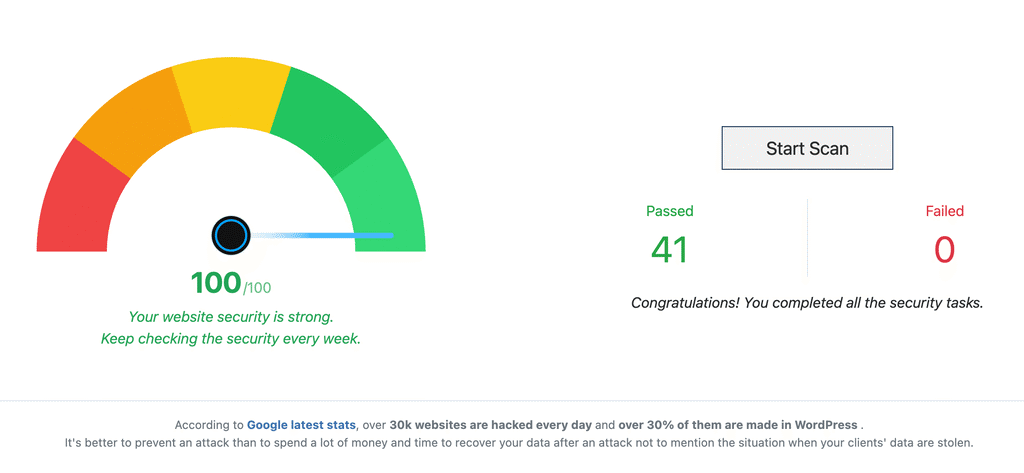
Go to WP Ghost > Security Check. Click Start Scan. The scan confirms the lost password path is changed and the default URL is no longer accessible.
What Happens After You Change the Path
The new lost password URL is active immediately. The “Lost your password?” link on your login page updates automatically to point to the new URL. Users who need to reset their password will use the custom path. They enter their email and receive a reset link just like before.
If you have also hidden the wp-login path, bots hitting the old password reset URL will get a 404 error. Combined with hiding wp-admin, hiding the login path, and brute force protection, you shut down every major bot entry point on your site.
Troubleshooting
If the password reset stops working after changing the path, try these steps:
Clear all caches. Clear your browser cache, WordPress caching plugin, and CDN. Cached pages may still reference the old URL.
Check for typos. Verify the custom path has no extra spaces or special characters. Make sure it does not conflict with an existing page slug.
Revert to the predefined name. If your custom name causes issues, clear the field and let WP Ghost use its predefined name. Save and test again.
Refresh permalinks. Go to Settings > Permalinks and click Save Changes to flush rewrite rules.
Use the Safe URL. If you are locked out, use the Safe URL parameter or the Emergency Disable guide.
Frequently Asked Questions
Can users still reset their passwords after this change?
Yes. The password reset process works exactly the same way. Users visit the new custom URL, enter their email, and receive a reset link. The only difference is the URL they use to reach the form.
Why should I change this if I already hidden wp-login?
Hiding wp-login covers the main login form, but the lost password action may still be accessible through other paths or plugin redirects. Changing the lost password path specifically ensures that the reset form is protected independently.
Does this affect WooCommerce password reset?
No. WooCommerce uses its own My Account page for customer password resets, which is separate from wp-login.php?action=lostpassword. Both work independently.
How do bots use the lost password page to send spam emails?
Bots submit usernames or email addresses to the default form in rapid succession. Each submission triggers WordPress to send a password reset email. If bots know valid email addresses, they can flood inboxes with reset emails users never requested. Changing the path stops bots from reaching the form.
Does WP Ghost modify WordPress core files?
No. All path changes are handled through URL rewrite rules and WordPress filters. Deactivating WP Ghost restores the default path instantly.
Related Tutorials
Change and Hide the Login Path – hide wp-login.php, the parent path for password reset.
Change the Register Path – hide the registration form from bots.
Brute Force Attack Protection – add reCAPTCHA to the lost password form.
Customize All WordPress Paths – change every path in one guide.
Website Security Check – verify your configuration after making changes.