
How to Disable Directory Browsing in WordPress (Before Someone Reads Your Files)
September 28, 2026
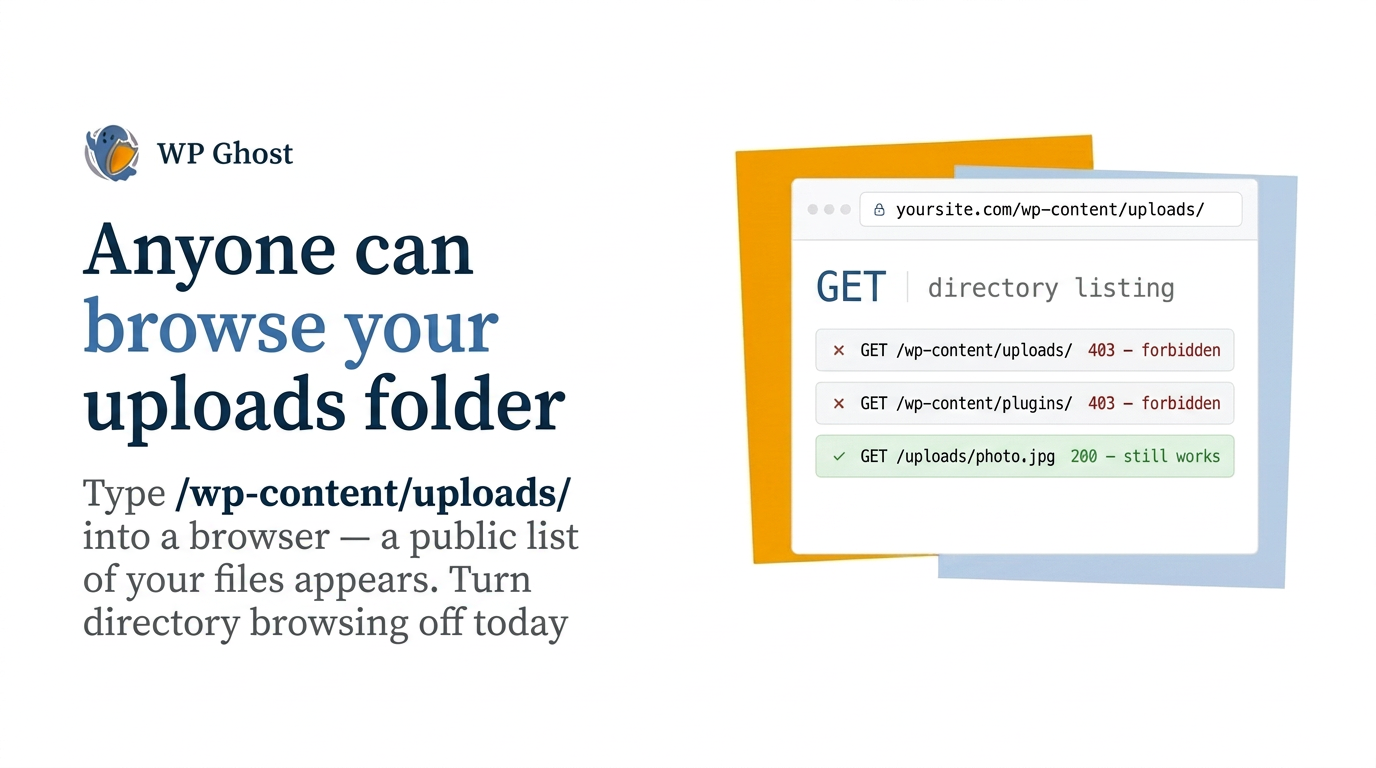
Type /wp-content/uploads/ into your browser and hit enter. If you see a neat list of folders and files instead of an error, stop and fix it today—because that list is public. Anyone can browse your uploads directory: clients’ PDFs, invoices, contracts, and images you never meant to share. You didn’t publish them, but the server is showing them anyway.
That’s called directory browsing, and it’s on by default with more WordPress hosts than you’d think. When a folder has no index file, the web server lists everything inside as clickable links. That might be handy for you once—but it’s a rich source for anyone snooping around your site. This guide shows you how to turn it off, and just as important, how to make sure it’s really closed.
What directory browsing exposes, and why it matters
Directory browsing is an information-disclosure flaw, officially catalogued as CWE-548. It won’t run code or steal passwords by itself. But it hands over both a map of your site and a filing cabinet full of your files.
It exposes you in two big ways. First: data. If you keep anything sensitive in your uploads folder—private documents, client files, membership info—a public listing puts them one click away from anyone who finds the folder. Second: reconnaissance. If /wp-content/plugins/ or /wp-content/themes/ are visible, attackers can see exactly what plugins and themes you use, and often their versions. That’s all the info they need to pick an exploit. “Forced browsing”—when hackers poke around by requesting folders directly—turns your server into their inventory tool.
Close directory browsing and both problems disappear. No listings mean no casual data browsing, no free plugin inventory. Your files still exist and work—the server just stops announcing what’s in every folder.
How to disable directory browsing
You can turn off directory browsing in three ways: change your .htaccess file (if you use Apache), update your Nginx server settings, or use a security plugin. Which method you pick depends on your server and how hands-on you want to be. Each approach does the same thing—when someone tries to view a folder, the server shows a 403 error instead of a file list.
Option 1: Apache, via .htaccess
On Apache servers, you can disable directory listings site-wide with a single line. Add this to the .htaccess file in your site’s root:
apache
Options -Indexes
This line tells Apache to stop showing file lists. It’s a small tweak, but it makes a big difference. One thing to watch out for: this only works if your server lets .htaccess files override settings. If it doesn’t work, make sure AllowOverride All is set, or the server will ignore your change.
Option 2: Nginx, via the config
Nginx doesn’t use .htaccess files. Instead, directory listing is controlled by the autoindex directive, which is off by default but sometimes gets turned on. In your server or location block, make sure you have:
nginx
autoindex off;
After you update the config, reload Nginx. Since this setting is in the main server config, not a single folder, you’ll usually need your host’s control panel or SSH access. If you still see directory listings, double-check that you changed the right file and put ‘autoindex off;’ in the correct spot, then reload Nginx again.
Option 3: One-click, with a security plugin
If you don’t want to mess with server files, or you run several sites, a security plugin can handle this for you. With WP Ghost, for example, you can turn off directory listing with a single click—no editing files or fussing with settings on every site. It’s quick and simple.
Whatever method you use, pair it with correct file permissions. Disabling directory listing stops the folder from being browsed, but proper permissions stop individual files from being read or changed by the wrong people. Together, these steps close the folder and lock down the files inside.
How to confirm directory browsing is actually off
A lot of people skip this part, but it’s important. Don’t just hope the fix worked—check it yourself.
- Try opening /wp-content/uploads/ in your browser. You should see a 403 Forbidden or your site’s 404 page—not a list of files.
- Open a subfolder with no index file, like /wp-content/uploads/2026/09/. You should get the same result—no listing.
- Check your plugins and themes folders at /wp-content/plugins/ and /wp-content/themes/. You shouldn’t see a browsable list in either.
- Test from an incognito or private window so you see what a regular visitor would—not a cached or logged-in view.
- Check again after you change hosts. Moving your site or rebuilding your server can turn directory browsing back on. If your site is live, fix it at the server level and set a reminder to check after you migrate—that’s when this problem often returns.
What disabling directory browsing does and does not do
Turning off directory listings eliminates a real risk: it stops your private uploads from being browsable and blocks attackers from getting a free inventory of your plugins and themes. For a one-line or one-click change, it’s a strong return.
But it’s not a complete access-control system. If a sensitive file has a predictable URL, disabling directory listing hides the index but not the file itself—so anyone who knows or guesses the exact path can still download it. For truly private files, pair no-listing with proper permissions and access rules. Our complete hack prevention guide shows how this fits with other security steps.
FAQ
How do I know if directory browsing is enabled on my site?
Open a folder with no index file, like /wp-content/uploads/, in your browser. If you see a clickable list of files and folders, directory browsing is enabled. If you get a 403 Forbidden or 404 error, it’s already disabled. Test in an incognito window so you see what an anonymous visitor would.
Will disabling directory browsing break my images or my site?
No. Disabling listings just stops the server from generating an index page when someone requests a folder directly. Your images, scripts, and stylesheets are loaded by their full URLs, so nothing breaks. Visitors won’t notice anything—the folder-level listing is all that disappears.
Does hiding the listing make my files private?
Not completely. Disabling directory browsing removes the index, so files can’t be discovered by browsing, but anyone who knows or can guess a file’s URL can still access it. For truly private documents, combine no-listing with proper file permissions and access controls—don’t rely on hiding the index alone.
Directory browsing came back after I changed hosts. Why?
Because it’s a server default that migrations or rebuilds can reset. If you fixed it with .htaccess, your new host might ignore .htaccess overrides; if you fixed it in Nginx, your new server has its own config. Always re-test /wp-content/uploads/ after any host change and reapply the fix if listings come back.