
How to Hide WP Ghost from the WordPress Admin Menu for Specific Users
November 18, 2024
This tutorial has moved to the new WP Ghost Knowledge Base where each feature is presented in detail.
- When You Need to Restrict WP Ghost Access
- Step 1 – Install a Roles and Capabilities Plugin
- Step 2 – Grant a Specific User Access to WP Ghost
- Step 3 – Remove WP Ghost Access from the Administrator Role
- Step 4 – Test the Changes
- How to Revert the Changes
- Using This with White Label
- Frequently Asked Questions
Control which users can see and manage WP Ghost in the WordPress dashboard. Use the hmwp_manage_settings capability with a roles and capabilities plugin to grant access to specific users while hiding the menu from everyone else, including other administrators.
When You Need to Restrict WP Ghost Access
By default, WP Ghost is visible in the WordPress admin menu for all administrator accounts. On most sites, this is fine. But there are situations where you want tighter control over who can see and modify security settings.
If you manage client sites and do not want clients changing your security configuration, if you run a multi-admin site where not every administrator should access security settings, or if you use WP Ghost’s White Label feature and want to keep the plugin completely hidden from client admins, you can restrict access to a single user account while hiding the menu from all other administrators.
WP Ghost uses a custom capability called hmwp_manage_settings to control menu visibility. By default, this capability is assigned to the administrator role. You can remove it from the role and assign it to individual users instead.
Step 1 – Install a Roles and Capabilities Plugin
You need a plugin that lets you edit user capabilities. Roles & Capabilities is a lightweight option that works well for this purpose.
1. Go to Plugins > Add New.
2. Search for Roles & Capabilities.
3. Click Install Now then Activate.
Other capability management plugins like User Role Editor or Members also work. The steps are similar in any plugin that lets you edit per-user capabilities.
Step 2 – Grant a Specific User Access to WP Ghost
Before removing the capability from the administrator role, first grant it to the specific user who should retain access.
4. Go to Users > All Users.
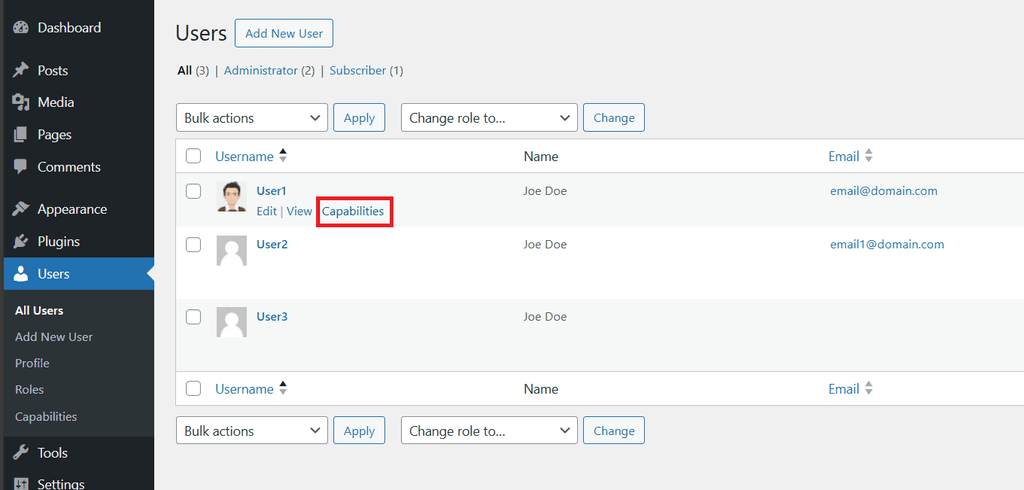
5. Find the user who should manage WP Ghost. Hover over their name and click Capabilities.
6. In the Capabilities Editor, find hmwp_manage_settings.
7. Check the box next to it to enable it for this user.
8. Click Save.
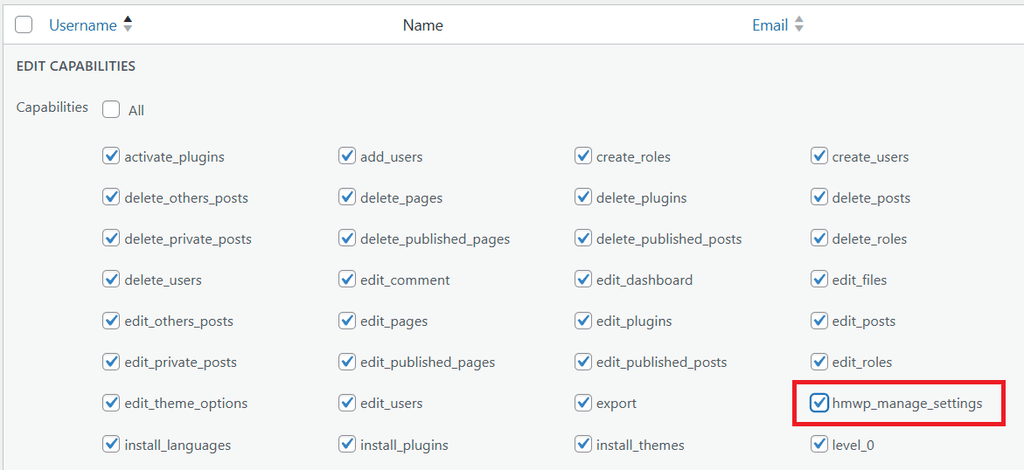
This user now has explicit access to WP Ghost regardless of their role’s capabilities.
Step 3 – Remove WP Ghost Access from the Administrator Role
Now remove the capability from the administrator role so that no other admin can see the WP Ghost menu.
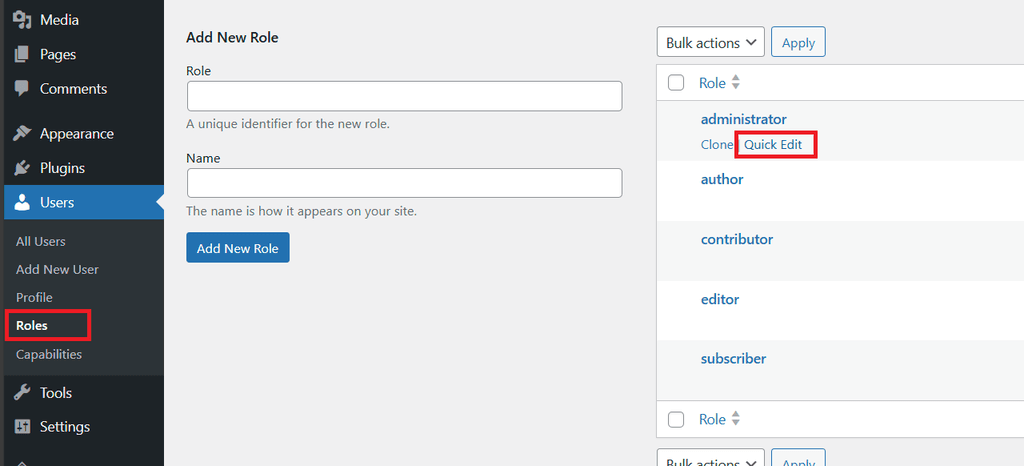
9. Go to Users > Roles.
10. Find the Administrator role and click Quick Edit.
11. Find hmwp_manage_settings and uncheck the box.
12. Click Save.
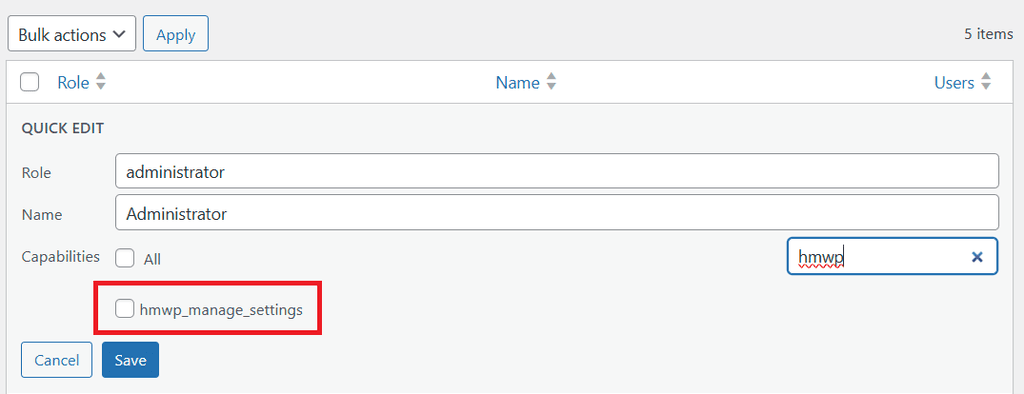
The WP Ghost menu is now hidden from all administrator accounts. Only the specific user you granted the capability to in Step 2 can see and manage WP Ghost.
Step 4 – Test the Changes
13. Log in as the specific user you assigned the capability to. Verify that the WP Ghost menu appears in the dashboard and all settings are accessible.
14. Log in as a different administrator account (or use a separate browser). Verify that the WP Ghost menu is not visible.
15. Check that WP Ghost’s security features (path security, firewall, brute force protection) continue to work for all visitors, even though the menu is hidden from most admins. The plugin runs regardless of who can see its settings.
How to Revert the Changes
If you need to restore WP Ghost visibility for all administrators, go to Users > Roles, edit the Administrator role, and check the hmwp_manage_settings capability again. Save the changes and the WP Ghost menu will appear for all admin accounts.
If you lose access to the capabilities plugin or can not find your settings, you can also restore the capability by adding this code to your theme’s functions.php or wp-config.php temporarily:
add_action('init', function(){
    $role = get_role('administrator');
    if ($role) {
        $role->add_cap('hmwp_manage_settings');
    }
});
Remove this code after the capability is restored.
Using This with White Label
If you use WP Ghost’s White Label feature on client sites, this capability restriction is the perfect complement. White Label changes the plugin’s name, logo, and menu icon to your agency brand. Removing the hmwp_manage_settings capability from the administrator role ensures clients can not find or modify the security settings at all. Your branded plugin runs silently in the background, fully managed by you.
Frequently Asked Questions
Does hiding the menu affect WP Ghost’s security features?
No. WP Ghost continues to run all security features (path security, firewall, brute force protection, 2FA, security headers) regardless of who can see the admin menu. The hmwp_manage_settings capability only controls visibility of the settings page, not the plugin’s functionality.
Can I grant access to a non-administrator user?
Yes. You can assign the hmwp_manage_settings capability to any user, regardless of their role. However, some WP Ghost settings pages may require additional WordPress capabilities (like manage_options) to function fully. For best results, assign it to users who already have an administrator or editor role.
What if I lock myself out of WP Ghost settings?
If you accidentally removed the capability from all users including yourself, add the code snippet shown in the “How to Revert” section to functions.php or wp-config.php via sFTP. This restores the capability to the administrator role. Remove the code after you regain access.
Can I use the Admin Menu Editor plugin instead?
Yes. The Admin Menu Editor plugin can hide the WP Ghost menu item from specific roles. However, this only hides the menu visually. Users with the hmwp_manage_settings capability can still access the settings page by navigating to the URL directly. The capability-based approach in this tutorial provides true access control.
Does WP Ghost modify WordPress core files?
No. WP Ghost uses server rewrite rules and WordPress hooks. No core files are moved, renamed, or modified. Deactivating the plugin restores all default paths instantly.