Hide My WP Ghost
  • Features
    • All Features
    • Brute Force Protection
    • Limit Login Attempts
    • Website Activity Log
    • Website Security Check
    • Security Tweaks
    • Change Wp-Admin URL
  • Pricing
  • Help
  • My Account
  • Features
    • All Features
    • Brute Force Protection
    • Limit Login Attempts
    • Website Activity Log
    • Website Security Check
    • Security Tweaks
    • Change Wp-Admin URL
  • Pricing
  • Help
  • My Account
Buy Now
  • Home
  • Hide My WP Features
  • How To Change The Register Path In WordPress With WP Ghost

How to Change the Register Path in WordPress with WP Ghost
Moved

This tutorial has moved to the new WP Ghost Knowledge Base where each feature is presented in detail.

View on new site
Table of Contents
  • Why You Need to Secure the Registration Path
  • How to Change the Register Path with WP Ghost
    • Activate Safe Mode or Ghost Mode
    • Change the Register Path
    • Verify with a Security Check
  • What Happens After You Change the Path
  • Troubleshooting
  • Frequently Asked Questions
    • Can users still register after this change?
    • What if I do not allow user registration?
    • Does this work with WooCommerce customer registration?
    • Does this work with membership plugins?
    • Does WP Ghost modify WordPress core files?
  • Related Tutorials

Change the WordPress registration path with WP Ghost (formerly Hide My WP Ghost) to block spam bot registrations, prevent username enumeration, and stop fake accounts from being created on your site. The default /wp-login.php?action=register URL is identical on every WordPress installation. Bots target it at scale. Change it once, and they can no longer find it.

WordPress’s default registration system includes no built-in spam protection. Bots just append /wp-login.php?action=register to every WordPress domain they find and start creating fake accounts at scale. According to WPForms, sites that replace the default registration form can reduce spam signups by up to 95%. Once a bot registers even a subscriber-level account, it has authenticated access to your site, which can be escalated if any plugin has a privilege escalation vulnerability.

Why You Need to Secure the Registration Path

Default registration (exposed)With WP Ghost (secured)
/wp-login.php?action=register on every siteCustom URL only you know
Bots create hundreds of fake accountsRegistration form unreachable, spam stops
Form confirms which usernames existUsername enumeration blocked
Mass registration drains server resourcesRequests blocked before reaching WordPress

How to Change the Register Path with WP Ghost

Activate Safe Mode or Ghost Mode

Go to WP Ghost > Change Paths > Level of Security. Select Safe Mode or Ghost Mode and click Save.

WP Ghost Level of Security panel showing Safe Mode and Ghost Mode options

Change the Register Path

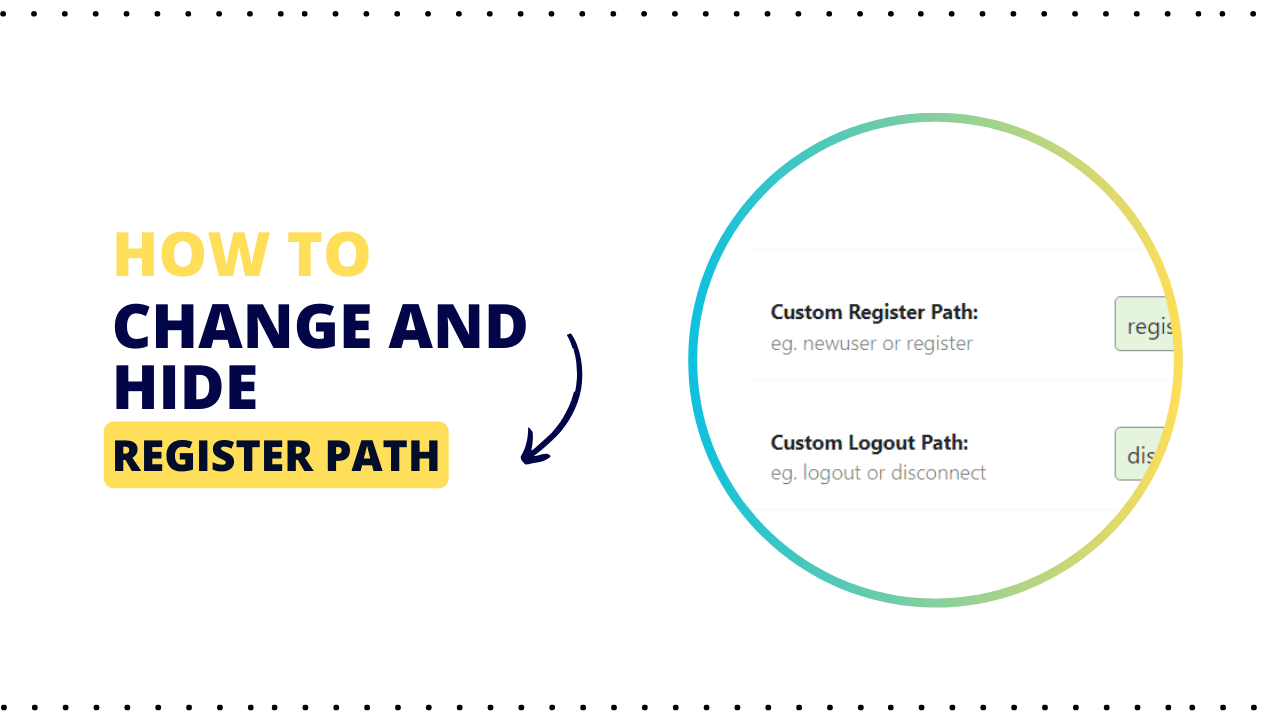
Go to WP Ghost > Change Paths > Login Security. Find the Custom Register Path field. A predefined name is already filled in. Enter a different name or keep the predefined one. Click Save.

WP Ghost Custom Register Path field in Login Security settings

Avoid obvious names like “register”, “signup”, “join”, or “create-account”. Bots try common registration-related variations. Use something unique and unrelated to registration.

No files are changed

WP Ghost does not physically move or rename any files. It uses rewrite rules to create the new path. Your WordPress installation stays untouched. Deactivating the plugin restores the default path instantly.

For complete registration protection, also enable Sign Up Form Protection with reCAPTCHA in WP Ghost > Brute Force > Settings. This catches bots that discover your custom registration URL through other means. See the Brute Force Protection tutorial for setup instructions.


Verify with a Security Check

Go to WP Ghost > Security Check. Click Start Scan. The scan confirms the registration path is changed and the default URL is no longer accessible.
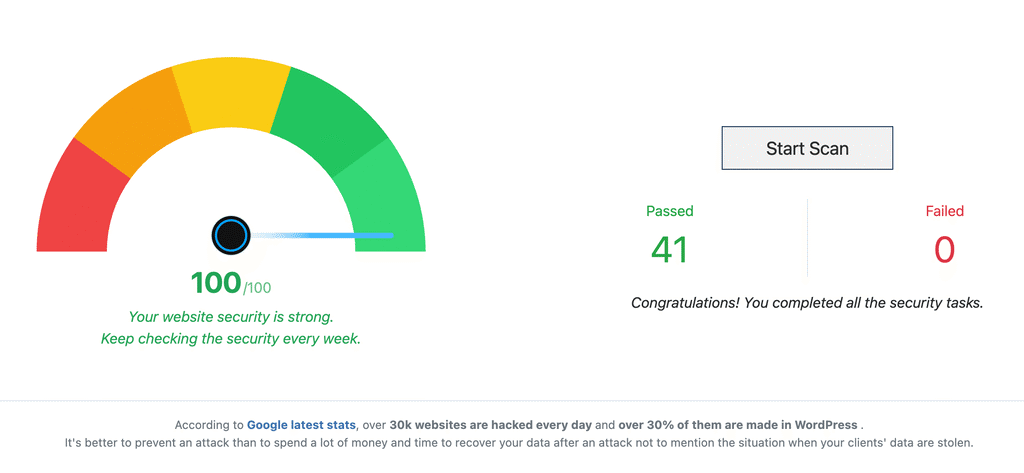
WP Ghost Security Check results after changing the registration path

What Happens After You Change the Path

The new registration URL is active immediately. The “Register” link on your login page and any WordPress-generated registration links update automatically to point to the new custom path. The old /wp-login.php?action=register URL stops working for non-logged-in users.

Spam bot traffic drops significantly. Without the predictable default URL, bots have no target. Combined with brute force protection with reCAPTCHA on the signup form, you get layered defense that stops spam registration from both directions.


Troubleshooting

If registration stops working after changing the path, try these steps:

Clear all caches. Clear your browser cache, WordPress caching plugin, and CDN. Cached pages may still reference the old URL.

Check for typos. Verify the custom path has no extra spaces or special characters. Make sure it does not conflict with an existing page slug.

Revert to the predefined name. If your custom name causes issues, clear the field and let WP Ghost use its predefined name. Save and test.

Refresh permalinks. Go to Settings > Permalinks and click Save Changes to flush rewrite rules. On WP Ghost Premium 9.0.13 or later, press Start Diagnosis in Ghost Doctor on the Level of Security page. It checks that your renamed paths are served and repairs the one your server stopped serving.

Check plugin conflicts. Some membership or registration plugins create their own registration forms and may conflict with custom paths. Deactivate them one by one to identify the conflict.

Use the Safe URL. If you are locked out, use the Safe URL parameter or the Emergency Disable guide.


Frequently Asked Questions

Can users still register after this change?

Yes. The registration process works exactly the same way. Users visit the new custom URL, provide their details, and create an account. The only difference is the URL they use to reach the form.

What if I do not allow user registration?

If registration is disabled in Settings > General > Membership, the register path is already inactive. Changing it with WP Ghost adds an extra safety layer in case registration is accidentally re-enabled, but it is not required.

Does this work with WooCommerce customer registration?

WooCommerce uses its own registration forms on the My Account and checkout pages, which are separate from wp-login.php?action=register. Changing the WordPress register path does not affect WooCommerce customer signups. Both work independently.

Does this work with membership plugins?

Most membership plugins that hook into the default WordPress registration process continue working with the new custom path. Plugins that create their own independent registration forms (like MemberPress or Ultimate Member) are typically unaffected since they use their own URLs.

Does WP Ghost modify WordPress core files?

No. All path changes are handled through URL rewrite rules and WordPress filters. Deactivating WP Ghost restores the default path instantly.


Related Tutorials

Change and Hide the Login Path – hide wp-login.php, the parent path for registration.

Change the Lost Password Path – hide the password reset form from bots.

Brute Force Attack Protection – add reCAPTCHA to registration and login forms.

Customize All WordPress Paths – change every path in one guide.

Website Security Check – verify your configuration after making changes.
October 27, 2023

Category: Tags:

  • How to Change the WordPress Logout Path with WP Ghost
    Previous
    How to Change the WordPress Logout Path with WP Ghost
  • How to Change the Lost Password Path in WordPress with WP Ghost
    Next
    How to Change the Lost Password Path in WordPress with WP Ghost
  • Installation & Setup
    • Download plugin
    • Activate Hide My WP Ghost
    • Setup in Safe Mode & Ghost Mode
  • Customize Paths
    • Change wp-admin Path
    • Change wp-login Path
    • Hide Language Switcher
    • Change Author Path
    • Change Lost Password Path
    • Change Register Path
    • Change Logout Path
    • Change Activation Path
    • Change admin-ajax.php Path
    • Change Paths in Ajax Calls
    • Change wp-content Path
    • Change wp-includes Path
    • Change uploads Path
    • Change comments Path
    • Change Plugins Path
    • Change Themes Path
    • Change Rest API Path
    • Hide RSD Endpoint
    • Disable XML-RPC access
    • Hide WordPress Common Paths
    • Hide WordPress Common Files
    • Add Security Headers for XSS
    • Firewall Against Script Injection
    • Block Theme Detectors
    • Remove Unsafe Headers
    • Disable Directory Browsing
  • Security Tweaks
    • Redirect Hidden Paths
    • Login Redirect URL
    • Logout Redirect URL
    • Change Paths For Logged Users
    • Change Paths In Cached Files
    • Change Relative to Absolute URLs
    • Change Paths in Sitemaps XML
    • Change Paths in Robots.txt
    • Hide Admin Toolbar
    • Hide WordPress Version
    • Hide HTML Comments
    • Hide IDs from META Tags
    • Hide WordPress Generator
    • Hide Emoji icons
    • Disable Embed scripts
    • Disable WLW Manifest scripts
    • Disable DB Debug in Frontent
    • Disable Right Click
    • Disable Copy-Paste
    • Disable Drag-Drop
    • Disable View-Source
    • Disable Inspect Element
    • Login Page Design
  • URL Mapping and Text Mapping
    • URL Mapping
    • Text Mapping
    • CDN URLs
    • Optimize CSS and JS files
  • Brute Force Attack Protection
    • Activate Brute Force Protection
    • Math Captcha Protection
    • Google reCaptcha V2
    • Google reCaptcha V3
    • Ban IP addresses
    • Whitelist IP addresses
    • Blocked IPs Report
  • Firewall and Geo Security
    • 8G Firewall
    • Geo Security
    • Country Blocking
    • Whitelist IPs
    • Whitelist Paths
    • Blacklist IPs
    • Block User Agents
    • Block Referrers
    • Block Hostname
  • Temporary Logins
    • Global Settings
    • Create Temporary User
    • Edit Temporary User
    • Lock/Unlock Temporary User
    • Delete Temporary User
    • Copy Temporary Login Link
  • Two Factor Authentication
    • Activate 2FA Feature
    • Setting up 2FA Code Scan
    • Setting up 2FA Email Code
    • 2FA Login Monitor
    • Magic Link Login
  • Security Threats Log
    • Activate Security Threats Log
    • Reading Threats Report
    • Responding to Threats
    • GEO Threat Map
  • User Events Log
    • Activate Users Events Log
    • Log User Roles
    • Check User Events Log
    • User Events Email Alerts
  • Website Security Check
    • Run a Website Security Check
    • All The Security Tasks
  • Advanced WP Security
    • Custom Safe URL Parameter
    • Must Use Plugin Loading
    • Priority & Normal & Late Loading
    • Late Loading
    • Add Rewrites in WP Rules Section
    • Clean Login Page
    • Email Notification
    • Preset Security Options

Get Protected

  • Pricing & Plans
  • Install Free Version
  • Free vs Premium
  • Free Security Check
  • One-Click Security Presets
  • Quick Setup Guide
  • Best Practice Settings

Top Features

  • Hide wp-admin & wp-login
  • 7G + 8G Firewall
  • Brute Force Protection
  • 2FA & Passkey Login
  • Country Blocking
  • Security Headers
  • Security Threats Log
  • Temporary Logins

Resources

  • Knowledge Base
  • FAQs
  • Best Practice Guide
  • Plugin Compatibility
  • Theme Compatibility
  • Why WP Ghost
  • WordPress Security
  • Changelog

Company

  • Contact Support
  • Affiliate Program
  • Agency White Label
  • Media Kit
  • Terms of Use
  • Privacy Policy
  • About Us
© 2016 - 2026 WP Ghost. All rights reserved. Powered by AISQ.
Hide My WP uses cookies on the website to give you the most relevant experience by remembering your preferences and repeat visits.
Ok Reject
Manage consent

Privacy Overview

This website uses cookies to improve your experience while you navigate through the website. Out of these, the cookies that are categorized as necessary are stored on your browser as they are essential for the working of basic functionalities of the website. We also use third-party cookies that help us analyze and understand how you use this website. These cookies will be stored in your browser only with your consent. You also have the option to opt-out of these cookies. But opting out of some of these cookies may affect your browsing experience.
Necessary
Always Enabled
Necessary cookies are absolutely essential for the website to function properly. These cookies ensure basic functionalities and security features of the website, anonymously.
CookieDurationDescription
cookielawinfo-checkbox-analytics11 monthsThis cookie is set by GDPR Cookie Consent plugin. The cookie is used to store the user consent for the cookies in the category "Analytics".
cookielawinfo-checkbox-functional11 monthsThe cookie is set by GDPR cookie consent to record the user consent for the cookies in the category "Functional".
cookielawinfo-checkbox-necessary11 monthsThis cookie is set by GDPR Cookie Consent plugin. The cookies is used to store the user consent for the cookies in the category "Necessary".
cookielawinfo-checkbox-others11 monthsThis cookie is set by GDPR Cookie Consent plugin. The cookie is used to store the user consent for the cookies in the category "Other.
viewed_cookie_policy11 monthsThe cookie is set by the GDPR Cookie Consent plugin and is used to store whether or not user has consented to the use of cookies. It does not store any personal data.
Functional
Functional cookies help to perform certain functionalities like sharing the content of the website on social media platforms, collect feedbacks, and other third-party features.
Analytics
Analytical cookies are used to understand how visitors interact with the website. These cookies help provide information on metrics the number of visitors, bounce rate, traffic source, etc.
Others
Other uncategorized cookies are those that are being analyzed and have not been classified into a category as yet.
SAVE & ACCEPT