
Redirect WordPress Images from Old Paths to New Paths with WP Ghost
This tutorial has moved to the new WP Ghost Knowledge Base where each feature is presented in detail.
Redirect old WordPress image URLs to new custom paths with WP Ghost. When you change the uploads path, external sites linking to your images still reference the old /wp-content/uploads/ URL. Enable media file redirects so old image URLs redirect to new ones without breaking external links.
Redirect vs Hide
Redirecting sends requests from old URLs to new ones so images still load at the new address. External links continue working. Hiding returns a 404 for old URLs so images do not load at the old address at all. Use redirects when external sites link to your images. Use hiding for maximum security when old links do not matter.
How to Enable Media File Redirect
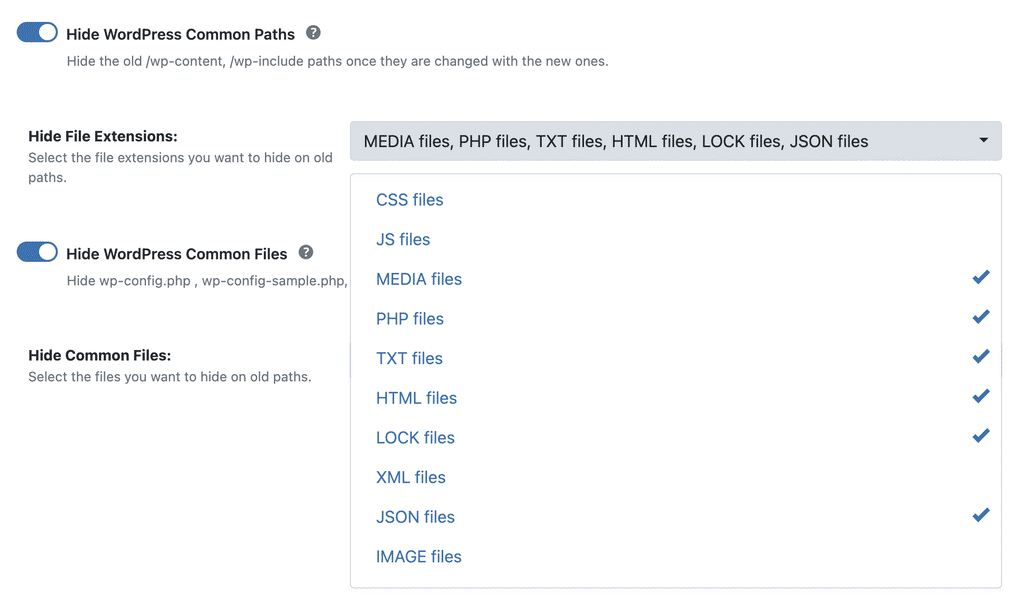
Go to WP Ghost > Change Paths > WP Core Security. Enable Hide WordPress Common Paths. Under Hide File Extensions, select MEDIA Files from the list. Click Save. Old image URLs now redirect to the new custom path.
Frequently Asked Questions
Will this help or hurt my image SEO?
It helps. Duplicate image URLs dilute SEO signals. Redirecting consolidates all image authority to a single URL. Resubmit your sitemap in Search Console to speed up re-indexing.
Does this work with CDNs?
Yes. Make sure your CDN serves from the new path. Purge the CDN cache after making the change.
Does this work with WooCommerce product images?
Yes. Product images, gallery thumbnails, and downloadable files all redirect from old paths to new ones.
Does WP Ghost physically move my images?
No. Images stay in wp-content/uploads/. The redirect is handled through URL rewrite rules. Deactivating restores original paths instantly.