How to Set up Whitelabel in Hide My WP Ghost
October 20, 2021

This tutorial has moved to the new WP Ghost Knowledge Base where each feature is presented in detail.
- What is White Label in WP Ghost
- White Label requirements
- How to open the White Label panel
- What you can customize
- How to install the white-labeled plugin on a client site
- Managing client sites from the WP Ghost Dashboard
- Packages list
- Frequently asked questions
- What happens if a client deactivates the plugin?
- Can clients see that it is WP Ghost under the hood?
- Do white-labeled installations get automatic updates?
- Can I create different white label configurations for different clients?
- Do I need to create my own knowledge base website?
- Does WP Ghost modify WordPress core files?
WP Ghost can be white-labeled to appear under your agency’s brand name, logo, and menu icon. Set it up once in the WP Ghost Dashboard under Subscriptions > Customize plugin, download the package (a zip file) and install it on client sites.
What is White Label in WP Ghost
White Label lets you rebrand WP Ghost so it appears as your own security plugin. Your clients see your brand name in the WordPress Plugins list, your logo in the plugin settings, your custom menu name in the sidebar, and your website URL in the help links.
This is designed for agencies and freelancers who manage multiple WordPress sites and want to offer clients a premium security plugin under their own brand. You configure the white label once in the WP Ghost Dashboard, download the package, and install it on as many client sites as your license allows.
White Label requirements
The plugin must remain active on the client’s site. Your custom name shows only while the plugin is active. If a client deactivates the plugin, the Plugins list shows the original WP Ghost name. This does not affect any other sites under your account.
If you want to prevent clients from deactivating the plugin, you have two options. You can use CSS to hide the plugin from the WordPress Plugins list (the plugin still runs but clients can not see the deactivate button). Or you can use the Admin Menu Editor plugin to hide the entire Plugins section from certain user roles.
Important: If any single client finds a way to deactivate the plugin, it does not affect your other installations. Every other site under your account remains white-labeled and continues receiving updates. Only the deactivated site reverts to the default WP Ghost branding.
How to open the White Label panel
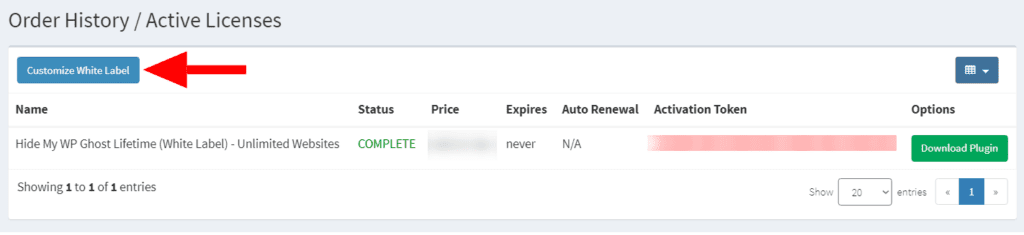
Open the White Label panel from Subscriptions > Customize plugin in the WP Ghost Dashboard (also in the menu under your name, top right). The White Label tab shows when your account has a white label license.
1. Log in to your WP Ghost Dashboard at account.hidemywpghost.com.
2. Go to Subscriptions > Customize plugin, select New to create a package (or open an existing one) and open the White Label tab.
What you can customize
The White Label panel gives you full control over every visible element of the plugin. Here is what each setting does.
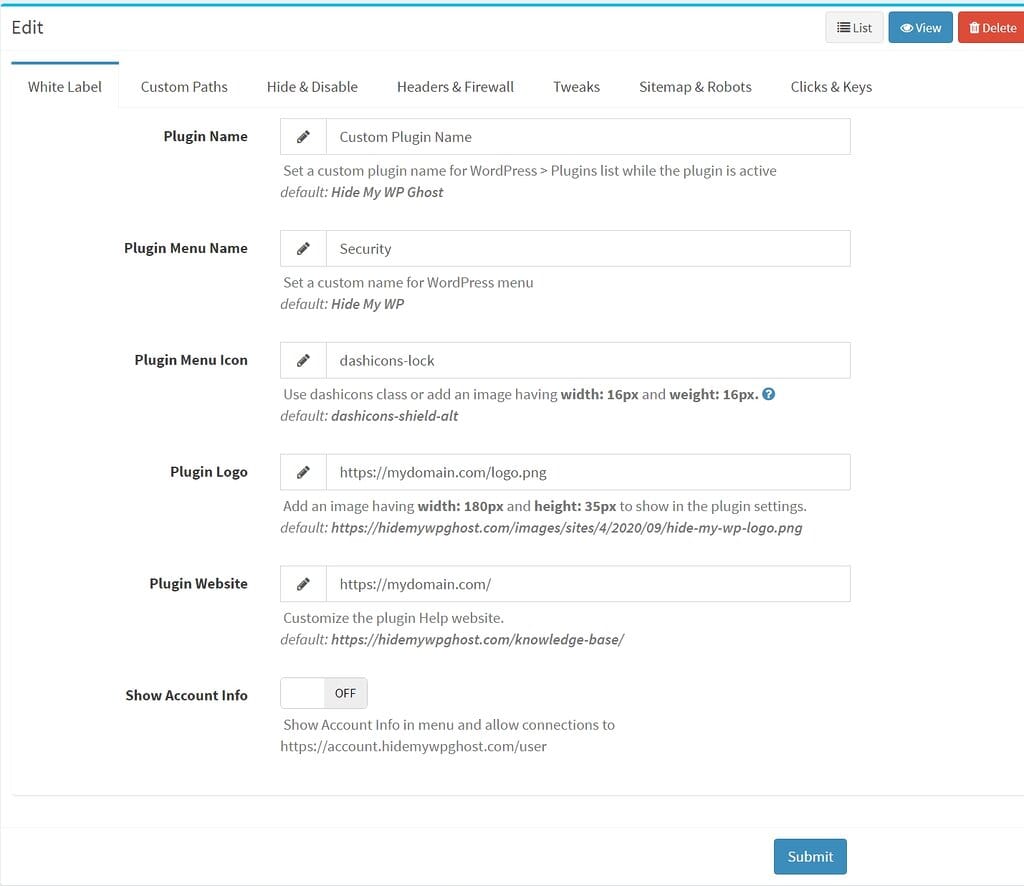
Plugin Name
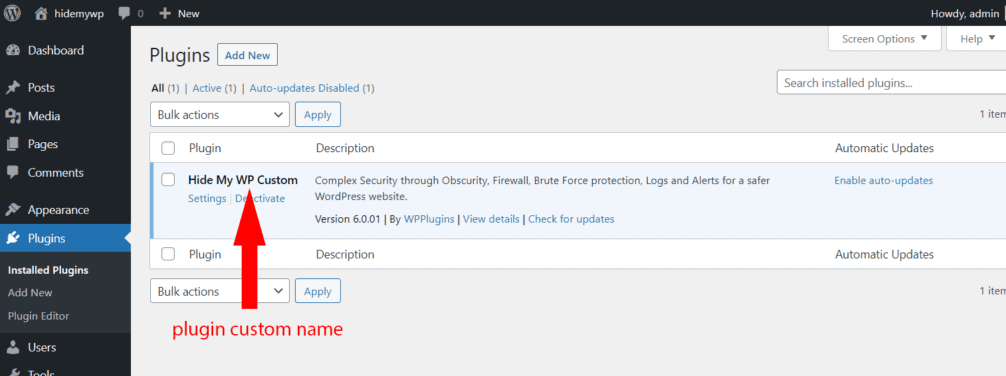
Set a custom name that appears in the WordPress > Plugins list instead of “WP Ghost.”
For example, if you set the plugin name to “Agency Guard”, clients see “Agency Guard” in their Plugins list.


Plugin Menu Icon and Plugin Menu Name
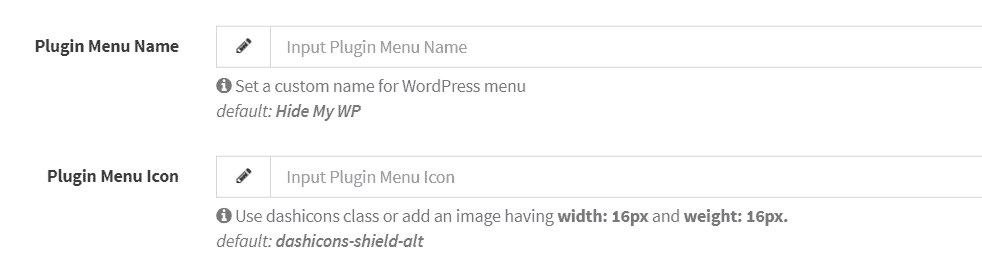
Change the name and icon that appear in the WordPress admin sidebar menu. You can upload a custom icon image or use any WordPress Dashicons class name.

Plugin Logo
Replace the default WP Ghost logo that appears inside the plugin settings pages with your own logo. For the best look, use an image that is 180px wide and 35px tall. The image must be hosted on your website. Just enter the image URL in the Plugin Logo field.


Plugin Website (optional)
If you want all help links inside the plugin to point to your own website instead of the WP Ghost knowledge base, enter your domain here. All internal links will redirect from wpghost.com/kb/ paths to example.com/kb/ paths.
This means your website needs to have corresponding pages at the same URL paths. For example, if WP Ghost links to /kb/customize-paths-in-hide-my-wp-ghost/, your site needs a page at the same path. You will need to create your own original content for these pages, as WP Ghost’s knowledge base content is copyright-protected.

Preset security settings in the package
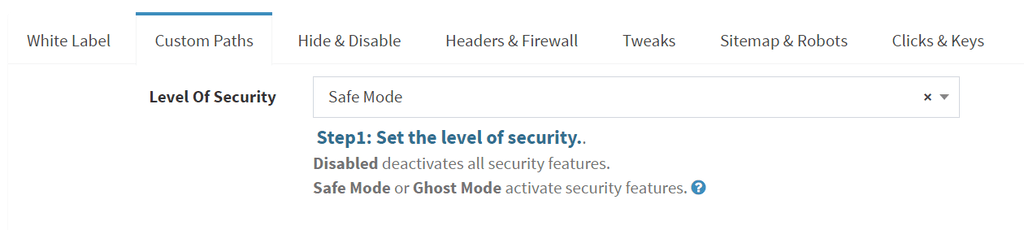
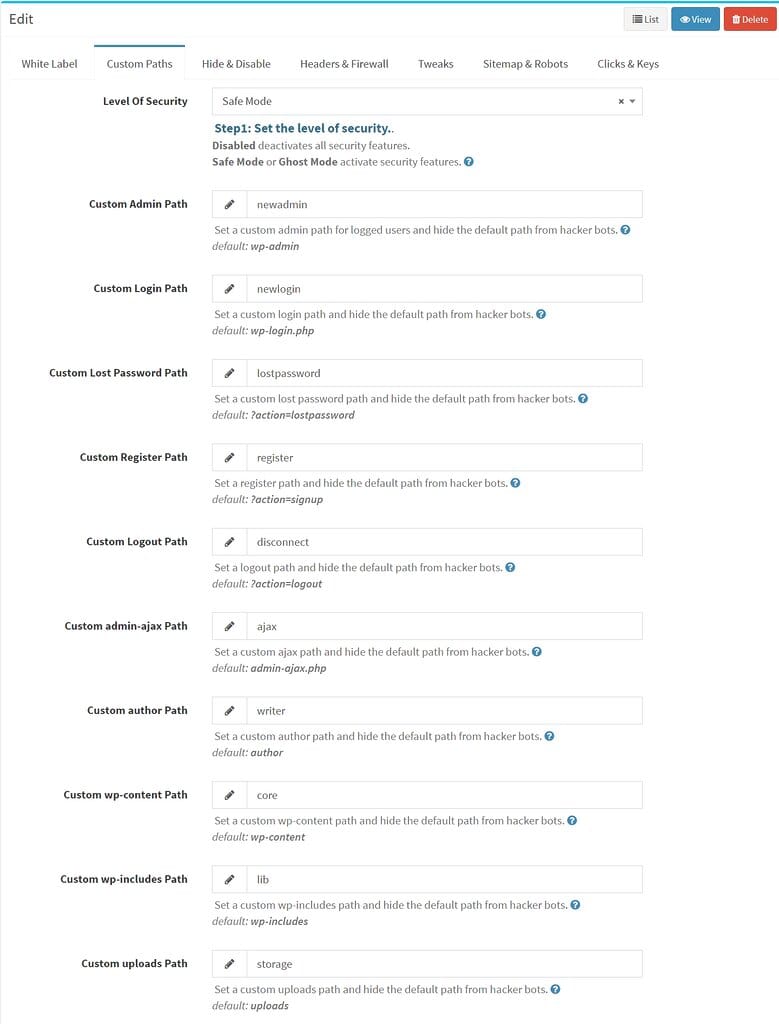
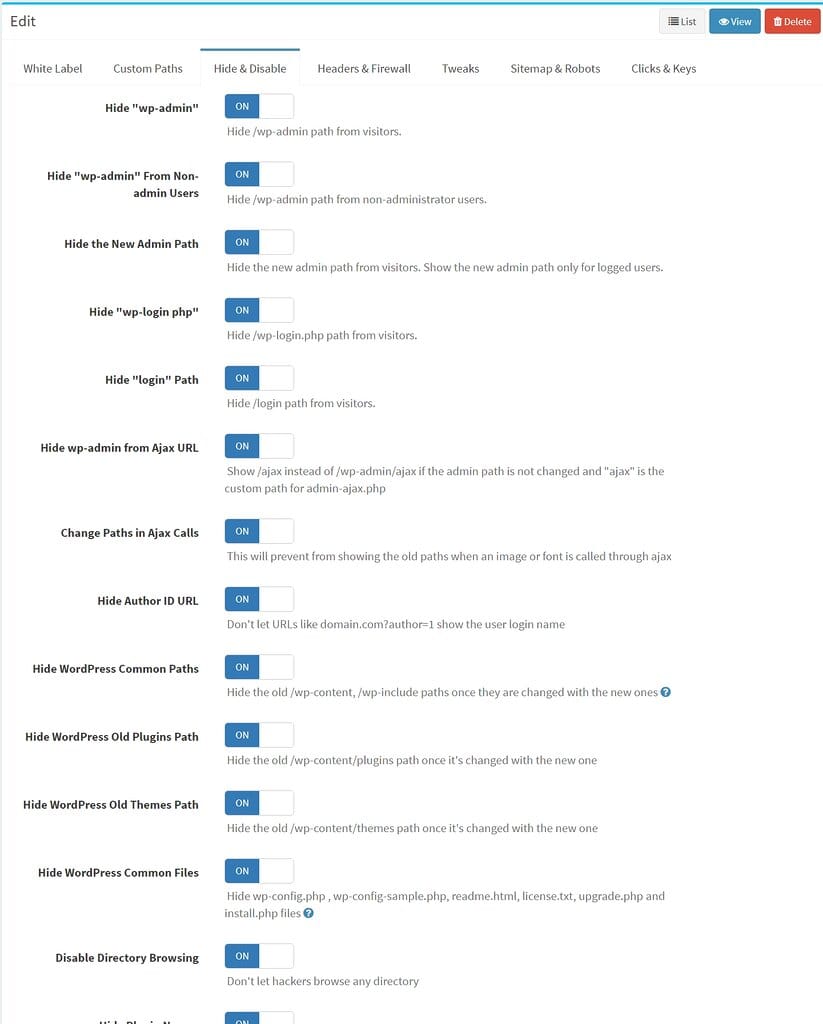
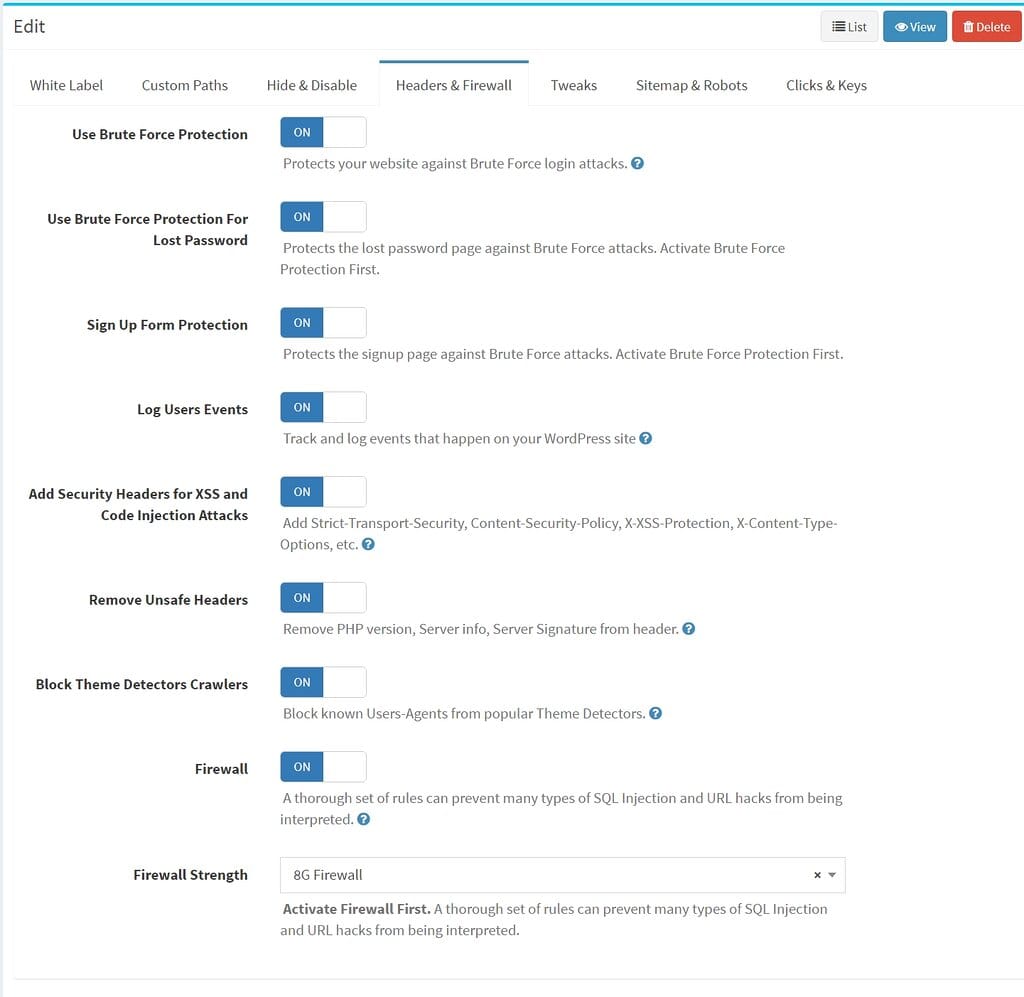
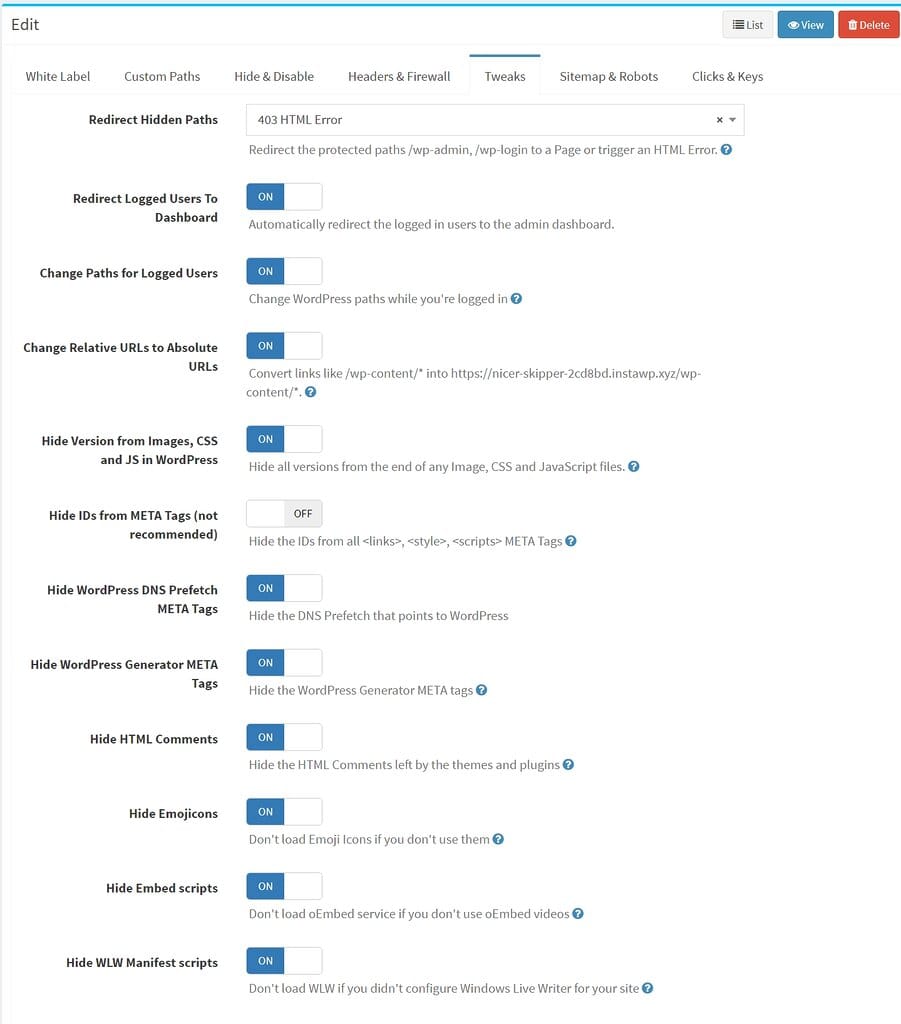
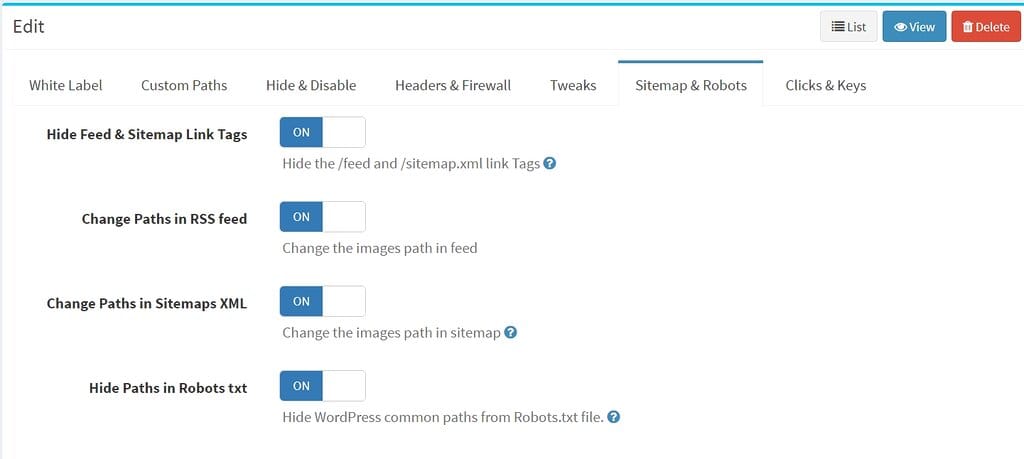
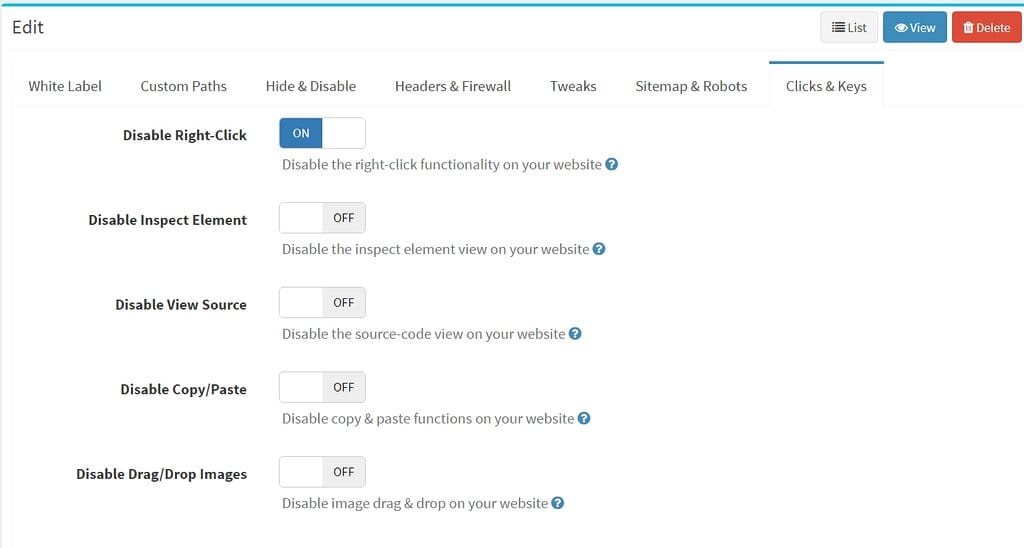
Setting up WP Ghost by hand on every client site takes time. The other tabs of the package (Change Paths, Path Security, Tweaks, Firewall, Login Page, Brute Force, Logs and the rest) pre-set WP Ghost’s settings, so a new client site starts from your configuration instead of the defaults.
Each on/off setting has a Plugin default option that leaves it to the plugin; pick Yes or No only for the settings you want fixed. The package applies its settings once, the first time WP Ghost’s admin pages open after activation. Changing the package later doesn’t change sites that already run it.
For a full reference of every feature and what it does, see the WP Ghost Tutorial.
How to install the white-labeled plugin on a client site
After you finish configuring the White Label options, download the customized plugin and install it on your client’s site.
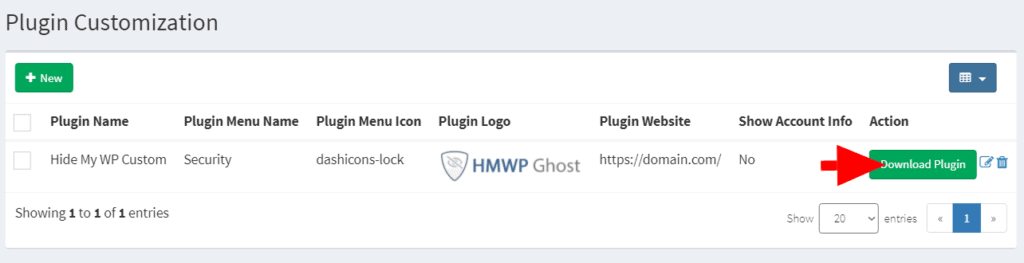
1. In Subscriptions > Customize plugin, open the package’s menu and select Download to get the zip file.
2. Log into your client’s WordPress dashboard as an administrator.
3. Go to Plugins > Add Plugin > Upload Plugin.
4. Upload the zip file you downloaded.
5. Click Activate. The plugin appears under your custom brand name with your logo and menu icon. White label packages activate themselves on each site; each site still counts toward your license’s number of websites.
6. If your package pre-sets security settings, they are applied the first time you open the plugin’s admin pages. Configure anything else through Your Custom Menu Name > Change Paths.
Managing client sites from the WP Ghost Dashboard
The WP Ghost Dashboard at account.hidemywpghost.com gives you a central place to manage all client installations.
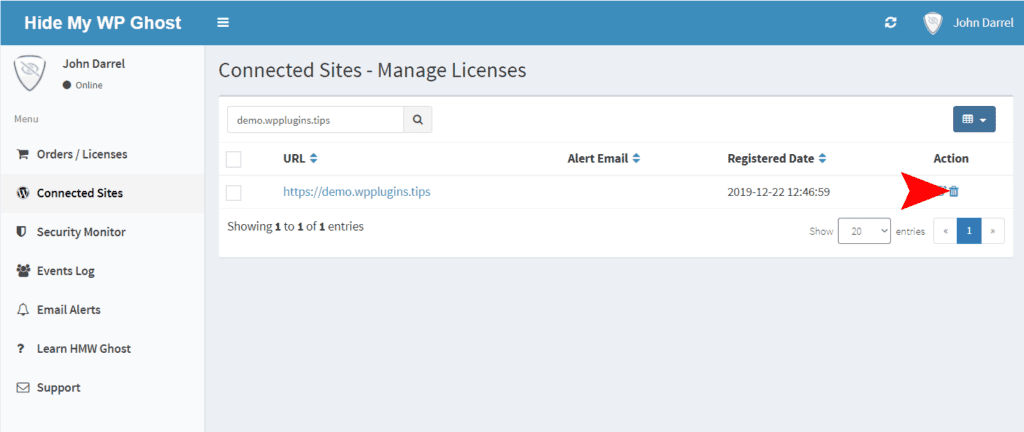
Go to Connected Sites to see every website running with your activation tokens: its address, the plugin version, when it last checked in, and whether it is connected or blocked.
If a client stops working with your agency, block their website in Connected Sites. Deleting a website only frees its place in your license allowance, and WP Ghost on that site then asks to be connected again. Blocking keeps it from connecting with your token.
Packages list
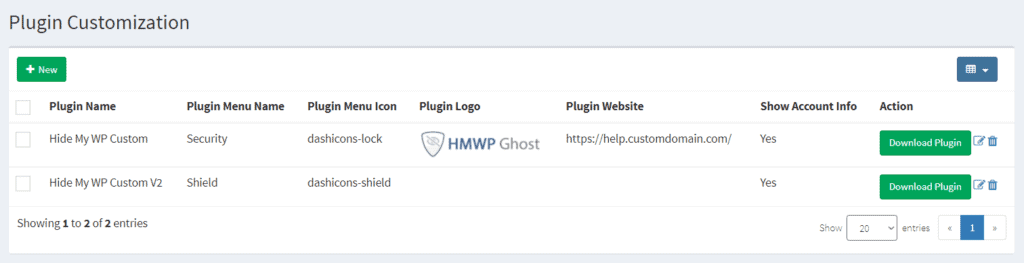
Subscriptions > Customize plugin lists every package you’ve created. Download any of them again from the package’s menu.
This is useful when you manage different branding for different client groups. Each download is the newest WP Ghost your license can install, with that package’s settings inside.
Frequently asked questions
What happens if a client deactivates the plugin?
Only that specific site is affected. The plugin reverts to the default WP Ghost branding on that site only. All your other installations remain white-labeled and continue receiving updates. No other client is impacted.
Can clients see that it is WP Ghost under the hood?
Not while the plugin is active and white-labeled. The plugin name, author link, menu name, menu icon, logo, and all help links are replaced with your branding. The plugin folder on the server is still named “hide-my-wp,” but clients who do not have FTP access will not see this.
Do white-labeled installations get automatic updates?
Yes. White-labeled installations get the same WP Ghost updates as the standard plugin. When a new version is released, clients see the update in their WordPress dashboard, and your white label branding stays.
Can I create different white label configurations for different clients?
Yes. Create a package per client or client group, each with its own branding, logo and preset settings. Every package appears in Subscriptions > Customize plugin, and you can download any of them at any time.
Do I need to create my own knowledge base website?
Only if you set a custom Plugin Website URL. If you leave the Plugin Website field empty, help links inside the plugin will point to the default WP Ghost knowledge base. If you enter your own domain, you will need to create corresponding pages at matching URL paths with your own original content.
Does WP Ghost modify WordPress core files?
No. WP Ghost uses server rewrite rules and WordPress hooks. No core files are moved, renamed, or modified. Deactivating the plugin restores all default paths instantly. The white label settings come built into the package you download.