
WP Ghost on InMotion Hosting – Cache Manager Force Passthru Configuration
June 9, 2018
This tutorial has moved to the new WP Ghost Knowledge Base where each feature is presented in detail.
WP Ghost (formerly Hide My WP Ghost) works on InMotion Hosting with one cache configuration step. InMotion uses an Nginx-based Cache Manager that caches static files (CSS, JS, images) and bypasses Apache rewrite rules. You need to set a Force Passthru Path in the Cache Manager so WP Ghost’s rewritten static file paths are not blocked by the cache layer.
Why InMotion Needs This Configuration
InMotion Hosting uses an Nginx reverse proxy in front of Apache. Nginx caches static files (CSS, JS, images, fonts) and serves them directly without passing requests through Apache. WP Ghost’s rewrite rules live in .htaccess (Apache), so when Nginx serves a cached static file, the rewrite rules are bypassed. The custom paths for CSS and JS files return 404 errors because Nginx does not know about them. The fix is to tell InMotion’s Cache Manager to pass static file requests through to Apache instead of serving them from cache.
How to Configure InMotion Cache Manager
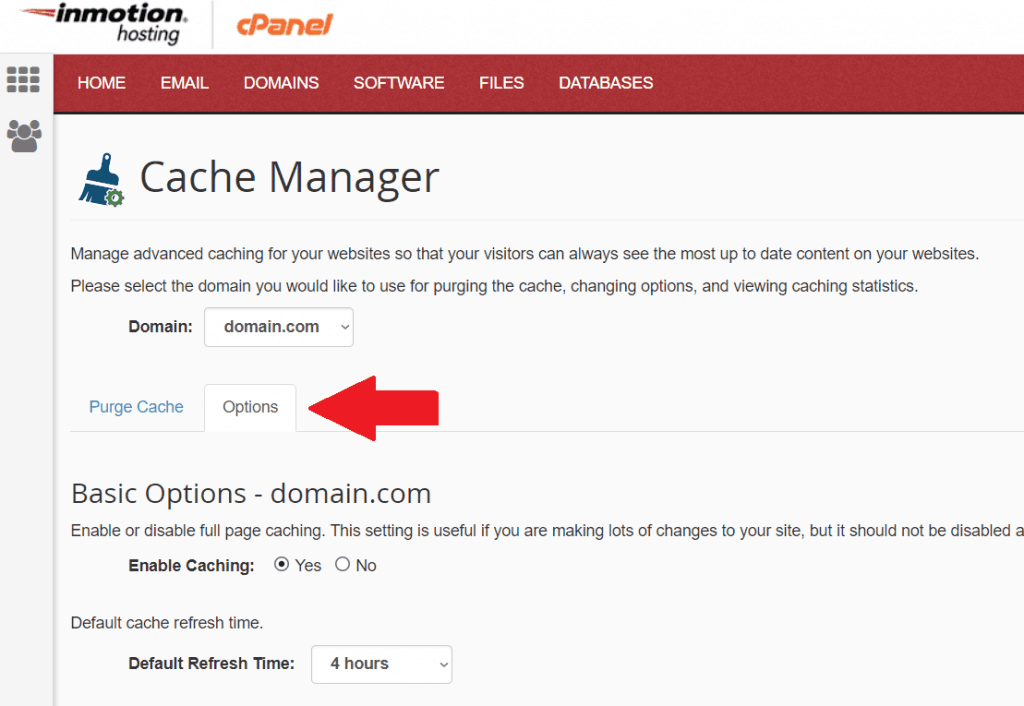
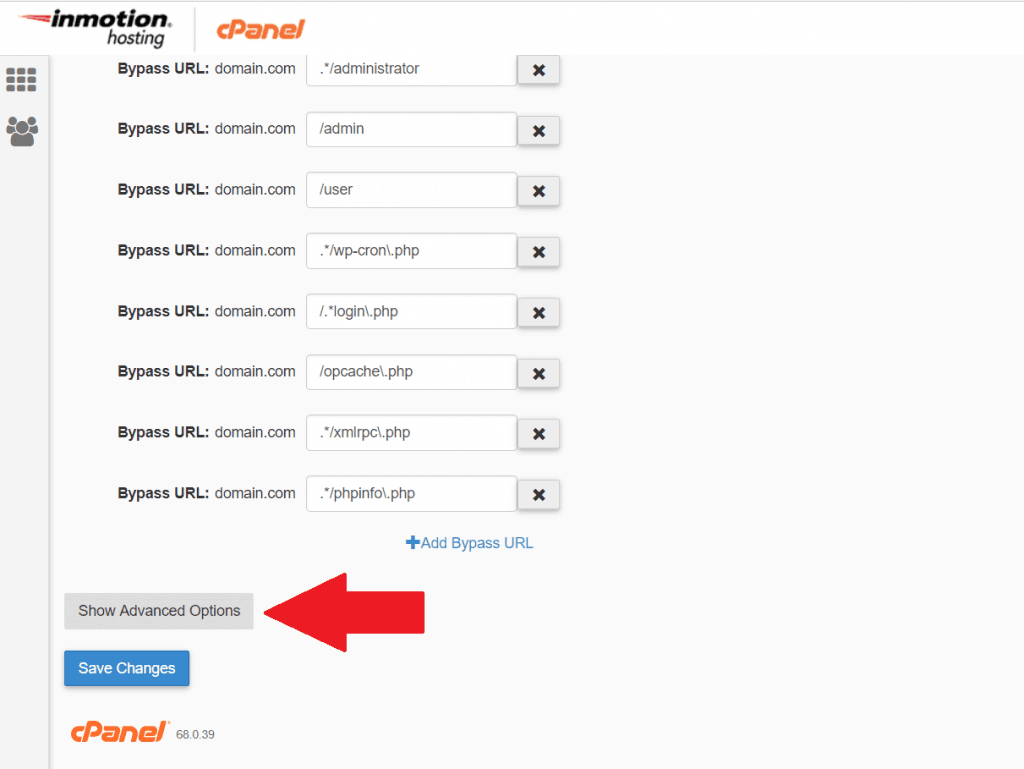
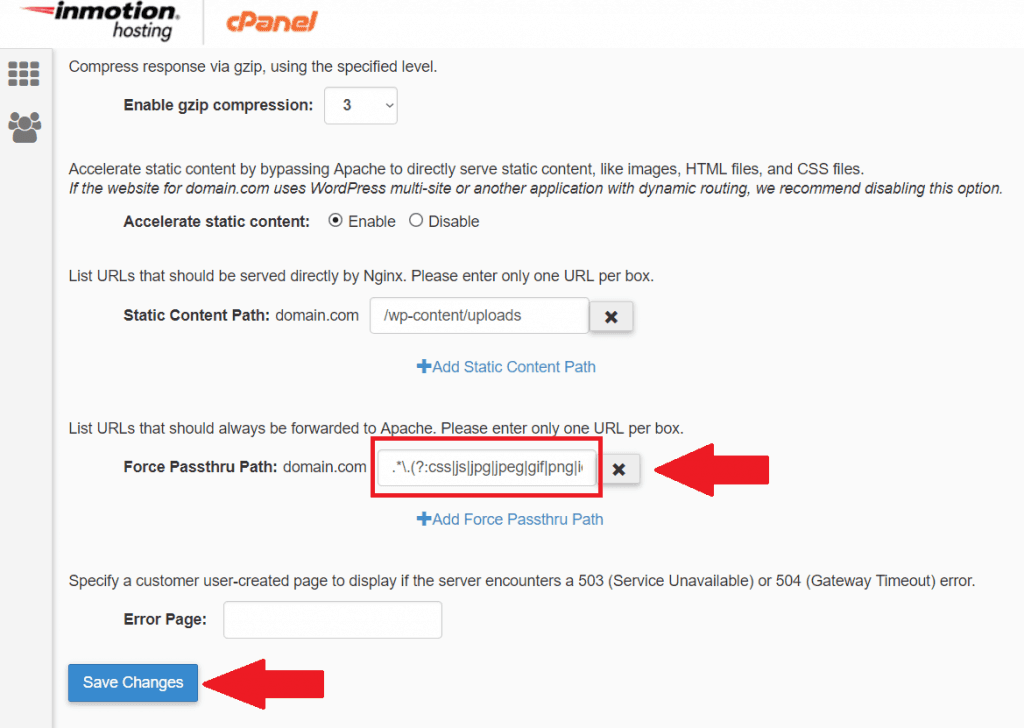
In InMotion’s cPanel, go to Cache Manager > Options. Click Show Advanced Options. Find the Force Passthru Path section. Enter the following regex pattern:
.*\.(?:css|js|jpg|jpeg|gif|png|ico|cur|gz|svg|svgz|mp4|ogg|ogv|webm|htc|woff|woff2|ttf|eot|otf|svg|mp3)$Click Save Changes, then click Purge All Cache.
After saving, activate WP Ghost in Safe Mode or Ghost Mode from WP Ghost > Change Paths > Level of Security and run the Frontend Test to confirm all paths are loading correctly.
Troubleshooting
CSS and JS files return 404 after activating WP Ghost. The Force Passthru Path was not saved correctly or the cache was not purged. Re-enter the regex pattern, save, and purge all cache. Verify in the Cache Manager that the pattern is displayed in the Force Passthru Path field.
Site loads but CSS is broken or unstyled. Clear your browser cache and test in a private window. InMotion’s Nginx cache may still be serving old files. Wait a few minutes or purge the cache again from Cache Manager.
Locked out after configuration. Use the Safe URL parameter or the Emergency Disable guide.
Frequently Asked Questions
Is this a one-time setup?
Yes. Once the Force Passthru Path is configured, it persists across cache purges and server restarts. You do not need to repeat this step when changing WP Ghost settings.
Will the Force Passthru Path affect my site’s performance?
Static files will be served through Apache instead of Nginx’s cache layer, which may add a small amount of overhead. In practice, the difference is negligible for most sites. If performance is critical, consider using WP Ghost’s Change Paths in Cached Files feature as an alternative – it rewrites paths inside cached files so Nginx can continue serving them from cache.
Does this apply to other hosting providers with Nginx reverse proxy?
The concept is the same – any host using Nginx as a reverse proxy in front of Apache may need similar configuration. The specific steps differ by host. Check the Compatibility List for hosting-specific notes.
Does WP Ghost modify WordPress core files?
No. WP Ghost writes rewrite rules to .htaccess. No core files modified. Deactivating restores all defaults.
Related Tutorials
Nginx Server Setup – for hosts running full Nginx (not reverse proxy).
Hide Paths in CSS Files – Change Paths in Cached Files as an alternative to Force Passthru.
Compatibility Plugins List – hosting-specific notes and plugin compatibility.
Theme Not Loading Correctly – troubleshoot path issues across server types.
Customize All WordPress Paths – start configuring WP Ghost after server setup.