
How to Disable WP Ghost and Regain Access to WordPress in an Emergency
January 14, 2017
This tutorial has moved to the new WP Ghost Knowledge Base where each feature is presented in detail.
If you are locked out of your WordPress site or your theme is not loading after configuring WP Ghost, use the Safe URL to disable path security, add a constant to wp-config.php, or rename the plugin folder via sFTP to regain access immediately.
When You Need to Disable WP Ghost
WP Ghost changes your WordPress paths using server rewrite rules. In rare cases, a misconfiguration, server compatibility issue, or conflict with another plugin can cause your login page or frontend to stop loading correctly. If this happens, do not panic. There are multiple ways to disable WP Ghost and restore access to your site without losing any data.
Here are four methods, listed from easiest to most involved. Try them in order.
Method 1 – Use the Safe URL (Easiest)
WP Ghost generates a unique Safe URL when you first configure path security. This URL temporarily disables all path changes and lets you access the default /wp-login.php page to log in.
The Safe URL looks like this:
https://yourdomain.com/wp-login.php?your_safe_code
You can find your Safe URL in WP Ghost > Change Paths at the top of the settings page. If you wrote it down or saved it before the issue occurred, paste it into your browser. It will bypass all WP Ghost path security and load the standard WordPress login form.
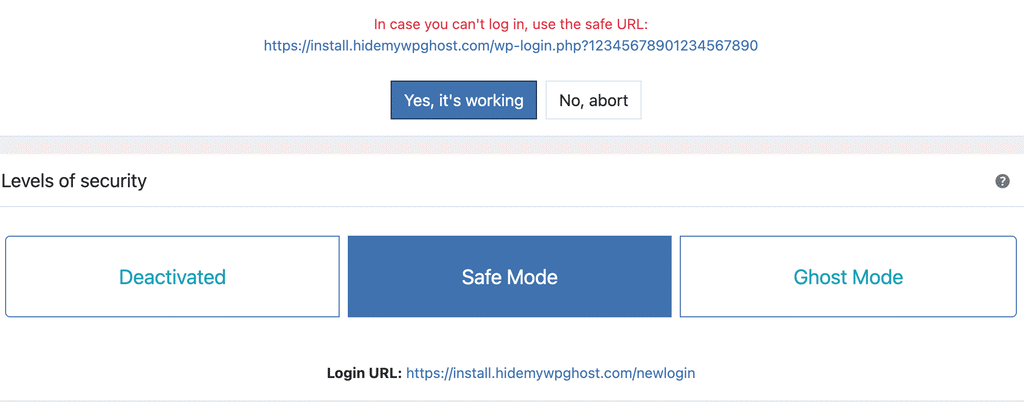
After logging in, go to WP Ghost > Change Paths and adjust your settings or switch to Safe Mode which is compatible with virtually all server configurations.
Important: Never share your Safe URL publicly. Anyone with this URL can bypass your path security and access the default login page.
Method 2 – Add HMWP_DISABLE to wp-config.php
If you do not have your Safe URL saved, you can completely disable WP Ghost by adding a constant to wp-config.php.
1. Connect to your server using sFTP or your hosting File Manager.
2. Open wp-config.php in your WordPress root directory.
3. Add this line anywhere before the “That’s all, stop editing!” comment:
define('HMWP_DISABLE', true);4. Save the file.
WP Ghost is now completely disabled. All paths revert to their WordPress defaults. You can log in at https://yourdomain.com/wp-login.php as normal.
After logging in and fixing the issue, remove the define('HMWP_DISABLE', true); line from wp-config.php and save again. Then go to WP Ghost > Change Paths and reconfigure your settings.
Method 3 – Rename the Plugin Folder
If both methods above are not an option, you can deactivate WP Ghost by renaming its plugin folder. WordPress can not load a plugin if the folder name does not match.
1. Connect to your server using sFTP or File Manager.
2. Navigate to /wp-content/plugins/.
3. Rename the folder hide-my-wp to hide-my-wp-disabled (or any other name).
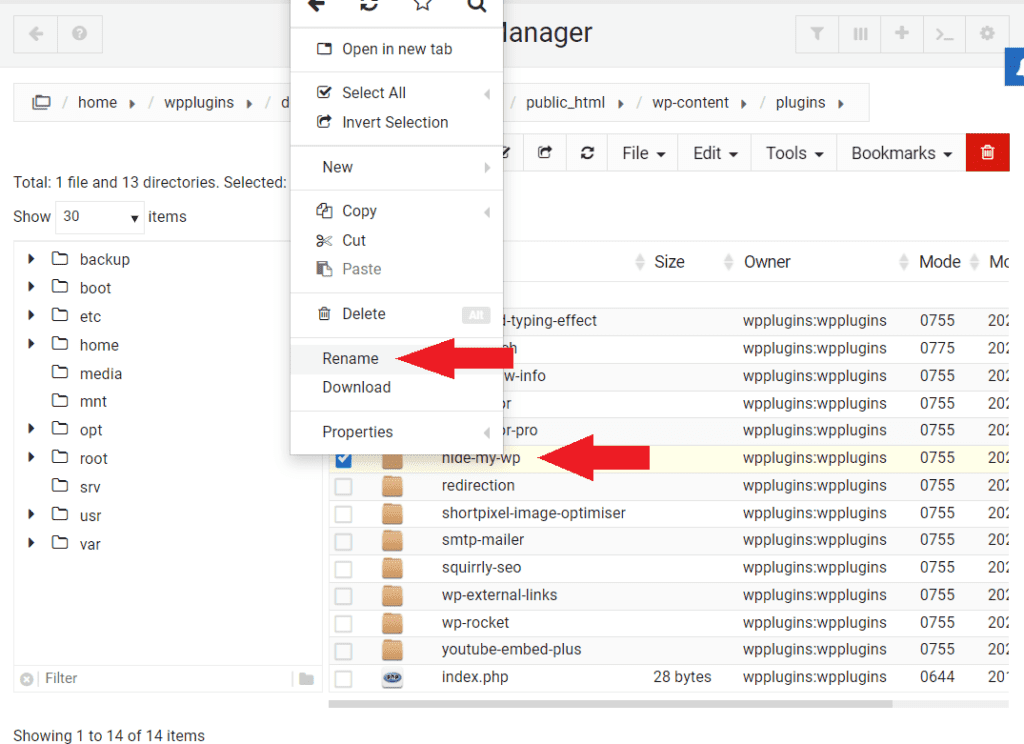
4. On Apache servers, you also need to delete or rename the .htaccess file in your WordPress root directory. This removes the rewrite rules that WP Ghost added. On Nginx servers, remove the WP Ghost rewrite rules from your Nginx config or delete the hidemywp.conf file.
5. You can now log in at https://yourdomain.com/wp-login.php.
6. After logging in, rename the plugin folder back to hide-my-wp to reactivate it.
7. On Apache servers, go to Settings > Permalinks and click Save Changes to regenerate the .htaccess file. Then go to WP Ghost > Change Paths and reconfigure your settings.
Method 4 – Use the 5-Minute Pause Feature
If you can still access your WordPress dashboard but your frontend is not loading correctly, WP Ghost includes a built-in pause feature.
1. Go to WP Ghost > Change Paths.
2. Click the Pause for 5 Minutes button.
3. All WP Ghost path changes are temporarily disabled for 5 minutes. Test your frontend during this window.
4. After 5 minutes, path security reactivates automatically. Use this time to identify which setting is causing the issue and adjust it.
After Regaining Access
Once you are back in your dashboard, take these steps to prevent the issue from recurring:
Switch to Safe Mode. If you were using Ghost Mode and experienced issues, Safe Mode is the most compatible option. It changes the most important paths while leaving wp-admin and admin-ajax.php at their defaults, which avoids most conflicts.
Save your Safe URL. Write it down or store it in a password manager. You will need it if you ever get locked out again.
Run a Frontend Test. After changing any settings, click the Frontend Login Test button in WP Ghost before logging out. This confirms your new login path works correctly.
Check the server type. If your paths are not changing or the site breaks after saving, make sure the correct server type (Apache, Nginx, LiteSpeed, IIS) is selected in WP Ghost > Change Paths > Rewrite Rules. For server-specific guides, see the Nginx setup, Flywheel setup, or WP Engine setup.
If you continue to experience issues, contact us with details about your server type, hosting provider, and the error you are seeing. We will help you resolve it.
Frequently Asked Questions
I forgot my Safe URL and can not access wp-config.php. What do I do?
Contact your hosting provider and ask them to either rename the hide-my-wp folder in /wp-content/plugins/ or add define('HMWP_DISABLE', true); to wp-config.php. Most hosting providers can do this quickly through their admin tools.
Will disabling WP Ghost delete my settings?
No. All WP Ghost settings are stored in the database. Using the Safe URL, the HMWP_DISABLE constant, or renaming the folder only stops the plugin from running. Your configuration is preserved and will be restored when you reactivate the plugin.
Why did my site break after enabling Ghost Mode?
Ghost Mode applies the maximum security configuration, which changes all paths including wp-admin and admin-ajax.php. Some plugins and themes that hardcode these paths may not work with Ghost Mode. Switch to Safe Mode, which leaves wp-admin and admin-ajax.php at their defaults. Safe Mode is compatible with virtually all plugins and themes.
I deleted .htaccess. Will my site still work?
Deleting .htaccess removes all rewrite rules, including WordPress permalinks. Your site will load but internal pages may show 404 errors. After logging in, go to Settings > Permalinks and click Save Changes to regenerate the .htaccess file with WordPress default rules. Then reconfigure WP Ghost.
Does WP Ghost modify WordPress core files?
No. WP Ghost uses server rewrite rules and WordPress hooks. No core files are moved, renamed, or modified. Deactivating the plugin restores all default paths instantly.