WP Ghost Preset Security Options – One-Click WordPress Security Configuration
This tutorial has moved to the new WP Ghost Knowledge Base where each feature is presented in detail.
Load a tested security configuration in one click with WP Ghost’s (formerly Hide My WP Ghost) security presets. Choose from four options ranging from minimal protection to full Ghost Mode with firewall, brute force, 2FA, and logging. Free feature.
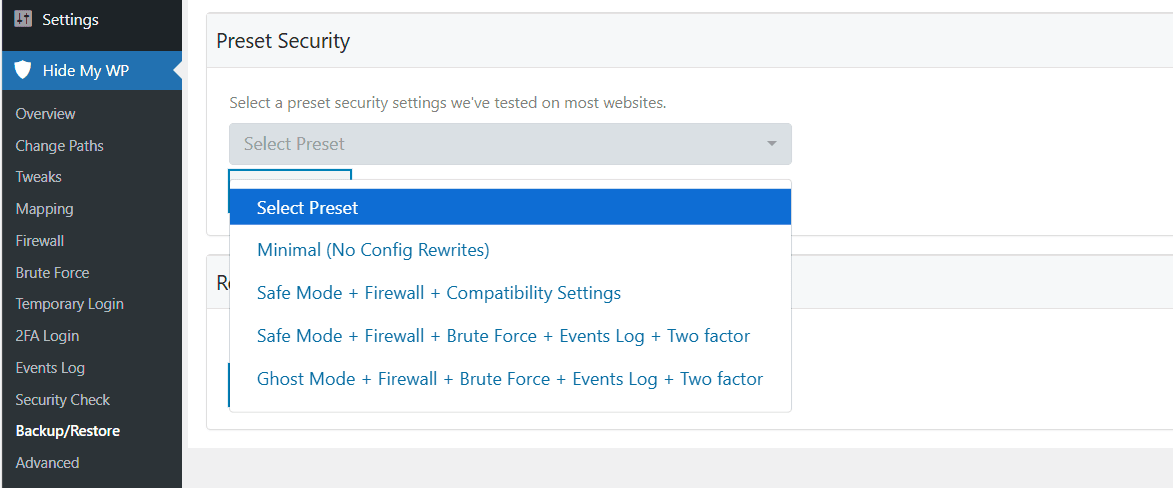
Configuring security from scratch means navigating through multiple settings pages and toggling dozens of options. WP Ghost’s security presets eliminate this by offering four pre-configured bundles that you can load with a single click. Each preset activates a specific combination of path security level, firewall rules, brute force protection, logging, and two-factor authentication. Load a preset, customize your login path, and your site’s hack prevention is configured in under a minute.
Every preset has been tested across different server environments and plugin combinations. They are a starting point, not a final destination. After loading one, you can fine-tune individual settings for your specific site.
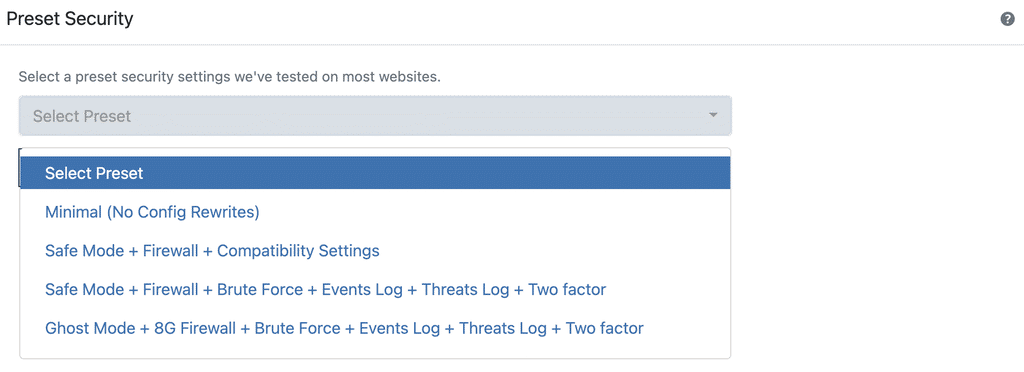
The Four Preset Options
| Preset | Path security | Firewall | Brute Force | 2FA | Logging |
|---|---|---|---|---|---|
| Minimal (No Config Rewrites) | Custom login only | No | No | No | No |
| Safe Mode + Firewall + Compatibility | Safe Mode paths | Medium | No | No | No |
| Safe Mode + Full Protection | Safe Mode paths | 8G | Math reCAPTCHA | Yes | Yes |
| Ghost Mode + Full Protection | Ghost Mode paths | 8G | Math reCAPTCHA | Yes | Yes |
Minimal (No Config Rewrites)
Best for: Restrictive hosting environments that do not allow .htaccess or Nginx config modifications.
This preset applies basic security measures without writing any server configuration files. It changes the wp-login.php path to a custom URL but does not modify .htaccess or server config. Use this when your hosting prevents config file changes, or when you want the lightest possible WP Ghost setup.
What it enables: custom login path and basic security hardening. No firewall, no brute force, no logging.
Safe Mode + Firewall + Compatibility
Best for: Sites running WooCommerce, Elementor, caching plugins, or other popular plugins where compatibility matters.
This preset activates Safe Mode path changes with medium-level firewall protection and includes compatibility settings tested with popular plugins. It is the recommended starting point for most sites because it provides meaningful protection while minimizing the risk of plugin conflicts.
What it enables: Safe Mode custom paths, medium firewall protection, plugin compatibility settings.
Safe Mode + Full Protection
Best for: Sites that need comprehensive protection with Safe Mode’s balanced path changes.
This preset enables Safe Mode paths plus every major protection feature: 8G Firewall, brute force protection with Math reCAPTCHA, User Events Log, Security Threats Log, and Two-Factor Authentication. It is the full security stack without Ghost Mode’s aggressive path obfuscation.
What it enables: Safe Mode custom paths, 8G Firewall, brute force with Math reCAPTCHA, Events Log, Threats Log, 2FA.
Ghost Mode + Full Protection
Best for: Maximum security when you want the most aggressive path changes and every protection feature active.
This preset enables Ghost Mode’s advanced path obfuscation (changes all WordPress paths including plugins, themes, wp-includes, and more) plus 8G Firewall, brute force with Math reCAPTCHA, Events Log, Threats Log, and 2FA. This is the highest level of protection WP Ghost offers as a one-click configuration.
What it enables: Ghost Mode custom paths, 8G Firewall, brute force with Math reCAPTCHA, Events Log, Threats Log, 2FA.
Note: Presets 3 and 4 enable the Events Log and Threats Log, which are Premium features. If you are using the free version, those features will not activate but all other preset settings will apply normally.
How to Load a Preset
Go to WP Ghost > Change Paths. Choose the preset you want from the four options. Click Load Preset and confirm the action. WP Ghost applies all preset settings and saves automatically.
After loading, verify your site is working by opening an incognito browser and navigating to your homepage and a few internal pages. If anything looks wrong, use the rollback settings to revert.
Customize Login Paths After Loading
Each preset sets a default login path: /newlogin for Safe Mode presets, /ghost-login for Ghost Mode. These are generic defaults that many WP Ghost users share. For better security, change the login path to something unique to your site.
Go to WP Ghost > Change Paths > Login Security. Enter your custom path in the Login Path field. Click Save and bookmark your new login URL immediately.
After changing the login path, the default /wp-login.php and /wp-admin are no longer accessible to visitors. If you forget your custom path, use the emergency disable guide for recovery.
Backup and Restore Settings
Before loading any preset, create a backup of your current configuration. Go to WP Ghost > Backup/Restore. Click Create Backup to save your current settings. To restore them later, select the backup file and click Restore.
Backups are stored locally. You can also download the backup file and store it externally for safekeeping.
Troubleshooting
Site Breaks After Loading a Preset
Some presets modify server configuration files (.htaccess on Apache, config files on Nginx). If your server does not support the required rules, pages may return 404 or 500 errors. Use the emergency disable guide, the rollback settings, or add a constant in wp-config.php to disable WP Ghost temporarily. Then try a lower-level preset (start with Minimal or Safe + Compatibility).
Cannot Find the Login Page After Loading a Preset
The preset changed your login path. Try /newlogin for Safe Mode presets and /ghost-login for Ghost Mode. If neither works, use the Safe URL parameter or the emergency disable guide to regain access.
Plugin Conflicts After Loading a Preset
The Compatibility preset covers the most common plugins, but edge cases exist. Check the Compatibility Plugins List for known issues. If a conflict persists, start with the Minimal preset and add features one by one to isolate the issue.
Frequently Asked Questions
Which preset should I choose?
Start with Safe Mode + Firewall + Compatibility for most sites. It provides meaningful protection with the lowest risk of plugin conflicts. If you need full protection (brute force, 2FA, logging), try Safe Mode + Full Protection. Only use Ghost Mode + Full Protection if you are comfortable with aggressive path changes and have verified compatibility with your plugins.
Can I customize settings after loading a preset?
Yes. Presets are a starting point. After loading, every setting is individually adjustable. You can change paths, switch reCAPTCHA types, add geo blocking, modify firewall rules, or toggle any feature on or off.
Will loading a preset delete my current settings?
Yes. Loading a preset overwrites all current WP Ghost settings. Always create a backup before loading a preset if you want to preserve your current configuration.
Does this work with WooCommerce?
Yes. The Safe Mode + Firewall + Compatibility preset specifically includes settings tested with WooCommerce. The other presets are also compatible but may need individual adjustments for checkout or cart pages.
Does WP Ghost modify WordPress core files?
No. Presets configure WP Ghost settings stored in the WordPress options table. Some presets write server config rules (.htaccess) but no WordPress core files are modified.
Related Tutorials
Continue configuring after loading a preset:
Customize All WordPress Paths – fine-tune individual path settings after loading a preset.
Brute Force Attack Protection – switch from Math reCAPTCHA to Google V2, V3, or Enterprise.
Firewall and Geo Security – upgrade from medium to 8G Firewall, add country blocking.
Two-Factor Authentication – configure 2FA method (code, email, or passkey).
Advanced WP Security – rollback settings, server compatibility, and plugin loading.
Website Security Check – verify your configuration after loading a preset.
Safe Mode vs Ghost Mode – understand the difference between the two security levels.