
Does WP Ghost Make My Website Invisible on FTP?
This tutorial has moved to the new WP Ghost Knowledge Base where each feature is presented in detail.
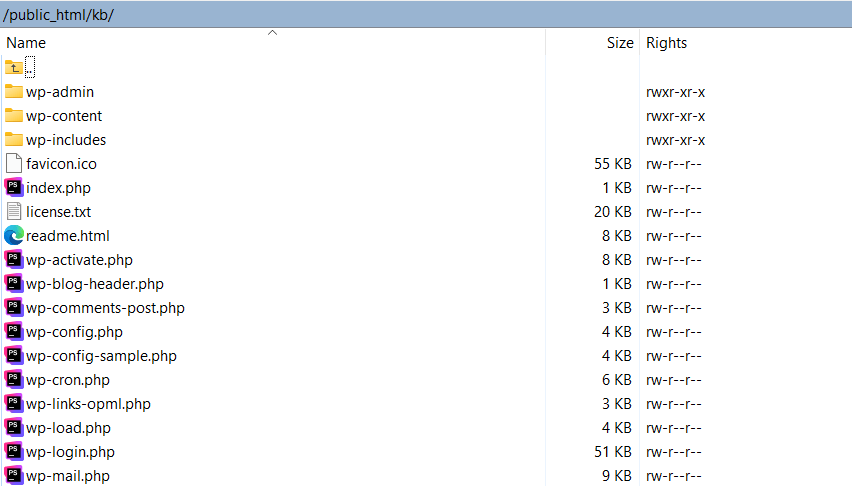
No. WP Ghost does not change, move, rename, or delete any file or folder on your server. Your WordPress directory structure looks exactly the same via FTP, File Manager, or SSH as it did before you installed WP Ghost. All path changes happen at the URL level through server rewrite rules, not at the filesystem level. Deactivating WP Ghost restores all default paths instantly with no cleanup needed.
What Does WP Ghost Actually Change?
WP Ghost creates a virtual layer between your website’s public-facing URLs and the actual files on the server. When you change /wp-content/ to a custom path like /assets/, WP Ghost writes a rewrite rule that tells the web server: “when someone requests /assets/style.css, serve it from /wp-content/style.css.” The file itself never moves. The folder name never changes. Only the URL that visitors (and bots) see in the browser and page source is different.
This applies to every path WP Ghost changes: wp-admin, wp-login.php, wp-content, wp-includes, plugins, themes, and uploads. The actual WordPress directory structure on your server remains completely standard.
Where Do the Rewrite Rules Live?
On Apache and LiteSpeed servers, WP Ghost writes rewrite rules to the .htaccess file in your WordPress root. On Nginx servers, WP Ghost generates a hidemywp.conf file that you include in your Nginx server block. On Windows IIS servers, rules go into web.config. These are configuration files the web server reads to route requests. They don’t affect the physical files.
If you need to see or manually edit these rules, you can view them through FTP. On Apache, open .htaccess and look for the section between # BEGIN HMWP_RULES and # END HMWP_RULES. Everything WP Ghost adds is contained within those markers.
What Happens When I Deactivate WP Ghost?
All custom paths revert to WordPress defaults instantly. The rewrite rules are removed from the configuration file. Your site goes back to using the standard /wp-admin/, /wp-login.php, /wp-content/ paths as if WP Ghost was never installed. No files to restore, no database changes to undo, no cleanup needed. This is one of the key benefits of using rewrite rules instead of physically moving files.
If you need to disable WP Ghost in an emergency (for example, if you can’t access the login page), you can rename the plugin folder via FTP from /wp-content/plugins/hide-my-wp/ to /wp-content/plugins/hide-my-wp-disabled/. WordPress deactivates any plugin whose folder name doesn’t match, and all paths revert to defaults immediately. For more recovery options, see the emergency disable guide.
Frequently Asked Questions
Can I still manage files normally via FTP after installing WP Ghost?
Yes. FTP connects directly to your server filesystem and doesn’t go through the web server’s rewrite rules. You’ll see the same wp-admin, wp-content, wp-includes, and all other folders exactly as WordPress created them. Upload, download, edit, and delete files as normal. WP Ghost has no effect on FTP access.
Will other plugins see the original paths or the custom paths?
Other plugins see the original paths. WordPress internally uses the standard filesystem structure. WP Ghost’s rewrite rules only affect HTTP requests (what browsers and bots see in the URL). Plugin updates, theme edits, media uploads, and all dashboard operations work through the original paths with no changes needed.
What if I migrate my site to a new host? Do I need to reconfigure WP Ghost?
WP Ghost’s settings are stored in the WordPress database, so they migrate with your site. After migration, you may need to verify that the rewrite rules were written correctly for the new server. Go to WP Ghost > Change Paths, click Save, and follow any server-specific instructions. On Nginx, you’ll need to add the include line and reload the service.
Does WP Ghost modify WordPress core files?
No. WP Ghost writes rewrite rules to server configuration files (.htaccess on Apache, hidemywp.conf for Nginx, web.config on IIS) and uses WordPress hooks for application-level changes. No core files, theme files, or plugin files are modified, moved, or renamed. Your WordPress installation is completely standard at the filesystem level.