
Does WP Ghost Make My Website Invisible on FTP?
This tutorial has moved to the new WP Ghost Knowledge Base where each feature is presented in detail.
No. WP Ghost does not change anything on FTP. Your WordPress directory structure remains completely unchanged when you connect via FTP, SFTP, or your hosting’s File Manager. All folders (wp-admin, wp-content, wp-includes, plugins, themes) stay in their original locations with their original names. WP Ghost only changes how paths appear in HTTP requests, not how files are stored on the server.
How WP Ghost Changes Paths Without Moving Files
WP Ghost adds a virtual rewriting layer between your server and the browser. When a visitor requests a page, WP Ghost intercepts the HTTP response and replaces the default WordPress paths with your custom paths in the HTML output. On the server side, nothing moves. On the browser side, the custom paths appear. Server rewrite rules (in .htaccess on Apache or config files on Nginx) handle the reverse: when a browser requests a file at the custom URL, the server knows to serve it from the original location.
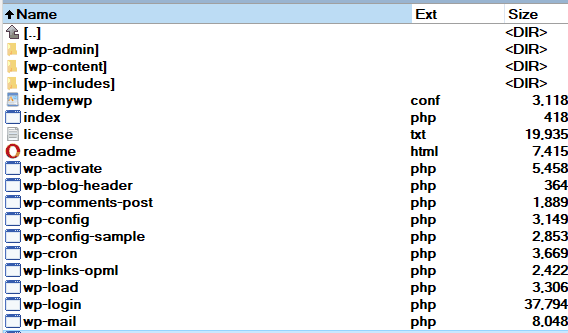
This means your FTP view always shows the standard WordPress structure: /wp-admin/, /wp-content/plugins/, /wp-content/themes/, /wp-content/uploads/, and /wp-includes/. You can upload, download, edit, and delete files through FTP exactly as you would without WP Ghost installed. Backup plugins, migration tools, and hosting file managers all work normally because the actual file system is untouched.
What Happens If You Deactivate WP Ghost
Because WP Ghost never renames or moves any files, deactivating the plugin simply removes the rewriting layer. The custom paths stop working, the original WordPress paths become visible again in the browser, and the rewrite rules are cleaned from the .htaccess file. Your site returns to its default state instantly. There is nothing to “undo” on the file system because nothing was changed there in the first place.
Why This Matters for Security
Bots attack through HTTP requests, not through FTP. They scan for /wp-login.php, /wp-admin, and /wp-content/plugins/ by sending web requests. WP Ghost makes these paths return 404 errors or redirect to custom URLs at the HTTP level, which is where the attacks happen. The actual file locations on the server are irrelevant to bots because they cannot access your FTP. This is why virtual path changes are just as effective as physically moving files, without any of the risks or complexity that file-level changes would introduce.
Frequently Asked Questions
Can I still use FTP to edit theme files with WP Ghost active?
Yes. Your theme files are in the same location as always: /wp-content/themes/your-theme/. WP Ghost only changes how the browser sees the path. FTP access is completely unaffected.
Will backup and migration plugins still work?
Yes. Backup plugins like UpdraftPlus, Duplicator, and All-in-One WP Migration access files through the file system, not through HTTP URLs. Since WP Ghost does not change the file system, these plugins work normally. After restoring a backup on a new server, you may need to reconfigure WP Ghost’s settings or restore from a WP Ghost backup file.
If a hacker gets FTP access, will WP Ghost protect me?
No. WP Ghost protects against HTTP-level attacks (bot scanning, injection, brute force). If someone gains direct FTP or SSH access to your server, they bypass WP Ghost entirely because they are accessing files directly. Protecting FTP access is your hosting provider’s responsibility: use strong passwords, SSH keys, and restrict FTP to trusted IPs. WP Ghost is one layer in a defense-in-depth strategy, not a replacement for server-level access controls.
Does WP Ghost modify WordPress core files?
No. WP Ghost uses server rewrite rules and WordPress output filters. No files or directories are renamed, moved, or modified. This is exactly why the FTP structure stays unchanged and why deactivation is always clean.