How to Change the Author Path, Hide Author ID, and Block User Enumeration in WordPress with WP Ghost
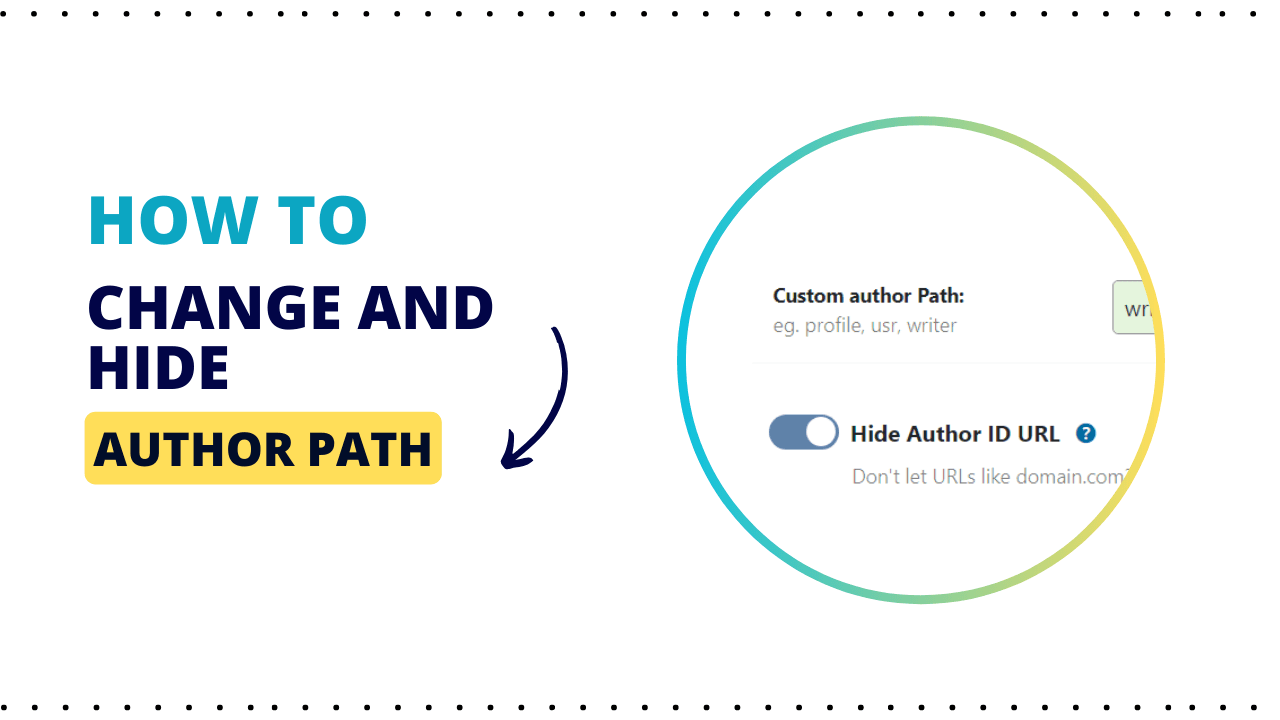
This tutorial has moved to the new WP Ghost Knowledge Base where each feature is presented in detail.
Block WordPress username discovery by changing the author path, hiding author IDs, and preventing user enumeration with WP Ghost (formerly Hide My WP Ghost). User enumeration is the reconnaissance step that comes before every brute force attack. If an attacker knows your username, they only need to guess the password. This tutorial shows three ways WP Ghost shuts down username discovery.
By default, WordPress reveals usernames through multiple channels: the /author/ URL slug exposes login names, the ?author=1 parameter redirects to author pages showing usernames, and the REST API endpoint /wp-json/wp/v2/users returns a JSON list of all authors. Bots chain these techniques together to build a complete username list before launching brute force attacks on your login page.
Why You Need to Secure Author Paths and IDs
| Default author setup (exposed) | With WP Ghost (secured) |
|---|---|
| /author/username/ reveals login names | Custom path with no username hint |
| ?author=1 redirects to reveal usernames | Author ID parameter blocked |
| REST API /wp/v2/users lists all authors | User enumeration blocked across all endpoints |
| Bots build username lists for brute force | No usernames discoverable, attacks fail |
How to Secure Author Paths with WP Ghost
Activate Safe Mode or Ghost Mode
Go to WP Ghost > Change Paths > Level of Security. Select Safe Mode or Ghost Mode and click Save.

Change the Author Path
This replaces the /author/ slug in author archive URLs with a custom name. Instead of yourdomain.com/author/john/, it becomes yourdomain.com/your-custom-slug/john/.
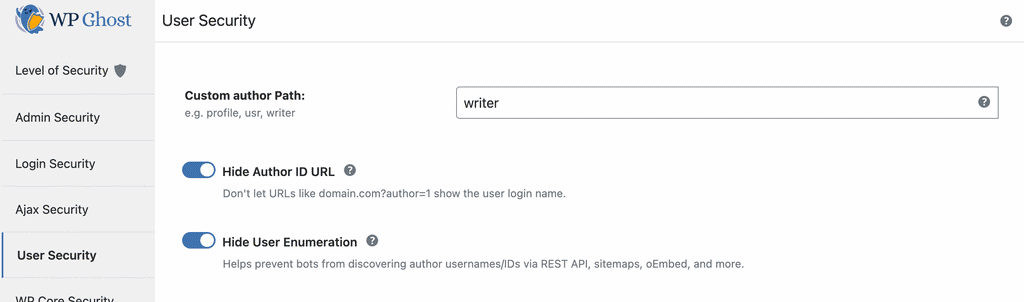
Go to WP Ghost > Change Paths > User Security. Find the Custom Author Path field. Enter a custom name. Click Save.
Some profile plugins (BuddyPress, Ultimate Member) use the /author/ path for custom profile pages. If they break after the change, revert the author path to default and keep the Hide Author ID URL and Hide User Enumeration options enabled instead. This still blocks the most critical enumeration methods without breaking profile functionality.
Hide Author ID URL
By default, visiting yourdomain.com/?author=1 redirects to yourdomain.com/author/username/, revealing the login name for that user ID. Bots iterate through ?author=1, ?author=2, ?author=3, etc. to discover every username on your site. This option blocks that redirect entirely.
In WP Ghost > Change Paths > User Security, switch on Hide Author ID URL. Click Save.

With this enabled, URLs like ?author=1 no longer redirect to the author page and no longer reveal the user’s login name.
Hide User Enumeration
The author ID parameter is just one enumeration method. WordPress also exposes usernames through the REST API (/wp-json/wp/v2/users), oEmbed responses, and XML sitemaps. The Hide User Enumeration option blocks all of these methods at once.
In WP Ghost > Change Paths > User Security, switch on Hide User Enumeration. Click Save.
With this enabled, the REST API users endpoint no longer returns author data to unauthenticated visitors. oEmbed discovery and sitemap author entries are also sanitized. Attackers cannot build a username list through any standard WordPress method.
Verify with a Security Check
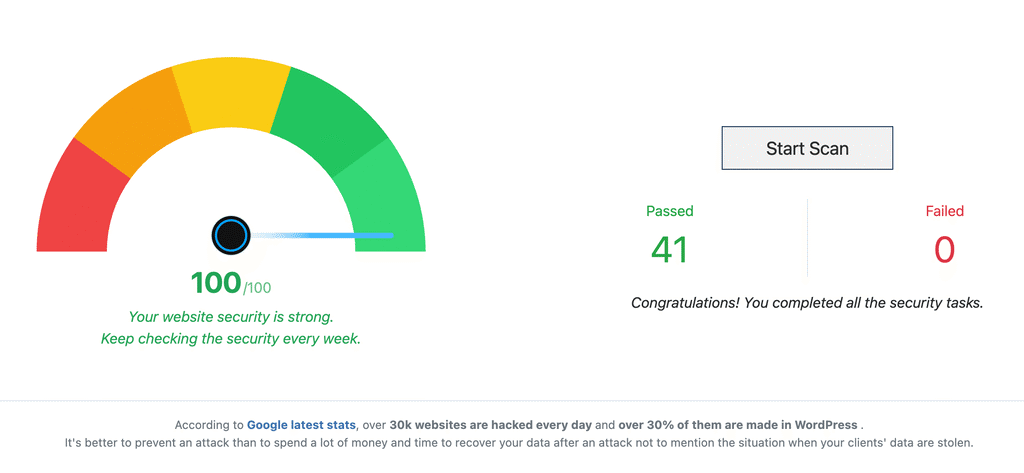
Go to WP Ghost > Security Check. Click Start Scan. The scan confirms the author path is changed and author IDs are hidden.
For a quick manual test, open a private browser window and visit yourdomain.com/?author=1. If it does not redirect to an author page showing a username, the protection is working.
Troubleshooting
If author pages stop working or profile plugins break after changing the path:
Refresh permalinks. Go to Settings > Permalinks and click Save Changes to flush rewrite rules. This resolves most broken link issues after author path changes.
Clear all caches. Clear your browser cache, WordPress caching plugin, and CDN. Cached pages may still contain old author URLs.
Revert to default and use other protections. If a profile plugin (BuddyPress, BuddyBoss, Ultimate Member) breaks, revert the Custom Author Path to blank. Keep Hide Author ID URL and Hide User Enumeration enabled. This blocks the critical enumeration methods without affecting profile pages.
Check the compatibility list. Visit the Compatibility Plugins List for known issues with specific plugins and themes.
Frequently Asked Questions
Do I need all three protections?
Yes. Each blocks a different enumeration method. Changing the author path removes the /author/ slug that bots look for. Hiding the author ID URL blocks the ?author=1 numeric lookup. Hiding user enumeration blocks the REST API, oEmbed, and sitemap methods. Attackers chain multiple techniques together, so blocking only one leaves the others open.
Will changing the author path hurt my SEO?
No. Author archive pages still exist and are indexable with the new slug. WordPress handles 301 redirects from old author URLs to new ones, so search engines follow the redirect and update their index. The change only affects URL structure, not content or discoverability.
Does hiding user enumeration also protect the REST API users endpoint?
Yes. By default, /wp-json/wp/v2/users returns a JSON list of all authors and their slugs. With Hide User Enumeration enabled, WP Ghost blocks access to this endpoint so automated scanners cannot harvest your user list. For additional REST API protection, see the Change REST API Path tutorial.
Does this affect WooCommerce customer accounts?
WooCommerce customers do not typically have public author pages since they are not authors. Changing the author path has no impact on WooCommerce. The Hide User Enumeration feature protects WooCommerce admin and shop manager accounts from being enumerated through the REST API.
What if a profile plugin breaks after changing the author path?
Revert the author path to default and keep Hide Author ID URL and Hide User Enumeration enabled instead. This blocks the most critical enumeration methods without breaking profile functionality. Check the Compatibility Plugins List for specific guidance.
Does WP Ghost modify WordPress core files?
No. Author path changes are handled through URL rewrite rules and the WordPress permalink system. Deactivating WP Ghost restores all defaults instantly.
Related Tutorials
Change and Hide the Login Path – hide the login form that enumerated usernames would target.
Change REST API Path – secure the /wp-json/wp/v2/users endpoint.
Brute Force Attack Protection – add reCAPTCHA and login attempt limits.
Customize All WordPress Paths – change every path in one guide.
Website Security Check – verify your configuration after making changes.