How to Change the Activation Path (wp-activate.php) in WordPress with WP Ghost
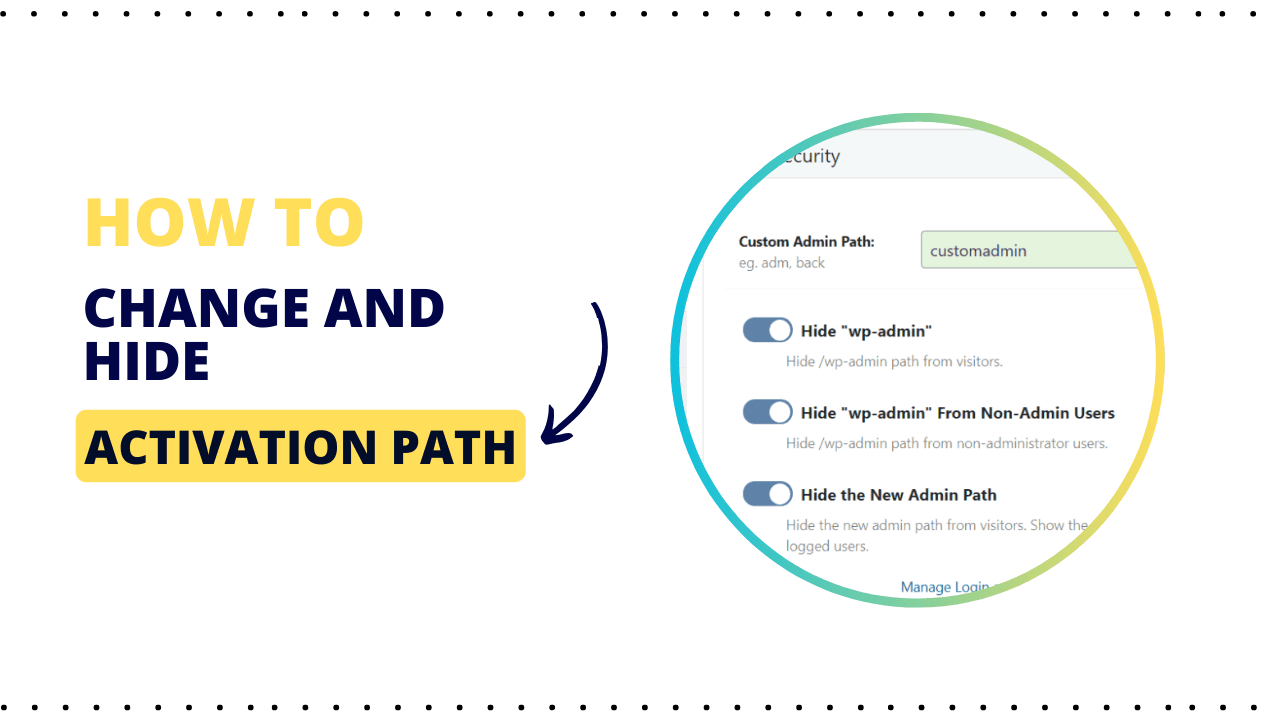
This tutorial has moved to the new WP Ghost Knowledge Base where each feature is presented in detail.
Change the WordPress activation path (wp-activate.php) with WP Ghost (formerly Hide My WP Ghost) to remove another predictable WordPress URL from your site. This file handles user account activation, especially on Multisite installations. Change it to a custom path as part of a complete path-hiding strategy.
The wp-activate.php file is another predictable WordPress path that bots can probe. After a user signs up, WordPress sends an email with an activation link pointing to this file. On Multisite networks, wp-activate.php activates new users for specific subsites. On single-site installations, the file still exists in the WordPress root directory and confirms WordPress to scanners. Changing it takes seconds with WP Ghost.
Why You Need to Secure the Activation Path
| Default wp-activate.php (exposed) | With WP Ghost (secured) |
|---|---|
| File exists at a predictable URL | Custom URL only you know |
| Confirms WordPress to scanners | CMS fingerprint removed |
| Bots can probe it for exploitation | Old path returns 404 |
| Multisite activation exposed | Subsite registration hidden |
How to Change the Activation Path with WP Ghost
Activate Safe Mode or Ghost Mode
Go to WP Ghost > Change Paths > Level of Security. Select Safe Mode or Ghost Mode and click Save.

Change the wp-activate.php Path
Go to WP Ghost > Change Paths > Login Security. Find the Custom Activation Path field. Enter a custom name. Click Save.

Verify with a Security Check
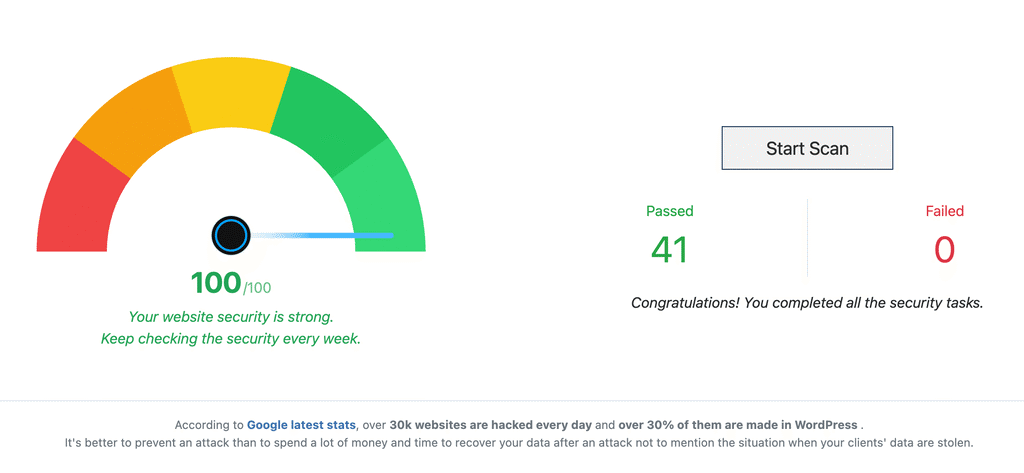
Go to WP Ghost > Security Check. Click Start Scan. The scan confirms the activation path is changed.
What Happens After You Change the Path
The activation process works exactly the same way. Users receive an email with an activation link, click it, and their account is activated. The only difference is the URL in that link now points to your custom path instead of the default wp-activate.php.
Existing activation links from emails sent before the path change will still work through internal redirects. New activation emails sent after the change use the updated custom path. On Multisite networks, the new path applies network-wide across all subsites.
Troubleshooting
If activation links stop working after changing the path:
Clear all caches. Clear your browser cache, WordPress caching plugin, and CDN. Cached activation pages may still reference the old path.
Refresh permalinks. Go to Settings > Permalinks and click Save Changes to flush rewrite rules.
Revert to default. If a membership plugin breaks, clear the Custom Activation Path field in WP Ghost > Change Paths > Login Security and save. This restores the default wp-activate.php path.
Check plugin compatibility. Some membership plugins hardcode wp-activate.php. Check the Compatibility Plugins List for known issues.
Frequently Asked Questions
Do I need to change the activation path if I am not using Multisite?
It is not strictly required on single-site installations since the activation process is mostly handled through wp-login.php. However, the wp-activate.php file still exists in your WordPress root and confirms WordPress to scanners. Changing it is a quick step that removes one more CMS fingerprint.
Will users still be able to activate their accounts?
Yes. The activation process works exactly the same way. Users receive an email, click the activation link, and their account is activated. Only the URL in the email changes.
What about users who already have pending activation links?
WP Ghost handles this gracefully. Existing activation links from emails sent before the path change will still work through internal redirects. New activation emails use the updated custom path.
Does this work across all subsites in a Multisite network?
Yes. When you change the activation path on a WordPress Multisite network, the new path applies network-wide. All subsites use the custom activation URL for new user registrations.
Does WP Ghost modify WordPress core files?
No. All path changes are handled through URL rewrite rules and WordPress filters. Deactivating WP Ghost restores the default wp-activate.php path instantly.
Related Tutorials
Change and Hide the Login Path – secure the main wp-login.php page.
Change the Register Path – prevent spam signups by hiding the registration form.
Change the Lost Password Path – hide the password recovery page from bots.
Customize All WordPress Paths – change every path in one guide.
Website Security Check – verify your configuration after making changes.