How to Change and Hide the WordPress Login Path with WP Ghost
This tutorial has moved to the new WP Ghost Knowledge Base where each feature is presented in detail.
Change and hide the WordPress login path with WP Ghost (formerly Hide My WP Ghost) to prevent brute force attacks. The default /wp-login.php is the first URL every bot targets. Change it to a custom URL only you know, hide the old paths completely, and block redirects from exposing your new login page.
WordPress does not limit login attempts by default. Bots exploit this by targeting wp-login.php, login.php, and /login with automated password-guessing attacks. According to the LLAR 2025 report, brute force attempts surged 130% in 2024 alone. Research shows that 8% of WordPress sites that get hacked are compromised through weak or stolen passwords, and most of those attacks begin by locating the default login page.
Changing the login path is one of the most effective things you can do. Once changed, bots trying the default login URLs get a 404 error and move on. Your site never enters the attack pipeline.
Why Changing the Login Path Matters
| Default login paths (exposed) | With WP Ghost (secured) |
|---|---|
| /wp-login.php, /login.php, /login all accessible | All default paths return 404 |
| Bots find login form instantly | Custom URL only you know |
| Redirects can expose the login page | Redirect blocking hides even the custom path |
| Language switcher reveals WordPress | Switcher removed from login page |
How to Change and Hide the Login Path
Activate Safe Mode or Ghost Mode
Before you can change individual paths, activate one of WP Ghost’s security levels. Go to WP Ghost > Change Paths > Level of Security. Select Safe Mode or Ghost Mode and click Save.
Safe Mode changes the login path along with other common WordPress paths. Ghost Mode adds wp-admin and admin-ajax.php path changes on top. Start with Safe Mode if you are unsure.

Change the wp-login Path
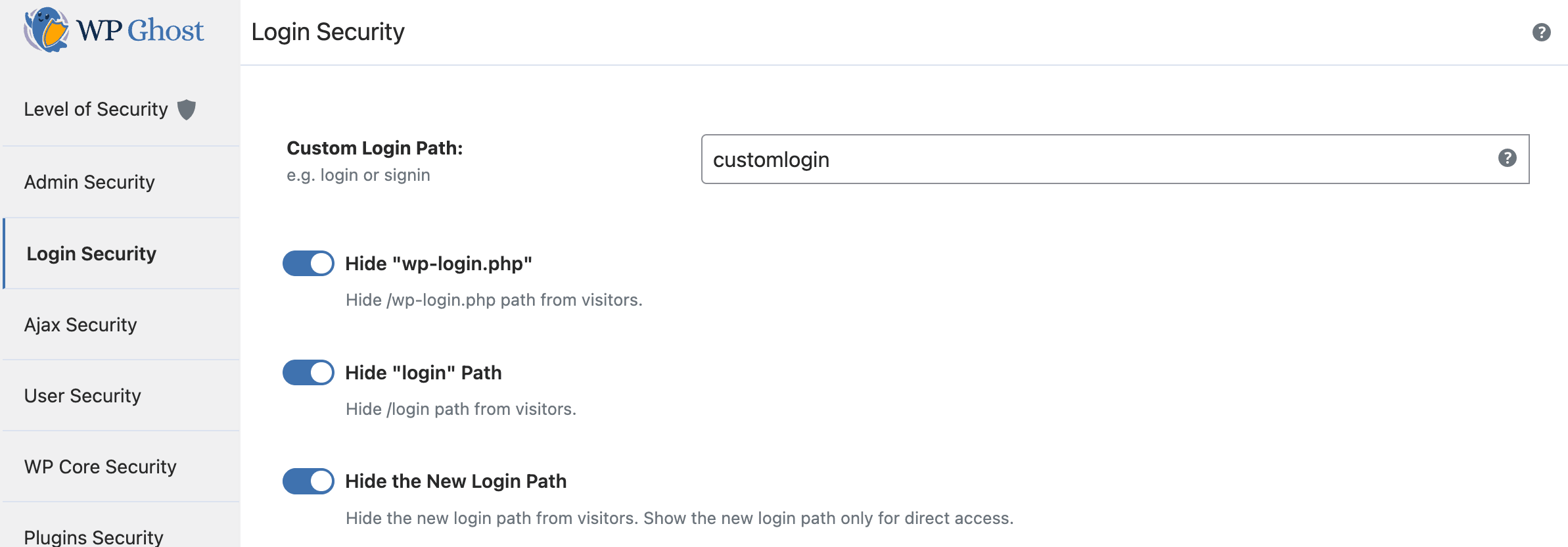
Go to WP Ghost > Change Paths > Login Security. Enter a custom name in the Custom Login Path field. Click Save.
Avoid using words like “admin”, “login”, “user-login”, or “dashboard” in your custom path. Bots try common variations by default. Choose something unique to your site.
Avoiding Path Conflicts
WP Ghost automatically checks if another plugin has already customized the login path and notifies you if it detects a conflict. If you installed WP Ghost first and later add another plugin that modifies the login path, conflicts may occur. Always check that only one plugin manages the wp-login path at a time.
Hide wp-login.php, login.php, and Login Paths
After customizing the login path, hide the default WordPress login URLs so they return a 404 error for anyone who is not logged in.
Go to WP Ghost > Change Paths > Login Security. Switch on Hide “wp-login.php” and Hide “login”. Click Save.

When these are enabled, bots trying /wp-login.php, /login.php, or /login get a 404 error. The login form is only accessible through your custom URL.
Hide the New Custom Login Path from Redirects
Even after you create a custom login URL, some WordPress redirects may still point to it. If a plugin or theme triggers a login redirect, it could expose your new path to bots.
The Hide the New Login Path option prevents this. When activated, only direct access to your custom login URL works. Any internal WordPress redirect that tries to send users to the login page gets blocked and treated as a hidden path.

Redirect When Accessing Hidden Paths
By default, hidden login paths return a 404 error. You can customize this to show a 403 Forbidden error or redirect to a custom page. Go to WP Ghost > Tweaks > Redirects > Redirect Hidden Paths and select your preferred action. See the Redirect Hidden Paths section for details.
Hide the Language Switcher
Since WordPress 5.9, a language switcher dropdown appears on the login page if your site has multiple languages. This element is another WordPress fingerprint that theme detectors can identify.

Go to WP Ghost > Change Paths > Login Security. Switch on Hide Language Switcher. Click Save.
Verify with a Security Check
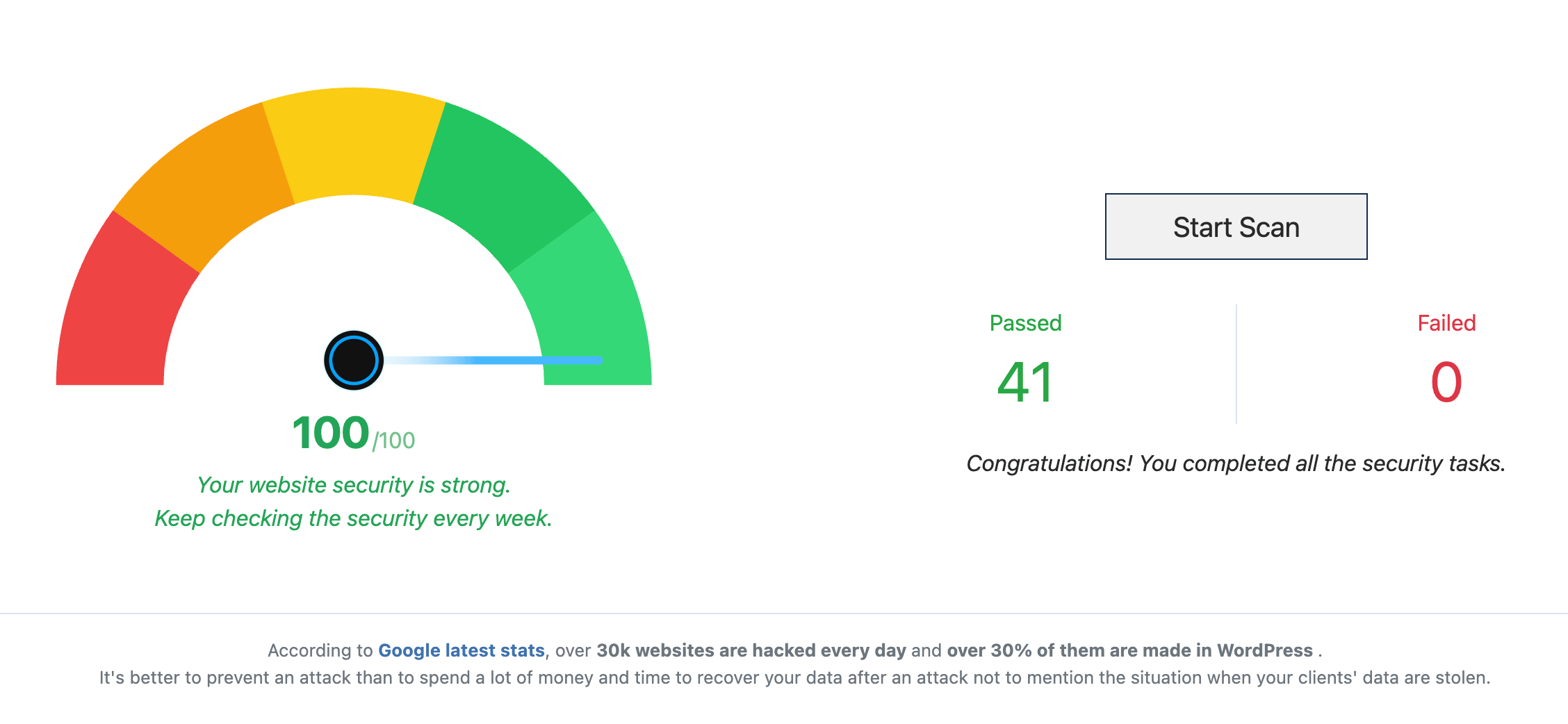
After making your changes, verify everything is working. Go to WP Ghost > Security Check. Click Start Scan. The scan confirms if the wp-login and custom login paths are properly hidden and flags any remaining issues.
Troubleshooting
Cannot Access the Login Page After Changing the Path
If you cannot reach the login page after changing the login path, try these steps in order:
Clear all caches. Clear your browser cache, WordPress caching plugin cache, CDN cache, and server-level cache. The path change significantly alters the site structure and cached pages may still reference old URLs.
Try a different browser. Open your custom login URL in an incognito window or different browser to rule out browser-specific caching.
Check the custom path. Make sure you entered the correct custom path. Try both yourdomain.com/yourcustompath and the default paths (/newlogin for Safe Mode, /ghost-login for Ghost Mode).
Use the Safe URL. If nothing works, use the Safe URL parameter to bypass WP Ghost temporarily. If that does not work, see the Emergency Disable guide.
Plugin or Theme Conflicts
Some plugins and themes modify the login path or add their own login forms. If you experience issues after changing the path, deactivate other plugins one by one to identify the conflict. Switch to a default WordPress theme temporarily to check if your theme is the cause. Check the Compatibility Plugins List for known issues.
Frequently Asked Questions
Does changing the login URL actually improve security?
Yes. The overwhelming majority of WordPress login attacks are automated bots that target /wp-login.php by default. When that URL returns a 404, bots move on. For complete protection, pair this with brute force protection and two-factor authentication.
What is the difference between hiding wp-login and hiding wp-admin?
wp-login.php is the login form. wp-admin is the dashboard you see after you log in. They are two separate entry points, and bots target both. For maximum protection, change and hide both. WP Ghost handles each independently. See the Change wp-admin Path tutorial.
What if I forget my custom login URL?
Use the Safe URL parameter to bypass WP Ghost temporarily and access the default login page. If that does not work, rename the plugin folder via FTP to disable WP Ghost. See the Emergency Disable guide.
Will registration and password reset still work?
Yes. The wp-login.php file handles registration, password recovery, and user activation in addition to login. When you change the login path, all of these functions continue working through the new URL. You can also customize the register path and lost password path individually.
Does this work with WooCommerce?
Yes. WP Ghost is fully compatible with WooCommerce. The WooCommerce “My Account” login form works independently from wp-login.php, so changing the WordPress login path does not affect WooCommerce customer logins.
Does WP Ghost modify WordPress core files?
No. All path changes use rewrite rules and WordPress filters. No files are moved, renamed, or modified. Deactivating WP Ghost restores all defaults instantly.
Related Tutorials
Change and Hide the wp-admin Path – secure the other most-attacked WordPress path.
Customize All WordPress Paths – change every WordPress path in one guide.
Brute Force Attack Protection – add reCAPTCHA and login attempt limits.
Two-Factor Authentication – add 2FA for the strongest login security.
Magic Link Login – passwordless login via email link.
Temporary Logins – time-limited access links without sharing passwords.
Redirect Hidden Paths – customize what happens when bots hit hidden login URLs.
Website Security Check – verify your configuration after making changes.